
DLDSR is one of the most powerful free image-quality features Nvidia has ever shipped, and most RTX owners have never switched it on. Short for Deep Learning Dynamic Super Resolution, it uses AI to render your game at a higher internal resolution and then downscale it to your monitor, producing a noticeably crisper, more detailed picture. This guide breaks down what it is, how the AI makes it far cheaper than old-school supersampling, the exact steps to enable it, and the settings that get you the cleanest result.
Understanding DLDSR and What Makes It Different
Supersampling — rendering above your native resolution and shrinking the result — has always been the brute-force route to a sharper image. The problem was cost: classic DSR at 4x your resolution could halve your frame rate. DLDSR rewrites that trade-off by adding an AI network that recovers most of the quality at roughly half the resolution scale, which is what makes it practical for everyday use. That shift from a niche enthusiast trick into a mainstream-friendly toggle is exactly why it now appears in so many recommended settings guides.
What DLDSR Actually Does
DLDSR makes your GPU render the game at a resolution higher than your screen, then intelligently compresses that image down to fit your panel. The extra pixels mean finer detail, cleaner edges, and reduced shimmer on thin objects like wires and foliage. On a typical RTX setup, even the 2.25x factor produces a clearly tighter, more detailed frame than native rendering alone.
The “deep learning” part is what separates it from the original DSR. A trained neural network handles the downscaling, so a 2.25x DLDSR factor looks about as sharp as a 4x traditional DSR factor while costing far less performance. In rough terms, you are getting close to four-times-resolution clarity for roughly the cost of a two-times-resolution render.
That efficiency is the entire point. It turns supersampling from a luxury you could only afford in old games into something usable in a wide range of modern titles, especially when paired with DLSS.
How the AI Downscaling Works
Traditional DSR simply averages neighboring pixels when shrinking the image, which is accurate but wasteful — you have to render a huge number of extra pixels to see a benefit. DLDSR’s network was trained to reconstruct a high-quality downscaled result from fewer source pixels, so it gets similar clarity at a lower multiplier.
In practice this means the 2.25x DLDSR setting is the sweet spot most people use. It delivers a clear visual upgrade with a performance cost that mid-range and high-end RTX cards can absorb, especially in older or less demanding titles. That efficiency is what moves DLDSR from an occasional novelty to a setting you can genuinely leave enabled across a large part of your library.
Because it operates at the driver level, DLDSR works in virtually any game without developer support, which is a big part of its appeal and a key advantage over in-game resolution scaling.
Why Gamers Use DLDSR Instead of Native
The headline reason is image clarity in games that already run fast. If a title sits comfortably above your monitor’s refresh rate at native resolution, those spare frames are doing nothing for you — DLDSR converts that headroom into a sharper picture. Instead of chasing a frame counter that already exceeds your panel, you redirect that spare power into visible image quality.
It also pairs beautifully with DLSS. You can use DLDSR to push the internal resolution up and DLSS to bring the cost back down, landing on an image that often looks better than native while running at a playable frame rate.
This combination is one of the best-kept secrets in the Nvidia ecosystem, and it is the reason enthusiasts reach for DLDSR long before they consider buying a higher-resolution monitor.
How to Enable DLDSR on Your Nvidia GPU
Turning on DLDSR is a two-part process: you enable the higher resolution factors in the driver, then select that new resolution inside Windows or your game. It only takes a couple of minutes, and you can switch back any time, so it is worth experimenting to find what looks best on your panel.
What You Will Need Before You Start
DLDSR is a software feature, so the requirements are light, but a few things determine how good the experience feels.
You need an Nvidia RTX GPU, since DLDSR relies on the Tensor cores those cards include; if you are still on an older GTX card and want access to this and the wider RTX feature set, a current-generation RTX upgrade is the single change that unlocks all of it. A monitor with some refresh-rate headroom also helps, because DLDSR spends the frames you are not using — a fast, sharp display is a worthwhile companion purchase. A higher-refresh panel also gives DLDSR more headroom to work with before the frame cost becomes noticeable in fast-paced scenes.
The last requirement is simply the latest Nvidia driver and the Nvidia App, both free, which expose the DLDSR factors in one convenient place.
Step-by-Step Setup
Use these steps to switch DLDSR on and start using it:
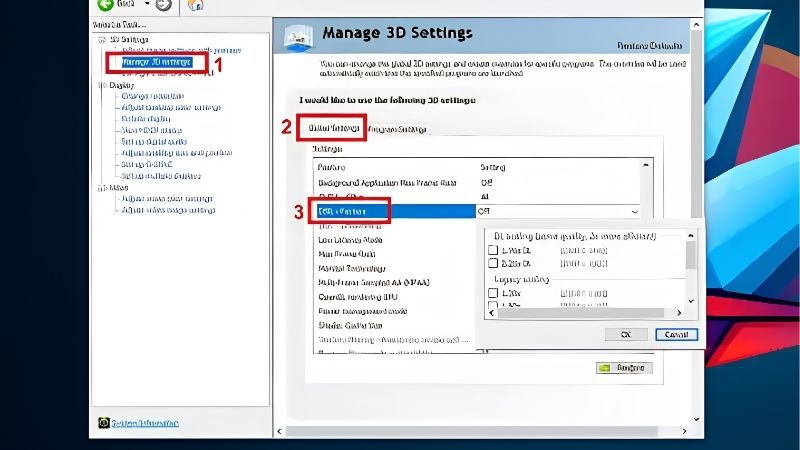
- Open the Nvidia App and go to Graphics > Global settings. This is where the DSR / DLDSR factors live.
- Find “DSR – Factors” and tick the DL options, especially 2.25x DL. The “DL” entries are the AI-powered DLDSR factors.
- Set the DSR smoothness to around 33% as a balanced starting point, then apply your changes.
- Select the new resolution in your game’s video settings (or Windows display settings) — you will now see a higher option than your panel’s native resolution.
Once selected, the game renders at that higher resolution and DLDSR downscales it to your screen automatically. If performance dips too far, drop to a lower factor or enable DLSS alongside it to recover the frames.
Best DLDSR Settings to Use
For most people, 2.25x DL with about 33% smoothness is the ideal default. It gives a clear sharpness boost without the heavy cost of higher factors, and it plays nicely with DLSS.
If you have a high-end card and you are playing a lightweight or older game, 4x DL pushes clarity even further. For demanding modern titles, keep the factor at 2.25x and lean on DLSS Quality to claw back the frames — that pairing is where DLDSR truly shines. Run the internal resolution up with DLDSR, then let DLSS Quality reclaim the frames, and the combined result frequently looks sharper than native at a playable frame rate.
Take a minute to test smoothness between 20% and 40% in your favorite game, because the perfect value depends on your specific panel, its size, and how close you sit to it.
Pros, Cons, and Expert Tips for DLDSR
DLDSR is genuinely impressive, but it is not a magic “free quality” button in every scenario. Knowing when to use it — and when not to — is the difference between a great upgrade and wasted frames, so here is the honest breakdown.
The Pros and Cons of DLDSR
The advantages are strong: a real, visible jump in sharpness, compatibility with nearly every game thanks to driver-level operation, and excellent synergy with DLSS. It is also completely free if you already own an RTX card, requiring no hardware spend at all.
The trade-offs are equally clear. It does cost performance, so it is best reserved for games you already run fast. Some titles and user interfaces do not scale perfectly to non-native resolutions, occasionally producing slightly small HUD text. And because it changes your display resolution, you may need to reselect it after major driver updates.
None of these drawbacks are dealbreakers for the right game, but they explain why DLDSR is a situational tool rather than something you leave on for everything.
Pro Tips and Mistakes to Avoid
The biggest mistake is enabling DLDSR in a game that is already struggling for frames. It is a quality feature, not a performance one — use it only when you have headroom to spare.
The second mistake is cranking smoothness too high, which can over-soften the image and undo the sharpness you are paying for. Keep it moderate and let the AI do its job.
A pro move is to combine DLDSR 2.25x with DLSS Quality. The higher internal resolution feeds DLSS more detail to work with, and DLSS brings the cost back down, frequently producing an image that beats native rendering outright.
See More:
Who Should Turn On DLDSR
DLDSR is ideal for RTX owners who play single-player, older, or well-optimized games and want to put spare performance to good use. Competitive players chasing maximum frame rates should leave it off, since clarity matters less than latency in that context.
If you love getting the most from your hardware and you are still on a GTX card, upgrading to a current RTX GPU unlocks DLDSR, DLSS, ray reconstruction, and more in one move. That single purchase changes how many of your settings behave, not just this one.
It is worth comparing today’s RTX cards and a fast monitor before your next build to make sure these features are on the table, because the hardware is what determines how far you can push image quality.
To sum up, DLDSR is Nvidia’s smartest way to turn unused frames into a sharper, more detailed image. Enable the 2.25x DL factor in the Nvidia App, pair it with DLSS where you need the performance back, and your games will look noticeably cleaner with almost no effort. If you want the hardware that makes the most of DLDSR, check the recommended RTX graphics cards and high-refresh monitors linked below.
Top-Rated Picks


| Product | Brand | Rating | Reviews | Price |
|---|---|---|---|---|
| ARCTIC MX-4 (4 g) – Premium Performance Thermal Paste… | ARCTIC | ★ 4.8 | 104k | $4.99 |
| ARCTIC MX-4 (incl. Spatula, 4 g) – Premium Performanc… | ARCTIC | ★ 4.8 | 71.9k | $5.49 |
| Crucial 8GB DDR4 RAM 3200MHz (PC4-25600), Downclockab… | Crucial | ★ 4.8 | 62.8k | $74.99 |
| AMD Ryzen 5 5600X 6-core, 12-thread unlocked desktop … | — | ★ 4.8 | 30.2k | $177.60 |
| NVIDIA Shield Remote; Voice Search, Motion-Activated,… | — | ★ 4.7 | 10.6k | $25.99 |
Frequently Asked Questions
How is DLDSR different from regular DSR?
Both render above your display resolution and downscale, but DLDSR uses a neural network for the downsampling filter. That lets 2.25x DLDSR match the image quality of 4x classic DSR while costing far less performance, because it is rendering roughly half as many pixels to achieve the same result.
What performance hit should I expect?
At 2.25x on a 1440p monitor you are rendering close to 4K, so expect a thirty to forty-five percent frame rate reduction depending on the title. The 1.78x factor is gentler. Pairing DLDSR with DLSS Quality is a popular combination that recovers most of the lost frames.
Which cards support DLDSR?
All GeForce RTX cards from the 20 series onward, since it runs on Tensor Cores. GTX cards can still use the older non-AI DSR, which works but needs the higher 4x factor and a manually tuned smoothness slider to look comparable.
How do I enable it and what smoothness should I set?
Turn on DSR factors in the Nvidia Control Panel 3D settings, tick the DL Scaling options, then pick the new higher resolution inside the game. Smoothness around twenty to thirty percent suits most people, though DLDSR is far less sensitive to this setting than classic DSR.
Does DLDSR work well with HDR and multiple monitors?
It works with HDR in most titles but occasionally causes flicker or colour shifts that require toggling HDR off and on. On multi-monitor setups Windows can rearrange your desktop layout when the resolution changes, so expect to reposition windows after exiting a game using a DLDSR resolution.











Write Your Review
No reviews yet. Be the first to share your experience!