
- Top Pick: Voice Replacement Remote Control for NVIDIA Shield TV and NVIDIA Shield TV Pro Streaming Media Player 2015/2017/2019 All Models
- Best Value: HSHONG Backlit Voice Remote Control Replacement for NVIDIA Shield TV and Shield TV Pro, Compatible with 2015 2017 2019 Models Streaming Media Player, Easy Pairing
- Premium Choice: Voice Replacement for Nvidia Shield TV Remote Control,with Backlit Buttons
Nvidia Control Panel not opening is a uniquely frustrating fault, because the panel is clearly installed yet it simply refuses to launch. You double-click the icon or pick it from the right-click menu, and nothing happens at all, or a blank window flashes and vanishes. Unlike a missing panel, this is almost always a services or configuration problem rather than a damaged install, and that makes it one of the cheapest faults to fix. This review-style guide gathers what users consistently report, ranks the fixes from fastest to most thorough, and flags the rare cases where hardware is the real cause so you never overspend on a fix you did not need.
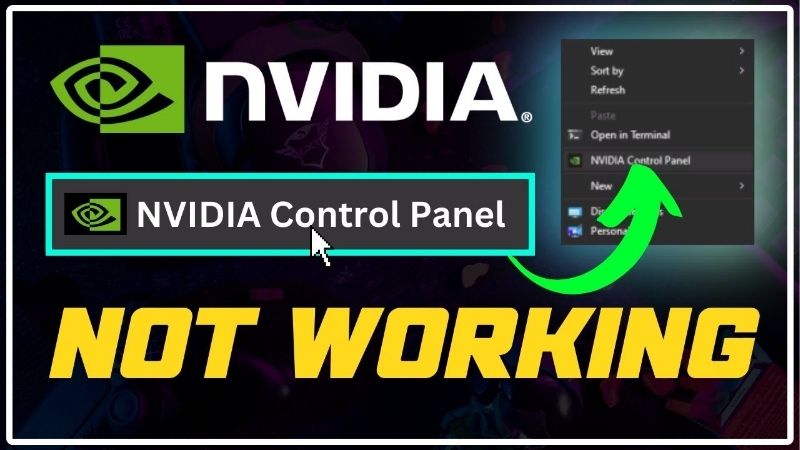
Why the Nvidia Control Panel Refuses to Open
When the panel is present but inert, the failure sits in one of three places: a stalled background service, a corrupted settings file, or another program blocking it. Identifying which one applies saves you from a needless reinstall and points straight to the matching fix that thousands of users have already proven works, often in less time than it takes to download a fresh driver.
As an Amazon Associate we earn from qualifying purchases at no extra cost to you.





A Stalled Display Container Service
The control panel relies on the NVIDIA Display Container background service to run. If that service has crashed, stalled, or been set to manual and never started, the panel has nothing to launch against and quietly does nothing when you click it.
This is comfortably the most common cause reported by users, and it explains why the panel often works one day and refuses the next after a reboot. The service failed to start, not the panel itself, so the application is perfectly healthy underneath.
Restarting the service, or setting it to start automatically, brings the panel back instantly in the large majority of these cases without touching a single driver file.
If the service refuses to start at all, that points to a deeper driver issue rather than a simple stall, and a reinstall becomes the logical next step. But for the common case of a service that merely failed to launch on boot, this is the lightest possible fix and the one experienced users reach for first.
Corrupted Settings and Profile Files
The panel stores your custom resolutions, colour tweaks, and game profiles in configuration files. If one of those files becomes corrupted, the panel can hang or crash during launch as it tries and fails to read its own saved state.
Users frequently describe a pattern where the panel worked fine until one bad shutdown or a power cut, after which it stopped opening entirely. That timing is the classic fingerprint of a corrupted profile rather than a broken install.
Clearing those configuration files forces the panel to rebuild them from scratch on the next launch, which resolves the hang while costing you only your custom settings.
Because the rebuild happens automatically, you do not need any technical knowledge to recover, and the panel returns to its default state ready to be reconfigured. Users who were nervous about deleting files consistently report that the process was painless and that the panel opened normally on the very next try.
Background Conflicts and Overlays
Third-party overlays, monitoring tools, and aggressive antivirus suites can all interfere with the panel as it tries to open. When two programs fight for the same display hooks, the control panel sometimes loses and silently fails to appear.
This cause is easy to miss because nothing looks obviously wrong. The panel is installed, the service is running, yet a single conflicting overlay in the background keeps blocking it every time.
Temporarily closing overlays and monitoring apps, then trying the panel again, is a quick way to confirm whether a conflict is the culprit before you change anything permanent.
Once you identify the offending program, you can either set it to launch after the panel or replace it with a lighter alternative. This avoids the heavier fixes entirely and explains why a surprising share of these cases are solved without any driver work at all.
Step-by-Step Fixes Users Rate Highest
With the cause narrowed down, the right fix is usually a two-minute job. Here are the methods buyers and builders rate most highly, ordered from the least disruptive to the most thorough, so you can stop the moment the panel springs back to life.
Restarting the NVIDIA Services
The highest-value first step is simply restarting the NVIDIA services. Opening the Windows Services manager, finding the NVIDIA Display Container, and restarting it revives a stalled panel in seconds for most people who hit this fault.
While you are there, setting that service and its companions to start automatically prevents the problem from returning after every reboot. Users repeatedly call this the single change that finally made the panel reliable again.
It is free, instant, and carries no risk to your driver or settings, which is exactly why it tops nearly every successful troubleshooting thread on the subject.
Clearing Corrupted Configuration Files
If a restart does not help, corrupted settings are the next suspect. Closing the panel completely and deleting its configuration files from the relevant ProgramData folder lets Windows rebuild them cleanly the next time you launch.
This sounds drastic but is genuinely low-risk, since the only thing you lose is your custom profiles, which are quick to recreate. Users facing a panel that hangs on launch frequently report this as the step that finally got it opening again.
Pair it with a service restart and you have covered the two most common software causes in under five minutes combined, which is why most successful reports never progress beyond these two steps.
Pros and Cons of a Clean Driver Reinstall
When services and configuration files both check out, a clean driver reinstall is the heavy-duty option. It is reliable, but the trade-offs are worth weighing before you wipe a working driver for a panel that will not open.
On the plus side, a clean install with a dedicated uninstaller removes every corrupted component and reliably restores a stubborn panel. Users with the most persistent cases describe it as the fix that worked when nothing lighter would, and it refreshes the whole driver stack in the process.
On the downside, it is the slowest route, it erases your saved settings, and it briefly leaves you on a basic display driver. Because a thirty-second service restart solves most cases, the full reinstall genuinely belongs last rather than first in your sequence.
Hardware Checks and Smart Accessories
A panel that will not open is almost always software, but a small number of cases trace back to an unstable card or an aging GPU. A couple of inexpensive accessories also make every future driver issue far less stressful to deal with when it inevitably arrives, so they are worth considering even while the current fix is still fresh.
When an Unstable GPU Blocks the Panel
If your GPU is overheating or failing, Windows can lose contact with it intermittently, and the control panel will refuse to open during those moments. A panel that opens sometimes but not others, especially under load, hints at instability rather than a software bug.
Users who monitored temperatures often found the panel failures lined up neatly with thermal spikes past 85 degrees Celsius. Improving airflow or repasting the card resolved both problems together in those reports.
When the card is genuinely unstable, no amount of service restarting will help, and the focus has to shift to cooling or replacement.
Tools That Keep Drivers Healthy
Keeping a clean driver package offline turns a future failure into a quick fix. A reliable USB flash drive, such as a well-rated high-speed model, lets you store the latest NVIDIA driver so you can reinstall even when the panel and the app both refuse to cooperate.
Builders who keep a dedicated driver drive describe it as a tiny purchase that has saved them real time, particularly after Windows updates that disturb the NVIDIA software stack.
It is cheap insurance, and the reviews on fast, durable drives consistently reflect how handy they prove in exactly these moments.
When Upgrading Ends the Problem for Good
If your card is several generations old and you are fighting the same software faults repeatedly, that pattern itself is a signal. A current-generation NVIDIA GPU ships with the streamlined NVIDIA app, cleaner service handling, and far fewer of the legacy quirks that plague older control panel versions.
Reviewers upgrading from older hardware frequently mention that nagging panel and driver issues simply stopped after the switch, on top of the obvious gains in performance and features.
If you were already considering an upgrade, this can be the practical push to compare current graphics cards and leave recurring panel failures behind for good, so it is worth checking today’s deals.
See More:
Final Take on a Control Panel That Won’t Open
Having the Nvidia Control Panel not opening looks far more serious than it really is. In the overwhelming majority of cases the panel is healthy and the failure lies in a stalled background service, a corrupted profile, or a conflicting overlay, and each of those has a free, fast fix waiting.
Restart the NVIDIA services first, clear the configuration files if needed, and reserve a clean reinstall for the stubborn minority. Only look to hardware if the card is old or unstable. The consistent lesson across user reports is that the people who recover fastest treat this as a services problem first and a driver problem only as a last resort. Handle it in that order and a nvidia control panel not opening becomes a quick, forgettable fix rather than a recurring frustration.
Top-Rated Picks


Prime
Editor's Pick
P3700 Replace Voice Remote Control fit for NVIDIA 2015 2017 2019 Edition | Shield TV, For NVIDIA Shield Android TV Pro, Voice Search, Motion-Activated, Customizable Menu Buttons

Limited Time
Replaced Voice G20S Remote Control 2.4G Wireless Air Mouse for Nvidia Shield Projector PC Android TV Box Smart TV

| Product | Brand | Rating | Reviews | Price |
|---|---|---|---|---|
| NVIDIA Shield Remote; Voice Search, Motion-Activated,… | — | ★ 4.7 | 10.6k | $25.99 |
| P3700 Replace Voice Remote Control fit for NVIDIA 201… | WINFLIKE | ★ 4.3 | 57 | $15.95 |
| Replaced Voice G20S Remote Control 2.4G Wireless Air … | WDZP | ★ 3.5 | 14 | $14.99 |
| New G20s Voice Remote 2.4G Wireless Air Mouse Replace… | professionalremoteseller | ★ 3.9 | 6 | $14.99 |
Frequently Asked Questions
What is the fastest fix when the Control Panel will not open?
Restart the Nvidia Display Container LS service. Press Win+R, type services.msc, find the service, set startup type to Automatic, and choose Restart. This resolves the majority of cases within seconds because the Control Panel is only a front end for that background container process.
Why did it disappear after a Windows update?
Windows Update sometimes installs its own trimmed Nvidia driver that omits the Control Panel package, or resets the Microsoft Store app association. Download the full driver from Nvidia’s site and choose Custom then Perform a clean installation, or reinstall the Nvidia Control Panel app from the Microsoft Store directly.
Can antivirus software block it?
Yes. Some security suites flag nvcplui.exe or block the container service from starting. Add exclusions for the Nvidia Corporation folders in Program Files and ProgramData, then restart. If the panel opens with the antivirus temporarily disabled, an exclusion rule is the permanent fix rather than removing the security software.
Does it matter which display output the GPU is using?
It does. If your monitor is plugged into the motherboard video output, the discrete GPU has no active display and the Control Panel shows limited or no options. Move the cable to the graphics card ports and, on desktops with a discrete card, disable the integrated GPU in BIOS if you do not need it.
Should I switch to the Nvidia app instead?
For most users yes. The Nvidia app includes all Control Panel settings in a modern interface and is actively maintained, so it sidesteps the legacy panel’s service and Store dependencies entirely. Uninstall GeForce Experience first, then install the Nvidia app together with the latest driver package.











Write Your Review
No reviews yet. Be the first to share your experience!