
- Top Pick: ARCTIC TP-3: Premium Performance Thermal Pad, 120 x 20 x 1.0 mm (4 Pack)
- Best Value: OwlTree 4 Pack Thermal Pad,100x100mm 0.5mm 1mm 1.5mm 2mm Highly Efficient Thermal Conductivity 6.0 W/mK,Heat Resistant Silicone Thermal Pads for Laptop Heatsink CPU GPU SSD IC LED Cooler
- Premium Choice: ARCTIC TP-3: Premium Performance Thermal Pad, 100 x 100 x 1.5 mm
How to replace GPU thermal pads is one of the most overlooked fixes for a graphics card that runs hot, throttles under load, or reports alarming memory junction temperatures. Stock pads dry out over three to five years, lose contact pressure, and that single failure point can add 15–25°C to your VRAM. The good news: this is a repair most owners can complete at home in under an hour with the right pads and a steady hand. This guide walks you through choosing the correct pad thickness, the tools you genuinely need, and a clean step-by-step process that keeps risk low. By the end, you will know exactly how to drop those temperatures and keep your card stable for years.
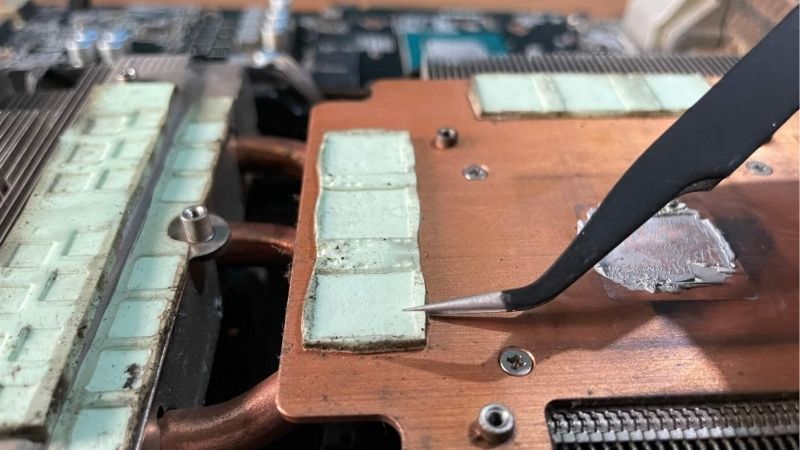
What You Will Need to Replace GPU Thermal Pads
Before you touch a single screw, gather your materials. A thermal pad swap fails most often not because the job is hard, but because the wrong pad thickness or a missing tool forces you to reassemble blind. The list below covers everything required to do the job once and do it correctly, with notes on what actually matters for performance versus what is just marketing.
As an Amazon Associate we earn from qualifying purchases at no extra cost to you.




Choosing the Right Thermal Pad Thickness
Thickness is the single most important spec, measured in millimeters. Most modern Nvidia cards use a mix of 1.0 mm, 1.5 mm, 2.0 mm, and occasionally 3.0 mm pads across VRAM, VRM, and backplate contact points. Using a pad that is too thin leaves an air gap and no cooling; one that is too thick can crack the die or prevent the cooler from seating. Measure your old pads with calipers before buying, or look up your exact model’s teardown.
Thermal conductivity matters too, rated in W/mK. Stock pads often sit around 3–5 W/mK. Aftermarket pads in the 12–15 W/mK range deliver a measurable drop in memory junction temperature, frequently 10–20°C on high-power cards. You should pick a reputable pad rated for the thickness your card needs, because a mismatched dimension cancels out any conductivity advantage.
If you are unsure, buy a multi-thickness kit. Spending a few extra dollars on a sheet you can cut to size is cheaper than ordering twice and waiting on shipping while your card sits open on the bench.
One detail catches many first-timers: the pad on the backplate side is sometimes a different thickness from the front. Do not assume every chip uses the same value. A model-specific teardown or a forum thread for your exact card will list each location, and that two-minute check saves you from reseating the cooler twice.
Tools and Cleaning Supplies
You will need a precision screwdriver set (mostly Phillips PH00 and PH0), 99% isopropyl alcohol, lint-free wipes, and an anti-static wrist strap. A plastic spudger helps separate the cooler without scratching the PCB. Keep a small magnetic tray nearby so screws of different lengths do not get mixed up.
Fresh thermal paste for the GPU die is non-negotiable on the same job, since you have to break that seal to reach the pads. A quality non-conductive compound protects you from accidental shorts. You should choose a paste with a long pump-out life so you are not back inside the card in six months.
Two small extras make the job smoother. A pair of nitrile gloves keeps skin oils off the contact surfaces, and a roll of painter’s tape lets you label screws by location as you remove them. Neither is expensive, and both reduce the chance of the small mistakes that turn a clean repair into a frustrating one.
Pros and Cons of Replacing Thermal Pads Yourself
The upside is concrete. A DIY pad replacement costs a fraction of a workshop fee, often delivers a 10–20°C drop on memory junction temperature, and restores fan headroom so the card runs quieter. You learn your hardware, and you control exactly which pads go where.
The downside is risk and warranty. Opening the cooler may void coverage on some cards, and a slipped screwdriver or a wrongly sized pad can cause real damage. There is also the time cost: measuring, cutting, and reseating carefully is fiddly the first time.
For most users out of warranty with a hot card, the math favors doing it yourself. If your GPU is still covered and stable, the cautious move is to wait. Weigh the temperature you are seeing today against the value of the warranty you would surrender.
Step-by-Step Guide to Replacing GPU Thermal Pads
Work on a clean, well-lit, static-safe surface and never rush a screw. The process below is numbered so you can follow it top to bottom, and so search engines can surface it as a quick reference. Take a photo at each disassembly stage; those pictures are the fastest way to reassemble correctly.
Step 1 to 3: Safe Disassembly
Step 1: Power down and remove the card. Shut off the PC, unplug it, and remove the GPU from the slot and case. Static damage is silent, so put on your wrist strap now.
Step 2: Photograph everything. Take clear photos of the front, back, and every cable or screw location. This is your map for reassembly and prevents the most common mistake of all: a stray screw left out.
Step 3: Remove the backplate and cooler screws. Work in a cross pattern, loosening evenly. Keep screws sorted by length, because mixing a long screw into a short hole can puncture the PCB.
Step 4 to 6: Removing Old Pads and Measuring
Step 4: Separate the cooler gently. The old paste acts like glue. Use the plastic spudger and light, even pressure. Never pry hard against the die.
Step 5: Note pad locations and thickness. Before peeling anything, record which thickness sat where. A simple sketch labeled with 1.5 mm, 2.0 mm, and so on saves you from guesswork later.
Step 6: Clean all surfaces. Remove old pads and paste, then wipe the die, VRAM, and cold plate with isopropyl alcohol and a lint-free wipe until spotless. Any residue reduces contact and undoes your work.
Step 7 to 9: Applying New Pads and Reassembly
Step 7: Cut and place new pads. Cut each pad slightly larger than the chip it covers, peel both protective films, and seat it flat with no folds. Match the original thickness exactly at each location.
Step 8: Apply fresh paste to the die. A small pea-sized dot or thin spread is enough; too much paste can ooze onto components. Reseat the cooler straight down, not at an angle.
Step 9: Reassemble and test. Tighten screws in a cross pattern, reinstall the card, and run a stress test while watching temperatures. A successful job shows a clear, stable drop in both core and memory junction temperature.
Pro Tips, Mistakes, and Buying Smart in 2026
A good pad swap is mostly about avoiding small errors and timing your purchase well. The advice below covers the mistakes that turn a 45-minute job into a frustrating afternoon, plus a clear-eyed look at component pricing so you spend at the right moment rather than panic-buying or waiting forever.
Pro Tips and Common Mistakes to Avoid
Do not stack thin pads to fake a thicker one; the layers trap air and conduct poorly. Always match the original thickness. Do not overtighten screws, which warps the cold plate and worsens contact at the center of the die.
The most common beginner mistake is forgetting fresh paste on the GPU die after focusing only on the pads. Skipping that step often raises core temperatures even as memory temps improve. Run a stress test before closing your case, so you can re-seat anything that looks off.
How Rising Component Prices Affect Your Upgrade
Pricing context matters when you are buying pads, paste, and tools. Across late 2025 and into 2026, laptop and PC component prices trended upward, and that pressure spread to small accessories and memory-adjacent parts. For a budget repair like this, the practical takeaway is simple: the cost of a pad and paste kit is more likely to creep up than fall in the short term.
There is a more encouraging signal too, though it is modest. The steep climb seen at the end of 2025 has eased, and manufacturers such as Framework reported a stretch of relative stability while still warning that volatility is not over. In plain terms, prices stopped spiking, but they have not meaningfully dropped.
For your decision, that means a maintenance purchase you actually need is reasonable to make now rather than gambling on a near-term price cut that the market is not signaling.
Should You Buy Now or Wait?
If your card is throttling or your memory junction temperature is uncomfortable today, the value of fixing it now outweighs waiting for a discount on a kit that costs relatively little. Heat is cumulative wear, so every hot session shortens component life.
The longer-term supply picture supports buying what you need rather than holding out. New capacity is opening up, including DDR5 from Chinese suppliers like CXMT and two new Micron plants under construction in Idaho. The catch is timing: those facilities are not expected to be running until 2027–2028, so genuine price relief is still years away.
The honest summary: prices have only flattened, not fallen, and real supply relief is distant. A small, needed maintenance kit is a sensible purchase today.
One practical tip on spending: buy a multi-thickness pad sheet and a slightly larger paste tube than you think you need. The marginal cost is small, it spares you a second order if you mismeasure, and it leaves enough material for the next refresh in a few years. Given that the cheapest accessories are the ones most exposed to small price creep, stocking the essentials once is the most economical approach.
Ready to bring those temperatures down for good? Pick up a quality multi-thickness pad kit and a long-life thermal compound, follow the steps above, and you can complete this upgrade in a single afternoon.
Quick Repad Checklist (glance while working)
- Anti-static strap on?
- Photos taken at each stage?
- Screws sorted by length?
- Pad thickness noted per location?
- Old paste and pads fully cleaned?
- New pads match original thickness exactly?
- Fresh paste on die (pea-sized dot)?
- Screws tightened in cross pattern?
- Stress test run before closing case?
See More:
- How to lower GPU temperature
- How to lower GPU hotspot temp
- How to increase GPU performance
- How to enable G-Sync
Conclusion
Learning how to replace GPU thermal pads gives you a genuine, lasting performance fix that most owners can handle at home. With the correct pad thickness, fresh paste, careful disassembly, and the numbered steps above, you can cut memory junction temperatures by 10–20°C, recover fan headroom, and extend the life of your card. Component prices have stabilized rather than dropped and real relief is years out, so a small maintenance kit is a smart buy today. Use the recommended pads and compound to keep those results locked in for the long run.
Top-Rated Picks
![A ADWITS [ 6-Pack ] Thermal Conductive Silicone Pads, Soft Safe Simple to Apply for SSD CPU GPU LED IC Chipset Cooling -Blue](https://m.media-amazon.com/images/I/31OzO1Rgp6L._SL400_.jpg)


| Product | Brand | Rating | Reviews | Price |
|---|---|---|---|---|
| ARCTIC MX-4 (4 g) – Premium Performance Thermal Paste… | ARCTIC | ★ 4.8 | 104k | $4.99 |
| ARCTIC MX-4 (incl. Spatula, 4 g) – Premium Performanc… | ARCTIC | ★ 4.8 | 71.9k | $5.49 |
| Crucial 8GB DDR4 RAM 3200MHz (PC4-25600), Downclockab… | Crucial | ★ 4.8 | 62.8k | $74.99 |
| AMD Ryzen 5 5600X 6-core, 12-thread unlocked desktop … | — | ★ 4.8 | 30.2k | $177.60 |
| NVIDIA Shield Remote; Voice Search, Motion-Activated,… | — | ★ 4.7 | 10.6k | $25.99 |
Frequently Asked Questions
How do I choose the right thermal pad thickness?
Measure the compressed original pads with calipers, or note the manufacturer’s factory thickness for that model, since it varies between VRM, memory and backplate positions. Too thin leaves an air gap, too thick lifts the cooler off the die and wrecks core temperatures. When unsure, match the original exactly.
What thermal conductivity rating do I need?
Something in the six to fifteen watts per metre-kelvin range is plenty for memory and VRM duty. Very high rated pads are often stiffer and can prevent proper cooler seating. Avoid electrically conductive liquid-metal style pads near memory modules and exposed circuitry entirely.
Will replacing pads void my warranty?
It depends on the vendor and region. Several manufacturers place a warranty seal over a cooler screw, and breaking it can void coverage, though consumer law in the EU and parts of the US limits how far that goes. Check your card’s policy before disassembly if it is still under warranty.
How much improvement should I expect on memory temperature?
Replacing degraded or badly sized factory pads typically drops GDDR6X junction temperature by ten to twenty degrees, which matters because those modules throttle near one hundred and ten degrees. If the original pads were adequately sized and fresh, expect only a few degrees of change.
Do I need to repaste the core at the same time?
Yes. Once the cooler is off, the core paste is disturbed and must be cleaned off with isopropyl alcohol and reapplied. Doing both together is the sensible approach since it is one disassembly, and retorquing the cooler screws evenly in a cross pattern is essential for good die contact.











Write Your Review
No reviews yet. Be the first to share your experience!