
- Top Pick: Nvidia Technology for Dummies: From Gaming Graphics to AI Supercomputers
- Best Value: GeForce NOW Cloud Gaming
- Premium Choice: App Killer
How to stop Nvidia App from optimizing games is a top concern for modern PC gamers who prefer complete manual control over their frame rates and visual fidelity. When automated utility suites alter your graphics settings without permission, custom display configurations and fine-tuned performance profiles can easily break.
Why Nvidia App Auto-Optimization Happens and How to Disable It Completely
The NVIDIA App and its predecessor, GeForce Experience, are designed to streamline the PC gaming experience for non-technical users. By analyzing your system’s CPU, GPU, and system RAM, the software references an internal database of target framerates and automatically applies graphical presets. However, for enthusiasts who prefer custom resolution scaling, customized ray tracing setups, or tailored competitive settings, this feature often causes undesirable framerate drops and unexpected display resets.
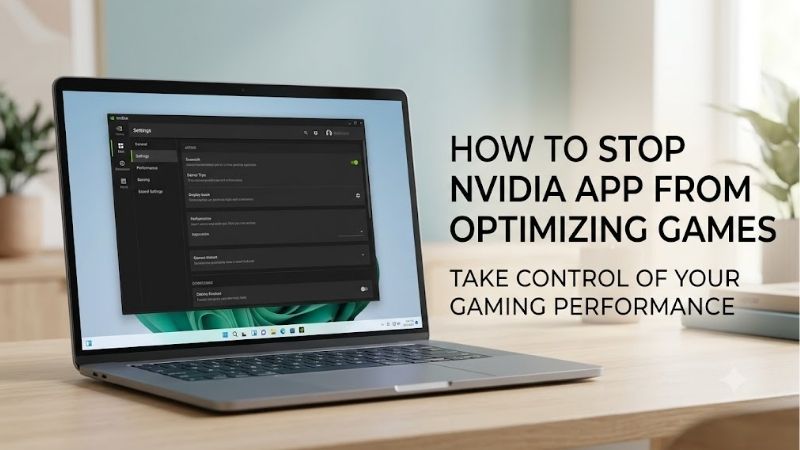
Step-by-Step Guide to Disabling Global Auto-Optimization in Nvidia App
Taking full control of your gaming experience requires toggling off global auto-optimization settings within the main software interface. Modern software revisions have simplified this process, allowing you to stop background profile modifications across your entire game library in just a few clicks.
Step 1: Open the NVIDIA App on your system. You can launch it directly from your desktop shortcut, the Windows Start Menu, or by right-clicking the NVIDIA icon located in your Windows system tray and selecting the app from the contextual menu.
Step 2: Navigate to the main menu settings by clicking on your profile or the gear icon situated at the bottom left corner of the interface. This will open your global application preferences, where background features and driver overlay settings are managed.
Step 3: Scroll down to the Gaming and Overlay section. Locate the setting labeled Automatically optimize newly added games and applications. Toggle this switch to the Off position. Once disabled, the application will no longer apply automatic graphical presets whenever a new title is installed on your storage drives.
Step 4: Check your background scan preferences. In the same settings menu, review your library locations and ensure that automatic background scans do not trigger forced profile synchronization. Disabling global automatic optimization preserves your custom config files, preventing unwanted overrides after driver updates.
Check the latest price on Amazon:
- RTX 4060 vs GTX 1660 Super
- 4060 Ti Vs 3050
- Nvidia 5070 Ti Vs 9070 Xt
- Zotac Gaming Geforce Rtx 5070 Ti 16gb Apocalypse Oc
How to Stop Automatic Optimization for Individual Games
In many cases, you might want the convenience of cloud profiles for casual titles while retaining strict manual control over competitive esports or graphically demanding AAA games. The NVIDIA App allows users to customize optimization behavior on a game-by-game basis without altering global application settings.
Step 1: Launch the NVIDIA App and click on the Graphics tab from the left sidebar navigation menu. This panel lists all detected games and applications currently installed on your PC storage drives.
Step 2: Select the specific game you wish to configure from the grid view or list view. Clicking on the title opens its detailed profile page, displaying current in-game resolution, display mode, ambient occlusion, and texture filtering settings alongside NVIDIA’s recommended presets.
Step 3: Look for the Custom Settings slider or the Optimization status button next to the game title. If the game currently shows an Optimized status, click the Revert button to restore the original in-game settings that were present before the software modified them.
Step 4: Ensure that you do not click the green Optimize button on this screen in the future. Leaving the profile in its unoptimized state tells the software to ignore in-game configuration files, ensuring your personal graphics menu remains untouched during future gameplay sessions.
What You Need: Essential GPU Hardware and Tools for Custom Tuning
Managing your graphics settings manually requires reliable hardware capable of delivering consistent frame rates across demanding modern titles. While automated software attempt to balance performance on older hardware, high-performance graphics cards provide the thermal and compute headroom necessary to run games at native resolutions with high texture quality.
Modern GPUs equipped with generous VRAM buffers ensure smooth frame delivery without relying on aggressive automatic quality reductions. If your current graphics card suffers from stuttering or low frame rates when running modern titles at native 1440p or 4K resolutions, upgrading to a capable modern GPU is often the most effective solution.
Check the latest price on Amazon
Pairing your graphics card with robust hardware monitoring software, such as MSI Afterburner or HWInfo64, allows you to track real-time frame time consistency, GPU temperature, and power consumption. These diagnostic tools give you the empirical data needed to fine-tune graphics menus manually, rendering automated software presets unnecessary.
Market Dynamics and GPU Supply Shifts Affecting Gamer Control in 2026
Understanding the behavior of graphics software and control panels requires examining the broader PC hardware landscape. Hardware capabilities directly dictate software optimization aggressive levels, and recent market developments have significantly altered how GPU manufacturers manage consumer hardware ecosystems.
Pros and Cons of Disabling Nvidia App Auto-Optimization
Disabling automatic optimization offers distinct advantages for experienced PC builders, but it also comes with minor trade-offs that every gamer should weigh carefully.
Pros of Disabling Auto-Optimization:
- Complete authority over visual quality settings, anti-aliasing modes, and target frame rates.
- Prevents unexpected resolution changes that can corrupt custom monitor aspect ratios or ultrawide displays.
- Eliminates random overwrites of carefully tuned in-game config files and competitive graphics profiles.
- Ensures stable input latency in fast-paced esports games by avoiding forced ray tracing or ambient occlusion presets.
Cons of Disabling Auto-Optimization:
- Requires manual adjustment of individual graphics menus for every newly installed title.
- Novice users may struggle to identify optimal settings for demanding titles without trial-and-error testing.
- Misses out on quick one-click profile baseline recommendations provided by cloud performance telemetry.
Deciding whether to turn off automatic optimizations comes down to personal preference and technical familiarity. Gamers who enjoy tweaking shadow maps, volumetric fog, and DLSS modes manually will universally benefit from keeping automatic features turned off.
Global Semiconductor Trends and US Export Policies on NVIDIA H200 AI Chips
The hardware environment surrounding modern consumer GPUs is heavily influenced by macroeconomic factors and international semiconductor trade policies. Recent regulatory adjustments permitting NVIDIA to export specialized H200 AI accelerators to expanded international commercial markets have shifted global foundry production priorities. High-bandwidth memory chips and advanced packaging facilities are increasingly allocated toward high-margin enterprise AI hardware.
This focus on enterprise AI hardware directly impacts the manufacturing supply of consumer graphics processors like the RTX 4070 Super and RTX 4080 Super. Leading semiconductor foundries like TSMC operate near maximum capacity, meaning wafer allocations for mainstream gaming GPUs remain tightly constrained. As a result, consumer GPU inventory across retail channels experiences limited expansion, keeping street prices firm across current product lineups.
Check the latest price on Amazon
For PC gamers, constrained production output means hardware generations remain on store shelves longer without deep price cuts. Ensuring your existing GPU runs efficiently through proper manual driver tuning becomes paramount when immediate hardware upgrades carry premium market pricing.
Escalating PC Hardware Component Costs and Early Upgrade Incentives
Adding to global supply constraints, component costs across the broader DIY PC market have experienced persistent upward pressure throughout 2026. Key manufacturing inputs—including multi-layer PCB substrate materials, copper wiring, advanced VRM power delivery phases, and high-speed GDDR6 and GDDR7 memory modules—have all seen cost inflation across global supply chains.
These rising raw material expenses directly affect retail pricing for desktop graphics cards, motherboard platforms, high-speed DDR5 RAM kits, and prebuilt gaming systems. Hardware industry analysts project that consumer component prices will continue to climb incrementally in coming quarters, driven by sustained industrial demand for silicon components.
Check the latest price on Amazon
For gamers considering a system overhaul or GPU replacement, current retail pricing represents a relatively stable entry point compared to forecasted price increases later in the year. Securing modern hardware early protects builders from market inflation while providing the raw compute capability needed to drive modern AAA titles without software-enforced graphical compromises.
Pro Tips and Mistakes to Avoid When Managing Nvidia Graphics Settings
Disabling automatic profile overrides is only the first step in optimizing your gaming rig. Achieving maximum frame rates while maintaining crisp image quality requires avoiding common configuration traps and leveraging advanced driver-level settings effectively.
Common Calibration Mistakes That Cause Performance Drops
When configuring graphics options manually, many gamers make fundamental calibration errors that result in poor frame pacing or unexpected GPU throttling. Avoiding these common mistakes ensures your system operates at peak efficiency.
Mistake 1: Combining In-Game V-Sync with Global Driver Fast Sync incorrectly. Enabling multiple vertical synchronization layers across both the game client and the NVIDIA Control Panel can induce severe input delay and erratic frame delivery. Choose a single sync methodology—preferably G-SYNC combined with a driver-level frame rate cap placed 3 FPS below your monitor’s maximum refresh rate.
Mistake 2: Over-allocating VRAM beyond hardware limits. Modern titles featuring high-resolution texture packs can quickly exceed 8GB or 12GB VRAM buffers at 1440p and 4K resolutions. Over-allocating video memory forces your system to page assets into slower system RAM, causing persistent frame time spikes regardless of your GPU core clock speed.
Mistake 3: Misconfiguring Deep Learning Super Sampling (DLSS) modes. Setting DLSS to Ultra Performance on 1080p monitors results in severe image degradation because the base render resolution drops too low. Always restrict DLSS Quality or Balanced modes to 1440p and 4K displays to maintain visual clarity and temporal stability.
Advanced Driver Customization via NVIDIA Control Panel and In-Game Profiles
While the modern NVIDIA App offers a streamlined interface, the classic NVIDIA Control Panel remains an essential tool for deep system tuning. Combining global control panel tweaks with targeted in-game adjustments gives you granular authority over how your GPU processes rendering commands.
To optimize global driver behavior manually, launch the NVIDIA Control Panel and navigate to Manage 3D Settings. Under the Global Settings tab, locate Power Management Mode and set it to Prefer Maximum Performance. This prevents your GPU clock frequencies from downclocking unexpectedly during light rendering scenes in demanding titles.
Check the latest price on Amazon
Next, inspect the Texture Filtering – Quality setting. Changing this value from Quality to High Performance provides a subtle boost to average frame rates in bandwidth-constrained scenarios with minimal impact on visual detail. Additionally, set Low Latency Mode to On or Ultra depending on whether your system is primary CPU-bound or GPU-bound.
Finally, manage Max Frame Rate settings globally to keep GPU temperatures low during game menus and loading screens. Capping menu frame rates reduces unnecessary power consumption and prevents coil whine during high-FPS rendering scenarios.
Maintaining Optimal Frame Rates and Thermal Efficiency on Modern Graphics Cards
Sustaining high GPU performance over extended gaming sessions requires keeping thermal output and power consumption under control. Modern graphics architectures dynamically adjust boost clocks based on core temperatures and electrical limits, making thermal management a critical factor in performance stability.
Ensure your desktop PC chassis provides adequate air intake and exhaust circulation. Dust filters should be cleaned regularly to prevent airflow restriction across GPU heatsink fins. If your graphics card consistently exceeds 80°C under load, consider adjusting fan curves manually using vendor software to maintain aggressive cooling profiles during intensive gaming sessions.
Check the latest price on Amazon
Under-volting your graphics card is another effective technique for advanced users. By lowering core voltage targets slightly while maintaining stock clock frequencies, you can significantly reduce GPU heat output and total board power consumption without sacrificing gaming performance. A cooler, more power-efficient GPU maintains its highest boost frequencies indefinitely without thermal throttling.
Conclusion
Mastering how to stop Nvidia App from optimizing games empowers you to take full control of your gaming PC, ensuring that custom resolutions, frame rate targets, and visual quality profiles remain exactly as you intend. By turning off global auto-optimization, managing individual game profiles, and leveraging advanced NVIDIA Control Panel settings, you eliminate unwanted performance drops and software overrides. Combined with modern hardware upgrades and proper thermal management, manual graphics tuning guarantees a smooth, reliable, and high-fidelity PC gaming experience.
Frequently Asked Questions
Why does the NVIDIA app change my in-game settings without asking?
The NVIDIA app inherits the automatic optimization behaviour from GeForce Experience. When it scans and detects a supported title, it can apply a recommended settings profile based on your hardware and display, which overwrites your carefully tuned graphics options. It aims for a balanced frame rate target rather than your personal preference, which is why manually tuned configurations often get reset after an update.
How do I turn automatic optimization off completely?
Open the NVIDIA app, go to the Graphics section, select the game in question and disable the automatic optimization toggle for that title, then repeat under global or system settings to stop future scans applying profiles. In the Settings menu you can also turn off automatic driver-related game optimization and program scanning entirely so newly installed games are never touched.
Will uninstalling the NVIDIA app affect my drivers or performance?
No. The display driver itself is a separate component and continues working normally without the app installed. You lose the convenience features: driver update notifications, ShadowPlay recording and instant replay, the in-game overlay, filters and per-game profiles. You can still adjust everything important through NVIDIA Control Panel, and you can download future drivers manually from the NVIDIA website.
Can I restore my own settings after the app has changed them?
Yes, but you must do it inside the game. The NVIDIA app writes to the game configuration file, so simply reopen the title graphics menu and set your preferred options again, then disable optimization for that game to stop it recurring. Some games also keep a backup config file you can restore, and verifying game files through Steam resets to defaults rather than your custom values.
Is the automatic performance tuning feature safe to leave on?
The separate automatic tuning feature runs a controlled scan that applies a mild GPU overclock within voltage and power limits your card reports as safe, so it is not dangerous in the way manual overvolting can be. It can still introduce instability on cards near their silicon limits, causing driver timeouts or crashes in long sessions. Disable it first when troubleshooting unexplained game crashes.
As an Amazon Associate we earn from qualifying purchases at no extra cost to you.













Write Your Review
No reviews yet. Be the first to share your experience!