
- Top Pick: CPU GPU Performance. Benchmark
- Best Value: NextGen Tech Breakdown – AI Tools, GPU Benchmarks & Web Performance Experiments
- Premium Choice: Building Next-Generation GPU Software with CUDA 13.3 and C++26: A Comprehensive Guide to Parallel Algorithms, GPU Performance Engineering, Memory … … (MasterWorks Technology Series Book 5)
benchmark a GPU puts a hard number on how fast your graphics card actually is, so you can confirm it is performing as it should, compare it against similar cards, and see whether a tweak or upgrade truly made a difference. Instead of relying on how a game feels, benchmarking gives you a repeatable score you can trust and compare. This guide explains what benchmarking means, how to run both synthetic and in-game tests step by step, and how to make sense of your results.
As an Amazon Associate we earn from qualifying purchases at no extra cost to you.



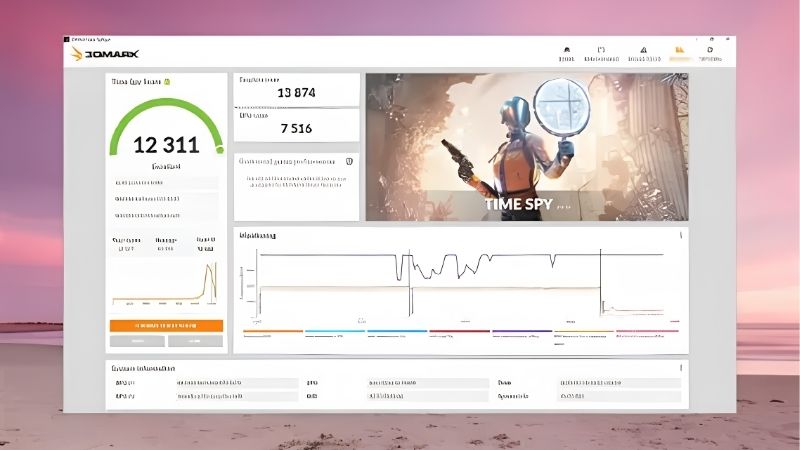
Understanding GPU Benchmarking
Benchmarking measures your graphics card’s performance under a controlled, repeatable workload and gives you a score or a frame rate you can compare. Because the test is identical every time, it lets you judge your card objectively rather than by feel, which is invaluable for spotting problems and verifying upgrades. Knowing the two main types of benchmark helps you choose the right one. It also explains why a single benchmark is rarely the whole story, and why pairing the two types gives the most complete picture of a card’s performance.
What Benchmarking a GPU Means
To benchmark a card is to run a standardised test that produces a comparable measure of performance, either a synthetic score or an average frame rate. The key word is repeatable: the same test run twice should give nearly the same result, which is what makes benchmarking trustworthy.
There are two broad kinds. Synthetic benchmarks run a purpose-built graphical scene designed purely to measure performance and output a score, while in-game benchmarks measure your actual frame rate in a real game, often through a built-in benchmark mode.
Both are useful, and they answer slightly different questions. A synthetic score is excellent for clean comparisons against other cards, whereas an in-game benchmark tells you how your card performs in the specific games you actually play.
Why Benchmark Your GPU
People benchmark for several practical reasons. It confirms a new or used card is performing at the level it should rather than underperforming due to a fault or a bad setup, and it provides a baseline you can revisit later to catch any decline.
It is also the only honest way to measure the effect of a change, whether that is an overclock, a driver update, or improved cooling, since a before-and-after score removes guesswork. And when you are deciding on an upgrade, comparing your card’s benchmark against newer ones shows you exactly how much faster you would actually be.
Benchmarking also settles the common question of whether a tweak was worthwhile, replacing a vague sense that things feel smoother with a concrete number you can trust. That objectivity is especially valuable when small changes are involved, since the human eye is easily fooled but a repeatable score is not.
What You Will Need
Benchmarking can be done entirely free, with optional paid tools for convenience.
For synthetic testing, 3DMark is the industry standard and offers widely used tests that make comparison easy, with a capable free version available alongside its paid edition. Many modern games also include their own built-in benchmark, which costs nothing extra and reflects real gameplay.
Alongside the benchmark, a monitoring tool such as MSI Afterburner lets you record temperature and clock speeds during the run, which helps explain any unexpectedly low result. That combination of a benchmark plus monitoring is all you need to get reliable, meaningful numbers.
How to Benchmark a GPU Step by Step
Running a benchmark is simple, and the discipline that matters most is consistency, since a fair comparison requires the same conditions each time. Follow these steps for both synthetic and in-game testing to get numbers you can rely on. The single habit that matters most is keeping every condition identical from one run to the next, since consistency is what makes any comparison fair. Get that right and the rest of the process becomes simple and repeatable.
Running a Synthetic Benchmark
Start with a synthetic test using these steps:
- Close background apps and open your monitoring tool so nothing skews the result and you can see temperatures during the run.
- Launch your benchmark and pick a test that matches your card’s class and your resolution for a relevant comparison.
- Run the full benchmark without touching the PC, letting it complete its sequence to produce a final score.
- Record the score and your temperatures, then run it a second time to confirm the result is consistent.
A synthetic score is ideal for comparison because everyone runs the identical test, so your number means the same thing as anyone else’s. Running it twice and getting a similar result confirms your system is behaving consistently rather than being thrown off by a one-time hiccup.
It is worth letting the card cool back to its idle temperature between runs, since a card that is already warm from the first test may score slightly lower on the second. Allowing a short gap keeps your repeated runs genuinely comparable and prevents heat buildup from masquerading as a real performance difference.
Running In-Game Benchmarks
To measure real-world performance, use a game’s built-in benchmark where available, which runs a fixed scene and reports your average, minimum, and maximum frame rates. Set the graphics options to the settings you actually play at, since changing them changes the result entirely.
For games without a built-in benchmark, you can use your monitoring tool to log frame rates while you play a consistent section of the game. The goal either way is repeatability: testing the same scene at the same settings so that any future comparison is fair and meaningful rather than influenced by a different part of the game.
In-game benchmarks are particularly valuable because a card can post a strong synthetic score yet still struggle in a specific demanding title, or the reverse. Testing the games you actually care about therefore gives you the most relevant picture of all, grounding your judgement in real experience rather than an abstract number.
Comparing Your Score to Others
Once you have a score, the real value comes from comparison. Look up typical results for your exact card model online, where large databases of benchmark scores let you see whether your card is performing in line with others like it or falling noticeably short.
If your numbers match the expected range, your card is healthy and set up correctly. If they sit well below comparable systems, that gap is a clue worth investigating, pointing to a thermal issue, a driver problem, a power limit, or a bottleneck elsewhere in the system that is holding your card back.
When you look up comparison figures, try to match not just the card model but the resolution and test settings, since these change the numbers dramatically. A like-for-like comparison is the only fair one, and using it correctly turns a single score into a clear verdict on whether your card is performing as it should.
Tips, Pitfalls, and Pros and Cons of Benchmarking
A benchmark is only as good as the conditions you run it in, so a little care and interpretation turns a raw score into genuine insight. A number on its own means little; it is the comparison against expectations and against your own past results that gives it meaning. Knowing the common mistakes keeps your results honest.
What Low Benchmark Scores Tell You
A score noticeably below what your card should achieve is a useful diagnostic signal rather than a disappointment. Common causes include thermal throttling from poor cooling, an outdated or buggy driver, a conservative power limit, or a CPU bottleneck that prevents the graphics card from stretching its legs.
Working through these one at a time, starting with temperatures and drivers, usually uncovers the culprit. Often a clean install of drivers, better cooling, or addressing a bottleneck restores the card to its expected score without any new hardware at all.
It is worth ruling out the simplest explanations first, such as a power-saving mode, a frame-rate cap, or background downloads quietly using resources during the test. These trivial causes are surprisingly common and cost nothing to fix, so checking them before assuming a hardware problem can save both money and worry.
Pro Tips and Mistakes to Avoid
The biggest mistake is comparing benchmark results taken under different conditions, such as different settings, resolutions, or background load, which makes the comparison meaningless. Always test the same way each time so your before-and-after numbers are truly comparable.
A useful pro habit is to record your temperatures alongside every benchmark, since a low score paired with a high temperature immediately points to throttling. Letting the system cool between runs and closing other applications also keeps results consistent and trustworthy.
See More:
Pros and Cons of Benchmarking
On the plus side, benchmarking gives you objective, repeatable numbers to verify performance, measure the effect of changes, diagnose problems, and inform upgrade decisions, much of it for free. It replaces guesswork with evidence.
On the downside, synthetic scores do not perfectly predict every game, the most convenient tools have a paid version, and obsessing over tiny score differences is rarely worthwhile. Used to confirm health and measure real changes, though, benchmarking is one of the most useful skills a PC owner can have.
To wrap up, learning how to benchmark a GPU replaces vague impressions with hard, comparable numbers, letting you confirm your card is healthy, measure the impact of changes, and decide on upgrades with confidence. Run synthetic and in-game tests consistently, compare against similar cards, and investigate any large gap. If your benchmark shows your card falling behind the games you want to play, you can compare the recommended graphics cards and benchmarking tools linked below.
Top-Rated Picks


| Product | Brand | Rating | Reviews | Price |
|---|---|---|---|---|
| ARCTIC MX-4 (4 g) – Premium Performance Thermal Paste… | ARCTIC | ★ 4.8 | 104k | $4.99 |
| ARCTIC MX-4 (incl. Spatula, 4 g) – Premium Performanc… | ARCTIC | ★ 4.8 | 71.9k | $5.49 |
| Crucial 8GB DDR4 RAM 3200MHz (PC4-25600), Downclockab… | Crucial | ★ 4.8 | 62.8k | $74.99 |
| AMD Ryzen 5 5600X 6-core, 12-thread unlocked desktop … | — | ★ 4.8 | 30.2k | $177.60 |
| NVIDIA Shield Remote; Voice Search, Motion-Activated,… | — | ★ 4.7 | 10.6k | $25.99 |
Frequently Asked Questions
Which benchmarks should I run?
3DMark Steel Nomad and Time Spy give comparable synthetic scores across the whole market, while Unigine Superposition stresses sustained thermals well. Supplement both with built-in game benchmarks from titles you actually play, since engine-specific behaviour often matters more than a synthetic number.
Why do my scores differ from published reviews?
Reviewers use high-end processors, fast memory and open test benches. A slower CPU, single-channel memory, a warm case, a lower power limit on your partner card, or background applications can each cost several percent. A gap under ten percent is usually explained by platform differences alone.
Should I look at averages or one percent lows?
One percent and 0.1 percent lows describe stutter and are what you actually feel while playing. Two cards with identical averages can feel completely different if one has poor frame time consistency, which commonly happens when VRAM capacity is marginal for the settings you chose.
How do I make results repeatable?
Close background applications, fix a consistent ambient room temperature, let the card reach thermal steady state with a warm-up run, disable any frame rate cap or V-Sync, and run each test at least three times taking the median. Log clocks and temperatures alongside the score.
Should I benchmark with upscaling and frame generation on?
Keep them off for comparisons against other hardware, since they change the workload entirely and frame generation inflates frame rate without reducing input latency proportionally. Test with them on separately if you want to know what your real in-game experience will look like.








Write Your Review
No reviews yet. Be the first to share your experience!