
DSR, or Dynamic Super Resolution, is Nvidia’s way of giving you a 4K-style image on a 1080p or 1440p monitor without buying a new screen. It renders your game at a higher resolution than your display and then shrinks the result down to fit, sharpening edges and revealing detail you simply cannot see at native. This guide explains what DSR is, how the downscaling produces that clarity, how it differs from its newer AI cousin DLDSR, and the exact steps to switch it on.
As an Amazon Associate we earn from qualifying purchases at no extra cost to you.






Understanding Nvidia DSR and How It Works
Every monitor has a native resolution, and traditionally that was the ceiling on how sharp your games could look. DSR removes that ceiling by letting your GPU render internally at a much higher resolution — for example treating a 1080p panel as if it were 4K — before downscaling to what your screen can actually show. Understanding that pipeline is the key to using it well. Once you grasp that the GPU is doing extra work and then condensing it, every control from the factor to the smoothness slider starts to make intuitive sense.
What DSR Actually Is
DSR is a form of supersampling built directly into the Nvidia driver. Supersampling means rendering more pixels than the display has and then averaging them down, which reduces the jagged edges and shimmer that come from rendering at native resolution.
Because it lives in the driver, DSR works in almost any game, including older titles that never offered high-resolution options of their own. You simply gain access to resolutions above your monitor’s native one and select them like any other. There is no patch, mod, or special game support required, which is rare among image-quality features of this caliber.
That universal compatibility is one of DSR’s biggest strengths. It does not need the game developer to add anything, so even decades-old classics can benefit from a modern supersampled image. Pairing an old favourite with a high DSR factor is one of the cheapest ways to make a dated title look surprisingly close to a modern remaster.
How the Downscaling Produces a Sharper Image
When the GPU renders, say, four times the pixels and packs them into your screen’s pixel grid, each visible pixel is the average of several rendered samples. That averaging smooths edges, tightens fine textures, and cuts down the crawling shimmer on objects like fences and foliage. The denser the original scene, the more obvious this clean-up becomes, which is why busy outdoor environments benefit the most.
You control how aggressive the smoothing is with a slider. Too little and the downscaled image can look slightly harsh; too much and it softens. Most users land around 33% smoothness as a clean middle ground. From there, nudging the slider a few points in either direction lets you tune the balance between crispness and a softer, more film-like look.
The result is an image with a clarity that often surprises people the first time they try it, particularly in slower-paced or visually rich games where you have time to notice the detail. In fast competitive shooters the benefit is still present, but you will register it far less than in a slow, scenic single-player world.
DSR Versus DLDSR: Which One to Pick
DSR is the original, brute-force method: to get a big quality jump you typically need 4x your resolution, which is very demanding. DLDSR is the AI-accelerated version that achieves similar sharpness at a lower multiplier, so it costs less performance.
If your GPU supports DLDSR — meaning any RTX card — it is almost always the better choice. Classic DSR remains useful on older GTX cards that lack the AI hardware, or when you want the absolute maximum supersampling a high-end card can brute-force.
Put simply, treat DLDSR as the modern default and plain DSR as the fallback for hardware that cannot run the AI version. Both reach the same destination; DLDSR just gets there more efficiently. For that reason, most modern guidance treats classic DSR as a legacy fallback and DLDSR as the path you should take whenever the hardware allows.
How to Enable DSR on an Nvidia GPU
Enabling DSR is a quick two-step job: switch on the resolution factors in the driver, then pick the new higher resolution inside your game. It is fully reversible, so experimenting carries no risk, and you can always return to native if performance is not where you want it. Because nothing is written permanently, DSR is one of the safest settings to experiment with on any system.
What You Will Need Before You Start
DSR is purely a software feature, but a few things shape how usable it is in practice.
You will get the most from DSR with a GPU that has performance to spare, since rendering above native resolution is demanding; if your current card already struggles at native, a more capable graphics card is what makes DSR realistic to use. A monitor with good pixel density and decent refresh headroom also helps you see and afford the benefit, so a quality display is a sensible pairing.
Beyond that, you only need the latest Nvidia driver and the Nvidia App, both free, to expose the DSR factors and the smoothness control.
Step-by-Step Setup
Follow these numbered steps to turn DSR on:
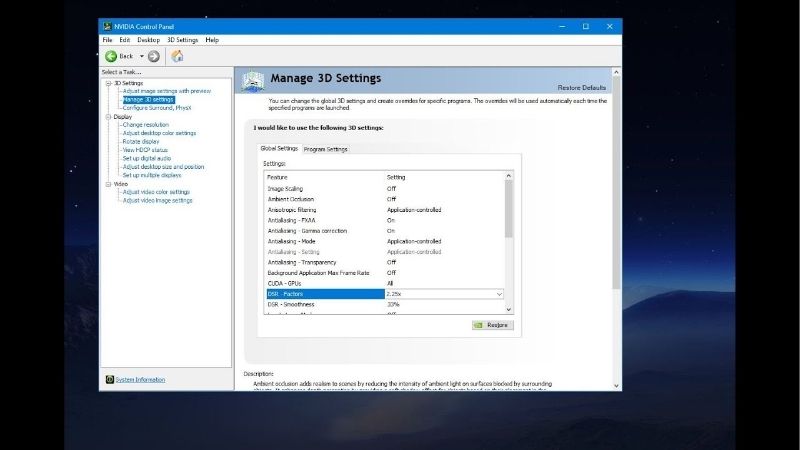
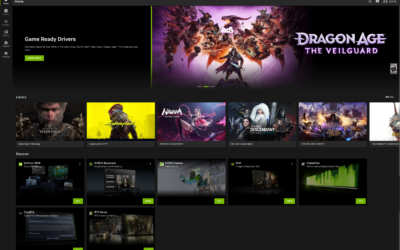
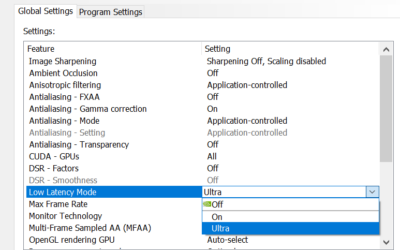
- Open the Nvidia App and navigate to Graphics > Global settings. The DSR controls live here.
- Locate “DSR – Factors” and select the multiplier you want, such as 2.00x or 4.00x. Higher factors mean a sharper image but a bigger performance hit.
- Adjust “DSR – Smoothness” to roughly 33% as a balanced default, then apply your changes.
- Choose the new resolution in your game’s video settings; the higher-than-native options will now appear in the list.
The game will render at the chosen resolution and DSR will downscale it to your monitor. If frame rates drop too far, step down to a smaller factor or, on an RTX card, switch to the more efficient DL factors instead. Keeping the driver current also ensures that resolution list behaves correctly after Windows or game updates.
Recommended DSR Factors for Your GPU
For high-end cards running older or lighter games, 4.00x delivers the cleanest possible image. For mid-range hardware, 2.00x or 2.25x is the practical sweet spot that improves clarity without crushing performance.
If your card supports it, prefer the DL (DLDSR) factors over plain DSR at the same effective sharpness, because the AI version costs noticeably less for a near-identical result.
Reserve full 4x classic DSR for situations where you have huge performance headroom to burn, such as competitive titles that already run at hundreds of frames per second on a powerful card. In those cases the frames you sacrifice to 4x DSR are frames you were never going to see on your monitor anyway, so the trade is essentially free clarity.
Pros, Cons, and Expert Tips for DSR
DSR is a fantastic tool, but it rewards using it in the right situations. A quick look at its strengths and weaknesses makes it easy to know when to reach for it and when to leave it off.
The Pros and Cons of DSR
On the plus side, DSR delivers a real sharpness upgrade, works in nearly every game without developer support, and is completely free with your existing card. It is also a great way to breathe new life into older games that look soft at modern monitor sizes.
The drawbacks center on cost. Classic DSR is heavy, so it can tank frame rates if you push the factor too high. Non-native resolutions can occasionally produce small UI text in some games, and you may have to reselect the resolution after certain driver updates.
On RTX cards, DLDSR usually makes plain DSR redundant by offering the same look for less, which is the single biggest caveat to keep in mind before you commit to the classic version.
Pro Tips and Mistakes to Avoid
The classic mistake is enabling 4x DSR in a demanding modern game and wondering why performance collapsed — match the factor to the game’s weight and your card’s headroom.
Another is leaving smoothness at an extreme, which either over-sharpens or over-softens the image. Test values between 20% and 40% on your own display to find the natural-looking middle.
The smart play, if your GPU supports it, is to skip classic DSR for the DL factors and combine them with DLSS to recover performance, giving you supersampled clarity without the brutal frame cost.
See More:
Who Should Use Nvidia DSR
DSR is best for players who enjoy maximizing image quality in single-player, older, or well-optimized games and who have performance to spare. It is less suited to competitive titles where frame rate and latency matter more than pixel sharpness.
If you are still on a GTX card, plain DSR is your route to supersampling today; if you upgrade to RTX, you unlock the far more efficient DLDSR along with the rest of the modern feature set.
It is worth weighing a current graphics card and a sharper monitor before your next upgrade so these features are within reach and you are not leaving image quality on the table.
In the end, Nvidia DSR is a simple, driver-level way to push your games past your monitor’s native resolution for a cleaner, more detailed picture. Enable a sensible factor in the Nvidia App, dial in the smoothness, and select the new resolution in-game. For the hardware that makes DSR and its AI-powered successor effortless to run, take a look at the recommended Nvidia graphics cards and high-resolution monitors linked below.
Top-Rated Picks


| Product | Brand | Rating | Reviews | Price |
|---|---|---|---|---|
| ARCTIC MX-4 (4 g) – Premium Performance Thermal Paste… | ARCTIC | ★ 4.8 | 104k | $4.99 |
| ARCTIC MX-4 (incl. Spatula, 4 g) – Premium Performanc… | ARCTIC | ★ 4.8 | 71.9k | $5.49 |
| Crucial 8GB DDR4 RAM 3200MHz (PC4-25600), Downclockab… | Crucial | ★ 4.8 | 62.8k | $74.99 |
| AMD Ryzen 5 5600X 6-core, 12-thread unlocked desktop … | — | ★ 4.8 | 30.2k | $177.60 |
| NVIDIA Shield Remote; Voice Search, Motion-Activated,… | — | ★ 4.7 | 10.6k | $25.99 |
Frequently Asked Questions
How does DSR work?
Dynamic Super Resolution renders the game at a higher resolution than your monitor supports, then downsamples the result to your native panel resolution. The extra samples per output pixel act as a brute-force anti-aliasing method, cleaning up shimmer and aliasing that in-game options cannot fully resolve.
What performance cost should I expect?
It scales directly with pixel count. The 4x factor on a 1080p monitor means rendering at 4K, so expect roughly half the frame rate or worse. The 1.78x and 2.25x factors are far gentler and are where most people find a sensible balance.
Should I use DSR or DLDSR?
DLDSR on any RTX card, without much debate. Its AI downscaling filter makes 2.25x look comparable to 4x classic DSR at roughly half the rendering cost. Classic DSR remains useful on GTX cards and in the rare title where DLDSR causes flickering or HDR problems.
What smoothness setting should I use?
Classic DSR is sensitive to this slider, and thirty-three percent is the common starting point. Too low leaves a harsh oversharpened look, too high produces a soft blurry image. DLDSR needs far less smoothing, typically around twenty percent or lower.
Why do my desktop icons rearrange after using DSR?
Because DSR temporarily changes the active display resolution, Windows repacks icons and window positions to fit the new virtual space and does not always restore them. Selecting the DSR resolution only inside the game rather than on the desktop, and using a fullscreen mode, minimises the disruption.




Write Your Review
No reviews yet. Be the first to share your experience!