
- Top Pick: NVIDIA Shield Remote; Voice Search, Motion-Activated, Backlit Buttons, Customizable Menu Buttons, and IR Blaster to Control Your TV (930-13700-2500-100)
- Best Value: Nvidia Quadro M4000 8GB GDDR5 256-bit PCI Express 3.0 x16 Full Height Video Card (Renewed)
- Premium Choice: NVIDIA 5GB nVIDIA Tesla K20 GPU Server Accelerator 900-22081-0010-000 (Renewed)
How to use NVIDIA Broadcast trips up a lot of first-time users. You install it, expect instant clean audio, and then wonder why your streaming app cannot hear the difference. The truth is that Broadcast is simple once you know the steps, it just does not explain itself well. This guide walks you through the whole setup in plain language: what you need, how to install and configure it, and how to route it into your streaming or meeting app. Follow along and you will have studio-clean audio and a background-free webcam in about ten minutes.
What You Will Need Before You Start
Before you open Broadcast, it helps to gather a few things so the setup goes smoothly. NVIDIA Broadcast is free, but it needs the right hardware to run, and the quality of your microphone and webcam directly affects how good the results look and sound. A little preparation here saves you from restarting halfway through. Here is everything you need on hand before step one.
As an Amazon Associate we earn from qualifying purchases at no extra cost to you.



Software and System Requirements
First, check your hardware. NVIDIA Broadcast requires an RTX graphics card, the RTX 20 series or newer, because the AI effects run on the Tensor cores. If you have a GTX card, Broadcast will not run.
You also need Windows 10 or 11 and a current NVIDIA driver. Download Broadcast from NVIDIA’s official site only, never a third-party link, to avoid fake installers.
That is the entire software checklist. If your card is RTX and your driver is up to date, you are ready to begin.
The Right Microphone and Webcam
Broadcast enhances your audio and video, but it cannot invent quality that was never captured. A decent microphone gives the AI a clean signal to work with, so a good USB mic dramatically improves the final result over a cheap headset mic.
The same applies to video. A sharp 1080p or higher webcam gives Broadcast’s background removal and auto frame a clear image to process, which makes the effects look far more natural.
You do not need to spend a fortune. A solid mid-range USB microphone and a quality webcam are the two upgrades that most improve what Broadcast can deliver, so it is worth having good ones ready before you start.
Lighting deserves a quick mention here too. Broadcast’s virtual background and blur rely on telling you apart from what is behind you, and that works far better in even, front-facing light than in a dim room lit from behind. A simple desk lamp or an inexpensive ring light positioned in front of you gives the AI a cleaner subject to separate, which reduces the shimmering edges around hair and shoulders that people often blame on the software. Good light is cheap and often makes more difference than any effect toggle.
Pre-Setup Checklist
Run through this quick list before installing. Confirm your GPU is RTX, your driver is updated, and your microphone and webcam are plugged in and recognized by Windows.
Close your streaming or meeting app for now; you will open it later once Broadcast is configured. Starting with it closed avoids device conflicts during setup.
With hardware confirmed and apps closed, you are ready to install and configure Broadcast in the steps below.
How to Set Up NVIDIA Broadcast Step by Step
Now for the main event. This is the full setup, broken into clear numbered steps. Each one takes under a minute, and by the end your microphone and camera will be running through Broadcast’s AI effects and feeding into whatever app you use. Follow them in order, and do not skip the routing steps at the end, which is where most people get stuck. Here is the complete process.
Steps 1 to 3: Install and Choose Your Devices
Follow these first three steps to get Broadcast running with the right inputs:
- Install NVIDIA Broadcast. Download it from NVIDIA’s official site, run the installer, and let it complete. Restart if prompted, because the virtual devices register on restart.
- Open Broadcast and select your microphone. In the Microphone tab, choose your real microphone as the input. This tells Broadcast which device to clean up.
- Select your speakers and camera. Set your actual speakers or headphones in the Speakers tab, and choose your webcam in the Camera tab. Now Broadcast knows all three of your real devices.
With your devices selected, Broadcast is ready to apply effects. The next steps turn them on.
Steps 4 to 6: Turn On the AI Effects
These steps activate the features that make Broadcast worth using:
- Enable Noise Removal on your microphone. In the Microphone tab, add the Noise Removal effect. This is the single most valuable feature, it strips keyboard clatter, fans, and background noise instantly.
- Add Room Echo Removal if needed. If you record in an echoey room, add this effect to reduce reverb. Skip it if your space already sounds fine.
- Set up your camera effects. In the Camera tab, choose Virtual Background, Auto Frame, or Background Blur as you prefer. Test each and keep only what looks natural on your webcam.
Preview each effect using the built-in monitor before committing, so you keep only the ones that genuinely improve your feed.
Steps 7 to 8: Use Broadcast in Your Streaming or Meeting App
This is the step everyone misses, and it is what actually connects Broadcast to your app:
- Open your streaming or meeting app. Launch OBS, Discord, Zoom, Teams, or whatever you use, now that Broadcast is configured.
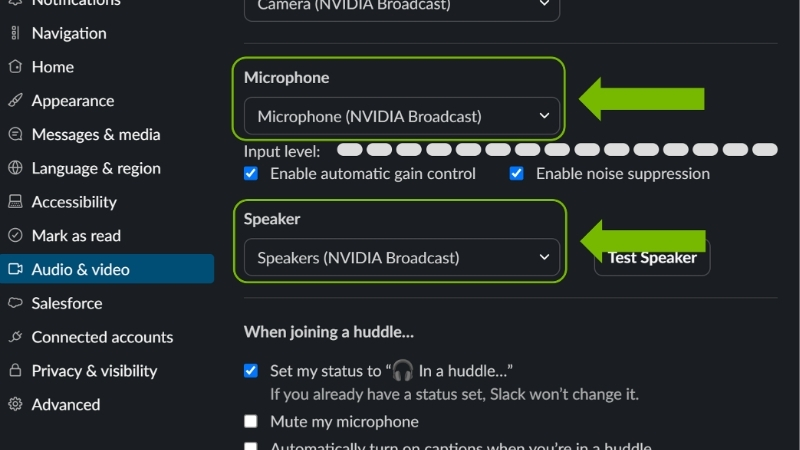
- Select the Broadcast virtual devices. In that app’s audio and video settings, choose “NVIDIA Broadcast” as your microphone and “NVIDIA Broadcast Camera” as your webcam, not your real devices. This routes your cleaned audio and processed video into the app.
That final step is the whole trick. If you select your real microphone instead of the Broadcast virtual one, none of the effects reach your audience, which is exactly why so many people think Broadcast is not working.
Pro Tips, Mistakes, and Getting the Best Results
You now have a working setup, but a few extra habits will make it sound and look noticeably better, and there are common mistakes worth avoiding. This section shares the tips that separate a decent result from a professional one, the errors new users make, and the honest trade-offs of relying on Broadcast, plus the gear that takes it further. Here is how to get the most from it.
Pro Tips for the Cleanest Output
A handful of small habits pay off. Use the built-in monitor feature to hear or see exactly what your audience gets, so you can judge the effects honestly rather than guessing.
On a weaker RTX card, run only the effects you truly need, usually just Noise Removal, since each effect uses GPU resources. Stacking every effect on an entry-level card can cost you gaming frames if you stream and play at once.
Finally, keep NVIDIA Broadcast and your driver updated, because NVIDIA improves the AI models over time, and updates can make your existing setup sound and look better for free.
One more tip that saves headaches: set your microphone’s input level in Windows before adding Broadcast’s effects. If the raw signal is too quiet or clipping, Noise Removal has to work against a poor starting point, and the result suffers. Aim for a healthy level where your normal speaking voice sits comfortably without peaking, then let Broadcast clean it. Getting the base level right first means the AI enhances a good signal rather than fighting a bad one, and it is the difference many people miss between audio that sounds fine and audio that sounds professional.
Common Mistakes to Avoid
The number one mistake is the routing error: forgetting to select the Broadcast virtual devices in your app, so the effects never reach anyone. Always double-check this in your app’s settings.
The second is over-processing. Cranking every effect can make audio sound unnatural or a webcam background look glitchy around hair and glasses. Use only what improves your feed, and prefer a subtle result over an aggressive one.
The third is expecting Broadcast to fix a terrible source. It enhances a decent signal; it cannot rescue a broken mic or a dark, blurry camera, which is why your input hardware still matters more than any single toggle you can flip.
See More:
- NVIDIA Broadcast vs OBS
- RTX HDR settings
- NVIDIA App download
- NVIDIA RTX Video Super Resolution
- GeForce Experience alternative
Pros, Cons, and the Hardware That Elevates Broadcast
Weighing it honestly helps set expectations. The pros of using NVIDIA Broadcast are clear: excellent one-click AI noise removal, no green screen needed for background effects, and easy integration with any app. The cons are that it requires an RTX card, uses GPU resources, and its virtual background can struggle at the edges under poor lighting.
The biggest quality gains, though, come from your input hardware. A good USB microphone gives the AI a clean signal, a sharp webcam makes the video effects look natural, and decent lighting improves background removal more than any setting.
If you want your streams or calls to look and sound their best, compare current prices on quality USB microphones, webcams, and simple lighting through the links on this page.
That is how to use NVIDIA Broadcast from start to finish: confirm your RTX hardware, install it, select your real devices, enable the AI effects, and route the virtual devices into your app. Get that last routing step right and you have clean audio and a polished webcam with almost no effort. Since the AI works best with a good source, check the recommended microphones, webcams, and lighting through the links here to give Broadcast the quality input it needs to shine.
Top-Rated Picks


| Product | Brand | Rating | Reviews | Price |
|---|---|---|---|---|
| ARCTIC MX-4 (4 g) – Premium Performance Thermal Paste… | ARCTIC | ★ 4.8 | 104k | $4.99 |
| ARCTIC MX-4 (incl. Spatula, 4 g) – Premium Performanc… | ARCTIC | ★ 4.8 | 71.9k | $5.49 |
| Crucial 8GB DDR4 RAM 3200MHz (PC4-25600), Downclockab… | Crucial | ★ 4.8 | 62.8k | $74.99 |
| AMD Ryzen 5 5600X 6-core, 12-thread unlocked desktop … | — | ★ 4.8 | 30.2k | $177.60 |
| NVIDIA Shield Remote; Voice Search, Motion-Activated,… | — | ★ 4.7 | 10.6k | $25.99 |
Frequently Asked Questions
What do I need before installing NVIDIA Broadcast?
An RTX GPU is mandatory, since every effect runs on tensor cores; GTX cards are not supported. You also need Windows 10 or 11, a current Game Ready or Studio driver, and ideally 16GB of system RAM if you plan to stream and game simultaneously. Install the app from NVIDIA’s official download page only.
How do I route Broadcast into OBS, Discord or Zoom?
Broadcast creates virtual devices named Camera (NVIDIA Broadcast), Microphone (NVIDIA Broadcast) and Speakers (NVIDIA Broadcast). Select those as your input in the target application instead of your physical webcam or microphone. In OBS, add a Video Capture Device source and choose the Broadcast camera rather than applying filters twice.
Which effects are worth enabling?
Noise Removal on the microphone is the standout, cleanly stripping keyboard clatter and fan hum. Room Echo Removal helps in bare rooms. On video, Background Blur is more reliable than full replacement without a green screen, while Eye Contact is best reserved for scripted reading rather than casual conversation, where it can look uncanny.
How much performance does it cost while gaming?
Expect roughly a 5-15% frame rate hit depending on how many effects run at once and how powerful the GPU is; noise removal alone is cheap, while background replacement plus eye contact is considerably heavier. Disable unused effects rather than leaving everything on, and consider a second PC for demanding competitive streaming.
Why is my audio delayed or distorted?
Latency usually comes from stacking effects or from another application applying its own noise suppression at the same time. Turn off Discord’s or Zoom’s built-in noise cancellation when using Broadcast, keep the sample rate consistent at 48kHz across Windows and your interface, and avoid chaining Broadcast output back into another virtual device.











Write Your Review
No reviews yet. Be the first to share your experience!