
update Nvidia drivers regularly is one of the easiest things you can do to keep your graphics card fast, stable, and ready for new games, yet many people only do it when something breaks. Fresh drivers add performance optimisations, fix bugs, and unlock features for the latest releases. This guide shows you the simplest way to update using the Nvidia App, how to do it manually when needed, and the small mistakes to avoid so updates always go smoothly.
As an Amazon Associate we earn from qualifying purchases at no extra cost to you.





Understanding Nvidia Driver Updates
An Nvidia driver is the software that lets your graphics card and your games talk to each other, and Nvidia releases new versions frequently. These updates often arrive alongside major game launches with specific optimisations, which is why keeping them current can directly improve performance and stability. Understanding the basics helps you decide how often to update and which driver type suits you. A little context also stops you from either neglecting updates for months or anxiously chasing every single release the day it lands.
Why Updating Your Drivers Matters
New drivers regularly bring measurable performance gains in the latest games, fix bugs and crashes, and add support for new features and titles. For someone who plays recent releases, staying updated can be the difference between a smooth launch-day experience and stutters or glitches.
Updates also resolve security issues and compatibility problems with new Windows versions. Even if you only play older games, keeping drivers reasonably current avoids the slow accumulation of issues that comes from running very outdated software. Even casual users benefit from the occasional update, if only to stay compatible with the latest Windows changes.
There is also a quiet performance angle that is easy to miss: a single driver release can lift frame rates in a popular game by a noticeable margin, entirely for free. Skipping months of updates means leaving that kind of cost-free improvement on the table, which is a needless sacrifice for anyone who plays current titles.
Game Ready vs Studio Drivers
Nvidia offers two driver branches, and choosing the right one matters. Game Ready drivers are optimised for the newest games and updated most frequently, making them the default choice for gamers who want the best performance in current titles.
Studio drivers, by contrast, prioritise stability for creative applications like video editing and 3D rendering, with less frequent updates focused on reliability. If you mainly create rather than game, the Studio branch is the better fit, while gamers should generally stick with Game Ready. You can switch between the two branches freely, so nothing is locked in if your needs change later.
If you both game and create on the same machine, the Game Ready branch is usually the sensible default, since it still runs creative apps perfectly well while staying current for the newest games. Only those whose livelihood depends on rock-solid stability in professional software gain enough from the Studio branch to prefer it.
What You Will Need
Updating is free and needs almost nothing beyond your PC.
The easiest route uses the Nvidia App, the free official software that detects your card and downloads the right driver automatically, so installing it once makes every future update a couple of clicks. Alternatively, you only need a web browser to download drivers manually from Nvidia’s website if you prefer not to use the app.
A stable internet connection and a few minutes are all the rest you need, since driver downloads can be sizeable and the install includes a brief screen flicker as the new driver loads. That flicker is completely normal and lasts only a moment as the display reinitialises on the new driver.
How to Update Nvidia Drivers Step by Step
There are two reliable methods: the Nvidia App for effortless one-click updates, and a manual download for full control or troubleshooting. Most people will be happiest with the app, but it is good to know both.
Method 1: Update via the Nvidia App
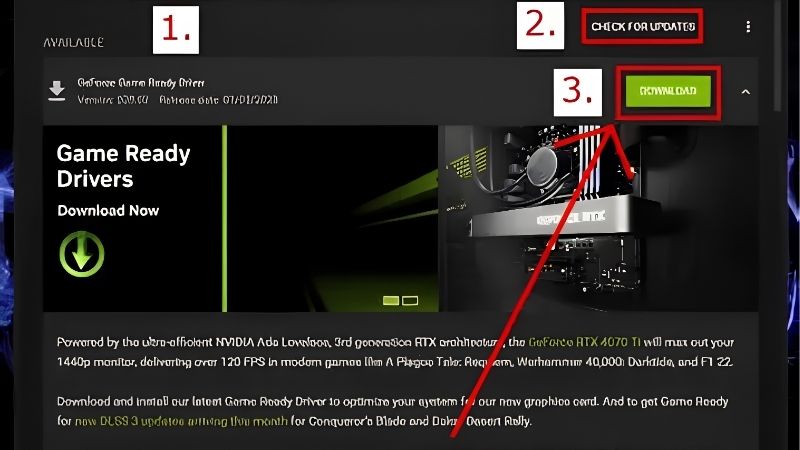
Open the Nvidia App and go to the Drivers tab, where it automatically checks for the latest version available for your card. If an update is listed, simply click Download, and once it finishes, choose Install to apply it.
The app offers an express install that handles everything for you, or an advanced option where you can select a clean install if you are troubleshooting. For routine updates the express path is perfect, and your screen may flicker briefly as the new driver takes over before you are done. The whole process is usually finished in just a few minutes, after which your card is ready for the latest games.
The app can also notify you automatically when a new driver appears, so you never have to remember to check manually. Leaving those notifications on is the simplest way to stay current without thinking about it, turning driver maintenance into something that essentially looks after itself.
Method 2: Manual Download from Nvidia
If you prefer not to use the app, update manually with these steps:
- Visit Nvidia’s official driver download page and enter your graphics card model and operating system to find the correct driver.
- Choose the right branch, selecting Game Ready for gaming or Studio for creative work, then download the latest version.
- Run the downloaded installer and choose express for a standard update, or custom with the clean install box ticked if you are troubleshooting.
- Restart if prompted and confirm the new driver version is active in the Nvidia App or system information.
Manual updating gives you precise control over exactly which version you install, which is useful if a brand-new driver ever introduces a problem and you want to choose a specific stable release instead. Keeping a known-good installer on hand makes rolling back to it almost instant if you ever need to.
Should You Clean Install During an Update?
For routine updates where everything is working well, a normal update over the top is perfectly fine and the simplest choice. There is no need to wipe your settings every time a new driver arrives.
However, if you have been experiencing stutters, crashes, or glitches, ticking the clean install option during the update clears out old leftovers and often resolves them. Think of the clean option as a troubleshooting upgrade to use when something is wrong rather than for every single update. For the vast majority of routine updates, the standard express install is faster and entirely sufficient.
Pros, Cons, and Expert Tips for Updating Drivers
Keeping drivers current is almost always worthwhile, but a little nuance helps you avoid the rare update that causes trouble and keep the process painless. A few good habits make updates reliably smooth. The overarching idea is balance: update often enough to enjoy the latest optimisations and fixes, but not so frantically that you install every release the instant it lands. Pairing that rhythm with the occasional clean install keeps your system both current and free of long-term clutter, which is the best of both worlds for a gaming PC.
Mistakes to Avoid
The most common mistake is never updating at all and then wondering why a new game runs poorly, since launch-day optimisations often arrive in fresh drivers. Letting drivers go very stale is the easiest problem to avoid.
The opposite mistake is rushing to install a brand-new driver the instant it drops, even for a game you do not play, which occasionally introduces a new bug. A balanced approach of updating regularly but not frantically avoids both extremes. Checking every couple of weeks, and right before a big game launch, hits the sweet spot for most players.
Another easily avoided slip is installing a driver intended for a different card or operating system, which the Nvidia App prevents but a careless manual download does not. Double-checking that the package matches your exact GPU and Windows version takes seconds and saves a frustrating failed install.
Pro Tips for Trouble-Free Updates
A useful habit is to update shortly before playing a major new release, so you get its specific optimisations, while waiting a few days on a non-urgent update lets any rare issues surface first. The Nvidia App makes checking quick, so you can stay current without thinking about it.
If a new driver ever causes a problem, you can roll back by manually installing the previous stable version, which is why knowing the manual method is handy. Doing a clean install occasionally, even when things are fine, also keeps long-term clutter from building up. Once or twice a year is plenty for this kind of housekeeping unless you are actively troubleshooting.
See More:
Pros and Cons of Always Updating
On the plus side, staying updated brings better performance in new games, bug and security fixes, and support for the latest features, all for free. For anyone playing current titles, the benefits are frequent and tangible.
On the downside, brand-new drivers very occasionally introduce a new issue, and updates take a few minutes and a brief screen flicker. These minor drawbacks are easily managed by updating regularly but sensibly rather than compulsively. In practice, the steady stream of performance and stability improvements far outweighs the rare hiccup.
To wrap up, knowing how to update Nvidia drivers keeps your card fast, stable, and ready for new games, and the easiest path is the Nvidia App, with a manual download available when you want more control. Update regularly, pick Game Ready or Studio to match your use, and clean install only when troubleshooting. If your card struggles in new games even on the latest drivers, it may be time to upgrade, and you can check the recommended graphics cards linked below.
Top-Rated Picks


| Product | Brand | Rating | Reviews | Price |
|---|---|---|---|---|
| ARCTIC MX-4 (4 g) – Premium Performance Thermal Paste… | ARCTIC | ★ 4.8 | 104k | $4.99 |
| ARCTIC MX-4 (incl. Spatula, 4 g) – Premium Performanc… | ARCTIC | ★ 4.8 | 71.9k | $5.49 |
| Crucial 8GB DDR4 RAM 3200MHz (PC4-25600), Downclockab… | Crucial | ★ 4.8 | 62.8k | $74.99 |
| AMD Ryzen 5 5600X 6-core, 12-thread unlocked desktop … | — | ★ 4.8 | 30.2k | $177.60 |
| NVIDIA Shield Remote; Voice Search, Motion-Activated,… | — | ★ 4.7 | 10.6k | $25.99 |
Frequently Asked Questions
Should I use Game Ready or Studio drivers?
Game Ready drivers land first with day-one optimisations for new titles and are the right choice for gamers. Studio drivers ship less often, are validated more heavily against creative applications like Blender, DaVinci Resolve and Adobe suites, and prioritise stability over launch-day game support.
How often should I update?
Every one to two months is sensible, or immediately before playing a major new release. There is no benefit to installing every hotfix. If your current driver is stable and you are not playing new titles, skipping a release avoids the occasional regression that surfaces in early builds.
Do I need to uninstall the old driver first?
Not usually. The installer’s express option overwrites cleanly for routine updates. Use the clean installation checkbox, or DDU in safe mode, when you are switching between Game Ready and Studio branches, changing GPU vendors, or troubleshooting crashes and black screens.
What if the new driver causes problems?
Roll back through Device Manager, or download the previous release from Nvidia’s advanced driver search and install it with the clean installation option. Keeping a copy of the last known-good installer saves time, since older versions occasionally become hard to locate.
Is Windows Update a reliable source for GPU drivers?
It works but lags well behind, often by several months, and delivers a trimmed package without the control panel or the Nvidia app. Download directly from Nvidia or use the Nvidia app for current versions, and disable automatic driver delivery in Windows if it keeps overwriting your choice.











Write Your Review
No reviews yet. Be the first to share your experience!