
NVIDIA RTX Video Super Resolution promises something that sounds too good to be true: take a blurry, low-resolution stream and make it look sharp and clean using AI, right inside your browser. If you spend a lot of time watching older clips, low-bitrate streams, or 480p and 720p video on a nice monitor, that promise is tempting. But does it actually deliver, or is it another feature that looks great in a demo and underwhelms in daily use? This review explains what it really does, what it costs your GPU, and whether it is worth switching on, based on how people describe using it every day.
What NVIDIA RTX Video Super Resolution Actually Does
Before deciding if it is worth it, you need a clear picture of the feature, because the name oversells the simplicity. RTX Video Super Resolution, often shortened to RTX VSR, is not a magic “make everything 4K” button. It is a real-time AI process that reconstructs detail in video as you watch, and understanding how that works explains both why it can look impressive and why it sometimes disappoints. Here is the plain-language breakdown.
How AI Upscaling Works in Your Browser
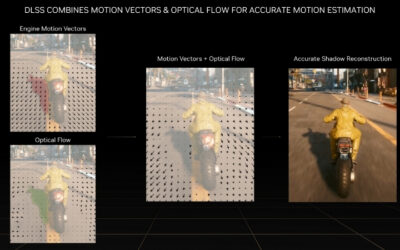
RTX VSR runs an AI model on your GPU’s Tensor cores that analyzes each video frame and rebuilds edges and textures that low-resolution or heavily compressed footage has lost. It also reduces the blocky compression artifacts that plague low-bitrate streams. All of this happens live, frame by frame, while the video plays.
Because it operates at the browser level, it works on almost any streaming site rather than being tied to one app. You do not upload anything or change the source; the enhancement is applied locally to what your screen displays.
The key mental model is reconstruction, not restoration. The AI makes an educated guess at missing detail. On good source material that guess is convincing; on very poor sources it can invent detail that was never there.
The Quality Levels and What They Change
RTX VSR offers quality levels, typically 1 through 4, that trade image improvement against GPU workload. Level 1 is the lightest touch and the cheapest to run; level 4 applies the most aggressive reconstruction and costs the most power and compute.
Higher levels sharpen more and clean artifacts harder, but they are not always better to look at. On some content the top level over-sharpens, adding a slightly artificial, etched edge. Many users settle on a middle level as the sweet spot between clarity and natural look.
The practical implication is that you should test levels on the content you actually watch rather than defaulting to the maximum and assuming it is best.
Supported Browsers, GPUs, and Video Sources
RTX VSR requires an RTX 30, 40, or 50 series GPU, with the RTX 30 and above supporting the full feature set, and it runs in Chromium-based browsers such as Chrome and Edge, plus Firefox in recent builds. You enable it in the NVIDIA app under the video settings, then keep the display driver current.
It works best on video between roughly 360p and 1080p that is being viewed larger than its native size. Footage already at or above your display resolution has little to gain, and true 4K content on a 4K screen sees essentially no benefit.
One realistic limitation: some DRM-protected streams and certain players do not pass frames through in a way VSR can enhance, so results vary by site. It is worth checking your specific platforms rather than assuming universal coverage.
Real-World Quality and Performance
Specs and toggles only matter if the result looks good and the cost is acceptable. This is where a review earns its keep, because RTX VSR is a feature people either rave about or shrug at, and the difference usually comes down to what they watch and what they expect. This section covers the visual payoff and the resource cost that rarely gets mentioned in the marketing.
What the Upscaling Looks Like on Streaming Video
On the content it is built for, older uploads, low-bitrate live streams, and standard-definition archives, the improvement is genuinely visible. Text on signage becomes legible, faces gain definition, and the mushy compression blocks in dark scenes clean up noticeably.
The effect is subtler than a demo screenshot suggests once video is in motion, and it will never turn a 480p source into something indistinguishable from native 1080p. Set expectations at “clearly better,” not “transformed,” and you will be satisfied rather than let down.
On already-sharp high-resolution content, you often cannot tell it is on at all, which is exactly as intended; there is simply little for the AI to reconstruct.
Motion is where it earns or loses trust. On slow, static shots the recovered detail holds up cleanly, but on fast pans or scenes with heavy grain, the reconstruction can flicker slightly as the model updates frame to frame. It is rarely distracting at moderate levels, yet it is the reason some viewers prefer a middle setting over the maximum, where the sharpening makes that motion instability easier to notice.
The Power and GPU Cost Nobody Mentions
Here is the trade-off the marketing skips: RTX VSR keeps your GPU actively working the entire time a video plays. On a desktop with a strong card this is a non-issue, but the power draw and heat are measurable, and at higher quality levels the GPU can pull significantly more wattage than idle video playback.
On a laptop this matters a lot. Enabling VSR while on battery can shorten runtime noticeably and spin up the fans, so it is best treated as a plugged-in feature for portable machines. It also competes for GPU resources if you are doing anything demanding in the background.
None of this is a dealbreaker for a desktop viewer, but it is why leaving VSR on globally at level 4 is not the free win it appears to be.
Pros and Cons Users Report
Gathering the praise and the complaints side by side paints an honest picture of what to expect once the novelty wears off. Both perspectives are useful before you commit to running it full time.
What users like: a real, visible cleanup of low-quality and older video, broad compatibility across streaming sites, simple one-time setup, and impressive results on the exact blurry content it targets. Reviewers who watch a lot of archival or low-bitrate video tend to call it a standout feature.
What users criticize: meaningful power and heat cost, a smaller-than-expected effect on content that is already decent, over-sharpening at the highest level, and inconsistent behavior on some protected or embedded players. The common thread is that it rewards the right content and wastes energy on the wrong content.
Is RTX Video Super Resolution Worth Using
With the how and the cost on the table, the verdict depends entirely on your habits and hardware. RTX VSR is not a feature everyone should leave on, and it is not one everyone should ignore either. The honest recommendation is conditional, and it hinges on the kind of video you watch and the screen you watch it on. Here is how to decide.
Best Use Cases and When to Skip It
Turn RTX VSR on if you regularly watch low-resolution or heavily compressed video on a mid-size or large monitor, older uploads, low-bitrate live streams, lecture recordings, and archival footage all benefit. For that use case it is one of the more quietly useful RTX features.
Skip it, or leave it at a low level, if you mostly watch native high-resolution content, if you are on laptop battery, or if your GPU is already busy. In those situations the power cost outweighs a benefit you can barely see, and turning it off is the sensible default.
A middle path many settle on: enable VSR globally at a low or medium level so everyday low-res clips get a light cleanup automatically, and reserve the higher levels for deliberate sessions of watching genuinely poor footage on a desktop. That way you get the upside on the content that needs it without paying maximum power cost around the clock.
Hardware That Makes the Feature Meaningful
RTX VSR is only as impressive as the screen you view it on. On a small or low-quality display, the reconstructed detail is wasted; the sharper edges and cleaner gradients only become obvious on a monitor with enough resolution and a decent panel to actually resolve them.
Two hardware factors decide how much you get out of it: a GPU with enough Tensor-core headroom to run higher quality levels without straining, and a sharp, well-calibrated monitor that can display the recovered detail. If you are upgrading either, those are the components that turn VSR from a subtle tweak into a clear improvement.
If you want the feature to genuinely shine, compare current prices and specs on capable RTX graphics cards and high-resolution monitors through the links on this page before you buy.
Final Verdict
RTX Video Super Resolution is a legitimately useful, if narrow, feature. For the desktop viewer who watches a lot of imperfect video on a good screen, it earns its place and is worth enabling at a sensible quality level. It does what it claims within realistic limits.
For everyone else, it is optional. The smart approach is to enable it, test your usual content and platforms, and keep it only if you can see the difference, rather than running it maxed out on principle and paying the power cost for nothing.
In short, NVIDIA RTX Video Super Resolution is a real AI upscaler that meaningfully cleans up low-resolution and compressed video, as long as you match the quality level to your content and accept the GPU cost. It is worth turning on for anyone who watches a lot of older or low-bitrate footage on a capable display. If your monitor or graphics card is the limiting factor, check the recommended RTX GPUs and high-resolution screens through the links here to give the feature the hardware it deserves.



Write Your Review
No reviews yet. Be the first to share your experience!