
- Top Pick: Fine-Tuning for Beginners: Train, Evaluate, and Deploy Your First AI Model — No Math Degree, No GPU, No Experience Required
- Best Value: Mastering Ollama: Run Local LLMs on Your Own Hardware, Eliminate Cloud AI Costs, and Ship 5 Real Projects in 30 Days
- Premium Choice: CUDA Programming: A Developer's Guide to Parallel Computing with GPUs (Applications of Gpu Computing)
How to find GPU model is the first thing you need to know before updating drivers, checking game requirements, listing a PC for sale, or troubleshooting any graphics issue. Yet a surprising number of owners cannot name the exact card in their system, especially on prebuilt or second-hand machines. The good news is that Windows can tell you in seconds without downloading anything, and a free utility adds the full detail if you need it. This guide shows you three fast methods from quickest to most detailed, explains what the model name actually tells you, and covers the situations where knowing the exact card matters most.
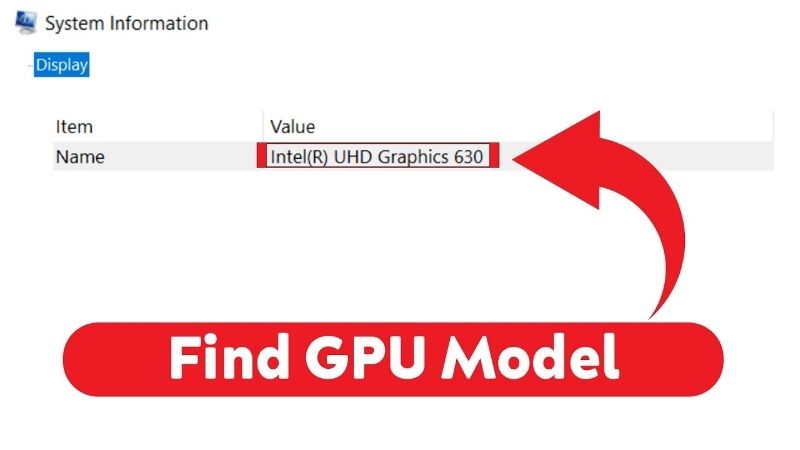
Quick Answer — Find Your GPU Model in 10 Seconds
As an Amazon Associate we earn from qualifying purchases at no extra cost to you.




Ctrl+Shift+Esc → Performance tab → click GPU → model name at top-right. Done. For full detail (chip, BIOS, memory type), use GPU-Z (free, no install).
Whether you are about to download a driver, sell a machine, or just curious what is powering your games, the process takes seconds and needs no technical background. The methods below are ordered from fastest to most detailed so you can pick the one that matches your needs.
What You Will Need to Find Your GPU Model
No additional software is strictly required, since Windows has built-in tools that show the GPU name. A free utility like GPU-Z adds granular detail when you need more than just the model name. The list below covers every method so you can pick the one that fits your comfort level.
Task Manager: The Fastest Built-In Method
Press Ctrl+Shift+Esc to open Task Manager, click the Performance tab, and select GPU on the left sidebar. The top-right corner shows the GPU model name, such as NVIDIA GeForce RTX 4070. This is the quickest path: three clicks, no download, and you have the answer.
Task Manager also shows current utilization, temperature, and memory usage, so it doubles as a quick health check while you are there. On Windows 11, the GPU section is slightly reorganized but the information is in the same place.
If your system has both integrated graphics and a discrete Nvidia card, Task Manager will show two GPU entries, GPU 0 and GPU 1. The discrete card is usually GPU 1, but check the names to be sure. Selecting the wrong entry shows the integrated chip, which can cause confusion when you are trying to identify the card that actually runs your games.
Device Manager: An Alternative Built-In Path
Right-click the Start button and select Device Manager, then expand Display adapters. Your GPU model appears in the list. This path works on every version of Windows and does not require Task Manager’s Performance tab, which some minimal Windows editions do not expose.
Device Manager is also the place to check for driver issues. A yellow warning icon next to the GPU name indicates a driver problem, and knowing the exact model lets you download the correct fix from Nvidia’s site.
GPU-Z: Full Detail for Advanced Needs
When you need more than just the model name, GPU-Z shows the GPU chip, BIOS version, memory type, bus width, driver version, and real-time clocks in a single window. Download the free portable version, run it, and every detail about your card appears instantly.
This level of detail matters when you are selling a card, verifying a second-hand purchase, or providing information for a support request. The model name alone does not distinguish between a factory-overclocked variant and a reference design, but GPU-Z does.
This matters because two cards sharing the same model name can have different cooler sizes, power limits, and even clock speeds depending on the manufacturer and variant. When you are buying a replacement fan, an aftermarket cooler, or checking compatibility with a specific case, the variant-level detail GPU-Z provides can prevent an expensive mismatch.
Step-by-Step Guide to Finding Your GPU Model
Pick the method that fits your situation and follow the steps below. Each one works on any Nvidia card, and the fastest takes under ten seconds.
Step 1 to 3: Task Manager Method
Step 1: Open Task Manager. Press Ctrl+Shift+Esc, or right-click the taskbar and select Task Manager.
Step 2: Go to the Performance tab. If Task Manager opens in compact mode, click More details first, then select the Performance tab.
Step 3: Select GPU. Click GPU 0 in the left sidebar. The model name, such as NVIDIA GeForce RTX 4080 SUPER, appears at the top-right. Done.
This is the recommended first method because it requires no download, no admin rights, and gives you the answer in seconds.
Step 4 to 6: Device Manager Method
Step 4: Open Device Manager. Press Windows+X and select Device Manager from the menu, or search for it in the Start menu.
Step 5: Expand Display adapters. Click the arrow next to Display adapters to reveal the GPU entry.
Step 6: Read the model name. The entry shows the full GPU name. Right-click it and select Properties for the driver version and device status if needed.
This method is best when Task Manager is unavailable or when you also need to check driver status in the same step.
Step 7 to 9: GPU-Z for Full Detail
Step 7: Download GPU-Z. Visit the official site and download the portable version. No installation required.
Step 8: Run and read. Double-click the executable. The main tab displays the GPU name, chip, revision, memory size and type, bus width, BIOS version, and driver version.
Step 9: Save or screenshot. Click the camera icon or take a screenshot for your records. GPU-Z also lets you save a full report as a text file, which is useful for support requests or sale listings.
Use GPU-Z whenever you need the full picture rather than just the model name, such as when verifying a second-hand card or collecting details for an RMA.
Why It Matters, Common Mistakes, and FAQs
Knowing your GPU model is not just trivia; it determines which drivers to install, which games your card supports, and what cooling or upgrade parts are compatible. This section covers the real reasons to check, the mistakes that trip beginners, and honest answers to the questions owners ask most.
When You Actually Need to Know Your GPU Model
Driver downloads require the correct model to deliver the right package. Game system requirements list minimum and recommended GPUs, and comparing yours tells you what settings to expect. Selling or buying a used card demands the exact model to price it fairly and avoid scams.
Cooling upgrades like aftermarket coolers and replacement fans also depend on the exact model and variant, since physical dimensions and mounting patterns differ. Even a correct model name can hide differences between a two-fan compact card and a three-fan oversized one, which is why GPU-Z’s detail matters for hardware purchases.
Common Mistakes to Avoid
Do not rely on the box or receipt if the card was installed by someone else. Prebuilts and second-hand systems sometimes contain a different card than advertised, so always check the actual hardware. Task Manager takes ten seconds and eliminates the guesswork.
Do not confuse the chip name with the product name. The Nvidia GeForce RTX 4070 is the product; the AD104 is the chip. Drivers and game requirements refer to the product name, not the chip, so that is the one to note down.
Pros and Cons of Each Method
Task Manager is instant and needs nothing, but shows only the model name. Device Manager adds driver status but no hardware detail. GPU-Z shows everything but requires a small download. For most people, Task Manager is enough; for sellers, buyers, and tinkerers, GPU-Z is the better tool.
All three methods are free, accurate, and take under a minute. The choice is about how much detail you need, not which one is correct.
One point worth noting: if you are helping someone else identify their card remotely, such as over a call or a chat, Task Manager is the method to recommend because it needs no download and the instructions are three steps. GPU-Z is better for your own machine where you want a full record, but for quick remote support, built-in tools win on simplicity.
As a general habit, take a GPU-Z screenshot the day you install a card and save it alongside the receipt. That single file answers every future question about the model, variant, BIOS, memory, and driver version without reopening the tool or searching for paperwork. Five seconds of effort on install day saves real time down the road.
Finding your GPU model takes seconds and is the starting point for drivers, compatibility, and upgrades. Use Task Manager for a quick answer or GPU-Z for the full picture.
See More:
- How to lower GPU temperature
- How to lower GPU hotspot temp
- How to increase GPU performance
- How to enable G-Sync
Conclusion
Knowing how to find GPU model is a ten-second skill that unlocks the right drivers, accurate game-compatibility checks, and correct parts for any cooling or hardware upgrade. Task Manager gives you the answer instantly, Device Manager adds driver status, and GPU-Z provides full hardware detail for advanced needs. Check the actual hardware rather than trusting a label, note the product name rather than the chip name, and keep a screenshot for reference. It is the simplest and most useful starting point for any GPU task.
Once you have the model name, you are equipped to download the exact driver, compare against any game’s system requirements, price a resale accurately, or choose the right cooling part. Every other GPU task starts here with confidence. As a practical habit, take a GPU-Z screenshot the day you install any new card and save it alongside the receipt, so every future question about model, variant, BIOS, and memory type is answered by a single file rather than a fresh search. Every other GPU task starts here, so knowing this ten-second skill pays off every time you maintain, upgrade, or troubleshoot your system.
Top-Rated Picks


| Product | Brand | Rating | Reviews | Price |
|---|---|---|---|---|
| ARCTIC MX-4 (4 g) – Premium Performance Thermal Paste… | ARCTIC | ★ 4.8 | 104k | $4.99 |
| ARCTIC MX-4 (incl. Spatula, 4 g) – Premium Performanc… | ARCTIC | ★ 4.8 | 71.9k | $5.49 |
| Crucial 8GB DDR4 RAM 3200MHz (PC4-25600), Downclockab… | Crucial | ★ 4.8 | 62.8k | $74.99 |
| AMD Ryzen 5 5600X 6-core, 12-thread unlocked desktop … | — | ★ 4.8 | 30.2k | $177.60 |
| NVIDIA Shield Remote; Voice Search, Motion-Activated,… | — | ★ 4.7 | 10.6k | $25.99 |
Frequently Asked Questions
What is the quickest way to identify my graphics card?
Press Ctrl, Shift and Escape to open Task Manager, select the Performance tab and click the GPU entry, where the model name is displayed in the top right along with dedicated memory. It takes about five seconds and requires no downloads, though it does not reveal board partner details or memory manufacturer.
How do I get more detailed information?
Install GPU-Z, which reports the exact chip, board revision, memory type and manufacturer, BIOS version, bus interface width and current link speed. That level of detail matters when you are checking whether a card is running at full x16, identifying memory vendor before overclocking, or confirming a card is genuine before buying used.
Can I find the model without booting Windows?
Yes. Open the case and read the sticker on the card itself, usually on the backplate or along the top edge, which lists the model and serial number. Alternatively, boot into the BIOS, where most modern motherboards display the detected graphics device on the main information page.
Why does Device Manager show a generic display adapter?
That means Windows has not loaded the proper driver, usually after a fresh install or a failed update. Download the correct driver directly from the GPU manufacturer, and if the problem persists use Display Driver Uninstaller in safe mode to remove the broken installation before installing the current package cleanly.
How do I tell which board partner made my card?
GPU-Z reports the subvendor, and the physical sticker on the card carries the partner’s model number. This matters because two cards with the same chip can have very different cooler designs, power limits and physical dimensions, all of which affect temperature, noise and whether the card will fit your case.











Write Your Review
No reviews yet. Be the first to share your experience!