
uninstall GPU drivers the right way can fix stutters, crashes, and strange glitches that a simple driver update never seems to cure, because leftover files from old drivers often cause conflicts. Whether you are troubleshooting a problem or switching graphics cards, a clean removal gives you a fresh, stable starting point. This guide explains when you should do it, the difference between a basic uninstall and a full clean removal, and the exact steps using both Windows and the popular DDU tool.
As an Amazon Associate we earn from qualifying purchases at no extra cost to you.


Understanding Why You Uninstall GPU Drivers
Graphics drivers leave behind settings, files, and registry entries that a normal update simply installs over the top of. Over time, or when you switch cards or brands, those remnants can cause instability that no amount of updating fixes. Uninstalling cleanly clears that buildup so the new driver starts from a truly blank slate. It is the digital equivalent of wiping a surface clean before repainting, rather than adding another coat over old, flaking layers.
When You Should Uninstall GPU Drivers
The most common reasons are troubleshooting persistent crashes, stutters, or graphical artefacts that updates have not solved, and switching graphics cards, especially between brands like Nvidia and AMD. A clean removal is also wise before a major driver overhaul if you have been updating over the top for a long time.
If your card simply works well, you do not need to uninstall anything, and a standard update is enough. The clean-removal process is a troubleshooting and transition tool, best reserved for when something is wrong or when you are changing hardware. There is no benefit to wiping a perfectly healthy driver, so save the effort for when it will actually fix or prevent a problem.
What You Will Need
The good news is that everything you need is free.
You will want the latest driver for your card downloaded and ready before you begin, so you can reinstall immediately after removal and avoid running the system without a proper driver any longer than necessary. For a thorough clean removal, the widely used Display Driver Uninstaller utility, known as DDU, is the standard free tool that wipes out leftover files Windows leaves behind.
It also helps to have a few minutes of uninterrupted time, since the cleanest method involves restarting into Windows Safe Mode, during which your display may briefly look different at a lower resolution. This is completely normal and temporary, since Windows falls back to a basic display driver until your proper one is reinstalled.
Standard Uninstall vs Clean Uninstall (DDU)
A standard uninstall through Windows removes the main driver but often leaves behind configuration files and registry entries, which is fine for routine changes but may not cure stubborn problems. It is the quick, light-touch option.
A clean uninstall with DDU goes much further, scrubbing out the leftovers that the standard method misses, which is why it is the go-to for troubleshooting and for switching between graphics brands. When a basic uninstall does not fix an issue, the DDU method usually does. That is precisely why experienced users reach straight for DDU whenever a problem smells like leftover-driver corruption rather than a genuine hardware fault.
A helpful way to think about it is escalation: try the quick Windows uninstall first for simple changes, and reach for DDU only when a problem persists or you are switching brands. Matching the depth of the removal to the seriousness of the situation saves you effort while still solving the harder cases properly.
How to Uninstall GPU Drivers Step by Step
You have two routes depending on how thorough you need to be: a quick removal through Windows, or a full clean wipe with DDU. Both are straightforward, and you can start with the simple method and escalate to DDU only if the problem persists.
Method 1: Uninstall via Windows Settings
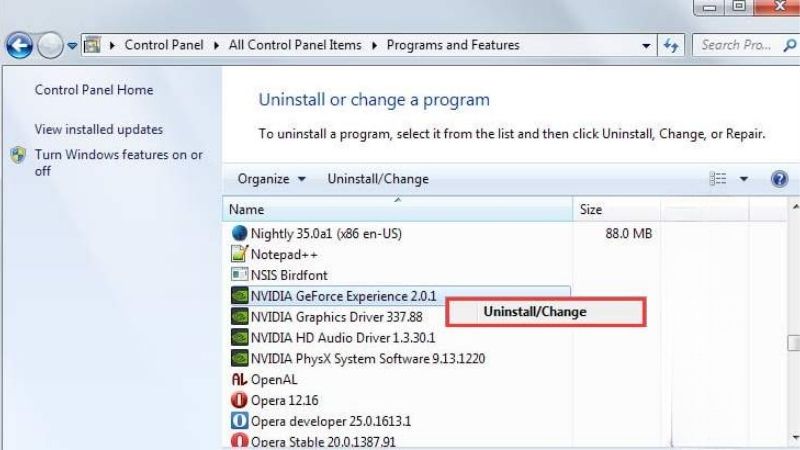
For a basic removal, open the Windows Settings app, go to the Apps section, and find the Nvidia or AMD graphics driver package in the list of installed programs. Select it and choose Uninstall, then follow the prompts and restart your PC when asked.
This removes the core driver and is enough for routine situations, such as a simple reinstall of the same card. If your reason for uninstalling was a stubborn crash or a brand switch, however, you should follow up with the DDU method for a truly clean result. The Windows uninstaller is simply not designed to scrub every registry entry and configuration file, which is exactly where the trouble often hides.
If you only ever use this method, it is worth knowing that it leaves your saved profiles and configuration largely intact, which is convenient for a routine reinstall but unhelpful when those very files are the problem. Recognising that limitation is what tells you when to move on to the deeper DDU approach.
Method 2: Clean Removal with DDU
For a complete wipe, use these steps:
- Download DDU and your new driver first, then disconnect from the internet so Windows does not auto-install a generic driver mid-process.
- Boot into Safe Mode, which DDU recommends for the cleanest removal; you can do this from the Windows recovery options under advanced startup.
- Run DDU, choose your GPU brand, and select “Clean and restart” to remove the driver and all its leftovers, after which the PC reboots automatically.
- Reinstall your driver by running the driver package you downloaded earlier, then reconnect to the internet once it is installed.
After this, your system has a genuinely fresh driver with none of the old remnants that cause conflicts, which is why DDU is so effective at curing problems that updates alone cannot. Many issues that seem to demand a full Windows reinstall actually vanish after a proper DDU wipe and a fresh driver.
After Uninstalling: Reinstalling Drivers
Once the old driver is gone, install the fresh one promptly so your card runs at full performance rather than on a basic Windows fallback driver. Running the official package and choosing a clean install during setup, if offered, reinforces the fresh start.
After installing, restart once more and check that everything is stable in a game or benchmark. If you removed the driver to switch cards, this is the point at which your new graphics card will be running on its proper, conflict-free driver. A quick stability check in a game now confirms that the swap and the clean driver install have gone exactly as intended.
Pros, Cons, and Expert Tips for Uninstalling GPU Drivers
A clean driver removal is a powerful troubleshooting step, but it is worth knowing the pitfalls and the habits that make it smooth. Used correctly, it solves problems that nothing else will. The key is simply knowing when to escalate from a quick uninstall to a full DDU wipe, and having your replacement driver ready so the system is never left stranded. With those two habits in place, a clean driver removal becomes a dependable tool rather than a gamble.
Mistakes to Avoid
The biggest mistake is uninstalling the driver without having the new one downloaded first, which can leave you stranded on a low-resolution fallback driver with no easy internet path to fix it. Always download the replacement before you remove the old one.
Another mistake is skipping Safe Mode when using DDU, which can leave the removal less complete and let Windows interfere. Staying offline during the process also prevents Windows from silently installing a generic driver before you are ready. Windows is surprisingly eager to grab a basic driver the moment it sees an internet connection, which can interfere with a clean removal.
A final mistake is forgetting to re-enable automatic updates and reconnect to the internet once you are finished, leaving the system in a half-configured state. Restoring your normal settings after the clean install is done rounds off the process and keeps Windows behaving predictably afterwards.
Pro Tips for a Clean Result
A reliable habit is to disconnect from the internet and disable automatic Windows driver updates temporarily, so nothing installs itself mid-process. Keeping your downloaded driver package in an easy-to-find folder makes the reinstall step quick once the wipe is done.
If you are switching from one brand to another, running DDU is practically essential rather than optional, since cross-brand leftovers are a frequent source of instability. Doing the whole job in one sitting, from wipe to reinstall, keeps your system protected throughout. Leaving a machine sitting for hours on a fallback driver is not dangerous, but it does mean reduced performance until you finish.
See More:
Pros and Cons of Using DDU
On the plus side, DDU performs the most thorough removal available, cures many stubborn driver issues, and is the safest way to switch graphics brands cleanly. It is free, well-trusted, and quick once you are set up.
On the downside, it requires a few extra steps like booting into Safe Mode and staying offline, and it is overkill for routine updates where a simple approach suffices. For genuine troubleshooting and brand changes, though, those extra steps are well worth it. The handful of extra minutes DDU asks for is trivial compared to the hours a stubborn, misdiagnosed driver problem can otherwise consume.
To wrap up, knowing how to uninstall GPU drivers cleanly is the fix for stubborn crashes and the proper way to switch cards, and it comes down to downloading the new driver first, removing the old one with Windows or DDU, and reinstalling promptly. Use the simple method for routine changes and DDU when problems persist. If a clean driver install still leaves an old card struggling, it may be time to consider an upgrade, and you can check the recommended graphics cards linked below.
Top-Rated Picks


| Product | Brand | Rating | Reviews | Price |
|---|---|---|---|---|
| ARCTIC MX-4 (4 g) – Premium Performance Thermal Paste… | ARCTIC | ★ 4.8 | 104k | $4.99 |
| ARCTIC MX-4 (incl. Spatula, 4 g) – Premium Performanc… | ARCTIC | ★ 4.8 | 71.9k | $5.49 |
| Crucial 8GB DDR4 RAM 3200MHz (PC4-25600), Downclockab… | Crucial | ★ 4.8 | 62.8k | $74.99 |
| AMD Ryzen 5 5600X 6-core, 12-thread unlocked desktop … | — | ★ 4.8 | 30.2k | $177.60 |
| NVIDIA Shield Remote; Voice Search, Motion-Activated,… | — | ★ 4.7 | 10.6k | $25.99 |
Frequently Asked Questions
Is DDU safe to use?
Yes, it is a long-established tool widely recommended by manufacturers’ own support forums. Download it only from the official Wagnardsoft site, run it in safe mode, and create a restore point first. The main risk is user error, such as removing the wrong vendor’s package on a hybrid laptop.
Do I need to disconnect from the internet?
It is strongly advised. If Windows Update reaches the machine during the uninstall it may push its own driver and reintroduce the files you just removed. Disable automatic device driver installation under advanced system settings, or simply unplug the network until the fresh driver is installed.
How do I uninstall the driver on a laptop with two GPUs?
Remove them one vendor at a time, discrete first, and reinstall the integrated graphics driver from the laptop maker rather than the chip vendor, since OEM builds often contain panel-specific and power-management customisations. Skipping that step commonly breaks brightness controls and Optimus switching.
What should I do if the system will not boot afterwards?
Boot into safe mode and either reinstall the previous driver or use system restore. Ensure the monitor cable is in the graphics card rather than the motherboard. Windows will normally fall back to the basic display adapter at low resolution, which is ugly but functional enough to recover.
Do I need to uninstall drivers before swapping graphics cards?
Between two Nvidia cards it is optional, since the driver covers the whole product line. When changing vendors, for example Nvidia to AMD, a full clean removal prevents conflicting control panel services and stale registry entries that cause instability and odd display detection problems.











Write Your Review
No reviews yet. Be the first to share your experience!