
- Top Pick: NVIDIA GeForce RTX 5080 Founders Edition
- Best Value: Nvidia RTX 2000 ADA 16GB Graphics Card
- Premium Choice: Nvidia GeForce RTX 3090 Ti Founders Edition
how to install previous nvidia drivers is exactly what you type the moment a fresh driver update tanks your frame rate, triggers black screens, or breaks a game that ran fine yesterday. The good news is that rolling back to a known-good driver is straightforward once you know the steps, and this guide walks you through it cleanly so you can get back to a stable system today. No guesswork, no bloated tools you do not need, just a clear path to a working driver and a few pro tips to keep it that way.
How to Install Previous Nvidia Drivers the Right Way
Before touching anything, understand the goal: fully remove the problem driver, then cleanly install an older, stable version so nothing conflicts. A clean rollback prevents the leftover files that cause half of all still-broken-after-reinstall complaints. This section covers why the rollback works and what you need to gather first.
Why roll back instead of just reinstalling
A new driver can introduce regressions in specific games, cause unexpected power spikes, or conflict with older hardware. Rolling back gives you a stable baseline while Nvidia fixes the issue in a later release.
Simply reinstalling the same version rarely helps, because the bug lives in that version. Installing a previous, proven driver is the fix that addresses the cause rather than the symptom.
This distinction matters: people who reinstall the same driver three times and still crash are treating the symptom, while a targeted rollback removes the actual problem.
There is one more reason to prefer a clean rollback over Windows’ built-in Roll Back Driver button. That button only steps back one version and often leaves remnants behind, whereas the method in this guide lets you choose any known-good version and wipes the slate first. When stability is the goal, control over exactly which driver you land on is worth the few extra minutes.
What you will need before you start
Preparation turns this into a ten-minute job instead of an afternoon of frustration. Gather these before you remove anything:
- The previous driver installer. Download the older version from Nvidia’s official driver archive that matches your exact GPU and Windows build. Save it before you uninstall anything so you are never stranded without a driver.
- Display Driver Uninstaller (DDU). This free utility wipes the driver remnants Windows leaves behind. It is the single most important tool for a truly clean rollback.
- A reliable USB drive or external SSD. Keeping your saved installer and DDU on external storage means you still have them if you boot into Safe Mode. A dependable USB drive is cheap insurance for any troubleshooting kit.
- Your GPU model, confirmed. Note whether you have, for example, a desktop RTX 3080 or a laptop GPU, so you grab the correct driver branch the first time.
None of this is expensive, and most of it you may already own. The one item worth buying if you do not have it is a dependable external drive, because a troubleshooting kit that lives on separate storage saves you every single time Windows will not boot normally. Treat that small purchase as insurance against the exact scenario that sent you here.
Back up and note your current setup
Write down the driver version currently installed and the one you plan to roll back to. If the rollback does not solve the issue, you will want that record for the next step.
Create a Windows restore point as well. It takes a minute and gives you a safety net if anything goes sideways during the process.
These two small habits separate a smooth rollback from a stressful one, so do not skip them even if you are in a hurry.
Step-by-Step: Installing the Previous Nvidia Driver
Follow these steps in order, because the sequence matters: clean removal first, then install. Skipping the uninstall step is the number one reason rollbacks fail, so treat each step as required rather than optional.
Step 1 and 2: Remove the current driver cleanly
Step 1: Download DDU and your target driver first. Get both files onto your machine before you remove anything, so you are never stuck without a display driver. Extract DDU to its own folder for easy access.
Step 2: Run DDU in Safe Mode. Boot Windows into Safe Mode, open DDU, choose GPU, select Nvidia, and pick Clean and do NOT restart. This strips every trace of the current driver so the older one installs without conflict.
Running DDU in Safe Mode rather than on the normal desktop is what guarantees a spotless removal, and it is the step most rushed guides get wrong.
If you have never entered Safe Mode, you can reach it by holding Shift while clicking Restart, then choosing Troubleshoot, Advanced options, Startup Settings, and Restart. It sounds like a detour, but it takes under a minute and it is the difference between a rollback that holds and one that quietly fails because old files were still loaded in memory.
Step 3 and 4: Install the older driver
Step 3: Reboot to normal Windows. After DDU finishes, restart into your normal desktop. Windows may load a basic display driver at low resolution, which is expected and completely fine.
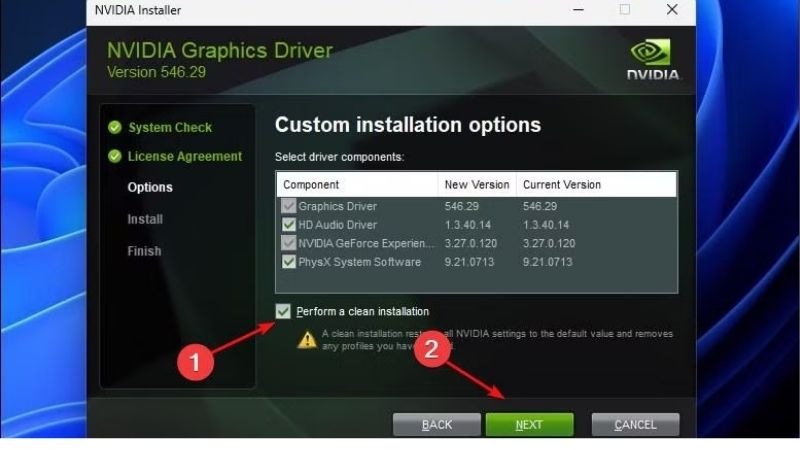
Step 4: Run the previous driver installer. Launch the older installer you saved, choose Custom (Advanced), and tick Perform a clean installation. Let it finish and reboot once more.
At this point your system is running the stable, previous driver. Load the game or app that was failing and confirm the problem is gone before you move on.
If the crash or stutter is gone, you have your answer: the newer driver was the culprit, and you can stay on this version safely. If the problem persists even after a clean rollback, that is valuable information too, because it points away from the driver and toward hardware, a failing overclock, or a separate software conflict worth investigating next.
Step 5: Block unwanted automatic updates
Step 5: Stop Windows from silently re-updating. Windows Update can push the problem driver back onto your system without asking. In Nvidia’s app, disable automatic driver updates, and if needed, pause Windows driver updates so your rollback sticks.
This final step is what keeps you from repeating the whole process next week. Lock in the stable version until you confirm a newer release has fixed the bug.
Numbered, in order, this is the entire process: prepare, wipe with DDU, clean-install the older driver, then block auto-updates. Follow it once and you will never fear a bad update again.
Pro Tips, Mistakes to Avoid, and When to Upgrade
A rollback solves software problems, but sometimes the real issue is aging hardware. This section shares the tips that make the process smooth and the honest signals that it may be time to consider a new card instead of fighting drivers forever.
Pro tips and common mistakes
Avoid these frequent errors: uninstalling before downloading the older driver, skipping DDU and leaving conflicting files behind, grabbing the wrong branch for a laptop versus desktop GPU, and forgetting to disable automatic updates afterward.
Two quick pro tips make life easier. Keep the last known-good installer archived on external storage so future rollbacks take minutes, and always read the release notes of the driver you are leaving to confirm your specific bug is a known issue.
If your bug is listed as known, a fixed release is usually coming soon, and you can safely update again once it lands rather than staying on an old driver forever.
One last habit pays off over time: note the version number of every driver that has given you trouble. After a few entries you will spot patterns, such as a particular branch that never plays nicely with your specific card, and you can simply skip those releases in the future instead of learning the same lesson twice.
When a driver fix is not enough
If you are constantly rolling back, or your GPU is several generations old and struggling with new titles, driver management may be treating a symptom of aging hardware rather than the cause.
Older cards receive fewer optimizations, and crashes can stem from limited VRAM or an unstable board rather than the driver itself. A modern efficient GPU can end that cycle while boosting performance.
Current cards ship with mature drivers, larger VRAM buffers, and features like DLSS that extend their useful life, so an upgrade often fixes stability and performance in one move.
A useful test is to track how often you are rolling back. If it happens once a year, driver management is all you need. If you are doing it every few weeks, you are spending real time maintaining hardware that is fighting you, and the cost of that time and frustration starts to rival the price of a modern card that just works.
What rising prices mean if you consider upgrading
If an upgrade is on your mind, timing matters. Laptop and PC component prices have been trending upward, driven largely by memory costs, so waiting often means paying more rather than less.
The cautious good news is that prices have stopped climbing as steeply as in late 2025 and have shown a period of relative stability, though volatility warnings remain. New supply is coming, with Micron building two Idaho plants, but those will not run until 2027 to 2028, so real relief is years away.
If your old card is the true source of your driver headaches, buying a stable modern GPU at a fair price now is often smarter than nursing failing hardware while prices hold high and relief stays distant.
So weigh it honestly: a rollback costs you ten minutes and zero dollars, and for most people it is the right first move. But if you are on hardware several generations old and the crashes keep returning, the smarter long-term fix is a current card bought at a fair price, since waiting for prices to fall is a bet the supply timeline does not support.
See More:
Conclusion: You Can Install Previous Nvidia Drivers Fast
Learning how to install previous Nvidia drivers turns a frustrating crash into a ten-minute fix: download the older driver and DDU, wipe the current driver clean in Safe Mode, install the previous version with a clean install, and block automatic updates so it sticks. Keep your last stable installer archived and you will never dread a bad update again. And if you find yourself rolling back constantly on an aging card, a modern GPU with mature drivers can end the cycle for good. When you are ready to upgrade to hassle-free hardware, check current options and pricing through the link below.
Frequently Asked Questions
Where do I download older Nvidia drivers safely?
Use the official Nvidia driver download page and switch to the Advanced Driver Search, which lets you filter by product series, operating system and driver branch to list every previously released version. Only download from nvidia.com, because third-party driver sites frequently repackage installers with adware or serve tampered files that can compromise your system.
Do I need DDU before installing an older driver?
Yes, for a downgrade it is strongly recommended. Newer driver components sometimes persist and conflict with an older package, causing installation failures or instability. Run Display Driver Uninstaller in Windows Safe Mode with networking disabled, let it clean out the existing files and registry entries, then install the older driver from a clean state.
Will rolling back break anti-cheat or newer games?
Anti-cheat systems do not usually reject older Nvidia drivers, so multiplayer titles keep working. The genuine risk is that brand new games ship with day-one optimisations and bug fixes in the latest driver, so on an older branch you may see missing features, visual glitches or noticeably lower frame rates in recent releases.
Can I simply roll back through Windows Device Manager?
Sometimes. Open Device Manager, expand Display adapters, right-click your GPU, choose Properties and then the Driver tab, and select Roll Back Driver. This only works if Windows still retains the previous driver package and it only takes you back one version. For older versions or a truly clean state, use DDU plus a manual install.
How do I stop Windows Update reinstalling the newer driver?
Open the Windows advanced system settings, go to Hardware and then Device Installation Settings, and turn off automatic downloading of manufacturer apps and icons. You can also use the Microsoft Show or Hide Updates troubleshooter to block the specific driver update, or set your connection as metered to suppress automatic driver delivery.
As an Amazon Associate we earn from qualifying purchases at no extra cost to you.















Write Your Review
No reviews yet. Be the first to share your experience!