
- Top Pick: ASUS ROG Swift 360Hz PG259QNR 24.5” HDR Gaming Monitor, 1080P Full HD, Fast IPS, 1ms, G-SYNC, ULMB, NVIDIA Reflex Latency Analyzer, HDMI DisplayPort USB, Desk Mount Kit, VESA Wall Mountable, HDR10
- Best Value: VIPERA NVIDIA GeForce RTX 4090 Founders Edition Graphic Card
- Premium Choice: Nvidia RTX A400
Nvidia Reflex low latency on or off is one of the most common settings questions competitive gamers ask, and the short answer is almost always on. But the full picture matters: knowing what Reflex does, when the Boost option helps, and how the new Reflex 2 changes things lets you squeeze every millisecond out of your system. This guide gives you the verdict and the reasoning behind it.


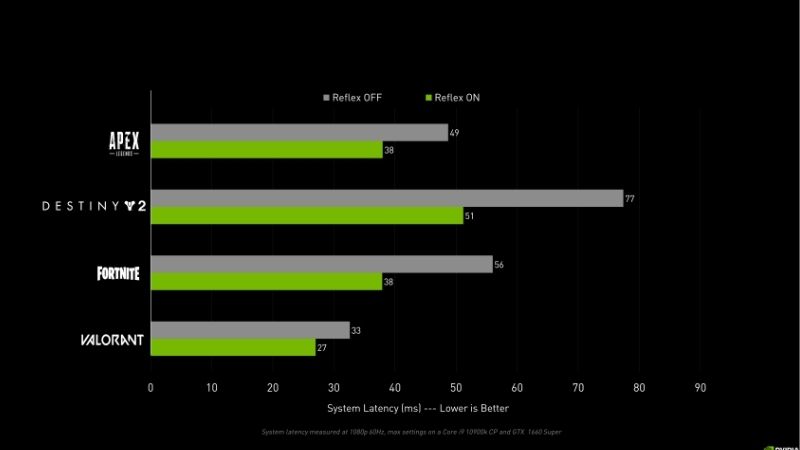
What Nvidia Reflex Low Latency Does
To decide whether to enable Reflex, it helps to understand the problem it solves. System latency, the delay between your input and what appears on screen, is what Reflex targets directly.
As an Amazon Associate we earn from qualifying purchases at no extra cost to you.


The Render Queue Problem
This is why two players with identical frame rates can have very different experiences. One running a long render queue feels a step behind, while the other with a short queue feels immediate, even though the on-screen numbers look the same. Latency, not frame rate alone, is what determines how responsive a game truly feels.
In a normal rendering pipeline, the CPU prepares frames and queues them for the GPU. When the GPU cannot keep up, a backlog of frames builds, and each queued frame adds delay before your input shows on screen.
That queue is a hidden source of input lag. The frame you see may reflect slightly older input than you just gave, which feels like sluggishness even when your frame rate looks high.
This is largely separate from raw GPU speed. A fast card can still feel laggy if the render queue is long, which is exactly the gap Reflex was designed to close.
How Reflex Fixes It
The elegance of the approach is that it costs you nothing in image quality and little to nothing in frame rate. Rather than adding hardware work, Reflex simply schedules the existing work more intelligently, which is why it can lower latency without the trade-offs that usually accompany a performance setting.
Reflex coordinates the CPU and GPU so the game submits each frame at the last possible moment, just as the GPU is ready for it. This keeps the render queue short and samples your input as late as possible.
The effect is that the game renders the freshest possible input rather than working through a backlog, which measurably lowers end-to-end latency in supported titles. Third-party testing consistently confirms the reduction.
Because it works through the game engine via Nvidia’s Reflex SDK, developers must integrate it, which is why you find the toggle in competitive titles like Counter-Strike 2, Valorant, and Fortnite.
On vs On + Boost
It helps to think of the two as a default and a specialist tool. Almost everyone should run plain On all the time, while Boost is something you reach for deliberately in the narrow cases where its extra clock-pinning behavior actually pays off, which we cover in detail below.
Supported games offer two Reflex options. The “On” setting applies the just-in-time frame framework and delivers the core latency reduction with essentially no downside on most systems.
The “On + Boost” setting adds a second behavior: it overrides the GPU’s power-saving mode to keep clocks high under load. This can shave off a little more latency in specific scenarios, at the cost of higher power draw.
For most players, plain “On” is the sweet spot. Boost is a situational extra rather than a universal upgrade, which we will unpack next.
Should You Turn Reflex On or Off?
With the mechanics clear, the practical verdict is straightforward, though the ideal configuration depends slightly on your hardware and how a game runs.
The Verdict: Turn It On
The rare exception worth mentioning is that a handful of older games implemented Reflex poorly, so if you ever notice odd behavior after enabling it in a specific title, toggling it off there is fine. In the overwhelming majority of modern supported games, however, on is unquestionably the right choice.
In almost every case, you should turn Reflex on. It reduces system latency with little to no compromise to frame rate or image quality, so there is rarely a reason to leave it off in a supported game.
The benefit is largest when your GPU is the bottleneck, because that is when the render queue would otherwise grow. In those situations Reflex can cut latency substantially, which competitive players feel directly in their aim.
Even on the newest RTX 50 cards, where absolute gains can be smaller, enabling Reflex costs nothing meaningful, so leaving it on is the safe, sensible default across your games.
When Boost Actually Helps
A quick way to know whether Boost is worth it is to check your GPU utilization while playing. If it sits well below full load because your CPU is the limiting factor, Boost may help; if your GPU is already pinned near maximum, Boost has little room to improve things and mainly adds power draw.
The Boost option earns its keep mainly when your system is CPU-bound and the GPU is underused, since keeping GPU clocks pinned high can still trim latency there. In heavily GPU-bound scenes it makes less difference.
The trade-off is power and heat. Because Boost disables power-saving, it draws more energy, which matters especially on laptops where battery life and thermals are a concern.
For laptop gamers, plain “On” keeps the latency benefits while preserving battery-saving behavior. Desktop users chasing every millisecond in CPU-bound titles are the ones who benefit most from Boost.
The Fallback for Unsupported Games
One caveat is worth knowing: the driver-level low latency mode behaves differently across graphics APIs and game engines, so its benefit varies more than in-game Reflex does. Treat it as a helpful bonus for unsupported titles rather than a guaranteed equal to the real thing.
Not every game integrates Reflex. For those, Nvidia offers Ultra Low Latency Mode in the Control Panel as a driver-level fallback, which reduces queued frames without needing game support.
It is not as effective as in-game Reflex, since it works from outside the engine, but it still helps in titles that lack native support. Enable it per-game or globally in the driver settings.
Where a game does support Reflex, always prefer the in-game toggle over the driver fallback, as the integrated version is more precise and more effective at cutting latency.
Reflex 2, Hardware, and Trade-Offs
Reflex is evolving, and understanding where it is headed helps you get the most from it now and plan future upgrades. The hardware you own shapes how much you can access.
Reflex 2 and Frame Warp
What makes Frame Warp notable is that it attacks latency from a completely different angle than the original Reflex. Rather than only shortening the queue, it adjusts the finished frame to reflect your newest input, which is why the two techniques stack and together reach reductions neither could manage alone.
Nvidia’s Reflex 2 introduces Frame Warp, which updates the rendered frame based on your very latest mouse input right before it reaches the display. Nvidia reports latency reductions of up to 75% in supported scenarios.
Unlike standard Reflex, which is most effective when GPU-bound, Frame Warp delivers meaningful savings in both CPU- and GPU-bound situations, making it a broader improvement to responsiveness.
Reflex 2 is rolling out first on RTX 50 series cards and select titles, with wider support expanding over time. It represents the next step in Nvidia’s latency work rather than a replacement for the Reflex you already use.
Hardware Requirements
This split is a genuine consideration for competitive players plotting an upgrade. If shaving every last millisecond matters to your results, the availability of Reflex 2 on newer cards becomes a real factor alongside raw frame rate, whereas casual players are well served by standard Reflex on the hardware they already own.
Standard Reflex is broadly supported, working on GeForce GTX 900 series cards and newer, so most Nvidia gamers can already enable it in supported titles today.
Reflex 2 with Frame Warp, however, debuts on the RTX 50 series before expanding, so the newest latency-cutting technology favors current-generation hardware. Older cards still benefit fully from standard Reflex.
If chasing the lowest possible latency is central to how you play, that hardware split is worth factoring into any upgrade decision, alongside the usual performance considerations.
Pros and Cons of Enabling Reflex
The bottom line from this table is that the downsides are minor and situational while the upside is universal in supported games. For the vast majority of players there is simply no scenario where leaving Reflex off makes sense, which is what makes it one of the easiest settings recommendations in modern PC gaming.
Reflex is close to a free win, but seeing the trade-offs plainly confirms why. The table below summarizes when it helps most and the minor considerations to keep in mind.
| Pros | Cons / considerations |
|---|---|
| Lower system latency, snappier aim | Requires in-game support for full effect |
| Biggest gains when GPU-bound | Smaller absolute gains on top-tier cards |
| Essentially no image-quality cost | Boost draws more power and heat |
| Works on GTX 900 series and newer | Reflex 2 Frame Warp needs newer RTX hardware |
Weighed together, the case is clear: enable Reflex, use plain “On” as your default, and reserve Boost for CPU-bound desktop scenarios where the extra power draw is worth it.
See More:
The Bottom Line on Nvidia Reflex Low Latency On or Off
On the question of Nvidia Reflex low latency on or off, the verdict is simple: turn it on in every supported game, stick with plain “On” unless you are CPU-bound on a desktop, and use the Control Panel fallback where Reflex is not built in. To unlock the newest Reflex 2 Frame Warp technology and pair it with a high-refresh, low-latency setup, current RTX hardware and a fast monitor make the biggest difference — tap the link on our site to check today’s best deals before you upgrade.
Frequently Asked Questions
What does NVIDIA Reflex actually do?
Reflex reduces system latency by controlling how far ahead the CPU is allowed to queue frames for the GPU. Without it, a GPU-bound system builds a render queue that adds delay between your input and what appears on screen. Reflex keeps that queue near empty, typically cutting end-to-end latency by tens of milliseconds in GPU-limited scenarios.
Should I leave Reflex on or off?
Leave it on in competitive games where response matters. The latency reduction is real and the frame rate cost is negligible, usually within a couple of percent and only when you are GPU bound. There is essentially no downside for shooters, and in CPU-limited situations it simply does nothing rather than hurting performance.
What is the difference between On and On plus Boost?
The standard On setting manages the render queue. On plus Boost additionally keeps the GPU clocks elevated during CPU-limited moments, shaving a little more latency at the cost of higher power draw and heat. Boost only helps when you are CPU bound, so on a GPU-limited system it mostly adds power consumption without measurable benefit.
Is Reflex a driver setting or a game setting?
It is enabled per game in the game’s own graphics or gameplay menu, because it requires developer integration through the Reflex SDK. It is not a global driver toggle. The related driver-level Low Latency Mode is an older, less effective mechanism, and when a game supports Reflex you should use Reflex and leave the driver setting on default.
Which GPUs support Reflex?
Reflex works on GeForce GTX 900 series cards and newer, which covers almost every NVIDIA GPU still in active use, so it is not restricted to RTX hardware. Frame generation in DLSS enables Reflex automatically because interpolation adds latency that Reflex partly offsets. Reflex 2 with Frame Warp is a newer extension limited to more recent architectures and supported titles.
Ready to decide? Our #1 pick for 2026 is the Lower system latency, snappier aim.
Live price & availability on Amazon.











Write Your Review
No reviews yet. Be the first to share your experience!