
- Top Pick: NVIDIA Certified Associate: Generative AI LLMs (NCA-GENL) (NVIDIA Certification Guides)
- Best Value: Getting Started with NVIDIA GPUs : A Beginner’s Guide to AI Acceleration with python, C++ and Cuda
- Premium Choice: NVIDIA GPU Performance Engineering: A Comprehensive Guide to PTX, SASS, CUDA Optimization, Kernel Analysis, Memory Hierarchies, Warp Execution, and High-Throughput Parallel Computing
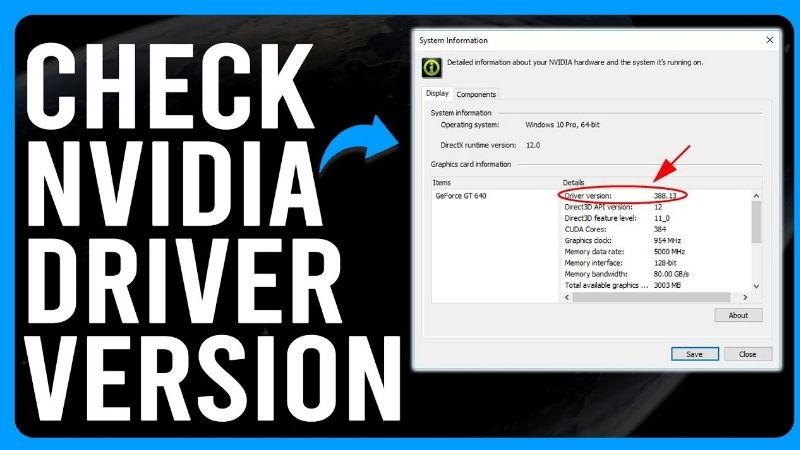
Check Nvidia driver version is one of those small tasks that suddenly matters when a game lists a driver requirement, support asks what you are running, or you suspect an update caused a problem. Knowing the number is easy; knowing what it means and what to do with it is where the real value lies. This review looks at the fastest, most reliable methods to find your version, explains what the number actually tells you, and shows how to use it to diagnose problems or decide whether it is your driver, or your card, that needs attention.
Why Checking Your Nvidia Driver Version Matters
Before the how, it helps to understand the why, because the version number is more useful than it first appears. It tells you whether you are current, which branch you are on, and whether a problem is likely software or hardware. Treating it as a quick diagnostic rather than a throwaway detail is what turns a simple check into genuinely useful information you can act on.
When and Why You Need to Know
The most common trigger is a new game that specifies a minimum driver version, where checking confirms whether you meet it before you troubleshoot a launch problem. It is a two-second check that saves a lot of guesswork. Rather than reinstalling a game or blaming your hardware, confirming the version first tells you in seconds whether the requirement is even the issue, which is exactly the kind of quick win that makes the habit worthwhile.
Support requests are another frequent reason. When you contact Nvidia or a game’s support, they often ask for your exact driver version, so knowing where to find it quickly makes the whole process smoother.
Finally, when something breaks after an update, the version number is the first clue, letting you confirm what you are on and decide whether to roll back to a known-good release. In that situation the number effectively timestamps the moment things changed, which is often the single most useful clue you have when working out what went wrong and how to undo it.
What the Version Number Tells You
The driver version is more than a label; it tells you how current your setup is and whether you are missing recent fixes and game optimizations. Comparing it to the latest release shows at a glance whether an update is available.
It also reveals whether you are on a stable, tested release or a very new one that might carry early bugs. For anyone chasing stability, knowing you are on an older, proven version is reassuring, while knowing you are on the newest one explains a fresh problem. This is why experienced users glance at the version before assuming a game or their card is at fault, since a very recent driver is a far more likely culprit than hardware that was working fine a day earlier.
In short, the number is a snapshot of your driver’s health, which is why reading it correctly is the foundation of good troubleshooting. Skip that foundation and you are guessing; build on it and every later step becomes faster and more certain, which is why a two-second check so often shortens a long troubleshooting session.
Game Ready Versus Studio Version Tracks
Nvidia ships two driver branches, Game Ready and Studio, and they run on separate version tracks. Game Ready is tuned for the latest games, while Studio prioritizes stability for creative applications. Knowing which of the two you are actually running is the small detail that keeps every later comparison meaningful, and it is surprisingly easy to overlook.
This matters when you check your version, because a Game Ready number and a Studio number are not directly comparable, and mixing them up is a common source of confusion. Knowing which branch you are on tells you which updates to watch and keeps you tracking the right release for your use. Getting this straight once saves ongoing confusion, because a creator wondering why their number looks lower than a friend’s is usually just comparing across the two separate tracks rather than actually being behind.
The Best Ways to Check Your Version
There are a few reliable methods to find your driver version, from a polished app to built-in Windows tools, and each suits a different situation. Reviewing them side by side helps you pick the one that fits, whether you want a one-click answer or a route that needs no extra software. All of them land you at the same number, presented a little differently.
The Nvidia App Method Reviewed
The Nvidia app is the modern official hub for your card, and it shows your driver version front and centre, alongside any available update. For anyone who games or updates regularly, it is the most convenient method by far.
Its real strength is that checking and acting live in the same place: the moment you see your version is behind, the update button is right there. That makes it the natural default for regular users, though it does require installing the app first.
For most people, this is the method worth adopting, since it turns checking your version into a routine that also keeps you current with almost no effort. For anyone who updates more than occasionally, that combination of checking and updating in one place is genuinely the path of least resistance, which is why it tends to become the method people settle on.
Windows Built-In Tools Reviewed
If you would rather not install anything, Windows already reports the driver version through Device Manager and the System Information panel. These work on any Windows PC with an Nvidia card and need no downloads.
The trade-off is presentation: Windows shows a longer internal number, and you may need to read the last few digits to translate it to Nvidia’s version format. The information underneath is identical, so this is a reliable route when installing software is not an option, just slightly less friendly.
Check Nvidia Driver Version: Pros and Cons of Each Method
Here is the honest balance between the app and the built-in tools. There is no single best method, only the best one for your situation, and knowing both means you can always find your version in seconds whatever machine you happen to be using.
| Method | Pros | Cons |
|---|---|---|
| Nvidia app | Clear number; update in one place | Requires installing the app |
| Device Manager / System Info | Built in; no downloads needed | Longer number; less friendly format |
The takeaway is to use the Nvidia app if you want convenience and easy updating, and the built-in Windows tools for a quick, no-install check on any machine. Having both approaches in your toolkit means you are never stuck: the app on your own well-set-up PC, and the Windows tools on a borrowed or locked-down machine where installing software is not on the table.
Using the Version to Fix and Decide
Finding the number is only half the job; using it to diagnose problems or guide a decision is where it earns its keep. The version can tell you whether to update, roll back, or accept that the real issue is your hardware rather than your software. This final section turns the number into action.
Spotting an Outdated or Problem Driver
If your version is well behind the latest, an update may bring fixes and game optimizations you are missing, which is worth doing when a new game or a known issue calls for it. Comparing your number to the current release makes this obvious.
Conversely, if a problem appeared right after you moved to the newest version, the number confirms the driver as the likely culprit, and rolling back to a previous stable release is the reliable fix. Either way, the version points you to the right action rather than leaving you guessing. That is the real value of the exercise, since a version number read in context converts a vague sense that something is wrong into a specific, actionable next step you can take with confidence.
When the Version Means Upgrade the Card
Sometimes checking reveals a version that Nvidia no longer updates, meaning your card has reached the end of its driver support. If your games are also struggling regardless of driver, the number is telling you the hardware, not the software, is the limit.
At that point no amount of checking or updating will help, and a modern card is the genuine fix. Once you have confirmed your system can handle it, you can compare current GPUs that fit your budget through the links on this page and move to hardware that stays supported.
See More:
Keeping Track Going Forward
A good habit is to note your version before every update, so you can roll back quickly if a new release misbehaves. This single practice saves the most trouble over time and turns future problems into a two-minute fix.
Deciding which branch to track, Game Ready for gaming or Studio for creative work, and sticking with it keeps your checks meaningful and your setup predictable, which is the quiet payoff of treating the version number as a tool rather than an afterthought.
In summary, learning to check Nvidia driver version details properly turns a trivial task into a genuinely useful skill: the Nvidia app is the easiest route, the built-in Windows tools work anywhere, and the number itself tells you whether to update, roll back, or accept that your card has aged out. Read it in context, note it before updates, and it becomes one of the most reliable troubleshooting clues you have, guiding both quick fixes and bigger decisions about your hardware.
Frequently Asked Questions
What is the fastest way to see my NVIDIA driver version?
Open a command prompt and run nvidia-smi, which prints the driver version and CUDA version in its header within a second. Alternatively open the NVIDIA App or the classic Control Panel and check System Information in the lower left corner. Both report the same number, formatted as three digits, a dot, and two more digits.
Why does Device Manager show a completely different number?
Windows reports an internal driver version such as 32.0.15.7270 rather than the marketing number. The last five digits map to the familiar release, so 15.7270 corresponds to driver 572.70. This confuses people constantly, but nothing is wrong. Use nvidia-smi or the NVIDIA App if you want the version in the format documentation and forums actually use.
What is the difference between Game Ready and Studio drivers?
Both come from the same code base but follow different validation cadences. Game Ready releases ship quickly to add day one optimisation and profiles for new titles. Studio drivers update less often and receive extended testing against creative applications such as Premiere, Blender and DaVinci Resolve, which makes them the more stable option for production workstations.
How do I know whether my driver is actually out of date?
Compare the reported number against the current release listed on the NVIDIA download page for your specific GPU family. The NVIDIA App checks automatically and flags available updates. Bear in mind that legacy architectures are pinned to their final supported branch, so an old card showing an older version is correct rather than neglected.
Does the CUDA version shown by nvidia-smi mean CUDA is installed?
No, and this trips up many developers. The CUDA version in the nvidia-smi header is the highest runtime the installed driver can support, not the toolkit present on your system. To see the actual installed toolkit run nvcc –version. The two can legitimately differ, and a driver newer than your toolkit is perfectly fine.
As an Amazon Associate we earn from qualifying purchases at no extra cost to you.













Write Your Review
No reviews yet. Be the first to share your experience!