
How To Install Old Nvidia Drivers is a straightforward troubleshooting method that can save your gaming setup from unexpected crashes, performance drops, or critical visual bugs. Many gamers believe that keeping their graphics cards updated with the absolute latest software release is the best way to maintain peak performance. While this is generally true for day-one support in brand-new game releases, modern updates can sometimes introduce critical bugs, performance regressions, or compatibility issues with older operating systems and classic game titles.
Why You Might Need to Downgrade Your Graphics Software
Many PC builders and gamers assume that the newest software is always superior, but GPU engineering is highly complex. Every new software release must balance support for legacy game engines alongside brand-new titles, which occasionally leads to code conflicts. Let’s look closer at why choosing an older release is sometimes the smartest move you can make for your PC’s health.
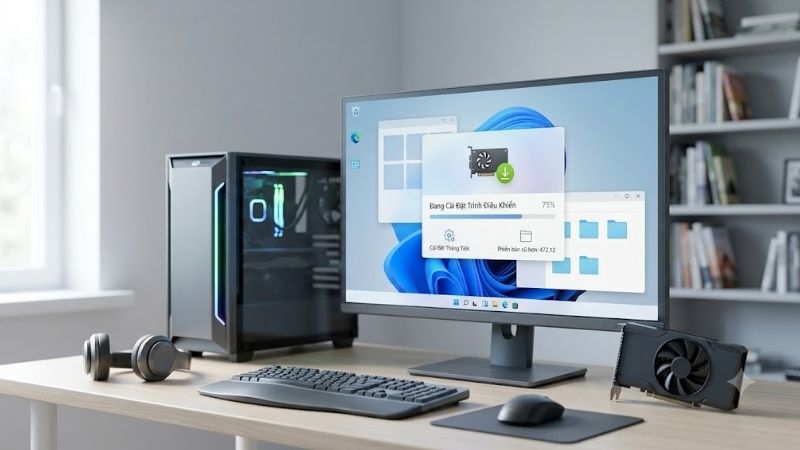
The Pros and Cons of Downgrading to Older NVIDIA Drivers
Taking a step backward in software updates might seem counterintuitive, but it provides several immediate advantages for specific gaming scenarios. Understanding the balance of benefits and drawbacks will help you determine if this troubleshooting method is appropriate for your current situation.
On the positive side, installing an older driver can restore total system stability in games that were built on older engines. These legacy releases often feature optimized code pathways that newer updates have discarded to make room for modern feature sets. Furthermore, if you are experiencing severe stuttering or desktop crashes after a recent update, reverting to a previously working version lets you bypass those bugs while you wait for a hotfix.
However, there are also notable disadvantages to consider. By running legacy software, you will lose access to day-one optimizations for newly launched titles, which can cause severe performance penalties in modern releases. Additionally, you will miss out on the latest performance upgrades for DLSS, ray tracing, and security patches that protect your system from modern exploits.
Common Scenarios That Require Legacy Driver Installation
There are several specific situations where a PC user should actively seek to downgrade their graphics software rather than waiting for automatic updates. Identifying these scenarios early can save you hours of unnecessary hardware troubleshooting and keep your system healthy.
The most common scenario is a sudden, unexplained drop in performance immediately after updating your system. If you notice that your average frame rate has plummeted, or if you are suddenly experiencing heavy stuttering in games that used to run perfectly, a buggy update is almost certainly the culprit. Another common trigger is software conflicts with creative professional applications like Premiere Pro, DaVinci Resolve, or Blender, which often require specific certified studio drivers to operate without crashing.
Additionally, competitive gamers who play older titles like Counter-Strike, Apex Legends, or older DirectX 11 games often find that older, highly optimized driver branches offer more consistent frame times. If you value a stable frame-time graph over everything else, reverting to a legendary, stable driver branch is a time-tested technique to eliminate micro-stutters.
How 2026 GPU Market Trends Affect Your Hardware Lifespan
The global technology market has experienced massive shifts that directly influence how we maintain our personal computer hardware. Understanding these macroeconomic trends highlights why keeping your current graphics card running smoothly using stable older software is more critical than ever.
Most notably, the United States government has allowed NVIDIA to resume shipments of its highly advanced H200 AI chips to the Chinese market. Because enterprise AI accelerators yield substantially higher profit margins than consumer gaming hardware, NVIDIA has shifted a significant portion of its foundry wafer allocations away from consumer GeForce GPUs to meet massive enterprise demands. Consequently, the retail availability of newer consumer graphics cards has faced persistent bottlenecks, driving up prices across the board.
At the same time, manufacturing expenses, raw material costs, and global logistics rates have driven a steady upward price trend for all PC components, including motherboards, power supplies, and laptops. Because buying new graphics hardware is extremely expensive in this economic climate, learning how to troubleshoot and maximize the lifespan of your current GPU is highly valuable. If you want to secure a card before supply chains tighten further, you can check the latest price on Amazon for current mid-range deals. However, keeping your current card alive with stable legacy drivers remains the most cost-effective solution.
➡️ Check the latest price on Amazon:
What You Need and How to Safely Prepare for the Downgrade
Before you begin uninstalling files, you must gather the correct software utilities and adjust your operating system settings. Without proper preparation, Windows may automatically interfere with your manual changes and overwrite your work.
Essential Tools for a Clean Driver Installation
To complete this process without any software errors, you will need a few essential digital utilities and physical tools. Having these items ready beforehand ensures a seamless transition and minimizes downtime for your system.
First, you will need to download Display Driver Uninstaller (DDU), a highly respected utility that completely wipes all traces of previous graphics software from your system registry. Next, we highly recommend saving both the DDU utility and your target NVIDIA installer onto an external storage device, such as a high-speed USB flash drive. This prevents your operating system from trying to fetch generic drivers from the internet during the uninstallation phase. If you need a reliable, high-capacity drive for backup and installation, check the latest price on Amazon.
Additionally, if your graphics card is several years old and running hot, software downgrades can only do so much. You might also want to pick up a high-quality thermal paste kit to clean and repaste your GPU core, ensuring that physical thermal throttling is not masquerading as a driver issue.
How to Find and Download Safe Legacy NVIDIA Files
Finding the correct legacy software is a critical step, as downloading system files from unverified third-party websites can expose your personal computer to severe malware risks. You should always obtain your files directly from official manufacturer sources.
NVIDIA maintains a comprehensive archive of its historical software releases through its advanced driver search portal. To access this, navigate to their official website and locate the “Advanced Driver Search” page rather than the standard download page. Here, you can enter your exact graphics card series, operating system, and preferred driver type (either Game Ready or Studio Driver).
Once the search results load, you will see a chronological list of historical driver versions. We recommend researching community forums like Reddit or Guru3D to identify which specific older version is currently considered the most stable “golden release” for your particular GPU model. Download this package directly to your local storage or USB drive, but do not run the installer just yet.
Preparing Windows 11 and Disabling Automatic Updates
A common point of failure when trying to install legacy drivers is the aggressive behavior of the Windows operating system. By default, Windows Update is designed to automatically detect missing graphics software and install the latest certified WHQL version it can find.
If you do not disable this automated behavior before running your uninstaller, Windows will immediately attempt to download and install its own chosen driver the moment your computer restarts. This can cause severe software conflicts, as the OS will try to write files over your clean installation process. To prevent this, you should temporarily pause your Windows Updates or disable automated device driver downloads.
You can quickly do this by opening your System Properties, navigating to the Hardware tab, clicking on Device Installation Settings, and selecting “No.” Additionally, keeping your ethernet cable unplugged or your Wi-Fi disconnected throughout the installation process is an excellent physical safety measure to guarantee that Windows cannot download unwanted files.
The Complete Step-by-Step Instructions for Legacy Driver Setup
With your tools prepared and your operating system locked down, you are ready to perform the actual software downgrade. This sequence is designed to remove all corrupted or newer files before applying the clean legacy version.
Step-by-Step Instructions for Using DDU in Safe Mode
Using Display Driver Uninstaller in Safe Mode is the absolute gold standard for resolving software issues, as it ensures no active background processes can lock or protect corrupted files during deletion. Follow these clear steps to achieve a perfectly clean system state.
Step 1: Boot into Windows Safe Mode. You must restart your computer while holding down the Shift key, then navigate to Troubleshoot, Advanced Options, Startup Settings, and click Restart. When the boot options menu appears, press the 4 or F4 key to select Safe Mode, which starts your operating system with only the bare minimum drivers running.
Step 2: Run Display Driver Uninstaller. Locate the DDU executable file on your computer, right-click it, and select “Run as administrator” to grant the tool full system privileges. Once the user interface loads, select “GPU” as your device type from the drop-down menu on the right side, and ensure “NVIDIA” is selected as the device.
Step 3: Execute the Clean and Restart option. Click the highly visible button labeled “Clean and restart” to begin the automated wipe process. The software will spend several minutes purging every trace of your current driver, registry keys, and cache files before automatically rebooting your system back into normal Windows.
Step-by-Step Instructions to Install the Older Driver Safely
Once your computer restarts after the DDU process, your screen resolution might look low and stretched. Do not worry, as this is completely normal and indicates that your system is currently running on basic Microsoft display adapters, ready for a clean installation.
Step 4: Launch the legacy NVIDIA installer. Locate the older driver executable file that you downloaded earlier, right-click the file, and run it as an administrator. Allow the setup wizard to unpack its temporary files to your local drive, which will take a minute to complete.
Step 5: Select Custom Advanced installation. When the main setup screen appears, do not select the default “Express” installation option, which will try to install unwanted components. Instead, select the “Custom (Advanced)” option, click Next, and check the box at the bottom that reads “Perform a clean installation” to ensure a totally fresh setup.
Step 6: Complete the installation and reboot. Allow the installation wizard to copy the legacy files, during which your display may flicker black a few times. Once the process is finished, click Close, manually restart your computer one final time to finalize all registry changes, and reconnect your internet connection.
Pro Tips and Common Driver Installation Mistakes to Avoid
Even with a detailed step-by-step guide, it is easy to make simple errors that can compromise your system’s stability. Being aware of these common pitfalls will save you time and prevent unnecessary headaches.
One of the biggest mistakes users make is neglecting to disconnect their internet connection during the uninstallation phase. If your network remains active, Windows will constantly try to interfere with the basic display adapter, leading to failed installations or mixed driver files. Always keep your internet offline until the legacy installer has finished its work.
Furthermore, if you find that even a clean installation of older drivers fails to resolve your crashing problems, your graphics hardware itself may be reaching the end of its natural lifespan. Given the current 2026 market landscape with rising component costs, upgrading to a highly reliable modern mid-range card like the RTX 4070 Super can be a highly strategic investment. You can check the latest price on Amazon to explore your upgrading options before costs climb further.
Conclusion
Mastering the process of how to install old Nvidia drivers is a vital troubleshooting technique that can extend the life of your gaming setup. By taking control of your graphics software, you can easily bypass buggy updates, optimize performance for older titles, and maintain peak system stability. Given the rising hardware costs and market limitations of 2026, preserving your current GPU using reliable older drivers is a smart financial strategy. Take your time, prepare your tools, and follow each step carefully to keep your gaming PC running beautifully for years to come.
Frequently Asked Questions
Where can I download older Nvidia drivers safely?
Use the official Nvidia Advanced Driver Search page, which lets you pick product family, operating system and driver branch, then lists every archived release with its release date. Avoid third-party mirrors and driver bundler sites, since repackaged installers are a common malware vector and may include modified or unsigned files.
Do I need to remove the current driver first?
Yes, for a clean rollback. Run Display Driver Uninstaller in Windows Safe Mode to strip registry entries and leftover files, then install the older package with the Clean Installation option ticked. Skipping this step is the usual cause of black screens, code 43 errors and settings that refuse to apply after a downgrade.
How do I stop Windows Update from replacing the old driver?
Windows Update will silently reinstall a newer driver. Prevent this by opening Advanced System Settings, choosing Hardware, then Device Installation Settings and selecting No, or by using the Group Policy setting that excludes drivers from Windows Update. On Home editions, the Microsoft Show or Hide Updates troubleshooter can block the specific driver package.
Will an old driver support my new GPU?
No. A driver only includes device IDs for hardware released up to its date, so an RTX 50 series card cannot run a driver predating its launch. Rolling back is only viable within the range of releases that already list your card. Check the supported products tab on the download page before installing.
Why would I want an older driver at all?
Common reasons are a regression that broke performance or stability in a specific game, a professional application certified against a particular Studio driver branch, or a legacy card moved to a frozen legacy branch such as 470 or 570. Compatibility with older CUDA toolkits is another frequent motivation for developers.
As an Amazon Associate we earn from qualifying purchases at no extra cost to you.













Write Your Review
No reviews yet. Be the first to share your experience!