
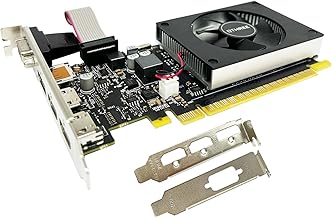
- Top Pick: GeForce GT 610 2G DDR3 Low Profile Graphics Card, PCI Express 1.1 x16, HDMI/VGA, Entry Level GPU for PC, SFF and HTPC, Compatible with Win11
- Best Value: msi Gaming GeForce GT 1030 4GB DDR4 64-bit HDCP Support DirectX 12 DP/HDMI Single Fan OC Graphics Card (GT 1030 4GD4 LP OC)
- Premium Choice: ZOTAC GeForce GT 730 Zone Edition 4GB DDR3 PCI Express 2.0 x16 (x8 Lanes) Graphics Card (ZT-71115-20L)
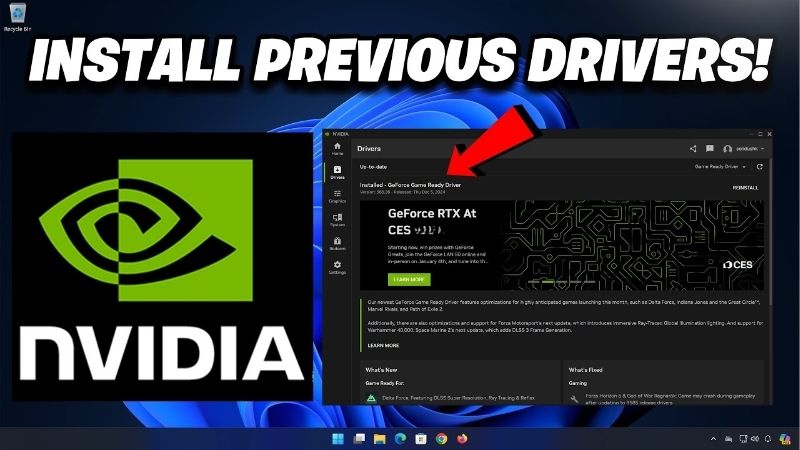
Old Nvidia drivers are not just relics; sometimes they are the fix. Whether you are running a legacy GPU that newer releases have dropped, chasing stability after a bad update, or trying to make an older game behave, rolling back to a previous version can solve problems the latest driver created. This review-style guide covers when older drivers genuinely help, how to find and install them without stumbling into fake download sites, and the honest point at which sticking with old software means your hardware has simply aged out.
Why You Might Need Old Nvidia Drivers
The instinct to always run the newest driver is usually right, but not always. There are specific, common situations where a previous release is the more stable, more compatible choice, and recognizing which situation you are in saves a lot of trial and error. The reasons fall into three broad buckets: unsupported hardware, software regressions, and game-specific quirks.
Legacy GPUs and Dropped Support
Nvidia periodically moves older GPU families to legacy status, meaning they stop receiving new Game Ready drivers. If you own a card from an older generation, the newest installer may simply refuse it, and the last driver that officially supported your card becomes the correct one to keep.
This is the most clear-cut case for old drivers. There is no benefit to chasing releases your hardware cannot use, so identifying the final supported version for your specific GPU and pinning to it is the right long-term move. There is genuinely no downside to freezing a legacy card on its last driver, since no newer release will ever support it, so the decision reduces to identifying that version once and then ignoring the update prompts that were never meant for your hardware.
Knowing your exact card model matters here, because legacy cutoffs are drawn by architecture and generation rather than by a single date.
Game Compatibility and Stability Rollbacks
New drivers occasionally introduce regressions: a game that ran perfectly starts crashing, stuttering or showing visual glitches after an update. When a problem appears immediately after a driver change, the driver is the prime suspect, and rolling back is the fastest test.
Older games can also behave better on the driver era they were built around. Some titles from previous years were validated against drivers from that period, and a modern release can subtly change behavior the game relied on.
The practical rule is to note your current version before any update, so that if something breaks you can revert in minutes rather than guessing which release was stable. A useful habit for anyone who plays a mix of new and older titles is to keep the installer for your last known-good driver saved locally, so a rollback becomes a two-minute reinstall instead of a hunt through the archive while a favourite game sits broken and unplayable.
Where to Safely Download Old Nvidia Drivers
The only source you should trust for older drivers is Nvidia’s own driver archive, which lists previous releases by product and operating system. Searching the archive for your exact card returns every version Nvidia shipped for it.
Avoid third-party driver sites and paid updater tools entirely. Reviews of these are full of complaints about wrong versions, bundled adware and installers that break more than they fix. The genuine files are free directly from Nvidia, so any site charging for them is a warning sign on its own.
When you reach the archive, filter by your product series and operating system and every release appears listed with its date, so you can select a specific version with confidence. Reading the short release notes for a couple of nearby versions helps too, since Nvidia documents which games and fixes each driver targeted, letting you pick the exact release that matches the problem you are trying to solve.
Installing and Managing Older Driver Versions
Getting an old driver onto your system cleanly is more important than the download itself, because leftover files from a newer release are a common cause of the very instability you are trying to escape. A careful install and a way to stop Windows from silently re-updating you are the two skills that make running older drivers painless.
Clean Install Versus Upgrade for Old Drivers
When moving from a newer driver back to an older one, always choose a clean install rather than installing over the top. Installing an older version on top of a newer one frequently leaves mismatched files that cause crashes.
The Nvidia installer offers a clean-install option that wipes previous settings first, and for stubborn cases a dedicated display driver removal tool run in safe mode gives the cleanest possible slate before you install the older release.
Running that removal tool in safe mode is the step most people skip and most people later regret skipping, because it clears the registry entries and leftover files a normal uninstall leaves behind. Ten extra minutes here prevents the mismatched-file crashes that send users straight back to searching for answers, and it is the single biggest factor in whether a rollback feels stable or flaky.
Avoiding Forced Auto-Updates
The frustration many users report is doing a careful rollback only for Windows Update or the Nvidia app to quietly reinstall a newer driver later. To hold a specific version, disable automatic driver updates in the Nvidia app and, where appropriate, prevent Windows from delivering GPU driver updates.
This is the step that turns a temporary rollback into a stable, lasting configuration. Without it, you fight the same battle every few weeks, which is exactly the complaint that fills lower-star feedback on this topic.
It is worth locking this down in both places at once, since the Nvidia app and Windows can each trigger an update independently of the other. Disable both, and your chosen version finally stays put until you decide to change it, which is the entire point of running an older driver on purpose rather than by accident.
Old Nvidia Drivers Pros and Cons
Running older drivers is a genuine trade-off rather than a free win, so it helps to see both sides clearly before committing to a version.
| Pros | Cons |
|---|---|
| Restores stability after a bad update | Misses new game optimizations and features |
| Keeps legacy GPUs fully supported | No new security fixes over time |
| Better behavior for some older games | Requires disabling auto-updates to stick |
| Free and official from Nvidia’s archive | Not a fix if the hardware itself is the limit |
The balance favors old drivers when you have a specific, identified problem, and favors staying current when you do not.
When Old Drivers Signal It Is Time to Upgrade
There is a line where clinging to old drivers stops being a solution and becomes a symptom, and being honest about it saves you from an endless cycle of workarounds. When your card has aged past new support and modern games strain it regardless of driver, the real answer is new hardware rather than an older file. Drawing that line honestly is a kindness to yourself, because the alternative is months of small workarounds that only postpone the very same conclusion, usually at greater cost and frustration.
Signs Your GPU Has Aged Out
The tell-tale signs are consistent: your card is on the legacy list, new games run poorly even at low settings, and no driver version, old or new, delivers a smooth experience. At that point the driver is not the bottleneck, the silicon is.
This is a normal and expected stage in a GPU’s life. Old drivers can extend usefulness for a while, but they cannot add performance the hardware never had. The clearest test is to install the newest driver your card will still accept and confirm the problem persists; if a fresh, fully supported driver still cannot deliver a playable experience, you have proven the limit is the silicon rather than the software, and no rollback will change that.
Compatibility Check Before a New Card
If the signs point to an upgrade, confirm three things before buying: your power supply provides the wattage and connectors a new card needs, the card fits your case, and your processor is strong enough to keep up. A modern mid-range GPU is a massive leap from an older card and does not require a top-tier supply.
Checking these details up front means the new card drops in and works, rather than turning an upgrade into a second project.
See More:
Choosing a Modern Replacement
Moving to a current-generation card ends the old-driver balancing act entirely: you get active Game Ready support, new features and years of future optimization rather than a frozen version you have to protect from updates. Even an entry modern card unlocks technologies your legacy hardware never had. Features such as modern upscaling, better video encoders and active game-day support are things no old driver can retrofit onto old silicon, so the upgrade is not only about raw speed but about rejoining the current software ecosystem and the steady stream of optimizations that come with it.
Once you have confirmed compatibility, you can compare current-generation cards that suit your budget through the links on this page and choose a replacement that puts the driver headaches behind you for good.
In summary, old Nvidia drivers are a legitimate and often overlooked tool: the right older version can restore stability, keep a legacy card alive and smooth out troublesome older games, all for free from Nvidia’s official archive. Install them cleanly, lock out auto-updates, and they will serve you well. Just watch for the moment when no driver, old or new, can keep up, because that is the signal to invest in a modern GPU rather than another rollback.
Frequently Asked Questions
When is an older driver genuinely better?
Regressions do happen. A new release can break a specific game, introduce a black screen bug on a particular monitor, degrade performance in an older engine, or destabilise a VR headset runtime. If a problem appeared immediately after updating and disappears on rollback, the older driver is objectively the correct choice for that system.
Where do I download previous driver versions safely?
NVIDIA maintains an official driver archive on its own site, accessible through the advanced driver search where you can filter by product family and list all past releases. Only use that source. Third party driver repositories are a known distribution route for bundled adware and tampered installers, and the file size savings are worthless.
How do I roll back cleanly?
Download the older installer first, then use Display Driver Uninstaller in safe mode to remove the current driver completely, since installing an older package over a newer one frequently fails or leaves mismatched components. After rebooting, install the older release and prevent Windows Update from pushing the newer driver back automatically.
What do I lose by staying on an older release?
You forgo day one optimisation profiles for new games, updated DLSS models, bug fixes for other titles, and any security patches issued since. Newly released games occasionally refuse to launch entirely on older drivers when they require a recent shader model or Vulkan extension, so the strategy has a natural expiry.
Does this apply to legacy GPUs too?
Legacy architectures are already pinned to their final supported branch, so there is nothing newer to avoid. For those cards the relevant question is whether the final release is stable for your workload, and occasionally an earlier version within the same support window performs better in a specific older game.
As an Amazon Associate we earn from qualifying purchases at no extra cost to you.













Write Your Review
No reviews yet. Be the first to share your experience!