
- Top Pick: COMeap GPU Power Cable for Dell PowerEdge R720 720XD R730, 15.35-inch, Powering NVIDIA Tesla K80/M40/M60/P40/P100/170hx cmp Graphics Cards, 8 Pin Male to 8 Pin Male PCIe, Black, Sealed Anti-static Bag
- Best Value: 12vhpwr Cable, 600W 16 Pin Male to 4×8 Pin Female GPU Cable by ALYYDBG
- Premium Choice: YEZriler 12 Pin GPU Cable, Dual PCIe 8 Pin Female to Mini 12 Pin GPU Power Adapter Sleeved for Graphics Card 9.5-inch(24cm)
GPU not using full power is a confusing problem, because your card seems healthy yet your monitoring shows low usage and low power draw while frame rates disappoint. Instead of running near full utilisation in a demanding game, the GPU coasts along at a fraction of its potential. The reassuring news, echoed across countless user reports, is that this is almost always a bottleneck or settings issue rather than a faulty card, and most cases are fixable for free. This review-style guide ranks the real causes, weighs a CPU upgrade against simple tweaks, and flags when new hardware is the honest answer.


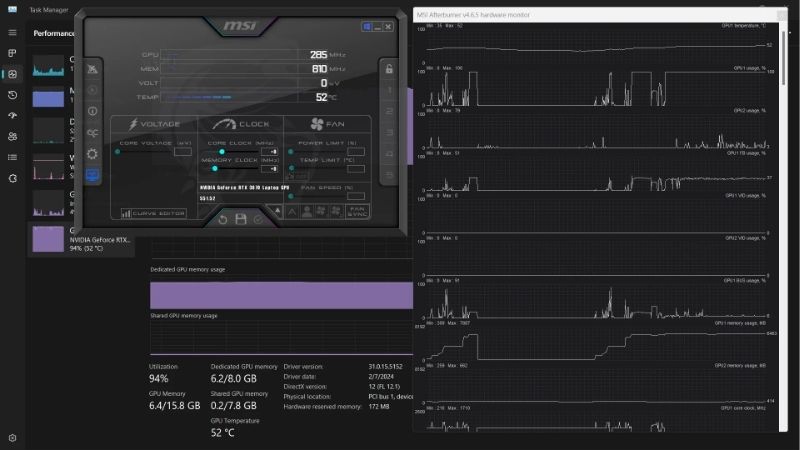
Why Your GPU Isn’t Using Full Power
Low GPU usage almost always means something else is holding the card back. The three usual causes are a CPU or other component bottleneck, a power management setting limiting the card, and frame caps or background apps reducing the load. Identifying which one applies turns a vague underperformance complaint into a precise, often free fix rather than an expensive guess.
As an Amazon Associate we earn from qualifying purchases at no extra cost to you.




CPU Bottlenecks and Other Limits
The most common cause by far is a CPU bottleneck. If the processor cannot prepare frames fast enough to keep the GPU busy, the graphics card sits waiting between frames, showing low usage and low power draw while the CPU runs flat out to keep up.
This shows up most at lower resolutions and high frame rate targets, where the CPU has to work hardest. Users who monitored both chips repeatedly found the GPU loafing at 50 or 60 percent while the CPU was pinned near 100, a textbook sign of a processor that simply cannot keep up.
The fingerprint is clear: a maxed CPU alongside an underused GPU points squarely at the processor as the limit, not the graphics card. Once you see that pattern, you can stop suspecting the GPU and focus your effort where it will actually help.
Other limits, like slow storage in open-world games, can produce a similar effect, but the CPU is the usual suspect for low GPU utilisation in the vast majority of reports.
Power Management and Driver Settings
The second cause is a power management mode set to save energy rather than deliver performance. In an adaptive or power-saving profile, the card deliberately holds back, drawing less power and refusing to fully load even when a game could use more.
This explains why some cards show low power draw despite a demanding game running. The card is following its energy-saving instructions exactly when you actually want maximum output, conserving energy at the precise moment you would rather it pushed hard.
Switching to a maximum performance profile frequently lifts both usage and power draw, and reviewers often call it the single setting that solved their problem.
It is worth applying this both globally and per game, since a leftover per-game profile can quietly override your global choice and keep the card in a power-saving state without you realising.
Frame Caps, V-Sync, and Background Apps
Sometimes the card is underused simply because nothing is asking for more. A frame rate cap, V-Sync locking you to your refresh rate, or a background app stealing resources can all leave the GPU comfortably idle because full power is genuinely unnecessary.
This is easy to mistake for a fault when it is actually correct, efficient behaviour. A card hitting your frame cap at low usage is doing exactly what it should, and forcing it to work harder would gain you nothing you could see on screen.
Checking your caps and closing demanding background apps quickly reveals whether the card can load fully when it truly needs to.
Overlays, capture software, and browsers left open in the background are common culprits, quietly consuming resources that would otherwise feed the GPU. Closing them one at a time is a simple way to expose a hidden drain.
The Fixes and Tools Users Rate Highest
Once you know the likely cause, the matching fix is usually fast and free. Here are the methods buyers and builders rate most highly, ordered from the least disruptive to the most involved, so you can stop the moment your GPU loads fully and draws proper power in demanding games again.
Removing Frame Caps and Maximising Performance
The highest-value first step is removing any unnecessary frame caps and setting power management to maximum performance. Together these let the card load fully and draw the power it needs whenever a game actually demands it.
It takes seconds, costs nothing, and resolves a surprising share of cases on its own. Users repeatedly describe their GPU usage jumping once they removed a forgotten cap or switched off an aggressive power-saving profile.
Because it is risk-free and instant, it is always worth trying before any deeper troubleshooting or hardware changes, and it is the step most often skipped by people who jump straight to suspecting the card.
Easing a CPU Bottleneck
If a CPU bottleneck is the cause, the fix is to shift the workload back toward the GPU. Raising the resolution or graphics settings makes the GPU do more work per frame, which often pushes its usage up toward full without touching the CPU at all.
Closing background apps that hog the processor also frees it to feed the GPU faster. Users who trimmed background load frequently saw their frame rates and GPU usage climb together in CPU-limited games.
These tweaks are free and effective for many people, buying genuine performance before any thought of new hardware. Raising resolution in particular is a neat trick, since it loads the GPU more heavily while leaving the CPU’s workload roughly unchanged.
Pros and Cons of a CPU Upgrade vs Settings Tweaks
When a CPU bottleneck is severe, you face a choice between upgrading the processor and simply adjusting settings. Each path has trade-offs worth weighing honestly against your budget and your goals.
Settings tweaks are free and instant, shifting load to the GPU and recovering performance with no spending at all. The downside is that they cannot raise a hard CPU ceiling, so in heavily CPU-bound games the GPU may still be held back no matter what you change.
A CPU upgrade directly removes the bottleneck and unlocks the GPU’s full potential, often transforming frame rates in demanding titles. The downside is cost and effort, since a new processor can mean a new motherboard and memory too, so it is best reserved for genuinely severe, persistent bottlenecks.
Hardware and Tools Worth Considering
Most low-usage cases are settings or balance issues, but some come down to a CPU that simply cannot keep up. A couple of inexpensive tools also make diagnosing the bottleneck far easier, so they are worth keeping on hand for the long run and the next time performance feels off.
When the CPU Is the Real Ceiling
If your monitoring consistently shows a maxed CPU and an underused GPU across many games, the processor is genuinely the ceiling. No graphics setting will fully fix a hard CPU limit, and a faster processor becomes the real answer.
Buyers who upgraded a dated CPU to pair with a strong GPU frequently report their graphics card finally stretching its legs, with usage climbing and frame rates jumping in previously limited titles.
Matching a capable CPU to your GPU is what lets the graphics card deliver the performance you actually paid for. An unbalanced pairing wastes a good GPU, which is why builders stress balancing the two rather than overspending on graphics alone.
Monitoring Tools That Reveal the Bottleneck
Good monitoring turns bottleneck hunting from guesswork into a quick read. Free overlays let you watch GPU usage, CPU usage, and power draw side by side, so you can see exactly which component is holding you back.
Pairing them with a reliable USB flash drive holding clean drivers, such as a well-rated high-speed model, means you can roll back instantly if a driver update ever changes your power behaviour.
Together these tools make the difference between a baffling underperformance mystery and a diagnosis you can read in seconds, which is exactly why experienced users keep an overlay running rather than guessing at the cause.
When a Faster CPU or New Build Unlocks the GPU
If your platform is several generations old and bottlenecking a modern card, an upgrade may unlock performance you have been missing entirely. A current-generation CPU, or a balanced new build, lets a strong NVIDIA GPU run at full power instead of waiting on a tired processor.
Reviewers who rebuilt around a modern platform frequently describe their existing graphics card feeling dramatically faster, simply because it was finally being fed properly. The gain can be large enough that the same GPU feels like an entirely different card on a faster platform.
If an upgrade was already tempting, a GPU you cannot keep loaded is the practical push to compare current CPUs and graphics cards together, so it is worth checking today’s deals before they shift.
See More:
- GPU pink screen
- Nvidia Control Panel missing
- Nvidia Control Panel not opening
- GeForce Experience won’t open
- Nvidia app won’t install
Final Take on a GPU Not Using Full Power
A GPU not using full power is rarely the fault it first appears. The consistent message from user reports is to check the simple things first: remove frame caps, set maximum performance, and confirm whether a CPU bottleneck or a background app is really the limit.
Work through those free steps before spending anything, and you will resolve the large majority of cases at no cost. Reserve a CPU upgrade or new build for when the platform genuinely cannot keep up. Approach it in that order and a gpu not using full power issue becomes a quick settings fix rather than a reason to doubt your graphics card.
Frequently Asked Questions
Why does my GPU only draw half its rated wattage in games?
Low power draw almost always means the GPU is not the bottleneck. If your processor cannot feed frames fast enough, the card sits at partial utilization and pulls far less than its board power limit. Check GPU usage: anything consistently under 95 percent at your target resolution points at a CPU, RAM, or engine limitation rather than a broken card.
Does a frame rate cap or VSync reduce power draw?
Yes, and that is by design. A 60 Hz VSync lock, an in-game limiter, or Nvidia Reflex will hold the card well below full power because it only renders what the display can show. Uncap the frame rate temporarily or run a benchmark such as 3DMark Steel Nomad to see whether the card reaches full board power under real load.
How do I check the true power limit my card is allowed?
Open GPU-Z or HWiNFO64 and look at the Perfcap Reason field plus board power draw. If Perfcap shows Pwr the card is at its limit; if it shows Util or Idle the workload is simply light. MSI Afterburner lets you raise the power limit slider where the vendor BIOS permits it, often 110 to 133 percent.
Can the wrong PCIe slot cause reduced power and performance?
It can. Installing the card in a chipset-fed x4 slot instead of the CPU-fed x16 slot starves bandwidth, which shows up as lower utilization and lower draw, especially on 8-lane cards such as the RTX 4060 Ti. Confirm the link width in GPU-Z; it should read x16 4.0 or x8 4.0 under the render test load.
Should I worry if power draw is low but frame rates are fine?
No. Efficient rendering, DLSS upscaling, and frame generation all reduce the raw shading work, so the card finishes early and idles between frames. Low wattage with high, stable frame rates is a healthy sign of headroom. Only investigate when low power draw arrives together with poor frame rates or visible stutter.











Write Your Review
No reviews yet. Be the first to share your experience!