
repaste a GPU can transform an old, overheating graphics card, dropping its temperatures by a meaningful margin and ending the throttling and noise that come with dried-out thermal paste. It sounds intimidating, but with patience and care it is an achievable upgrade that breathes new life into an aging card. This guide explains what repasting does, when your card needs it, and the full step-by-step process of disassembling, repasting, and reassembling your GPU safely.
Understanding GPU Repasting
Over years of heat cycles, the thermal paste between a graphics chip and its heatsink dries out and loses its ability to transfer heat efficiently. Repasting replaces that degraded paste with fresh compound, restoring the cooling the card had when new. Understanding why this happens makes it clear why an old, hot card so often benefits from the job.
What Repasting a GPU Means and Why It Helps
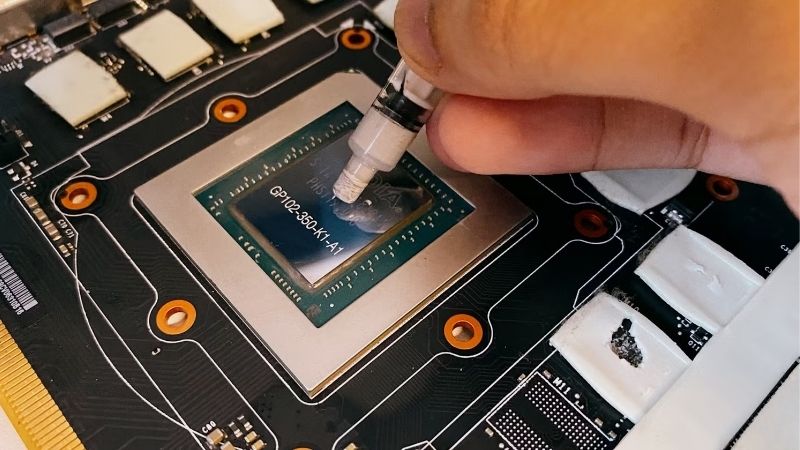
Repasting means opening up the graphics card, removing the old thermal paste from the chip and heatsink, and applying a fresh layer before putting it back together. The paste fills the microscopic gaps between the chip and the heatsink so heat can flow into the cooler efficiently.
When the original paste dries and cracks over years of use, that heat transfer becomes far less effective, and the chip runs hotter even though nothing is broken. Fresh paste restores the connection, often dropping temperatures by several degrees and sometimes much more on a badly degraded card.
The payoff is a cooler card that throttles less, performs more consistently, and runs quieter, which is why repasting is a favourite trick for reviving older hardware rather than replacing it.
When Your GPU Needs a Repaste
The clearest sign is temperatures that have climbed well above where they used to be, especially on a card several years old that cleaning alone has not fixed. If you have already cleared the dust and improved airflow but the card still runs hot, old paste is a likely culprit.
Repasting is generally a job for older cards, since a newer card’s paste is still effective and opening it may affect a warranty. As a rule of thumb, it becomes worth considering once a card is a few years into its life and running noticeably hotter, or when you are reviving a used card of unknown history.
It is worth being honest with yourself about whether a repaste is truly needed, since on a card that is still cool and within warranty the risk rarely justifies the small potential gain. Reserving the job for older cards that genuinely run hot, where cleaning has not helped, is what makes it a sensible fix rather than an unnecessary risk.
What You Will Need
Repasting needs a few inexpensive supplies and a careful hand.
The key item is quality thermal paste, with a reliable non-conductive compound being the safest choice for beginners; a well-regarded non-conductive paste such as Arctic MX-4 is a popular, forgiving option. You also need isopropyl alcohol and lint-free wipes to clean off the old paste, a precision screwdriver set for the small screws, and a plastic spudger to help separate the cooler.
It is also wise to have replacement thermal pads on hand in case the existing ones are in poor condition, and a clean, well-lit workspace. With these basics and some patience, the job is well within reach for a careful beginner.
How to Repaste a GPU Step by Step
Repasting is methodical work that rewards patience over speed, and the golden rule is to keep track of every screw and pad as you go. Follow these stages carefully and an aging card can run cool again.
Disassembling the Card Safely
After removing the card from your PC, lay it on a clean, well-lit surface and begin taking off the cooler. Remove the screws holding the heatsink to the board, keeping them organised by location since they often differ in length, and gently disconnect the fan power cable.
Separate the cooler from the board slowly and evenly, since old paste can make it stick; a gentle wiggle or a plastic spudger helps without prying hard. Take note of any thermal pads on the memory and power components, observing their thickness and position, because these matter just as much as the main paste and must go back correctly.
Work over a clean, static-safe surface and resist the temptation to hurry, because most repaste mishaps happen during disassembly rather than the paste application itself. A methodical pace, with each screw and pad accounted for as it comes off, is the single biggest factor in a smooth, successful reassembly later.
Cleaning Off the Old Paste and Applying New
With the chip exposed, clean and repaste it using these steps:
- Wipe away the old paste from both the chip and the heatsink contact plate using a lint-free wipe lightly dampened with isopropyl alcohol.
- Polish until clean and dry, repeating until both surfaces are free of residue and no streaks remain.
- Apply a small amount of fresh paste to the centre of the chip, roughly a pea-sized blob, which spreads under pressure when the cooler is reattached.
- Replace any worn thermal pads with new ones of the same thickness if the originals are dried or damaged.
The most common beginner worry is how much paste to use, and the answer is less than you think; a modest central blob spreads to a thin, even layer under the cooler’s pressure. Too much simply oozes out and is messier without cooling any better.
If you would rather not rely on a central blob spreading evenly, you can spread a thin, even layer across the chip yourself with a clean tool, which some people prefer for a rectangular chip. Either method works well as long as the coverage is thin and even, so choose whichever you find more comfortable.
Reassembling and Testing
Reattach the cooler by lowering it straight onto the chip and tightening the screws gradually in a crosswise pattern, a little at a time, so even pressure spreads the paste uniformly. Reconnect the fan cable, double-check that every screw and pad is back in place, and make sure nothing is pinched.
Reinstall the card in your PC, boot up, and run a stress test while watching temperatures to confirm the repaste worked. A healthy result is a clear drop from your old temperatures, which tells you the fresh paste is doing its job and the effort has paid off.
If temperatures have not improved, the most likely causes are too much or too little paste, a thermal pad in the wrong place, or uneven screw pressure, all of which are fixable by carefully redoing the relevant step. A repaste that does not work the first time is almost always a technique issue rather than a sign the card is beyond help.
Tips, Pitfalls, and Pros and Cons of Repasting
Repasting is rewarding but unforgiving of carelessness, so knowing the pitfalls and a few expert habits keeps it safe and successful. A little extra attention is what separates a temperature win from a frustrating mistake.
Mistakes to Avoid
The most consequential mistakes are forgetting the thermal pads or putting back the wrong thickness, which can leave memory or power components without proper cooling. Always note pad positions and thicknesses before removing the cooler, and replace any that are damaged.
Other mistakes include using far too much paste, mixing up screws of different lengths, prying the cooler off forcefully, and overlooking that opening the card may void a warranty. Working slowly, keeping parts organised, and checking warranty status first avoids every one of these.
A subtle but important point is that opening the card almost always disturbs the warranty seal, so on a card still covered it is usually wiser to claim through the manufacturer than to repaste yourself. Checking your warranty before you pick up a screwdriver can save you from voiding valuable coverage on a card that did not really need the job.
Pro Tips for a Successful Repaste
A reliable habit is to photograph each stage of disassembly, especially the screw layout and pad positions, so reassembly is effortless and nothing ends up in the wrong place. Laying screws out in the pattern they came from achieves the same.
Tightening the cooler’s screws gradually and crosswise, rather than fully tightening one at a time, ensures even pressure and the best paste spread. And starting with a forgiving non-conductive paste removes the risk of a conductive compound causing a short if any squeezes out.
Finally, give the fresh paste a few heat cycles to settle before judging the result, as temperatures often improve slightly over the first days of use. A small additional drop after a little time is normal and is simply the new paste bedding in for its best long-term performance.
See More:
Pros and Cons of Repasting Yourself
On the plus side, repasting yourself is inexpensive, can dramatically lower temperatures on an old card, revives hardware you might otherwise replace, and teaches a valuable skill. For an aging but capable card, it is one of the most cost-effective fixes available.
On the downside, it requires disassembly that can void a warranty, demands patience and care, and a careless job risks damage. For newer cards under warranty the risks outweigh the benefits, but for older cards running hot, a careful repaste is well worth it.
To wrap up, knowing how to repaste a GPU is a powerful way to revive an old, overheating card, dropping its temperatures by disassembling it, cleaning off the dried paste, applying a fresh pea-sized amount, and reassembling with even pressure. Mind the thermal pads, use less paste than you expect, and test with a stress run afterwards. To do the job right, check the recommended thermal paste and tool kits linked below.
Top-Rated Picks


| Product | Brand | Rating | Reviews | Price |
|---|---|---|---|---|
| ARCTIC MX-4 (4 g) – Premium Performance Thermal Paste… | ARCTIC | ★ 4.8 | 104k | $4.99 |
| ARCTIC MX-4 (incl. Spatula, 4 g) – Premium Performanc… | ARCTIC | ★ 4.8 | 71.9k | $5.49 |
| Crucial 8GB DDR4 RAM 3200MHz (PC4-25600), Downclockab… | Crucial | ★ 4.8 | 62.8k | $74.99 |
| AMD Ryzen 5 5600X 6-core, 12-thread unlocked desktop … | — | ★ 4.8 | 30.2k | $177.60 |
| NVIDIA Shield Remote; Voice Search, Motion-Activated,… | — | ★ 4.7 | 10.6k | $25.99 |
Frequently Asked Questions
What tools do I need before starting?
A magnetic-tip Phillips PH1 and PH0 screwdriver set, ninety-nine percent isopropyl alcohol, lint-free cloths or coffee filters, a plastic spudger for shroud clips, replacement paste, and matching thermal pads. An anti-static mat or wrist strap and a small tray for screws prevent the two most common mistakes.
How do I know a repaste will actually help?
Log core and hotspot temperature under a sustained load first. A hotspot delta over twenty to twenty-five degrees, sudden temperature climbs, or throttling that dust cleaning did not fix all point to compound failure. A card running seventy-five degrees with a ten degree delta needs nothing.
What is the correct way to reattach the cooler?
Reconnect the fan and any RGB headers before seating the heatsink, then tighten the spring-loaded screws in a cross or diagonal pattern in small increments until they bottom out. Uneven torque tilts the cold plate off the die and produces exactly the high hotspot delta you were trying to fix.
How much temperature improvement is realistic?
On a card with dried-out factory paste, five to fifteen degrees on the core and a hotspot delta falling back into single digits is typical. That headroom often restores several hundred megahertz of sustained boost clock, which is why a repaste can feel like a small performance upgrade.
What should I do if temperatures are worse afterwards?
Stop and redo the mount. Worse results almost always mean too little paste, a pad thickness that lifted the cold plate off the die, an unevenly torqued screw pattern, or a fan cable left unplugged. Verify the fans spin under load before assuming the paste itself is at fault.











Write Your Review
No reviews yet. Be the first to share your experience!