
nvidia instant replay has established itself as an indispensable tool for gamers, content creators, and competitive streamer communities worldwide. As modern PC gaming pushes the absolute boundaries of display resolution, refreshing rates, and real-time path tracing, having an efficient background recording utility that does not compromise hardware resources is more critical than ever before. To provide professional-grade insights into this widely utilized software feature, the infrastructure and software analysis has thoroughly investigated its capabilities, internal architectures, driver optimizations, and overall performance footprint. In this comprehensive evaluation, we will dive deep into whether this utility remains the gold standard for capturing your most spectacular gaming achievements without sacrificing a single frame of gameplay.
Technical Architecture and Hardware Integration
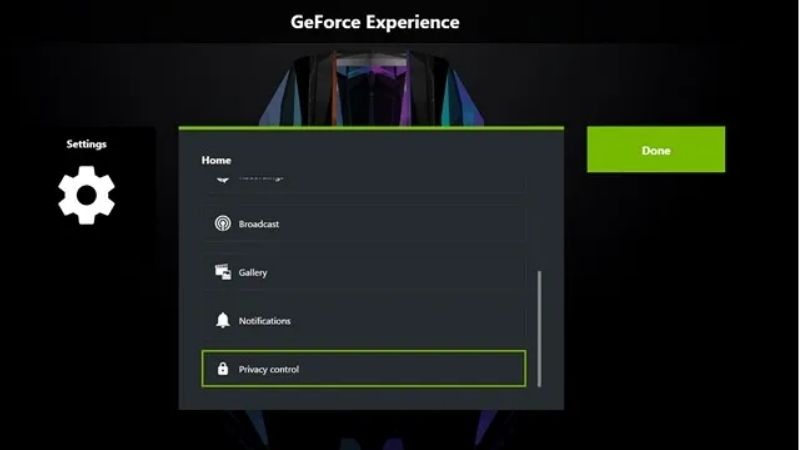
Evaluating any software capture utility requires a meticulous examination of how it interfaces with the physical rendering pipeline of your graphics processing unit. The underlying technology behind this tool relies on direct integration with the GPU drivers, bypassing standard operating system layers that typically introduce frame latency. This direct path allows the system to capture high-fidelity video streams with remarkable efficiency, laying the groundwork for seamless background recording.
As an Amazon Associate we earn from qualifying purchases at no extra cost to you. Product prices and availability are accurate as of the date shown and are subject to change.





Hardware Accelerated Video Encoding via Dedicated NVENC Silicon
At the core of the recording process lies the Nvidia Encoder, commonly referred to as NVENC. Unlike software-based recording tools that utilize CPU cycles to compress video frames, the driver utilizes a dedicated, physically isolated ASIC on the GPU die solely designed for video encoding. This separation ensures that the main graphics cores (CUDA and RT cores) can focus entirely on rendering complex game scenes and path-traced lighting without being interrupted by encoding tasks. Over the generations, from the Pascal architecture to the latest Ada Lovelace and Blackwell graphics processing units, NVENC has undergone major updates, including the integration of dual-encoders and native AV1 encoding support. When you capture gameplay, the raw frame buffers are copied directly within the graphics memory to the NVENC block, where they are compressed into highly efficient formats like H.264, HEVC, or AV1. By offloading this computational burden from both the central processing unit and the primary graphics pipeline, the system maintains high framerates even during high-intensity sequences, offering a massive advantage over legacy software encoders.
System Resource Allocation and Real-Time Performance Footprint
One of the biggest concerns for competitive players is the performance penalty associated with running background capture software. Traditional capturing suites can cause noticeable stuttering or a reduction in average frame rates, which can be highly detrimental in fast-paced esports environments. This software feature solves this issue by maintaining a microscopic performance footprint. Extensive benchmarking reveals that keeping the background buffer active typically results in a negligible performance decrease of less than one to two percent. This is because the system structures the background loop to run in an isolated memory space. VRAM consumption is optimized dynamically; the frame buffers are temporarily stored in a circular queue that resides either in your system RAM or directly within the GPU’s high-speed video memory, depending on your configuration. Because the data transfer happens entirely over internal high-bandwidth memory busses rather than external system paths, there is virtually no bottlenecking. This architecture guarantees that your 1% low framerates—the metrics that determine perceived game smoothness—remain almost completely unaffected while you play.
Storage Buffer Configurations and Write Amplification Risks
To capture past moments on demand, the background buffer must constantly save incoming video data to a storage medium, creating a continuous loop of write operations. By default, this data is written directly to a temporary folder on your primary drive, which is often a high-speed Solid State Drive (SSD). While this setup provides maximum reliability and prevents buffer underflows, it raises concerns regarding SSD longevity due to write amplification. Because modern NAND flash memory has a finite number of Program-Erase cycles, constantly writing and deleting high-bitrate video streams can accelerate drive degradation over time. To prevent this issue, users can configure the software to write its cache files to a secondary mechanical hard drive, a dedicated budget SSD, or even a virtual RAM disk. Utilizing a RAM disk is an exceptionally elegant solution for advanced users, as it routes all temporary video writes directly to volatile system memory. Since RAM has practically infinite write endurance, this configuration completely eliminates storage wear while maintaining ultra-high data transfer speeds, ensuring that your primary operating system drive remains healthy and fast.
Quality Settings, Customization, and Creator Workflows
A great background capture tool must offer extensive customization to satisfy both casual gamers sharing short clips and professional content creators preparing video essays. This utility provides a comprehensive suite of configuration options that allow users to fine-tune recording parameters to match their specific system capabilities and visual standards. By adjusting these variables, you can establish an optimized balance between file sizes, processing overhead, and visual clarity.
Resolving Resolution, Framerate, and Bitrate Sweet Spots
Finding the perfect balance between file size and image clarity is crucial when configuring your recording profile. The software allows users to record at native display resolutions, standard steps like 1080p, 1440p, or even full 4K UHD at fluid framerates of up to 120 frames per second on supported architectures. However, the true determinant of final video quality is the bitrate configuration, which can be adjusted anywhere from 10 Mbps to a massive 130 Mbps. For standard 1080p recording at 60 FPS, a bitrate of 20 to 30 Mbps is generally sufficient to prevent blocky compression artifacts during rapid screen movement.
Dual-Track Audio Isolation and Professional Mixing Control
Audio quality is just as important as visual fidelity when archiving gameplay clips for public sharing or professional video production. A common frustration with basic recording tools is the merging of all audio inputs into a single stereo track, making it impossible to adjust game volume independently from your microphone or voice chat during editing. This utility addresses this limitation by offering a robust dual-track audio setting. When enabled, the system captures game sounds and system alerts on one audio track while separating your microphone input into a completely independent second track.
ShadowPlay Highlights and Automatic Event Logging Integration
Beyond manual keypress activations, the platform features deep integration with game engines through an API known as ShadowPlay Highlights. This technology allows developers to mark critical in-game events, such as achieving a multi-kill in a first-person shooter, defeating a major boss in an action role-playing game, or pulling off a spectacular drift in a racing simulator. When these milestones occur, the software automatically saves a short clip of the event to your designated storage directory, ensuring you never miss a highlight even if you forget to trigger the hotkey.
Comparative Analysis, Common Obstacles, and Maintenance
While the convenience of having a built-in recording tool is undeniable, users must understand how it stacks up against alternative platforms and how to solve technical issues that may disrupt its operation. Navigating the landscape of modern recording software requires looking at performance trade-offs, ease of use, and compatibility across various hardware and software environments. Ensuring a trouble-free experience involves implementing regular maintenance habits and knowing how to diagnose common failure points quickly.
Comparative Performance: Nvidia Instant Replay Versus OBS Studio and Game Bar
When choosing a capture utility, users often compare this feature to popular alternatives like Open Broadcaster Software (OBS) Studio and the built-in Windows Xbox Game Bar. OBS Studio is incredibly powerful, offering complex scene layouts, source overlays, and highly customizable streaming options. However, running OBS Studio with a continuous replay buffer typically requires more system resources and manual configuration, making it less accessible for casual users. On the other hand, the Xbox Game Bar is deeply integrated into the Windows operating system and is easy to use, but it often suffers from higher CPU overhead and occasional synchronization issues between video and audio tracks.
Troubleshooting Common Glitches, Red Slashes, and Sudden Deactivations
Despite its exceptional engineering, users occasionally encounter technical glitches, such as the infamous red slash on the recording indicator or instances where the background recording silently disables itself. These issues are almost always caused by digital rights management conflicts, resource allocation limits, or outdated driver configurations. A frequent culprit is HDCP (High-bandwidth Digital Content Protection) compliance; if you have a streaming application like Netflix, Prime Video, or Spotify open in your web browser, the graphics driver may automatically disable recording functions to protect copyrighted material. Closing these applications or disabling hardware acceleration in your browser settings will quickly resolve the issue.
Configuration Checklist for Absolute Stability and Optimal Quality
To guarantee that your background capture utility runs flawlessly during intensive gaming sessions, we have compiled a definitive optimization checklist. First, ensure that your graphics card drivers are kept up to date, as driver updates frequently include stability patches and performance enhancements for background recording features. Second, always assign your temporary recording directory to a fast, dedicated drive that is separate from your primary Windows installation to prevent disk bottlenecking. Third, configure your hotkeys to avoid conflicts with default in-game controls, selecting simple combinations like Alt + Shift + F10 to manually save clips.
Conclusion
Ultimately, nvidia instant replay continues to define the standard for effortless, high-performance gameplay capture in the modern computing landscape. By leveraging dedicated on-chip hardware encoding, it delivers a flawless balance of pristine video quality and minimal system overhead, allowing gamers to preserve their best moments without compromising on competitive performance. While alternative tools like OBS Studio offer deeper scene customizability, and Windows Game Bar provides basic OS-level integration, neither matches the sheer efficiency and driver-level stability offered by this GPU-accelerated solution. Whether you are a competitive esports player looking to analyze your gameplay or a content creator archiving high-resolution clips for future projects, integrating this capture feature into your daily routine is an exceptional choice that guarantees premium results with minimal effort. As we move forward into richer and more demanding gaming environments, having such a reliable capture mechanism remains essential for preserving our digital legacy.
Recommended Products

Crucial
Crucial 8GB DDR4 RAM 3200MHz (PC4-25600), Downclockable to 2933/2666MHz Laptop Memory, SODIMM 260-Pin CL22, Compatible with 13th Gen Intel Core and AMD Ryzen 7000 – CT8G4SFRA32A
View on Amazon
1 day ago

ASRock
ASRock Radeon RX 7600 Challenger 8GB OC & Challenger CL-550B 550W 80+ Bronze PSU | High-FPS 1080p Gaming Power Bundle
View on Amazon
1 day ago

Amazon Renewed
Sapphire Technology Pulse AMD Radeon RX 6700 XT Gaming Graphics Card with 12GB GDDR6, AMD RDNA 2 (11306-02-20G) (Renewed)
View on Amazon
July 18, 2026
As an Amazon Associate we earn from qualifying purchases. Product prices and availability are accurate as of the date/time indicated.
Related Reviews
- Restart Graphics Driver and Boost Gaming to Fix Black Screen
- best nvidia control panel settings for gaming
- Fixing the Annoying AMD Driver Timeout Error Once and For All
Frequently Asked Questions
How much performance does Instant Replay cost while gaming?
Very little, because capture runs on the dedicated NVENC hardware encoder rather than your shader cores. Measured impact is usually one to five percent, drifting toward the top of that range at 4K 60 with a high bitrate. On 8GB cards the rolling buffer also occupies some VRAM, which matters more than the raw frame cost.
How long can the replay buffer be and where is it stored?
The NVIDIA App supports buffer lengths from 15 seconds up to 20 minutes. The buffer is written continuously to whichever drive you select, so a 20 minute 1440p 60 buffer at a high bitrate can hold several gigabytes of rolling data. Point it at an SSD with generous free space to avoid hitches on slower mechanical drives.
Which GPUs support it, and do 40 and 50 series cards record differently?
Any GeForce GTX 600 series or newer card with NVENC works. Ada and Blackwell add AV1 encoding, and higher tier models carry dual encoders, giving noticeably cleaner image quality at the same bitrate plus smoother 4K 120 capture. Older Pascal and Turing cards remain limited to H.264 or HEVC output.
Why does my Instant Replay save black screens or nothing at all?
The usual culprits are exclusive fullscreen combined with an overlay conflict, HDR output the capture layer cannot hook, another overlay such as Discord or Steam grabbing the hook first, or the in game overlay being switched off entirely. Enable the overlay, switch the game to borderless windowed, and update the NVIDIA App and driver.
Is Instant Replay better than AMD ReLive or the OBS replay buffer?
For effortless capture it is the simplest of the three, needing one hotkey and no configuration while encoding in hardware. OBS gives far more control over bitrate, container format, separate audio tracks, and scenes, at the cost of setup time and slightly higher CPU load. ReLive is broadly comparable but only runs on Radeon hardware.











Write Your Review
No reviews yet. Be the first to share your experience!