
- Top Pick: PCI Double 40mm Fan Mount | Compatible with Noctua NF-A4x20/15/10 Fans | 2-Slot Bracket for GPU Cooling | Lower GPU Temperature | Auxiliary Airflow Management
- Best Value: Fan Temperature Controller, DC 12V 3A PWM 4-Wire Fan Speed Controller Module, Temperature Controlled Governor with Temperature Probe Digital Display for PC, Water Droplet Head
- Premium Choice: Phobya Temperature Sensor in/Outer Thread G1/4 – Matte Black Water Cooling Monitoring
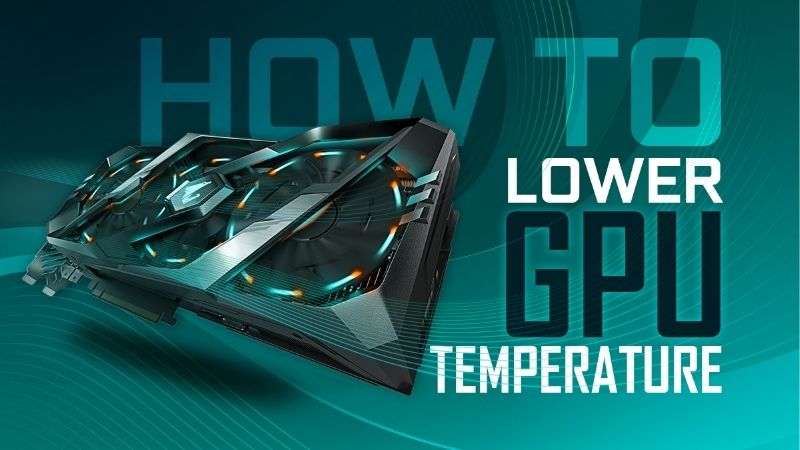
How to lower GPU temperature is the question every PC owner asks the moment their card runs hot, sounds like a jet, or starts dropping frames mid-game. The good news is that you do not need new hardware to fix it. Most overheating comes down to airflow, dust, fan settings, or aging thermal paste, and almost every fix is cheap or free. This guide walks you through the exact steps in order, from the no-cost software tweaks to the paid upgrades that matter, so you can drop your temperatures, stop the throttling, and run quieter today.
What You Will Need to Lower Your GPU Temperature
Before you change anything, gather a few simple tools. Some of the most effective fixes are pure software and cost nothing, while others need basic supplies you may already own. The short list below covers everything required to diagnose the problem and apply the right fix without overspending.
As an Amazon Associate we earn from qualifying purchases at no extra cost to you.





Monitoring Software
You cannot fix what you cannot see. Free tools like MSI Afterburner, HWiNFO, or GPU-Z show your core, hotspot, and memory junction temperatures in real time. They also let you set a custom fan curve later, which is one of the most useful free fixes available.
Run an on-screen overlay during a real game, not just a benchmark. This shows your true peak temperatures in the scenarios that actually matter, so you know exactly how big a problem you have before you start.
It also pays to note the difference between your idle and load temperatures. A card that idles cool but spikes hard under load usually has a cooling or paste issue, while one that runs warm even at idle often points to poor case airflow. That single comparison guides which of the steps below will help you most.
Cleaning and Airflow Supplies
Dust is a silent temperature killer. A can of compressed air clears it from the card and case in minutes. If your case is short on intake or exhaust, a couple of quality case fans can drop GPU temperatures by feeding it cooler air, so consider a reliable set like a well-reviewed 120 mm pack to fix airflow at its source.
Good cable management helps too, and it costs nothing. Clearing the airflow path is often the single biggest improvement you can make.
Thermal Paste and Pads for Older Cards
If your card is three or more years old, dried paste is probably adding heat. A fresh tube of quality non-conductive thermal paste restores the heat transfer the cooler was designed for, and a good multi-thickness thermal pad kit does the same for hot memory. These are the highest-impact paid fixes for an aging card.
You only need these if the free steps do not get you there, so hold off buying until you have tried everything else first.
When you do buy, a little quality goes a long way. A reputable non-conductive paste and a matched pad kit cost only a few dollars more than the cheapest options yet last far longer, sparing you a repeat teardown in a year. For a part you have to open the card to install, paying once for materials that endure is the smarter spend.
Step-by-Step Guide to Lowering GPU Temperature
Work through these steps in order, from free to paid, and re-check your temperatures after each one. Many owners solve the problem before reaching the end, so you may never need the later steps. The numbered process below is built to fix the most common causes first.
Step 1 to 3: Clean, Tune the Fan Curve, and Improve Airflow
Step 1: Clean the dust. Power down, open the case, and blow out the card and filters with compressed air. This alone can drop temperatures by several degrees on a dusty system.
Step 2: Set an aggressive fan curve. In MSI Afterburner, raise the fan speed at each temperature so the card ramps earlier. You trade a little noise for a meaningful temperature drop.
Step 3: Improve case airflow. Add or rebalance intake and exhaust fans and tidy cables so cool air reaches the card. Front-to-back airflow is the goal.
These first three steps are free or cheap and resolve the majority of overheating cases. Re-check your temperatures after each one before moving on, because many owners find the card is back in a comfortable range by the time the dust is gone and the fan curve is tuned, with no further work needed.
Step 4 to 6: Undervolt for Lower Heat
Step 4: Open the curve editor. In MSI Afterburner, open the voltage-frequency curve. Undervolting lowers the power your card draws, which directly lowers heat, usually with no performance loss.
Step 5: Set a lower voltage point. Pick a point on the curve at a modest voltage, flatten everything to its right, and apply. A common starting target keeps your usual clocks at less voltage.
Step 6: Stress test for stability. Run a demanding game or stress tool and watch for crashes. If it is stable and cooler, you have gained quiet and temperature for free.
Undervolting is the most underrated fix on this list. By lowering the voltage your card uses to hit its normal clocks, you cut the heat at its source rather than just removing it faster. On many Nvidia cards a sensible undervolt drops load temperatures noticeably while keeping the same performance, and because it is reversible, there is no risk in trying it.
Step 7 to 9: Repaste and Repad if Needed
Step 7: Decide if you need to. If the steps above did not get temperatures where you want and the card is older, fresh paste and pads are the next move. Skip this if your card is new or in warranty.
Step 8: Repaste the die. Remove the cooler, clean the die, and apply a small dot of fresh non-conductive paste. This restores lost heat transfer on an aging card.
Step 9: Replace pads if memory runs hot. If your memory junction temperature is high, fit a matched-thickness pad kit while you are inside. Reassemble and re-test to confirm the drop.
These final steps are the heaviest but the most powerful on an aging card. A repaste restores the heat path from the die, and fresh pads fix hot memory that no software tweak can touch. Because they involve opening the cooler, save them for when the free steps have not delivered the temperature you want and the warranty is no longer a concern.
Pro Tips, Mistakes, and How Low to Aim
A few small habits separate a quick win from a frustrating afternoon, and knowing how low to push saves you chasing degrees you do not need. This section covers the tips that keep the job smooth, the mistakes beginners make, and the trade-offs between cooling methods so you spend effort where it pays.
Pro Tips and Common Mistakes to Avoid
Re-test after every single change so you know which step actually helped. Do not buy a cooler before fixing airflow, because a better cooler in a choked case still struggles. Keep a baseline temperature noted before you start so you can measure progress.
The most common beginner mistake is skipping undervolting because it sounds advanced. It is genuinely easy, free, and one of the most effective fixes, so do not pass it over. Another frequent error is applying too much paste, which can ooze onto components and reduce contact.
Pros and Cons of Each Cooling Method
Free software fixes like fan curves and undervolting carry no cost and no risk, but have a ceiling on how much they can achieve. Airflow upgrades are cheap and effective, though they require buying and fitting fans and tidying the case.
Repasting and repadding deliver the biggest drops on an aging card, but they mean opening the cooler with the warranty and care implications that brings. The right approach is to climb from free to paid and stop the moment your temperatures are where you want them.
Think of it as a ladder. Each rung costs a little more effort or money and delivers a little more cooling, and most owners step off well before the top. Climbing in order means you never overspend on a repaste or a new cooler when a fan curve and a clean would have been enough.
How Low Should You Aim?
You do not need the lowest possible number. For most owners, keeping the core in the 60s to mid-70s under load is the sweet spot, where the card is quiet, long-lived, and holding high clocks. Chasing the last few degrees usually means more noise for little benefit.
If your card sits comfortably below its throttle point and stays quiet, you are done. There is no prize for a colder card that runs louder than you would like.
Lowering your GPU temperature is mostly free, and where it is not, the parts are cheap and the payoff is large. Work through the steps, and if your older card needs it, finish the job with quality paste and pads. Grab a trusted thermal paste, pad kit, or case fans through the links below to lock in cooler, quieter performance.
See More:
Conclusion
Knowing how to lower GPU temperature comes down to working from free to paid: clean the dust, tune the fan curve, fix airflow, undervolt, and only then repaste or repad an older card. Most owners reach a comfortable, quiet result long before the final steps, and the whole process needs little more than free software and a few cheap supplies. Re-test after each change, aim for a sensible target rather than the lowest possible number, and finish with quality materials if your card calls for it. Use the recommended paste, pads, and fans through the links above to keep those temperatures down for good.
Top-Rated Picks

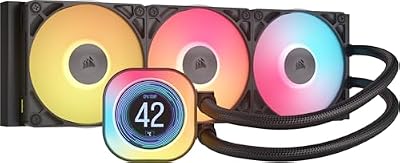


| Product | Brand | Rating | Reviews | Price |
|---|---|---|---|---|
| CORSAIR Nautilus 360 RS ARGB Liquid CPU Cooler – 360m… | — | ★ 4.6 | 2k | $118.43 |
| CORSAIR Titan 360 RX LCD Liquid CPU Cooler, 360mm AIO… | — | ★ 4.6 | 1.2k | $219.99 |
| PF 360 CPU Water AIO Cooler Liquid Cooling|5.5-inch L… | JungleLeopard | ★ 4.2 | 299 | $113.09 |
| CORSAIR XH505i RX 360 RGB Custom Cooling Kit – XC7 CP… | — | ★ 4.0 | 14 | $609.99 |
| CORSAIR XH505i RX 360 RGB Custom Cooling Kit – XC7 CP… | — | ★ 4.0 | 14 | $609.99 |
Frequently Asked Questions
What is a normal GPU temperature under load?
Most modern cards run between sixty-five and eighty-five degrees Celsius under sustained gaming load, which is entirely within specification. Thermal throttling generally begins in the mid to high eighties for the core and around ninety-five degrees for memory junction temperature on GDDR6X modules.
Does undervolting reduce heat without losing performance?
It usually does. Applying a flatter voltage-frequency curve lets the card hit the same boost clocks at lower voltage, cutting power draw and heat by twenty percent or more. Because these cards throttle on temperature and power limits, sustained performance often improves rather than declines.
How much does case airflow really matter?
More than most upgrades. Two or three intake fans in a mesh-front case, one rear exhaust, and clean dust filters commonly drop GPU temperatures five to ten degrees versus a sealed glass front. Removing unused drive cages in front of the card also helps direct air across the heatsink.
When should I repaste or replace thermal pads?
Consider it after roughly three to five years, or sooner if the hotspot-to-core delta exceeds twenty degrees or temperatures climbed after a period of normal operation. Cleaning dust from the fins and fans first is easier and often resolves the problem without opening the cooler.
Is a vertical GPU mount making my card hotter?
Frequently yes. Mounted vertically against a solid glass side panel the fans can sit within fifteen millimetres of the glass and starve for air, adding five to fifteen degrees. Use a riser bracket that provides clearance, or switch to a mesh side panel if you keep the vertical layout.











Write Your Review
No reviews yet. Be the first to share your experience!