
NVIDIA App download should be the simplest step in owning a GeForce card, yet it is where a surprising number of people get tripped up, either by landing on a fake installer or by not knowing what the app even replaced. If you just want the official file, a clean install, and a straight answer on whether it is worth having, this review covers exactly that. It explains what the NVIDIA App is, how to get the genuine installer safely in a few steps, what it bundles inside, and where it still frustrates users, so you can install it with confidence instead of guessing.
NVIDIA App Download: What It Is and How to Get It Safely
Before you click anything, it helps to know what you are installing and why NVIDIA changed the software landscape. The NVIDIA App is the current, unified control center for GeForce and RTX cards, and it consolidated tools that used to be scattered across two or three separate programs. Getting it from the right source is the whole game here, because driver software is a common target for fake download pages. Here is the safe path and what the app actually is.
What the NVIDIA App Replaced
The NVIDIA App merged the old GeForce Experience and much of the classic NVIDIA Control Panel into a single interface. Instead of one program for driver updates and game optimization and another for display and 3D settings, both now live under one roof.
This matters because a lot of outdated guides still tell you to download GeForce Experience. That software is being phased out, and following old instructions is one reason people end up on stale or spoofed pages. The NVIDIA App is the current, correct target.
The consolidation also means one download now covers driver management, per-game settings, the overlay, and RTX feature toggles that previously required hunting through menus.
How to Download the Official NVIDIA App Safely
Safety comes down to source. Always start from NVIDIA’s own domain rather than a search-ad link or a third-party “driver updater” site, since those are the usual homes for bundled adware and fake installers. The genuine installer is small and pulls the full app during setup.
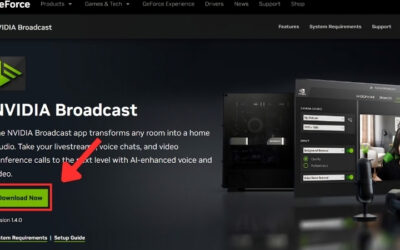
The clean three-step routine is simple. First, go directly to NVIDIA’s official website and find the NVIDIA App page. Second, download the installer and check that the file is signed by NVIDIA before running it. Third, run it, accept the license, and let it detect your GPU automatically.
Avoid any site that asks you to pay, register, or install a “helper” tool to get the app. The official NVIDIA App is completely free, and anything charging for it or wrapping it in extra software is a warning sign.
A quick way to sanity-check the source: the genuine download page lives on nvidia.com, the installer is digitally signed, and setup never asks for payment or a serial key. If a page shows aggressive “your drivers are dangerously out of date” warnings with a countdown timer, close it; that pressure tactic is the hallmark of fake driver sites, not NVIDIA. When in doubt, type the address yourself rather than clicking a search ad, since sponsored results are where spoofed installers most often hide.
System Requirements and Supported GPUs
The NVIDIA App supports GeForce GTX and RTX cards across recent generations, running on Windows 10 and Windows 11. It needs a modest amount of disk space and a working internet connection to fetch drivers, and it coexists with your existing driver installation rather than replacing your hardware setup.
If you run an older GTX card, the app still handles driver updates, though some RTX-exclusive features in the app will simply be greyed out because your hardware does not support them. That is expected, not a bug.
For laptop owners, the app manages the GPU driver but defers some power and display controls to your laptop maker’s software, so a few settings may live in two places. Knowing that in advance saves confusion later.
What You Get Inside the NVIDIA App
A download is only worth it if what is inside earns its place on your system. The NVIDIA App is more than a driver updater; it is the gateway to nearly every software feature your GeForce card offers, and it centralizes settings that used to require several tools. Understanding the full toolkit is how you judge whether installing it beats simply updating drivers manually. Here is what actually ships inside.
Drivers, Game Optimization, and the Control Panel Merge
The core job is drivers: the app notifies you of new Game Ready and Studio drivers and installs them in a couple of clicks, with the option to do a clean install that wipes old settings. This alone is the reason most people keep it installed.
It also carries the one-click game optimization that scans your library and suggests settings for your specific GPU. Enthusiasts often override these, but for anyone who does not want to tune each game by hand, it is a genuine time-saver.
The merged Control Panel section brings display resolution, refresh rate, color, and 3D settings into the same window, ending the long-standing split between two separate interfaces.
RTX Features Bundled In
For RTX owners, the app is the launchpad for the features that define the platform. RTX Video Super Resolution for cleaning up low-resolution video, RTX HDR for adding HDR to SDR games, and quick access to NVIDIA Broadcast all live here or are toggled from here.
These AI-driven features run on the Tensor cores of your RTX card and are updated alongside the app, so keeping it current is how you get access to NVIDIA’s newest optimizations as they roll out. This forward-looking angle is a real reason to have the app rather than just a bare driver.
On older non-RTX hardware these toggles are absent, which again reflects the hardware rather than a limitation of the software itself.
Pros and Cons Users Report
Because the app is free, the honest question is whether it earns its footprint and background presence. Weighing the common praise against the recurring complaints gives a realistic picture before you commit to keeping it running.
What users like: a clean modern interface, no forced login (a major improvement over the old GeForce Experience), fast one-click driver updates, and a single home for RTX features and the Control Panel. Reviewers consistently call the removal of the mandatory account the best change.
What users criticize: a background process that uses some memory, occasional update hiccups that a clean reinstall fixes, and a few settings still split between the app and laptop-vendor software. None of these are dealbreakers, but they are worth knowing.
Is the NVIDIA App Download Worth It
With the safe-install path clear and the feature set laid out, the remaining question is simple: should you install it, and does keeping it current actually matter for your setup. The answer depends on your hardware and how hands-on you like to be. This section gives a direct recommendation and connects the software to the one thing it cannot fix on its own, the age of your GPU.
Who Should Install It and Who Can Skip It
Install it if you own an RTX card, since the app is the only convenient way to manage the AI features you paid for, and if you prefer effortless driver updates over manual downloads. For the vast majority of GeForce owners, it is worth having.
You can skip it if you are a minimalist who prefers to download drivers manually and avoid any background software, a legitimate approach for advanced users who want zero extra processes. Even then, you lose the RTX feature toggles, so it is a trade, not a pure win.
There is also a middle group worth calling out: laptop and prebuilt owners who already have vendor software installed. For them, the NVIDIA App is still worth adding because it fetches the newest GPU drivers faster than most vendor updaters, which often lag weeks or months behind. Just expect a little overlap in where display and power settings live, and let the NVIDIA App handle the driver itself while the vendor tool manages the rest.
Keeping Your GPU Relevant
Here is the honest limit of any software: the NVIDIA App keeps your drivers fresh and your features current, but it cannot add horsepower your card does not have. If your GPU is several generations old, newer RTX features simply will not appear, and no download changes that.
If you find yourself installing the app only to discover the features you want are greyed out, that is a signal your hardware, not your software, is the bottleneck. At that point a newer RTX card is what unlocks the full toolkit, from AV1 encoding to the latest DLSS features.
If the app is telling you your card no longer keeps up, compare current prices and specs on newer RTX graphics cards through the links on this page to see what an upgrade would unlock.
Final Verdict
The NVIDIA App is worth downloading for almost everyone with a GeForce card, and it is a clear improvement over the software it replaced, chiefly because it dropped the forced login and unified a messy toolset into one place.
Get it only from NVIDIA’s official source, do a clean install, and keep it updated. Treated that way, it is a low-effort, high-value piece of software that most RTX owners will use every time they update a driver or toggle a feature.
In short, an NVIDIA App download is a quick, free upgrade to how you manage your GeForce card, as long as you grab the genuine installer from the official source and avoid the fake pages that plague driver searches. Install it, keep it current, and use it as your single home for drivers and RTX features. And if it reveals that your card can no longer run the newest features, check the recommended RTX GPUs through the links here to see what the next step up would give you.


Write Your Review
No reviews yet. Be the first to share your experience!