
How to enable DLSS is the fastest way to gain a significant FPS boost on any supported Nvidia RTX card without sacrificing noticeable image quality. DLSS uses dedicated AI hardware on the GPU to render frames at a lower internal resolution and then upscale them intelligently, delivering performance that can feel like a free hardware upgrade. The feature lives inside each game’s settings rather than in a single global toggle, which means you need to know where to find it and which mode to pick. This guide shows you how to confirm support, enable DLSS in any game that offers it, choose the right quality mode, and verify it is working.
What You Will Need to Enable DLSS
DLSS is a software feature, so there is nothing to buy. You do need an RTX-class Nvidia card, a current driver, and a game that supports the feature. Checking these three items first prevents the confusion of hunting for a toggle that is not there.
Hardware and Driver Requirements
DLSS requires an Nvidia RTX 20-series or newer GPU because it relies on the dedicated Tensor Cores that older GTX cards lack. Any RTX card qualifies, from the entry-level models through the high-end, though the performance gain scales with how demanding the game is relative to the card’s power.
Update your driver to the latest version through GeForce Experience or Nvidia’s website. Nvidia ships improved DLSS models and new game profiles in driver updates, so running the latest release gives you the best image quality and the widest game support.
Game Support and DLSS Versions
DLSS is implemented per game, so not every title has it. Nvidia maintains a list of supported games, and the number grows steadily. Check the in-game graphics settings or Nvidia’s website to confirm your game supports it before looking for the toggle.
There are several DLSS versions. DLSS 2 is the most widespread, offering Quality, Balanced, Performance, and Ultra Performance modes. DLSS 3 adds Frame Generation on RTX 40-series cards, and DLSS 3.5 introduces Ray Reconstruction for improved ray-traced image quality. Which version is available depends on the game and your GPU generation.
A practical way to check is simply to look at the game’s graphics menu on your RTX card with a current driver. If DLSS appears, the game supports it and your hardware qualifies. If only FSR or XeSS appear, the game has not implemented DLSS yet but may add it later.
What DLSS Actually Does for Performance
At its core, DLSS renders the game at a lower resolution and uses AI to reconstruct the image to your display’s native resolution. The result is a large reduction in GPU workload with an image that, at the right setting, is very close to native quality. On a demanding game with ray tracing enabled, the FPS lift can be dramatic.
The technology is especially valuable on cards that struggle to hit smooth frame rates at native resolution with high settings. Rather than dropping visual quality manually, DLSS lets the AI handle the upscale while you keep the settings you want.
Step-by-Step Guide to Enabling DLSS
Because DLSS is enabled inside each game, the exact menu varies, but the process follows the same pattern every time. The steps below apply to any supported title and will have you running DLSS in under a minute.
Step 1 to 3: Find and Enable DLSS in Game Settings
Step 1: Open the game’s graphics or display settings. Look for a section labeled Upscaling, DLSS, Nvidia DLSS, or sometimes Image Scaling. The name varies, but it is always in the graphics menu.
Step 2: Set the upscaler to DLSS. Some games offer multiple upscaling options like FSR and XeSS alongside DLSS. Select DLSS from the dropdown. If DLSS does not appear, confirm your driver is current and your card is RTX.
Step 3: Choose a quality mode. Quality renders at the highest internal resolution and looks closest to native. Balanced is the sweet spot for most users. Performance and Ultra Performance render lower and suit 4K displays or weaker cards that need a larger boost. Start with Quality and step down only if you need more FPS.
Apply the settings and return to gameplay. The FPS counter should show an immediate improvement.
Note the FPS before and after so you can measure the actual gain. The improvement varies widely, from modest in light titles to dramatic in ray-traced games where native GPU workload is heaviest. Having a concrete before-and-after number also helps you decide whether stepping down a quality mode is worth the extra frames.
Step 4 to 6: Enable Frame Generation and Ray Reconstruction
Step 4: Enable Frame Generation if available. On RTX 40-series cards in supported games, a separate Frame Generation toggle appears alongside DLSS. Turning it on generates additional frames between rendered ones, boosting the displayed frame rate further. It adds a small amount of latency, so pair it with Nvidia Reflex for the best feel.
Step 5: Enable Ray Reconstruction if available. In games that support DLSS 3.5, a Ray Reconstruction option replaces traditional ray-tracing denoisers with an AI model that produces cleaner, more detailed lighting. Enable it for the best visual quality in ray-traced scenes.
Step 6: Fine-tune with the sharpness slider. Many games expose a DLSS sharpness slider. A small increase can restore crispness if the upscaled image looks softer than native. Adjust to taste, but keep it subtle to avoid artifacts.
Troubleshooting Common Issues
If DLSS does not appear in the menu, the game may require a specific rendering API. Some titles only expose DLSS when running in DirectX 12 or Vulkan, so check the API setting. A driver update also resolves most missing-toggle issues.
If the image looks blurry, try stepping up one quality mode. Ultra Performance is designed for 4K and can look soft at lower resolutions. At 1080p, Quality or Balanced is almost always the right choice.
Ghosting or trailing artifacts on moving objects can appear in early DLSS implementations. Updating the game and driver usually improves the model. If it persists, Balanced mode often produces fewer artifacts than Performance.
Frame-rate stuttering immediately after enabling DLSS is sometimes caused by shader compilation rather than the feature itself. Many games compile shaders on first use, producing brief hitches that settle after the first few minutes of play. Let the game run for a session before judging DLSS performance to separate real issues from one-time compilation pauses.
Pro Tips, Mistakes, and Best Settings
DLSS is easy to turn on, but picking the right mode and pairing it with complementary settings makes the difference between a good result and a great one. This section covers the habits that maximize both quality and performance.
Pro Tips for the Best DLSS Experience
Match the quality mode to your display resolution. At 4K, even Performance mode looks sharp because the high pixel count hides upscaling artifacts. At 1080p, stick to Quality or Balanced to keep the image clean.
Enable Nvidia Reflex in any game that supports it alongside DLSS, especially when Frame Generation is on. Reflex reduces the render queue and keeps input response tight, which matters in fast-paced and competitive titles.
Common Mistakes to Avoid
Do not use Ultra Performance mode at 1080p. The internal resolution drops so low that the AI cannot reconstruct fine details, and the result looks noticeably blurred. Reserve Ultra Performance for 4K where it was designed to work.
Avoid stacking DLSS with another upscaler or the in-game resolution scaler at the same time. Double upscaling compounds quality loss and produces a muddy image. Use one upscaling method only.
Pros and Cons of DLSS
DLSS delivers a substantial FPS boost with minimal visual trade-off at the right setting, works automatically once enabled, and improves with every driver and model update. It makes demanding games and ray tracing playable on mid-range cards and smoother on high-end ones.
The downsides are game-dependent support, occasional softness or ghosting in early implementations, and the RTX hardware requirement. For any RTX owner playing supported games, the feature is an easy recommendation.
One area worth watching is DLSS model updates. Nvidia periodically ships improved AI models that produce sharper upscaling, better motion handling, and fewer artifacts. Games that felt soft at launch can look noticeably better after a model update delivered through a driver or game patch. Keeping both current is how you get the best result from the same hardware.
One area worth watching is DLSS model updates. Nvidia periodically ships improved AI models that produce sharper upscaling, better motion handling, and fewer artifacts. Games that felt soft at launch can look noticeably better after a model update delivered through a driver or game patch. Keeping both current is how you get the best result from the same hardware and setting.
DLSS is one of the most valuable features on any RTX card, and enabling it takes less than a minute per game. Pick the right quality mode, pair it with Reflex, and enjoy significantly higher frame rates.
See More:
- How to lower GPU temperature
- How to lower GPU hotspot temp
- How to increase GPU performance
- How to enable G-Sync
Conclusion
Learning how to enable DLSS gives you a significant free performance boost in any supported game on an RTX card. Find the toggle in the game’s graphics menu, set it to DLSS, choose Quality or Balanced for the best look, and add Frame Generation and Reflex where available. Match the mode to your display resolution, keep your driver current, and enjoy smoother frame rates without sacrificing the visual settings you want.
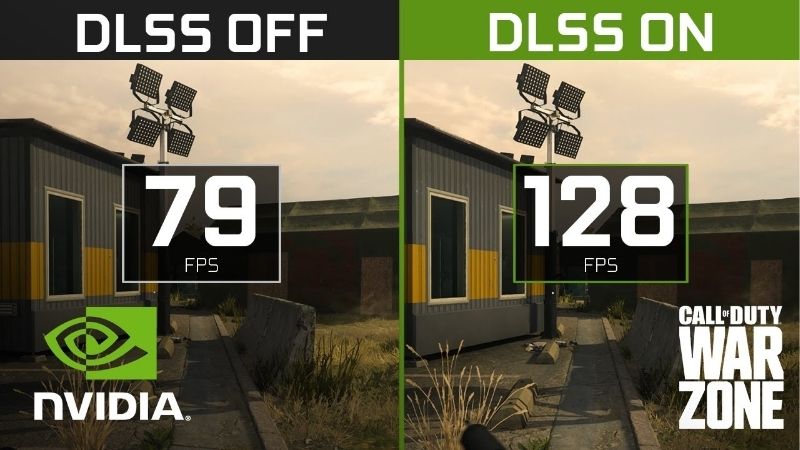
If you want to see the raw difference, toggle DLSS off and on in the same scene and compare the FPS and image side by side. Most users are surprised at how close Quality mode looks to native while delivering a substantial frame-rate lift, and that quick test builds confidence that the feature is doing its job.
Top-Rated Picks


| Product | Brand | Rating | Reviews | Price |
|---|---|---|---|---|
| ARCTIC MX-4 (4 g) – Premium Performance Thermal Paste… | ARCTIC | ★ 4.8 | 104k | $4.99 |
| ARCTIC MX-4 (incl. Spatula, 4 g) – Premium Performanc… | ARCTIC | ★ 4.8 | 71.9k | $5.49 |
| Crucial 8GB DDR4 RAM 3200MHz (PC4-25600), Downclockab… | Crucial | ★ 4.8 | 62.8k | $74.99 |
| AMD Ryzen 5 5600X 6-core, 12-thread unlocked desktop … | — | ★ 4.8 | 30.2k | $177.60 |
| NVIDIA Shield Remote; Voice Search, Motion-Activated,… | — | ★ 4.7 | 10.6k | $25.99 |
Frequently Asked Questions
Which graphics cards can run DLSS?
DLSS super resolution works on any GeForce RTX card from the 20 series onward because it runs on Tensor Cores. GTX 10 and 16 series cards lack that hardware and cannot use it, though they can use AMD FSR or Intel XeSS as software-based alternatives with broadly similar goals.
Which DLSS quality mode should I choose?
Quality mode renders at about sixty-seven percent of your output resolution and is the safest default at 1440p. Balanced and Performance drop to roughly fifty-eight and fifty percent and look best at 4K, where the higher output resolution hides the lower internal render. Ultra Performance is really only for 8K.
Why does DLSS look blurry or shimmer in my game?
Older titles often ship an outdated DLSS DLL. Swapping in a newer version or forcing the transformer preset through the Nvidia app usually sharpens the image dramatically. Also check that in-game sharpening is not set to zero and that you are not using Performance mode at 1080p.
Does DLSS reduce VRAM usage?
Yes, modestly. Rendering internally at a lower resolution shrinks the frame buffers and render targets, which can free several hundred megabytes at 4K. That relief helps eight-gigabyte cards, but it does not reduce texture memory, so high-resolution texture packs still consume the same capacity.
Can I force DLSS in games that do not list it?
The Nvidia app offers DLSS override features that can upgrade the preset or model in supported titles, and it can enable DLSS in some games through driver-level overrides. It cannot inject DLSS into an engine that never integrated it, since the technique needs motion vectors from the renderer.











Write Your Review
No reviews yet. Be the first to share your experience!