
NVIDIA ShadowPlay settings are the difference between game clips that look crisp and shareable and ones that come out blocky, stuttery, or so huge they eat your drive in a weekend. If you want to record or clip your best moments without tanking your frame rate, the trick is knowing which values to set and why. This review breaks down exactly what each setting does, the recommended numbers for 1080p, 1440p, and 4K, and where ShadowPlay wins or frustrates based on how players actually describe using it, so you can dial it in once and get clean footage every time.
What NVIDIA ShadowPlay Is and Which Settings Matter
ShadowPlay is NVIDIA’s built-in game capture, now part of the NVIDIA App overlay, and it uses your GPU’s dedicated NVENC encoder to record with minimal performance cost. That hardware encoding is the whole reason it beats CPU-based recorders for gaming. But the defaults are conservative, and a few settings do all the heavy lifting for quality. Knowing which ones matter, before touching numbers, is what stops you from either wasting disk space or capturing footage that looks worse than your game does. Here is the foundation.
Instant Replay vs Manual Recording
ShadowPlay offers two capture modes. Instant Replay continuously buffers the last several minutes in the background, so you press a hotkey after something cool happens and it saves the clip retroactively. Manual recording is the traditional start-and-stop capture for full sessions.
Instant Replay is the standout feature for most players because it never misses a moment, you clip after the fact. The trade-off is that it runs constantly, using a small amount of GPU and disk while active.
Manual recording suits longer content like full matches or tutorials, where you know in advance you want the whole thing. Most players use Instant Replay for highlights and manual mode occasionally.
The Core Settings: Resolution, Bitrate, Frame Rate
Three settings decide your output quality. Resolution should match your gameplay resolution for sharp footage; recording below it saves space but softens the image. Frame rate is 30 or 60 fps, and 60 is strongly preferred for smooth motion in fast games.
Bitrate is the single most important quality lever. It controls how much data each second of video uses; too low and you get blocky compression, too high and file sizes balloon with diminishing visual return. Getting this number right is the core of good ShadowPlay footage.
These three interact: higher resolution and frame rate need more bitrate to look clean, which is why the recommended values in the next section scale together rather than being set in isolation.
There is also an encoder choice worth knowing. ShadowPlay uses NVENC, and on RTX 40 and 50 cards it can capture in the newer, more efficient formats that produce better quality at the same file size. If your card supports it, that is a free upgrade to your footage; on older cards you stay on the standard format, which still looks clean at the bitrates recommended here. Either way, you are offloading the work to dedicated silicon rather than your CPU, which is what keeps the performance cost so low.
Where ShadowPlay Lives in the NVIDIA App
ShadowPlay is accessed through the in-game overlay, opened with a hotkey, under the recording and Instant Replay sections. Since the move to the NVIDIA App, the controls are cleaner but the underlying NVENC capture is the same proven engine.
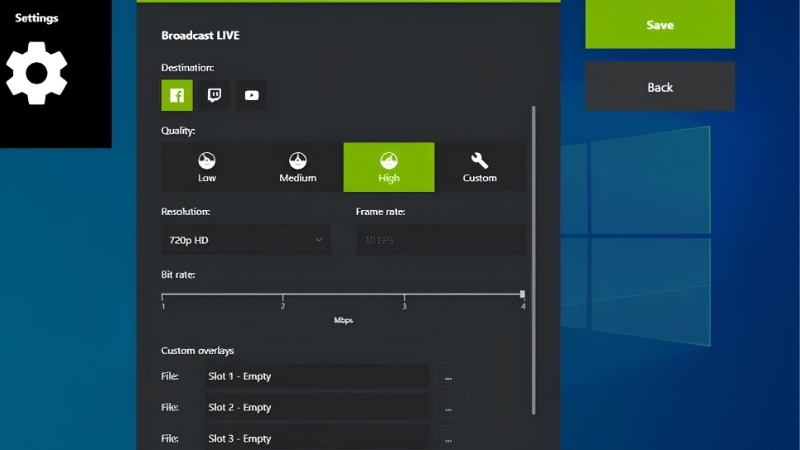
You set the quality, resolution, bitrate, and frame rate, in the overlay’s recording settings, and choose a save folder. Pointing that folder at a fast, spacious drive matters more than people expect, which the hardware section covers later.
If the overlay is disabled, ShadowPlay will not capture, so confirm the in-game overlay is on before troubleshooting anything else.
Dialing In the Best ShadowPlay Settings
With the pieces understood, the goal is a setup that produces clean, shareable clips without hurting your game or filling your drive overnight. The right numbers depend on your resolution and how you plan to use the footage, quick social clips versus archival-quality recordings. Below are concrete starting values you can copy, followed by how to balance them against performance and storage. Fine-tune from these rather than guessing.
Recommended Values for 1080p, 1440p, and 4K
Start from these baselines, all at 60 fps for smooth motion. They aim for a strong quality-to-size balance rather than maximum quality regardless of file size.
| Resolution | Frame rate | Bitrate | Best for |
|---|---|---|---|
| 1080p | 60 fps | 30-40 Mbps | Social clips, low storage use |
| 1440p | 60 fps | 50-70 Mbps | Sharp highlights, YouTube |
| 4K | 60 fps | 80-130 Mbps | Archival, high-detail footage |
If clips look blocky in fast, chaotic scenes, raise bitrate first. If file sizes are too large for how you share, lower it a step. Resolution and frame rate should generally stay matched to your gameplay.
Balancing Quality Against Performance and Disk Space
Because ShadowPlay uses NVENC, the performance hit is small on modern RTX cards, usually a handful of frames at most. That is the core advantage over software recorders that lean on the CPU and cost far more frame rate.
Disk space is the real constraint. At 4K 60 with a high bitrate, footage accumulates fast, and Instant Replay’s rolling buffer needs continuous free space. A short highlight is small, but hours of manual 4K recording will fill a drive quickly, which is why storage speed and capacity matter for heavy users.
The practical sweet spot for most players is 1080p or 1440p at 60 fps with a mid-range bitrate, clean enough for sharing, light enough on both performance and disk to leave on all the time.
It is worth doing the math once so the numbers feel real. At a 1440p 50 Mbps setting, roughly a minute of footage lands in the low hundreds of megabytes, so an hour of manual recording can approach 40 GB, and 4K climbs far faster. Instant Replay is gentler because it only keeps a rolling window, but that window still needs to sit on a drive with room to breathe. If you record daily, plan your storage around your heaviest setting, not your lightest.
Pros and Cons Users Report
Since ShadowPlay is free and built in, the honest measure is how it holds up in daily use against dedicated recorders. Weighing the common praise and complaints gives a realistic expectation before you rely on it for your highlights.
What users like: near-zero performance impact thanks to NVENC, the game-changing Instant Replay feature, simple setup, and clean quality at sensible bitrates. Many players call it the easiest way to capture gameplay without a second app.
What users criticize: large file sizes at high settings, occasional audio-track quirks that need configuring, less granular control than dedicated software, and Instant Replay’s constant disk use. None are dealbreakers, but heavy creators sometimes graduate to more configurable tools.
Getting the Most Out of ShadowPlay
Once your settings are dialed in, a couple of features and hardware choices separate a good capture setup from a frustrating one. Instant Replay in particular rewards a little configuration, and where you store footage quietly determines whether recording stays smooth or starts stuttering. This final section covers the tips that matter and the gear that makes ShadowPlay shine, then the bottom line on whether it is the right recorder for you.
Instant Replay Setup for Clutch Moments
Set your Instant Replay buffer length to match how you play, five minutes is plenty for reaction clips, longer if you want full rounds. A longer buffer uses more memory and disk, so do not set it higher than you need.
Bind the save hotkey somewhere you can reach mid-game without fumbling, since the whole point is capturing something you did not plan for. Once configured, it becomes effortless: play normally, and press the key whenever something clip-worthy happens.
This is the feature that turns ShadowPlay from a recorder into a highlight machine, and it is the reason many players leave it running every session.
Storage and Audio Hardware That Matters
Where you save clips matters as much as your settings. Recording high-bitrate footage to a slow or nearly full drive causes stutters in the capture itself. A fast SSD with generous free space keeps recording smooth and gives Instant Replay the headroom it needs, and it is the single upgrade that most improves a heavy recorder’s experience.
Audio is the other weak link. ShadowPlay captures your game and mic, but a poor microphone makes otherwise great footage sound amateurish. A decent USB mic dramatically lifts the quality of commentary and reaction clips, often more noticeably than any video setting.
If you record often, compare current prices on fast, high-capacity SSDs and quality USB microphones through the links on this page to keep your captures smooth and your audio clean.
See More:
- NVIDIA Broadcast vs OBS
- RTX HDR settings
- NVIDIA App download
- NVIDIA RTX Video Super Resolution
- GeForce Experience alternative
Final Verdict
ShadowPlay is worth using for almost any GeForce owner who wants to capture gameplay, and for most players it is the best balance of quality, simplicity, and near-zero performance cost available without a second application.
Set resolution and frame rate to match your game, pick a bitrate from the table for your resolution, and lean on Instant Replay for highlights. Do that and you have a reliable, low-effort capture setup that stays out of the way while you play.
Getting your NVIDIA ShadowPlay settings right comes down to matching resolution and frame rate to your gameplay, choosing a sensible bitrate for that resolution, and pointing the output at a fast drive with room to spare. Do that and Instant Replay quietly captures your best moments with almost no cost to performance. If storage or audio is holding your captures back, check the recommended SSDs and microphones through the links here to finish the setup properly.
Top-Rated Picks


| Product | Brand | Rating | Reviews | Price |
|---|---|---|---|---|
| ARCTIC MX-4 (4 g) – Premium Performance Thermal Paste… | ARCTIC | ★ 4.8 | 104k | $4.99 |
| ARCTIC MX-4 (incl. Spatula, 4 g) – Premium Performanc… | ARCTIC | ★ 4.8 | 71.9k | $5.49 |
| Crucial 8GB DDR4 RAM 3200MHz (PC4-25600), Downclockab… | Crucial | ★ 4.8 | 62.8k | $74.99 |
| AMD Ryzen 5 5600X 6-core, 12-thread unlocked desktop … | — | ★ 4.8 | 30.2k | $177.60 |
| NVIDIA Shield Remote; Voice Search, Motion-Activated,… | — | ★ 4.7 | 10.6k | $25.99 |
Frequently Asked Questions
What bitrate should I record at?
For 1080p60 gameplay, 30-50 Mbps produces clean footage with little visible blocking during fast motion. At 1440p60 use 60-80 Mbps, and at 4K60 aim for 100-130 Mbps. Higher bitrates mostly cost disk space rather than performance, since NVENC handles the encode on dedicated silicon.
Does recording hurt game performance?
The dedicated NVENC encoder means the impact is typically only a few percent, far less than software x264 encoding which loads the CPU heavily. The bigger risk is disk throughput: recording high-bitrate footage to a slow mechanical drive while the game streams assets from it causes stutter.
How should I configure Instant Replay?
A 3-5 minute buffer is a good balance, capturing most highlight moments without consuming excessive RAM and disk. Assign a comfortable hotkey, and point the save location to a fast drive with plenty of free space. Remember the buffer only exists while Instant Replay is toggled on, so enable it before you play.
Should I use AV1 or H.264?
AV1 encoding, available on RTX 40 and 50-series cards, delivers roughly 40% better quality per bit than H.264, so files are smaller at equal quality. Use it when your editor and upload platform support it. Keep H.264 for maximum compatibility with older editing software and messaging apps.
Why is my microphone missing or out of sync?
Check that Audio is set to record separate tracks so you can fix balance later, and verify the correct input device is selected in the overlay rather than a disconnected headset. Desync usually comes from mismatched sample rates; set Windows, your interface and your editor all to 48kHz.











Write Your Review
No reviews yet. Be the first to share your experience!