
NVIDIA DLDSR settings are how you squeeze a noticeably sharper, more detailed image out of games your GPU can already run comfortably, without buying a higher-resolution monitor. If you have spare graphics headroom and want your games to look crisper, the two factors and the smoothness slider are the levers that matter, and setting them wrong either wastes performance or over-sharpens the picture. This review explains exactly what each setting does, the recommended values to enter, how DLDSR pairs with DLSS, and where it wins or falls short based on how enthusiasts describe the results.
What DLDSR Is and Which Settings Matter
DLDSR, or Deep Learning Dynamic Super Resolution, renders your game at a higher-than-native resolution and then uses an AI model to downscale it back to your display, producing a sharper image than your monitor’s native resolution alone. It is essentially free image quality if you have the GPU power to spare. But it lives behind a couple of settings that confuse first-time users, and understanding them is what turns DLDSR from a blurry mess into a genuine upgrade. Here is what each control does before we get to numbers.
How DLDSR Differs from Old DSR
The older DSR (Dynamic Super Resolution) did the same basic thing, render higher and downscale, but it needed large multipliers like 4x to look good, which crushed frame rates. DLDSR uses an AI network to reconstruct detail, so it achieves comparable or better sharpness at much lower multipliers.
In practice this means DLDSR’s 2.25x factor looks close to what old DSR needed 4x to produce, at a far smaller performance cost. That efficiency is the entire reason DLDSR replaced the old method for most users.
The takeaway: if you remember DSR being too expensive to use, DLDSR is worth revisiting, because the AI does the heavy lifting the old brute-force approach could not.
The Two Factors: 1.78x vs 2.25x
DLDSR offers two multipliers. The 1.78x factor renders at a modest step above native, giving a visible sharpness boost with a light performance hit. The 2.25x factor renders higher still, producing the sharpest result at a larger cost to frame rate.
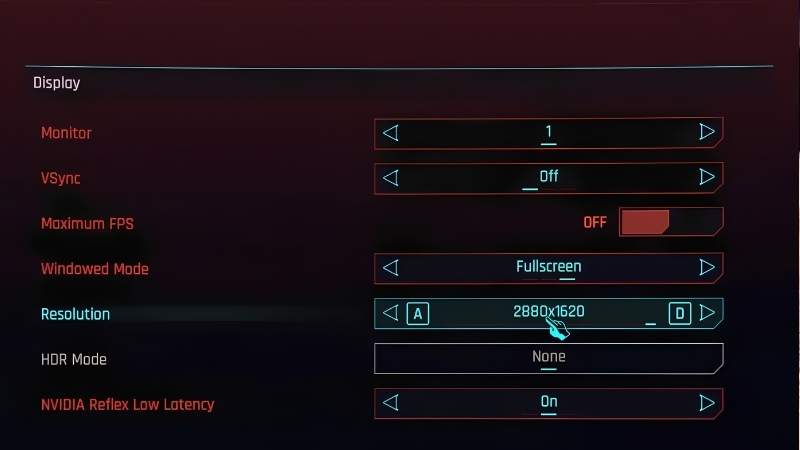
On a 1080p monitor, 2.25x renders roughly at 1620p and 1.78x around 1440p equivalent, then downscales to your screen. The higher factor is more transformative but demands more GPU, so the right choice depends on your spare headroom.
For most people, 2.25x is the one worth using when performance allows, since it delivers the fuller effect. Drop to 1.78x when you want the boost but need to protect frame rate.
There is a subtle point about how the two factors interact with your panel. DLDSR looks cleanest when the downscale ratio produces a tidy relationship with your native resolution, which is part of why 2.25x tends to look more natural than 1.78x to many eyes despite both being valid. If you have the headroom, it is worth trying both on the same scene rather than assuming the higher number is automatically better for your specific monitor, since the perceived sharpness can vary between displays.
The Smoothness Slider Explained
Alongside the factor is a smoothness slider, and it is the setting people most often get wrong. It controls the sharpening applied during downscaling: too low and the image looks over-sharpened and harsh, too high and it looks soft and blurry.
There is a widely recommended sweet spot that avoids both extremes, and dialing it in matters as much as choosing the factor. An over-sharpened DLDSR image can actually look worse than native, which is why this slider deserves attention rather than being left at default.
The next section gives concrete values, but the principle is balance: enough sharpening to reveal detail, not so much that edges shimmer.
Dialing In the Best DLDSR Settings
With the controls understood, the goal is a setup that looks noticeably sharper without over-processing or gutting your frame rate. The right values depend on your monitor resolution and how much GPU headroom you have, and DLDSR also interacts cleverly with DLSS in a way that changes the math. Below are concrete starting points and how to combine the technologies, so you get maximum clarity for the performance you can spare. Fine-tune from these baselines.
Recommended Factor and Smoothness Values
Start from these settings, then adjust to taste while looking at fine detail like foliage and textures. The smoothness value is a starting point many enthusiasts converge on.
| Goal | DLDSR factor | Smoothness | Notes |
|---|---|---|---|
| Best clarity (headroom to spare) | 2.25x | Around 33-45% | Fullest effect, higher GPU cost |
| Balanced boost | 1.78x | Around 33-45% | Visible sharpness, lighter hit |
| Paired with DLSS | 2.25x | Around 33-45% | Sharpness with recovered performance |
If the image looks harsh or edges shimmer, raise smoothness a little; if it looks soft, lower it. Set the new DLDSR resolution as your desktop and in-game resolution for it to take effect.
Combining DLDSR with DLSS
The clever trick enthusiasts love is running DLDSR and DLSS together. DLDSR renders the game higher for sharpness, while DLSS upscales from a lower internal resolution to recover the lost performance. The two AI technologies partly cancel each other’s costs.
The result is often an image sharper than native at a frame rate close to native, which feels like getting quality and performance at once. It is one of the most rewarding combinations on RTX hardware for single-player games.
This pairing is where DLDSR moves from a niche sharpness tweak to a genuinely smart use of your GPU’s AI capabilities, and it is the reason to keep both features in mind together rather than separately.
Pros and Cons Users Report
Since DLDSR is free and built in, the real question is whether the visual gain justifies the performance cost in your games. Weighing the enthusiast praise against the common complaints gives a realistic expectation.
What users like: a clear, sometimes striking increase in sharpness and detail, far better efficiency than old DSR, excellent synergy with DLSS, and a way to improve older games that lack modern anti-aliasing. Many call it a hidden gem on RTX cards.
What users criticize: the performance cost at 2.25x on weaker cards, the fiddly smoothness slider that looks bad if set wrong, occasional issues with the desktop resolution switching, and no benefit if your GPU has no spare headroom. It rewards spare power and punishes cards already at their limit.
Getting the Most Out of DLDSR
DLDSR is one of those features that is fantastic in the right situation and pointless in the wrong one, so knowing when to reach for it matters as much as the settings themselves. The deciding factor is almost always your spare GPU performance and the type of game. This final section covers when DLDSR earns its place, the hardware that makes it worthwhile, and the bottom line on whether to use it.
When to Use DLDSR and When to Skip It
Use DLDSR when you have GPU headroom left over, typically in older or less demanding games, or on a strong card, where the extra rendering does not push frame rates below your comfort level. Single-player and slower-paced games benefit most from the added clarity.
Skip it in competitive shooters where frame rate and latency trump image quality, and on entry-level cards already struggling at native resolution, where there simply is no headroom to spend. In those cases DLDSR costs frames you cannot afford for a benefit you will not notice mid-firefight.
Older games are the quiet sweet spot worth highlighting. Titles from several years ago often run far above your monitor’s refresh rate on modern hardware, leaving huge amounts of unused GPU performance, and they frequently shipped with weak anti-aliasing that leaves edges jagged. DLDSR spends that surplus performance on cleaning up exactly those rough edges, effectively acting as a superior anti-aliasing pass. For anyone replaying a favorite older game on a current card, it is one of the most worthwhile toggles available.
Hardware That Makes DLDSR Worthwhile
DLDSR trades GPU performance for sharpness, so the more capable your graphics card, the more freely you can use the higher factor without sacrificing playable frame rates. On a strong RTX card, 2.25x plus DLSS is easy; on a modest card you are limited to lighter use.
A sharp, quality monitor also helps you actually see the extra detail DLDSR reconstructs, since a low-quality panel muddies the benefit. The pairing of a capable GPU and a good display is where the feature looks its best.
If DLDSR is tempting but your card lacks the headroom to use it well, compare current prices and specs on stronger RTX graphics cards and quality monitors through the links on this page.
See More:
- NVIDIA Broadcast vs OBS
- RTX HDR settings
- NVIDIA App download
- NVIDIA RTX Video Super Resolution
- GeForce Experience alternative
Final Verdict
DLDSR is worth using for anyone with spare GPU power who wants a sharper image in single-player and older games, especially when paired with DLSS to offset the cost. Set the factor to your headroom and the smoothness to the recommended range, and it is one of the more satisfying free upgrades on an RTX card.
If your GPU is already maxed out or you play mostly competitive titles, DLDSR is not for you, and that is fine. It is a feature for spending surplus performance on beauty, not for cards fighting to hit playable frame rates.
Getting your NVIDIA DLDSR settings right means choosing the factor that fits your spare performance, dialing the smoothness into the balanced range, and pairing it with DLSS whenever a game supports both. Done that way, it delivers a sharper, more detailed image than native for the cost of headroom you were not using. If your graphics card cannot spare that headroom, check the recommended RTX GPUs and monitors through the links here to unlock the feature properly.
Top-Rated Picks


| Product | Brand | Rating | Reviews | Price |
|---|---|---|---|---|
| ARCTIC MX-4 (4 g) – Premium Performance Thermal Paste… | ARCTIC | ★ 4.8 | 104k | $4.99 |
| ARCTIC MX-4 (incl. Spatula, 4 g) – Premium Performanc… | ARCTIC | ★ 4.8 | 71.9k | $5.49 |
| Crucial 8GB DDR4 RAM 3200MHz (PC4-25600), Downclockab… | Crucial | ★ 4.8 | 62.8k | $74.99 |
| AMD Ryzen 5 5600X 6-core, 12-thread unlocked desktop … | — | ★ 4.8 | 30.2k | $177.60 |
| NVIDIA Shield Remote; Voice Search, Motion-Activated,… | — | ★ 4.7 | 10.6k | $25.99 |
Frequently Asked Questions
What is DLDSR and how is it different from DSR?
Both render the game at a higher-than-native resolution then downscale to your display, but DLDSR uses a neural network for the downscale, so a 2.25x factor delivers image quality comparable to the old 4x DSR at far lower cost. That efficiency is what makes supersampling practical on modern hardware.
Which factor should I choose?
2.25x is the sweet spot for most people, producing 2880×1620 on a 1080p panel or 3840×2160 on 1440p with a clear jump in clarity. The 1.78x factor is a lighter option for demanding titles. Enable only the factors you intend to use to keep your resolution list manageable.
What smoothness value works best?
The default is 33%, and most users prefer somewhere between 15% and 35%. Lower values sharpen the image but can introduce aliasing and ringing, while higher values soften it. Start at 33%, then reduce in steps of 5% until edges look crisp without haloing on high-contrast lines.
Can I combine DLDSR with DLSS?
Yes, and it is a popular trick: set the desktop and game to a DLDSR resolution, then enable DLSS Quality inside the game. The net render resolution ends up near native while the neural downscale cleans up the final image, often looking better than either technique alone at similar frame rates.
What are the requirements and limitations?
You need a Turing RTX 20-series card or newer with the desktop set to your monitor’s native resolution and a single-display or properly configured multi-monitor setup. It does not work with some HDR configurations or in certain borderless windowed modes, and it will not appear if display scaling is set to perform on the display rather than the GPU.











Write Your Review
No reviews yet. Be the first to share your experience!