
DLAA settings are for the player who has frames to spare and wants the sharpest, cleanest image their RTX card can produce, no upscaling, no compromise, just the best anti-aliasing available. If you keep seeing DLAA next to DLSS in your game menus and are not sure what it does or when to pick it, the short version is that DLAA uses the same AI as DLSS but spends it entirely on image quality instead of performance. This review explains exactly how DLAA differs from DLSS, what it costs, when to use it, and where it wins or falls short based on how players describe the results.
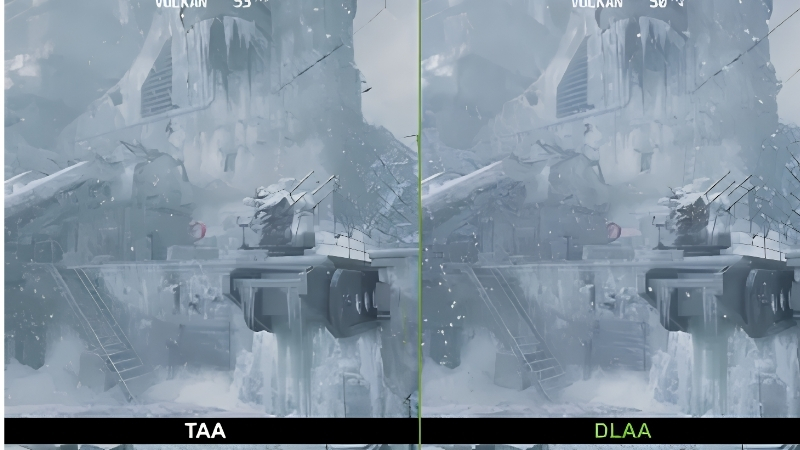
What DLAA Is and How It Differs from DLSS
DLAA, or Deep Learning Anti-Aliasing, is NVIDIA’s AI-powered anti-aliasing that runs at your native resolution. Where DLSS renders a game at a lower resolution and upscales it to gain performance, DLAA keeps everything at full resolution and applies the same deep-learning image reconstruction purely to eliminate jagged edges and shimmer. The result is the cleanest image the technology can produce. Understanding that single difference, quality instead of performance, is the key to knowing when DLAA is the right tool. Here is how it stacks up.
DLAA vs DLSS vs Native TAA
The three approaches solve different problems. DLSS renders lower and upscales, trading a little image quality for a lot of performance. Traditional TAA (Temporal Anti-Aliasing) runs at native resolution but often looks blurry and smeary in motion, the long-standing complaint about it.
DLAA runs at native resolution like TAA but uses DLSS’s superior AI model, so it delivers cleaner edges and more stable detail without the softness TAA is known for. It is essentially the anti-aliasing quality of DLSS with none of the upscaling.
The simple mental model: DLSS is for more frames, DLAA is for a better-looking image. They are the same technology aimed at opposite goals.
How DLAA Improves Image Quality
Because DLAA works at full resolution, it preserves fine detail that upscaling can soften, thin wires, distant foliage, textured surfaces, while removing the aliasing and shimmer that make edges crawl during movement. The image looks sharper and more stable than both TAA and DLSS.
In motion is where the difference shows most. Fine details that flicker or sparkle under TAA hold steady with DLAA, which is exactly the artifact that breaks immersion in detailed scenes.
For players sensitive to image clarity, DLAA often looks noticeably crisper than any other option in the menu, which is its entire reason to exist.
There is a second, less obvious benefit worth mentioning. Because DLAA uses the same trained model as DLSS, it improves over time as NVIDIA updates that model, and newer versions can be swapped into games that support the latest DLSS. In practice this means the DLAA you use today can look better after a driver or game update, without you changing a single setting, a quiet advantage traditional anti-aliasing methods, which are fixed once shipped, simply cannot offer.
The Performance Cost of DLAA
DLAA is not free. Because it runs the AI model at full resolution and adds no upscaling to recover performance, it costs frames rather than saving them, unlike DLSS. Expect a modest performance hit compared to running with DLSS or no anti-aliasing.
The size of that hit depends on your GPU and the game, but the principle is fixed: DLAA spends performance to buy image quality. This is why it suits players with headroom rather than those fighting to hit a playable frame rate.
If a game is already running comfortably above your target frame rate, DLAA is a smart way to spend that surplus on a better picture instead of frames you did not need.
When and How to Use DLAA
DLAA is a situational tool, brilliant when you have spare performance and pointless when you do not, so knowing when to reach for it matters as much as knowing how to enable it. It is per-game, easy to switch on, and best reserved for specific scenarios. This section covers enabling it, the situations where it shines, and the honest trade-offs, so you use it where it actually pays off.
Enabling DLAA in Supported Games
DLAA appears in the game’s graphics settings, usually within the same DLSS section, as its own option alongside the DLSS quality presets. If a game supports DLSS, it increasingly offers DLAA as the native-resolution, maximum-quality choice in that same menu.
You simply select DLAA instead of a DLSS preset or your old anti-aliasing. There is nothing else to configure; it is a single choice rather than a set of sliders.
If you do not see DLAA, the game may not have added it yet even if it supports DLSS, since developers enable it per title. In that case, DLSS at its highest quality preset is the nearest alternative, and on some titles a DLSS override tool can force the DLAA mode where the menu does not expose it directly.
When DLAA Is the Right Choice
Choose DLAA when you have GPU headroom, in older or less demanding games, or on a strong card, and you want the best possible image. It is ideal for single-player and visually rich games where you want to soak in the detail rather than chase maximum frames.
It is also the answer for players who dislike TAA’s blur but still want anti-aliasing, since DLAA fixes exactly that softness. For a high-end card running a game well below its limit, DLAA is the obvious way to use the leftover power.
Consider a concrete example: a strong card running an older or well-optimized title at well over 100 frames per second on a 60Hz or 120Hz display. Those extra frames above your refresh rate are largely wasted, so converting some of that surplus into a cleaner image with DLAA is essentially free quality. This is the scenario where the feature makes the most sense, and it is more common than players expect once they check how far above their monitor’s refresh rate a game is actually running.
Pros and Cons Users Report
Since DLAA is free to use where available and costs only performance, the honest question is whether the image gain justifies the frames. Weighing the praise against the caveats sets the right expectation.
What users like: the cleanest, sharpest image among the anti-aliasing options, excellent stability in motion, a genuine fix for TAA blur, and effortless one-click use. Players who value visual fidelity often call it their default in games that run well.
What users criticize: the performance cost that rules it out on weaker cards or demanding games, limited availability compared to DLSS, and a benefit that is subtle to players who are not sensitive to aliasing. It is a luxury option, best when you can afford the frames.
Getting the Best Image with DLAA
DLAA already produces a superb image on its own, but pairing it thoughtfully with other settings and the right hardware is how you reach the cleanest possible result. The deciding factor is almost always available performance, so hardware plays a real role here. This final section covers smart combinations, the gear that lets you run DLAA freely, and the bottom line on whether it belongs in your settings.
Combining DLAA with Other Settings
DLAA pairs naturally with high-quality settings in games you can already run well, since you are already prioritizing image over frames. It also complements a well-calibrated display, because the extra clarity is most visible on a sharp, quality panel.
On very powerful cards, some players even combine native-resolution rendering approaches with DLAA for the ultimate image, though DLAA alone already delivers most of the benefit. The key is that DLAA is a quality-first choice, so it belongs alongside other quality-first settings.
What you should not do is force DLAA in a game that is already struggling; there, DLSS to recover frames is the smarter call, and DLAA can wait for a title that runs better.
Hardware That Lets You Run DLAA Freely
DLAA costs performance, so the more powerful your RTX card, the more games you can run with DLAA enabled while still hitting your target frame rate. On a strong GPU, DLAA becomes a default you can leave on; on a modest one, it is reserved for lighter titles.
A sharp, high-quality monitor also ensures you actually see the extra clarity DLAA provides, since a low-quality panel muddies the benefit. The combination of a capable card and a good display is where DLAA looks its absolute best.
If DLAA appeals but your card cannot spare the frames, compare current prices and specs on stronger RTX graphics cards and quality monitors through the links on this page.
See More:
- NVIDIA Broadcast vs OBS
- RTX HDR settings
- NVIDIA App download
- NVIDIA RTX Video Super Resolution
- GeForce Experience alternative
Final Verdict
DLAA is worth using whenever you have the performance to spare and want the best-looking image available, especially in single-player and visually detailed games where clarity matters more than raw frame count. For that use, nothing in the menu looks cleaner.
If you are chasing frames or running demanding games near your card’s limit, DLSS is the better choice and DLAA can wait. It is a quality luxury, superb when you can afford it, unnecessary when you cannot.
In short, DLAA settings give you the sharpest, most stable image an RTX card can produce by spending the AI of DLSS entirely on anti-aliasing at native resolution, rather than on performance. Reach for it whenever a game runs comfortably and you want maximum clarity, and lean on DLSS when frames matter more. If your GPU cannot spare the performance DLAA needs, check the recommended RTX cards and monitors through the links here to run it the way it is meant to be seen.
Top-Rated Picks


| Product | Brand | Rating | Reviews | Price |
|---|---|---|---|---|
| ARCTIC MX-4 (4 g) – Premium Performance Thermal Paste… | ARCTIC | ★ 4.8 | 104k | $4.99 |
| ARCTIC MX-4 (incl. Spatula, 4 g) – Premium Performanc… | ARCTIC | ★ 4.8 | 71.9k | $5.49 |
| Crucial 8GB DDR4 RAM 3200MHz (PC4-25600), Downclockab… | Crucial | ★ 4.8 | 62.8k | $74.99 |
| AMD Ryzen 5 5600X 6-core, 12-thread unlocked desktop … | — | ★ 4.8 | 30.2k | $177.60 |
| NVIDIA Shield Remote; Voice Search, Motion-Activated,… | — | ★ 4.7 | 10.6k | $25.99 |
Frequently Asked Questions
What does DLAA do differently from DLSS?
DLAA runs the same neural reconstruction network as DLSS but at your native resolution instead of upscaling from a lower one. The result is anti-aliasing quality that generally beats TAA, with cleaner edges, more stable thin objects like wires and foliage, and less of the smeary ghosting typical of older temporal solutions.
What performance cost should I expect?
Because there is no resolution saving, DLAA costs frames rather than gaining them, typically a few percent versus TAA and substantially more than DLSS Quality. Budget roughly 5-10% below your native TAA frame rate, which is why DLAA suits situations where you have performance headroom to spare.
Which GPUs and games support it?
Any GeForce RTX card from the 20-series onward supports DLAA where the game implements it, and the DLSS 4 transformer model improves quality across all of them. Coverage is narrower than DLSS itself, but the NVIDIA app’s DLSS override feature can force DLAA in many titles that only expose DLSS options.
Should I use DLAA or DLSS Quality at 1440p?
If you comfortably exceed your monitor’s refresh rate, DLAA gives the sharpest image available. If you are near or below it, DLSS Quality at 1440p still looks very close to native with the transformer model while returning 20-30% more frames, which is the better overall experience for most players.
Can I combine DLAA with frame generation?
Yes, on RTX 40 and 50-series cards, and it is an excellent pairing: DLAA supplies maximum image quality while frame generation restores the smoothness lost to native-resolution rendering. Keep base frame rate above roughly 50 fps before generation so input latency remains acceptable.











Write Your Review
No reviews yet. Be the first to share your experience!