
- Top Pick: 87MM PLD09220S12H for RTX3080 RTX3070 Graphics Card Fan Replacement for EVGA GeForce RTX 3070 3080 TI 3090 FTW3 Cooler Fan (Black B-Fan)
- Best Value: SCCCF Dual 92mm Graphic Card Fans, Graphics Card Cooler, Video Card VGA Cooler, PCI Slot Fan GPU Cooler
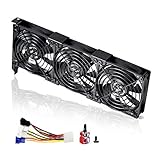
- Premium Choice: SCCCF 3x90mm 92mm Graphic Card Fans, Graphics Card Video Card VGA PCI Slot Fan GPU Cooler
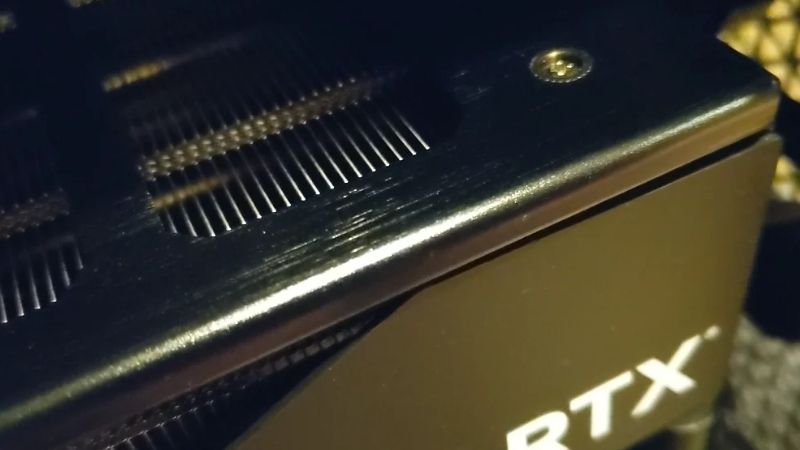
Why is my GPU fan so loud is one of the most common frustrations for anyone trying to enjoy a quiet gaming session or work in peace. A roaring graphics card fan can drown out your game, your music, and your concentration, turning an otherwise capable PC into a constant distraction. The reassuring news is that a loud GPU fan is almost always fixable, often for free, once you understand what is really driving the noise. This step-by-step guide explains the real causes, walks you through quieting your card step by step, and shares the pro tips that keep it running calmly for the long term.
Why Is My GPU Fan So Loud
A loud fan is usually a symptom, not the disease. The card spins its fans hard for a reason, and identifying that reason is the key to silencing it without guesswork. Three causes cover the vast majority of noisy GPUs, so let us look closely at each one in turn.
As an Amazon Associate we earn from qualifying purchases at no extra cost to you.





High Temperatures Forcing the Fans to Spin Up
The most common reason is simply heat. When the card gets hot, it ramps the fans up to cool itself, so loud fans are often the symptom of a temperature problem rather than a fan problem at all.
This is why a card sounds quiet at idle but roars the moment a demanding game starts. The fans are doing their job, responding to rising temperatures by spinning faster and louder. The hotter the card runs, the harder they work, so the noise tends to track your temperatures almost exactly.
Fix the heat, and the noise usually drops on its own, which is why cooling and noise are so closely linked in practice. In most cases, lowering temperatures by even a handful of degrees lets the fans settle to a much calmer speed.
Dust, Bearings, and Mechanical Noise
Sometimes the noise is the fan itself rather than the speed. Dust clogging the blades, a worn bearing, or a fan cable lightly touching the blades can all create rattles, grinding, or buzzing that gets worse over time.
This kind of noise has a different character: a mechanical rattle or grind rather than the smooth rush of fast-moving air. Users often describe an older card developing a rattle that was never there when it was new. The clue is that the sound is present even at low fan speeds, which points to the fan hardware rather than heat.
Cleaning the fans, and in stubborn cases replacing a worn one, addresses this mechanical noise directly at its source. A bearing that has started to grind will only get worse over time, so catching it early saves you a louder problem later.
Aggressive Default Fan Curves
Some cards ship with an aggressive fan curve that spins the fans harder and sooner than they really need to. The card stays cool, but you pay for it in unnecessary noise during light and moderate loads.
This is easy to spot when the fans seem loud relative to a perfectly reasonable temperature. The card is being overly cautious rather than genuinely struggling with heat.
A gentler custom fan curve lets the card stay quiet when it can afford to, only ramping up when temperatures truly call for it. Many cards also support a zero-RPM mode that stops the fans entirely at low temperatures for near-silent desktop use.
What You Will Need and How to Quiet It
Quieting a GPU fan rarely needs special tools or much money. With a few simple items and a little time, most people can cut the noise noticeably. Here is what to gather and exactly how to use it.
What You Will Need Before You Start
Most of these are cheap and some you likely already have. Gather them before you begin so the process is smooth.
- Compressed air or a small blower — to clear dust from the fans and heatsink, the easiest free way to cut both noise and heat.
- A fan tuning tool — the NVIDIA app or a free utility to set a quieter custom fan curve and monitor temperatures.
- A couple of quality case fans — better case airflow, such as a well-rated quiet 120 mm fan set, lets the GPU stay cool at lower fan speeds.
- A replacement GPU fan — for a card with a genuinely worn or rattling fan, a matching replacement fan is an inexpensive fix.
If you plan to replace a fan, check your card model first so you order the correct size and connector for a clean fit.
Step-by-Step: Making Your GPU Fan Quieter
Work through these steps in order, from the simplest to the most involved. Most people get the quiet they want well before the final step.
- Check your baseline. Note when the fans get loud and what your temperature is at that moment, so you know whether heat or the fan curve is to blame.
- Clean the dust. Power down, open the case, and blow dust from the GPU fans and heatsink to stop both noise and heat at the source.
- Set a gentler fan curve. Use a tuning tool to lower fan speeds at moderate temperatures, keeping the card quiet until it actually needs to ramp up.
- Improve case airflow. Add or rearrange case fans so the GPU runs cooler and never has to spin its own fans to maximum.
- Replace a worn fan. If a fan rattles or grinds even when clean, swap it for a matching replacement to cure mechanical noise for good.
Recheck the noise and temperature after each step. You will usually find one change makes the biggest difference for your particular card. Measuring as you go also keeps you from over-tuning the fan curve so low that the card starts to overheat.
Pros and Cons of a Custom Fan Curve vs New Fans
When tackling a loud GPU, the two main routes are tuning a custom fan curve and replacing the fans or adding cooling. Each has trade-offs worth weighing before you choose.
A custom fan curve is free, instant, and reversible, letting you balance noise against temperature exactly to your taste. The downside is that it cannot fix mechanical noise from a worn fan, and pushing it too quiet risks letting the card run hotter than is ideal.
Replacing fans or adding case cooling tackles the noise at its physical source and improves cooling for the whole system. The downside is the small cost and a little hands-on effort, plus the need to match a replacement fan correctly, so it is best reserved for genuinely worn or rattling fans.
Pro Tips, Mistakes, and When to Upgrade
A few good habits keep your card quiet long after the initial fix, and a couple of common mistakes are easy to avoid. Here is what experienced builders do, plus when a new card is the honest answer.
Pro Tips and Mistakes to Avoid
Keep these in mind for the quietest, longest-lasting results.
- Clean regularly. Dust returns over time, so a periodic blowout keeps both noise and temperatures low.
- Do not silence the fans entirely. Setting fans too low to chase silence can let the card overheat and throttle.
- Cap your frame rate. Limiting frames in menus and light scenes reduces load, so the fans never need to roar unnecessarily.
- Check for cable contact. A loose cable lightly touching a blade is a common, easily missed source of rattling.
The biggest mistake is assuming the fan is broken when the real issue is heat, since fixing airflow often quiets the card completely without touching the fan at all.
Tools and Accessories Worth Owning
The right small accessories make a loud card easy to tame and keep tame. A fan tuning tool, a can of compressed air, and quality case fans cover almost every cause of noise between them.
Pairing these with a reliable USB flash drive holding clean drivers, such as a well-rated high-speed model, means you can roll back quickly if a driver update ever changes fan behaviour for the worse.
Together they turn a noisy mystery into a quick, repeatable fix you can perform with confidence whenever the noise creeps back, which it inevitably does as dust returns.
When a New Card Ends the Noise
If your card is loud despite a clean, well-cooled case and a gentle fan curve, the cooler design may simply be the limit, or the fans may be wearing out for good. Some older or budget cards are noisy by nature and never truly run quiet.
A current-generation NVIDIA GPU brings far better cooler and fan designs that stay quiet under load while delivering much higher performance, ray tracing, and DLSS support.
If an upgrade was already on your mind, a card you simply cannot quiet is the practical push to compare current graphics cards known for silent cooling, so it is worth checking today’s deals before they change.
See More:
- GPU pink screen
- Nvidia Control Panel missing
- Nvidia Control Panel not opening
- GeForce Experience won’t open
- Nvidia app won’t install
Final Word on Quieting a Loud GPU Fan
So the next time you ask why is my GPU fan so loud, remember the answer is usually heat, dust, or an aggressive fan curve, and each of those has a simple, often free fix. A quieter card makes gaming and working far more pleasant without sacrificing the cooling your GPU needs.
Check your baseline, clean the dust, set a gentler fan curve, and improve airflow before anything else. Replace a worn fan only if it rattles when clean, and reserve a new card for when the hardware is simply noisy by design. Follow that order and a loud GPU fan becomes a quick, satisfying fix rather than a constant distraction.
Top-Rated Picks


| Product | Brand | Rating | Reviews | Price |
|---|---|---|---|---|
| EZDIY-FAB RTX 3000 Series 12 Pin to Dual 8 Pin PCIe S… | EZDIY-FAB | ★ 4.6 | 428 | $15.59 |
| 87MM PLD09220S12H RTX3080 RTX3070 Graphics Card Fan R… | LTANDBR | ★ 4.6 | 61 | $29.98 |
| Compatible with GIGABYTE GeForce RTX 5060/5050 OC Low… | NIVXE | ★ 3.9 | 12 | $29.92 |
| Hilitand GPU Backplate Radiator, Aluminum Alloy Graph… | Hilitand | ★ 3.9 | 8 | $26.81 |
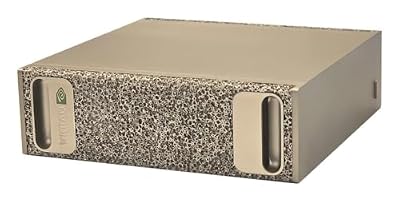
| NVIDIA GX Spark – Founders Edition, W129251900 | — | ★ 1.0 | 1 | $10,309.00 |
Frequently Asked Questions
What fan speed is normal for a gaming graphics card?
Most cards settle between 40 and 60 percent duty under sustained gaming load, which typically corresponds to 1200 to 1800 RPM on a triple-fan cooler. Anything above 70 percent for long stretches suggests dust buildup, poor case airflow, or degraded thermal interface material rather than a design flaw in the cooler itself.
Will a custom fan curve make my card run hotter?
Slightly, and that is an acceptable trade. Targeting roughly 75C core instead of 65C lets fans run several hundred RPM slower and is entirely safe, since Nvidia and AMD silicon is rated to throttle only above 83 to 88C. Use MSI Afterburner or the Nvidia app to build a gentle curve with a wide hysteresis so speeds do not oscillate.
Why do the fans ramp up and down constantly?
That is fan surging caused by a curve that is too aggressive around the zero-RPM stop point. When temperature hovers at the threshold, fans start, cool the card, stop, and repeat. Extend the fan-stop hysteresis to about 10C or simply disable zero-RPM mode so the fans idle quietly at 30 percent instead of cycling.
Does case airflow really change GPU noise?
Considerably. A card breathing recycled 45C exhaust must spin far faster than one fed 25C intake air. Two or three 120-140 mm intake fans at the front, a clean dust filter, and no cables blocking the shroud can drop GPU fan speed by 15 to 25 percent for the same core temperature.
Is repasting worth it for a noisy older card?
If the card is three or more years old, yes. Pump-out of the factory paste raises core and hot-spot temperature, which forces higher fan speeds. Replacing it with a quality compound such as Arctic MX-6 or Thermal Grizzly Kryonaut, plus fresh thermal pads on the VRM and memory, commonly recovers 8 to 15C and restores quiet operation.











Write Your Review
No reviews yet. Be the first to share your experience!