
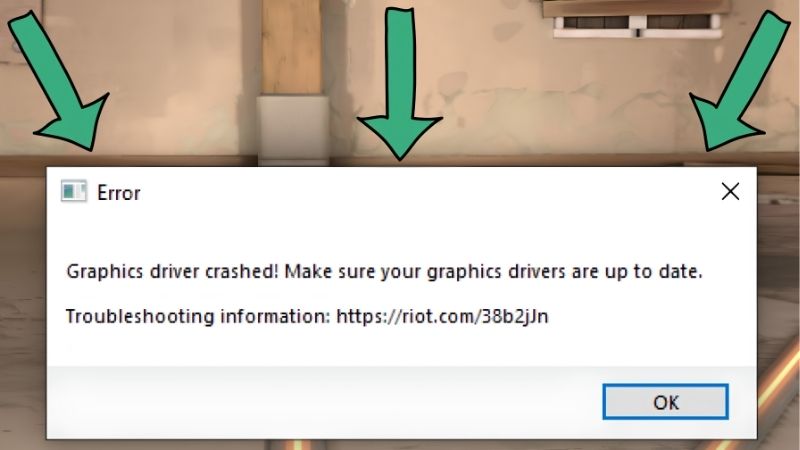
Graphics driver crash problems are among the most frustrating a PC can throw at you: the screen flickers, a game freezes, or Windows flashes a message that the display driver stopped responding. The good news is that most of these crashes have identifiable causes and reliable fixes. This guide walks through what a driver crash really is, how to stop it, and how to tell when the culprit is actually failing hardware.

Best Seller
1080 Graphics Crash UP Derby Zone Sign Decal Sticker xing Gift Novelty Demolition Track Oval 8

What a Graphics Driver Crash Really Is
Before fixing the problem, it helps to know what is happening under the hood. A driver crash is Windows protecting itself, not necessarily a sign your GPU is dying.
As an Amazon Associate we earn from qualifying purchases at no extra cost to you.





The “Stopped Responding” Message
The classic symptom is a brief black screen followed by the message that the display driver stopped responding and has recovered. This is Windows’ Timeout Detection and Recovery feature resetting a driver that failed to respond in time.
In effect, Windows noticed the GPU driver hang and restarted it to keep your system running rather than crashing entirely. The recovery is a safety net, but repeated occurrences point to an underlying issue worth fixing.
Seeing this message once in a blue moon is usually harmless. Seeing it regularly, especially during games or video playback, means something is consistently pushing the driver past its limits.
Common Crash Symptoms
Keeping a brief log of these events pays off more than it sounds. Jotting down the game, the time, and what you were doing when each crash struck often reveals a pattern, such as a single title or a specific graphical effect, that points straight at the cause and saves hours of blind trial and error.
Driver crashes show up in several ways beyond that message: full system freezes, sudden black screens, flickering, or visual artifacts like stray colors and geometry glitches on screen.
Some crashes drop you to the desktop from a game with an error, while others hard-lock the machine and force a restart. The variety can make diagnosis confusing, but the underlying causes overlap heavily.
Noting when the crashes happen, whether in a specific game, during video, or at idle, is genuinely useful information that narrows down the cause before you start changing things.
What Triggers a Crash
Because software causes dominate, resisting the urge to assume the worst about your hardware is important. Many people replace a perfectly good card over crashes that a clean driver install would have fixed, so working through the cheap, non-destructive fixes first is both faster and far kinder to your wallet.
The most common triggers are a corrupt or buggy driver install, an unstable overclock on the GPU or memory, overheating, an underpowered or failing power supply, or a conflict with a specific game or application.
Software causes are the most frequent and the easiest to fix, which is why a clean driver reinstall resolves so many crash reports. Hardware causes are rarer but more serious.
The smart approach is to rule out the easy software fixes first, then move to hardware checks only if the crashes survive a clean slate. Changing one variable at a time keeps the diagnosis clear.
How to Fix a Graphics Driver Crash
Most driver crashes are solved with a handful of methodical steps. Work through them in order, testing after each, so you know exactly what fixed the problem.
Clean Reinstall With DDU
The reason to do this in Safe Mode is that Windows leaves driver files locked while the desktop is running normally. Safe Mode loads a minimal environment where DDU can remove every component cleanly, which is exactly what gives this method its high success rate against stubborn crashes.
The single most effective fix is a clean driver reinstall. Use Display Driver Uninstaller in Windows Safe Mode to remove every trace of the current driver, then install a fresh copy from the NVIDIA App or Nvidia’s website.
This clears the corrupt files and leftover settings behind a large share of crashes, giving the driver a genuinely clean foundation rather than layering a new install over a broken one.
After reinstalling and restarting, test the scenario that used to crash. For many users, this step alone ends the problem, which is why it belongs at the top of the list.
Roll Back or Update the Driver
A useful habit is to correlate the onset of crashes with your update history. If the trouble began the same week you installed a new driver, rolling back is the obvious first move; if you have not updated in a very long time, a fresh stable release is the more likely cure.
If crashes started right after a recent update, the new driver may be the cause, and rolling back to the previous version often fixes it. Nvidia keeps older drivers in its archive for exactly this reason.
Conversely, if you are running an old driver, updating to the latest stable release may resolve a known bug. The goal is to land on a version that is stable for your specific card and games.
Either way, doing the change after a DDU wipe keeps the install clean and prevents old files from carrying the problem forward into the new version.
Check Temperatures, Power, and Overclocks
Testing these one at a time is what makes the diagnosis reliable. Reset the overclock and retest; if crashes continue, check temperatures; if those are fine, scrutinize the power supply. Changing several things at once may stop the crashes but leaves you no wiser about which fix actually worked.
If a clean driver does not help, look at the hardware conditions. Monitor your GPU temperature under load, since overheating can cause the driver to hang, and ensure your case airflow and fan curves are adequate.
Reset any GPU or memory overclock to stock speeds, because even a mild unstable overclock is a classic crash cause. If crashes stop at stock, your overclock was too aggressive.
Finally, consider your power supply. An underpowered, aging, or failing unit can cause crashes under load, especially with a power-hungry GPU, so a quality supply with headroom is worth confirming.
When It’s Hardware, Not Software
If you have done a clean install, tested multiple driver versions, and checked temperatures, power, and overclocks, yet crashes continue, the cause may be the hardware itself. Recognizing this saves you endless software tinkering.
Signs the GPU or PSU Is Failing
A helpful test here is swapping in a known-good power supply or trying the GPU in another system if you can. If the crashes follow the card to a different machine, the GPU is implicated; if a different, stronger supply cures them, the original unit was the weak link all along.
Persistent artifacts even at stock speeds, crashes that worsen over time, or instability that appears across completely different drivers all point toward failing hardware rather than software.
A GPU that crashes only under heavy load, or a system that resets when the card draws peak power, often indicates a struggling power supply rather than the GPU, which is worth testing before condemning the card.
If a card is several years old and has run hot for a long time, degradation is plausible. At that point, continued software troubleshooting yields diminishing returns.
DIY Fixes vs Replacing Hardware
Framing the decision around time and money keeps it rational. Pouring days into reviving an old, degrading card that would cost little to replace is rarely worth it, whereas a recent card showing a single software-linked fault almost always deserves the effort of a proper clean-up first.
Weighing whether to keep troubleshooting or replace the part depends on the card’s age and value. The table below frames the pros and cons of each path so you can choose sensibly rather than pouring time into a lost cause.
| Keep troubleshooting | Consider replacing |
|---|---|
| Crashes tied to a recent driver or overclock | Artifacts persist at stock across all drivers |
| Card is recent and otherwise performs well | Card is old and has run hot for years |
| Problem appears in one game or app only | Crashes worsen steadily over time |
| Fixable with a clean install or better cooling | System resets under peak GPU power draw |
If the signs point to a dying GPU or a chronically inadequate power supply, replacing the failing part is usually more cost-effective than endless troubleshooting, and it restores stability for years.
Preventing Future Crashes
It is also worth updating drivers on a sensible schedule rather than either ignoring them for months or installing every release the instant it appears. A middle path, updating cleanly a few days after a new driver proves stable for others, gives you the fixes and optimizations while sidestepping the rare problem build that could start the crashing all over again.
Once stable, a few habits keep crashes away: maintain good case airflow, keep drivers reasonably current with clean installs, and avoid pushing aggressive overclocks unless you have tested them thoroughly.
Ensuring your power supply has comfortable headroom for your GPU is one of the most underrated stability measures, since power problems masquerade convincingly as driver faults.
With those basics in place, driver crashes become rare exceptions rather than a recurring frustration, and your whole system feels more dependable.
See More:
- TechPowerUp GPU
- Nvidia H200 GPU price
- RTX 5050 Mobile
- Nvidia competitors
- Nvidia Reflex low latency on or off
The Bottom Line on a Graphics Driver Crash
A graphics driver crash is usually fixable with a clean DDU reinstall, the right driver version, and sensible checks on temperature, power, and overclocks, and only occasionally points to failing hardware. If the crashes survive every software fix and your GPU or power supply is showing its age, replacing the failing component is the reliable path back to stability — tap the link on our site to check today’s best GPU and power supply deals before you buy.
Frequently Asked Questions
What does display driver stopped responding and has recovered mean?
It is the Windows Timeout Detection and Recovery mechanism, logged as event 4101. If the GPU fails to respond to the operating system within roughly two seconds, Windows resets the driver rather than blue-screening. The screen flickers black and returns. It is a symptom, not a diagnosis: unstable clocks, power delivery problems, memory faults and driver bugs all trigger it.
What are the most common causes?
In rough order: an unstable GPU or memory overclock including factory overclocks, an inadequate or ageing power supply that cannot handle transient spikes, unstable memory timings from XMP or EXPO profiles, a corrupted driver installation, overheating from dust or degraded thermal paste, and genuine VRAM defects. Software conflicts from overlays and monitoring tools are a frequent secondary cause.
How do I diagnose it systematically?
Change one variable at a time. Remove any overclock and set a small negative offset, disable XMP or EXPO to test memory stability, close all overlays including Discord, MSI Afterburner and RGB software, and run Display Driver Uninstaller followed by a clean driver install. Then stress test with OCCT or FurMark and monitor temperatures, clocks and power draw during the run.
Can a power supply cause driver crashes?
Frequently. Modern GPUs draw brief transient spikes well above their rated board power, and an ageing or low-quality supply can dip below the required voltage momentarily, causing a reset without any temperature warning. Symptoms include crashes only under load, at specific moments, or during scene transitions. Test with a known-good higher-capacity supply if one is available.
Does undervolting help stop crashes?
Often, yes. A carefully tuned undervolt reduces the peak voltage and current the card demands, which lowers transient spikes and heat while usually preserving performance. Use MSI Afterburner’s curve editor on NVIDIA cards or the tuning tab in AMD Adrenalin. Test thoroughly afterwards, since too aggressive an undervolt causes exactly the same crash symptom it was meant to fix.
Ready to decide? Our #1 pick for 2026 is the Crashes tied to a recent driver or overclock.
Live price & availability on Amazon.











Write Your Review
No reviews yet. Be the first to share your experience!