
Nvidia driver archive is a resource every PC gamer should know about, because the newest driver is not always the best one for your particular system or games. The archive is Nvidia’s official library of every past driver release, letting you download an older, more stable version when a recent update causes trouble. Whether you are chasing a specific bug fix, restoring stability, or matching a driver to an older game, knowing how to use it safely is a genuinely useful skill. This guide explains what the archive is, how to use it properly, and when reaching for an older driver is the right call.
What The Nvidia Driver Archive Is
Before using the archive effectively, it helps to understand exactly what it offers and why it exists. Nvidia keeps every driver it has ever released available for download, not just the latest one, and that history is more useful than many gamers realise. Here is what the archive contains and why those older files still matter today.
What It Is And Where To Find It
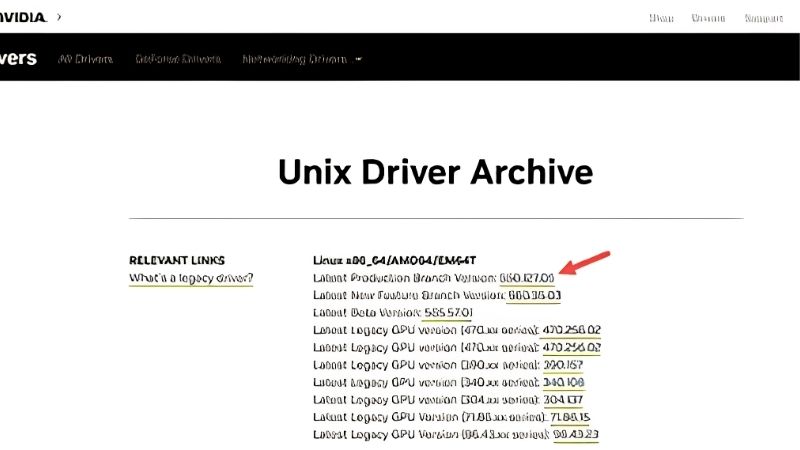
The Nvidia driver archive is the official collection of all past driver releases, hosted on Nvidia’s own website. It exists so that users are never locked into whatever version happens to be current, giving you the freedom to choose the driver that works best for you. This is an official, trusted source rather than a third-party mirror.
You reach it through Nvidia’s official driver download pages, where you can search by your graphics card and browse previous versions. Because it comes straight from Nvidia, every file is genuine and safe, which is not something you can guarantee from unofficial sites. Sticking to this official source is the single most important safety rule.
Each entry in the archive lists the driver version, release date, and the cards it supports, making it easy to identify the right one. That clear labelling is what turns a large library into a practical tool you can navigate with confidence. A little familiarity with the layout goes a long way.
Why Older Drivers Still Matter
The newest driver is not automatically the best for your system, since updates occasionally introduce new bugs alongside their improvements. When a recent release causes crashes, stutter, or glitches in a game that previously ran fine, an older driver from the archive is often the fix. This is the most common reason gamers turn to it.
Older drivers can also be a better match for older games and hardware, which newer releases sometimes optimise away from. If you play a favourite older title that behaves oddly on current drivers, an archived version from that game’s era can restore smooth performance. Compatibility, not just recency, is what matters.
There are also stability-focused users who deliberately stay on a proven driver rather than updating constantly. For them, the archive is how they reinstall a known-good version after a system change. Having that choice is exactly why the archive is so valuable to experienced users.
There is a broader principle at work here worth appreciating. Because the archive preserves every release rather than only the latest, it treats the newest driver as one option among many rather than a mandatory upgrade, and that simple freedom to choose is what separates a confident, in-control user from one at the mercy of whatever update happened to land most recently.
Game Ready Versus Studio Drivers
The archive holds two main driver types, and knowing the difference helps you pick the right one. Game Ready drivers are optimised for the latest games and are what most gamers want for day-one performance in new releases. They prioritise gaming above all else.
Studio drivers, by contrast, are tuned for stability and creative applications, receiving less frequent updates and extensive testing. Content creators and users who value rock-solid reliability over the newest game optimisations often prefer them. Both types are available for past versions in the archive.
For most gamers, a Game Ready driver is the right choice, but if you experience instability, an archived Studio driver can be a more dependable option. Knowing both exist gives you a useful fallback when the standard gaming driver misbehaves. It is another way the archive adds flexibility.
How To Use The Archive Safely
Using the archive is straightforward, but a careful approach avoids the small pitfalls that can turn a simple driver change into a headache. This section walks through finding the right version, installing it cleanly, and confirming everything works. Follow these steps and the process is quick and low-risk.
Finding The Right Driver Version
Start by identifying your exact graphics card model, since drivers are specific to particular card families. Selecting the wrong series can cause installation to fail or leave your card poorly supported. A moment spent confirming your model saves trouble later.
Next, decide which version you need, whether it is the last one that worked before a problem appeared or a specific release known to fix your issue. Noting the date your trouble began helps you pinpoint which driver to roll back to. This targeted approach beats guesswork.
Once you have chosen a version, download it directly from the archive and save it somewhere easy to find. Keeping the installer handy means you can reinstall quickly if needed, without searching again. A little organisation here pays off during the actual install.
Downloading And Clean-Installing
For the smoothest result, especially when fixing a problem, a clean install is far better than installing over an existing driver. Removing the old driver first prevents leftover files from carrying a fault forward into the new installation. This single step resolves many stubborn issues.
The most thorough method uses a free tool called Display Driver Uninstaller to completely remove the current driver before installing the archived one. Running it in Safe Mode gives the cleanest possible removal. This is the approach experienced users rely on for tricky problems.
After removal, run the archived driver’s installer and choose a clean installation when prompted, which resets settings and clears conflicts. Following the prompts through to completion and restarting finishes the process. A clean install is the key to getting reliable results from an older driver.
Verifying Stability Afterward
Once installed, restart your PC and test the games or applications that were causing problems to confirm the older driver helped. Real-world testing is the only way to know the change worked. If the issue is gone, you have found your stable version.
Keep an eye on performance and stability over the following days, since some problems only appear intermittently. Noting whether crashes or glitches return tells you whether the driver is truly stable for you. Patience here confirms a lasting fix rather than a temporary one.
If the archived driver resolves your issue, make a note of the version so you can return to it easily in future. Recording your known-good driver turns a one-time fix into a reliable reference. It is a small habit that saves time down the line.
Tips, Pitfalls, And Verdict
A few good habits make the archive far more useful and keep you out of trouble. This final section shares practical tips, the mistakes to avoid, and a clear verdict on when reaching for an older driver makes sense. These lessons turn the archive into a dependable tool.
Pro Tips For Using The Archive
Always download exclusively from Nvidia’s official archive and never from third-party sites promising older drivers. Official files are guaranteed genuine and safe, protecting both your system and your data. This habit prevents an entire category of problems.
Once you find a driver that is stable for your games, there is no need to chase every new release the moment it appears. Waiting a few days after an update lets early issues surface for others first. Stability often beats being on the very newest version.
Keep a copy of one known-good driver installer saved on your PC for emergencies. Having a reliable version ready means you can recover quickly if a future update misbehaves. It is a simple safeguard that repeatedly proves its worth.
Mistakes To Avoid
The most common mistake is installing an older driver over a problematic one without cleaning first, which often carries the fault forward. When issues are serious, a clean removal is far more effective than layering a new driver on top. Skipping that step wastes time.
Another frequent error is choosing the wrong card series in the archive, leading to a driver that does not properly support your GPU. Double-checking your exact model before downloading avoids this entirely. Accuracy here prevents a frustrating failed install.
Finally, avoid rolling back further than necessary, since very old drivers may lack support for newer games or features. Choosing the most recent version that still fixes your problem keeps you as current as possible. Balance is the goal, not simply going backward.
See More:
- RTX 4060 vs RTX 5060
- M4 GPU benchmark
- RTX 5060 Ti benchmark
- 5060 Ti 16GB vs 9070 XT
- RTX 5050 vs RTX 5060
Final Verdict On The Archive
The Nvidia driver archive is a genuinely valuable resource that every gamer should know how to use, offering a safe, official way to escape a bad update. It gives you control over which driver runs your system rather than leaving you at the mercy of the latest release.
Used sensibly, with clean installs and official downloads only, it is a reliable tool for restoring stability and matching drivers to your games. Keep a known-good version on hand, and the archive becomes a dependable safety net whenever a new driver causes trouble.
In short, the Nvidia driver archive is an essential, official resource for finding older, more stable drivers whenever a new release causes problems on your system. Used with clean installs and official downloads only, it puts you firmly in control of your graphics experience. And if instability persists across many driver versions and you suspect a failing GPU, browse current reliable graphics cards through the link below to plan your next upgrade.
Frequently Asked Questions
Where is the official Nvidia driver archive?
Use the Advanced Driver Search on nvidia.com, which lets you filter by product type, series, model, operating system, download type and language to list every previously published driver for your GPU. This is the only source you should trust, because third-party mirrors frequently bundle adware or serve modified installer packages.
Why would I install an older driver?
Common reasons include a regression that breaks a specific game, new stability problems such as crashes or driver timeouts, performance drops in an older title, or compatibility requirements for a professional application. Some users also revert after a driver removes support for a feature or changes default behaviour they rely on.
How do I identify the right older version?
Read the release notes attached to each archived driver, which list fixed and known issues for that branch. Work backwards to the last release published before your problem appeared. Community reports for your exact GPU and game are helpful for narrowing candidates, but always verify version numbers against the official archive.
Are old drivers safe to install?
They are safe from the official archive, though older packages may lack security patches that Nvidia has issued since. That is a genuine consideration if the machine is exposed to untrusted content. Treat an old driver as a temporary workaround and return to a current release once the underlying issue is fixed.
What about legacy GPUs that no longer receive updates?
Nvidia moves older architectures such as Kepler, Maxwell, Pascal and Volta onto legacy branches, where the archive holds the final supported release for those cards. Those drivers still install and work, but they will not receive Game Ready optimisation for new titles, which is a key limitation for older hardware owners.
As an Amazon Associate we earn from qualifying purchases at no extra cost to you.















Write Your Review
No reviews yet. Be the first to share your experience!