


An nvidia driver search is how millions of GeForce owners find the exact right driver for their graphics card, whether through NVIDIA’s manual download page or the automatic NVIDIA App. Getting the correct driver matters for game performance, stability, and new features, yet the choice between Game Ready and Studio drivers, and between manual and automatic updates, confuses many users. This review breaks down how NVIDIA driver search works, which method suits you, and how to keep your GPU updated without the common headaches in 2026.
How NVIDIA Driver Search Works
NVIDIA offers two main paths to find and install drivers: a manual search page on its website and the automatic NVIDIA App. Both aim to deliver the correct, tested driver for your specific graphics card and operating system. Owners generally find the process reliable, and understanding both routes lets you pick the one that fits how hands-on you want to be with updates.
As an Amazon Associate we earn from qualifying purchases at no extra cost to you.





The Manual Driver Search Page
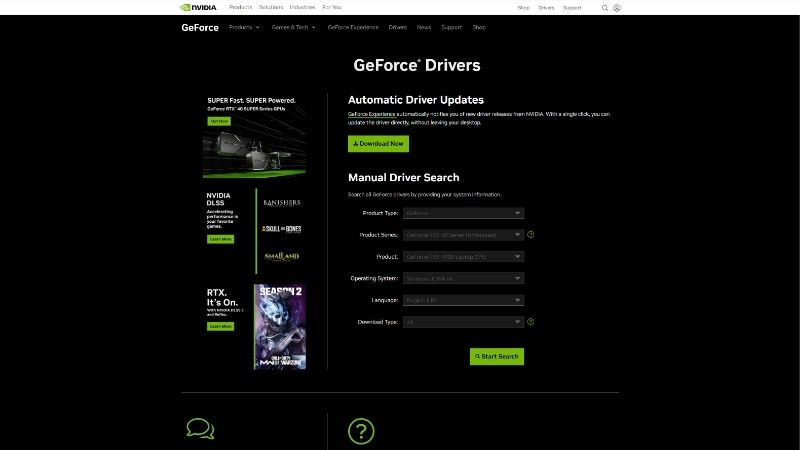
The classic method is NVIDIA’s manual driver search on its website, where you specify your hardware to find the right download. You select your product type, product series, and specific model, then your operating system and preferred language before searching.
The search returns the matching drivers for your card, letting you download the exact package you need. This method gives you full control and a clear record of the version you are installing, which many experienced users prefer.
It is also the go-to route when you want a specific older version or a clean, standalone installer rather than an app-managed update. For precise control over exactly what lands on your system, the manual page remains the reliable choice. It is the method that leaves nothing to chance, since you see and select exactly what you are installing, which is why troubleshooters and system builders keep returning to it.
Game Ready vs Studio Drivers
A key choice in any NVIDIA driver search is between Game Ready and Studio drivers. Game Ready Drivers are optimized and released quickly to support the latest game launches, making them the default pick for gamers who want day-one performance.
Studio Drivers, by contrast, prioritize stability and are validated for creative applications like video editing, 3D rendering, and design software. They update less frequently but focus on reliability for professional and content-creation work.
Both come from the same underlying driver base, so the difference is one of tuning and release cadence rather than fundamentally different software. Choosing correctly means matching the driver to whether you mainly game or mainly create. If you do a bit of both, the Game Ready driver is the safer default, since it still runs creative applications perfectly well while prioritizing the game performance most users notice first.
The NVIDIA App Automatic Method
The modern, automatic route is the NVIDIA App, which has replaced the older GeForce Experience as NVIDIA’s main desktop software. It detects your graphics card automatically and notifies you when a new Game Ready or Studio driver is available.
Unlike the old GeForce Experience, the NVIDIA App requires no login, removing a longstanding annoyance and letting you update drivers directly with a couple of clicks. It also bundles performance tuning, game optimization, and recording features.
For most users, the app turns driver maintenance into a hands-off task, handling detection and installation without any manual searching. It is the easiest way to stay current once installed on your system. For the average gamer who simply wants smooth performance without thinking about drivers, the app removes every manual step and quietly handles updates in the background.
Using NVIDIA Driver Search in Practice
Knowing the methods is one thing; using them smoothly is another. This section covers which approach to choose, how to install cleanly and roll back safely, and the common issues owners encounter.
Manual vs Automatic: Which to Use
The right method depends on your priorities. The NVIDIA App suits most people who simply want their card kept current with minimal effort, automating detection and updates so you never search manually.
The manual search page suits those who want control, whether to install a specific version, avoid extra software, or grab a standalone installer for a fresh Windows setup. It is the choice for precision over convenience.
Many owners use both: the app for routine updates and the manual page when they need a particular version or a clean installer. The two methods complement each other rather than competing, so you are never locked into one approach. This flexibility is one of the system’s real strengths, letting you default to convenience while retaining full control for the moments when a specific version or clean installer is what you need.
Clean Install and Rollback Tips
For the smoothest results, the manual installer offers a clean-install option that removes previous driver settings, which can resolve stubborn issues after an upgrade or when switching cards. It is worth using when troubleshooting.
If a new driver introduces a problem, NVIDIA lets you roll back or reinstall an older version found through the manual search, so you are never stuck on a bad update. Keeping a note of your last stable version helps here.
For a truly clean slate, some users pair a clean install with a third-party display driver removal utility before reinstalling. This is an advanced step, but it reliably clears out old files when standard installs misbehave. This deeper clean is rarely necessary, but when repeated updates fail to fix a stubborn glitch, wiping every trace of the old driver almost always restores normal behavior.
Common Issues and Owner Notes
Most driver searches go smoothly, but a few issues recur. Occasionally a specific driver version causes a game or app problem, which is why some owners wait a short while before installing a brand-new release rather than updating instantly.
Owners also note that installing only the driver, rather than the full app suite, is possible through the manual installer for those who want a lean system. The custom install option lets you deselect extra components.
The general consensus is that NVIDIA driver search is dependable, with the app handling routine needs and the manual page covering everything else. Sticking to official downloads avoids the risks of unofficial driver sources entirely. That single habit, using only NVIDIA’s own tools, prevents the majority of driver-related problems before they start and keeps your system on tested, trustworthy software.
Is NVIDIA Driver Search Worth It? Pros, Cons and Advice
With both methods covered, the verdict is about picking the right tool for your needs. This section gives the honest pros and cons, identifies who needs the manual route, and offers a final recommendation.
Pros and Cons at a Glance
The pros are solid: official, tested drivers for your exact card, a choice between gaming-optimized and creation-stable versions, an easy automatic app, and a manual page offering full control and version history. It covers every kind of user.
The cons are minor: the two-driver and two-method system can confuse newcomers, brand-new drivers occasionally carry bugs, and the app installs extra features some users do not want. None seriously undermine the experience.
Net assessment: NVIDIA driver search is a reliable, flexible system that keeps GeForce cards performing at their best, with the only real task being to pick the method and driver type that match your use. It does the job well. For a GeForce owner, the small effort of learning the system pays off in consistently optimized, trouble-free performance from the card you already own.
Who Needs the Manual Search and Alternatives
The manual search is essential for anyone wanting a specific version, a standalone installer, or a driver-only install without the app. Builders setting up a fresh system and troubleshooters chasing a stable version rely on it.
Everyone else is well served by the NVIDIA App, which automates the whole process and suits casual users who just want their games running smoothly. For most, it is the simplest path to current drivers.
There is little need for third-party updaters with NVIDIA hardware, since the official tools are comprehensive and trustworthy. Using NVIDIA’s own methods is always the safest route to the correct driver. There is genuinely no advantage to looking elsewhere, since the official app and download page together cover every situation a GeForce owner is likely to face.
Final Recommendation
For most GeForce owners, installing the NVIDIA App and letting it handle updates is the recommended approach, with the manual search page kept in reserve for specific versions or clean installs. Together they cover every scenario.
Match your driver type to your use, choosing Game Ready for gaming and Studio for creative work, and you will get the best from your card. The system rewards a moment of understanding with reliable, optimized performance. Spend that moment once, and driver updates become a background task you barely think about again.
One practical note: if a driver search shows your card no longer receives new Game Ready drivers, it has reached legacy status, a clear sign it is aging. When that happens, use the link to compare current graphics cards and choose an upgrade with full ongoing support.
See more:
- amd driver auto-detect tool
- nvidia geforce rtx 5080 best buy
- TechPowerUp GPU-Z
- nvidia china
- nvidia etf price
Conclusion
An nvidia driver search, whether through the manual download page or the automatic NVIDIA App, is a reliable and flexible way to keep a GeForce card updated with official, tested drivers. Choose the app for effortless routine updates and the manual page for specific versions or clean installs, and match Game Ready or Studio drivers to whether you game or create. It is a well-designed system once understood. And if your card drops off the new-driver list, use the link above to compare modern graphics cards and pick an upgrade with full support.
Frequently Asked Questions
What is the difference between Game Ready and Studio drivers?
Game Ready drivers ship faster and are validated against new game launches, while Studio drivers use a slower cadence and are certified against creative applications like DaVinci Resolve, Blender, Premiere Pro and Autodesk tools. Both come from the same code base and both support gaming. If stability in production software matters more than day-one game patches, choose Studio.
Should I use the NVIDIA App or the manual driver search page?
The NVIDIA App replaced GeForce Experience and detects your GPU automatically, offers one-click updates, and no longer requires a login. The manual search page on nvidia.com is still useful when you need a specific older build, a Studio driver, a laptop-specific package, or a driver for a system that cannot run the app.
What is a DCH driver and does it matter which one I pick?
DCH stands for Declarative, Componentised, Hardware Support Apps, the modern Windows driver packaging standard where the control panel installs from the Microsoft Store. Standard packages are legacy and are no longer offered for current cards. Mixing types causes install errors, so if you are unsure, uninstall the old driver cleanly first rather than installing over the top.
How do I find the right driver for a laptop GPU?
On the manual search page choose the Notebook product series, for example GeForce RTX 50 Series (Notebooks), then your specific model. NVIDIA now ships unified laptop drivers for most systems, but some OEM models with custom display muxes or Optimus configurations still require the vendor build from Dell, Lenovo, HP or ASUS support pages.
How do I roll back if a new driver causes problems?
Download the previous version from the NVIDIA driver archive first, then remove the current one. Windows Device Manager offers a Roll Back Driver button, but for stubborn issues a clean removal with Display Driver Uninstaller in safe mode is more reliable. After reinstalling, pause automatic driver updates in Windows Update so the bad build does not return.











Write Your Review
No reviews yet. Be the first to share your experience!