
- Top Pick: NVIDIA CORP Wireless Controller Shield (945125702500000)
- Best Value: NVIDIA CORP Shield K1 940817612500500 8" 16 GB Tablet (Black)
- Premium Choice: NVIDIA GeForce RTX 5080 Founders Edition
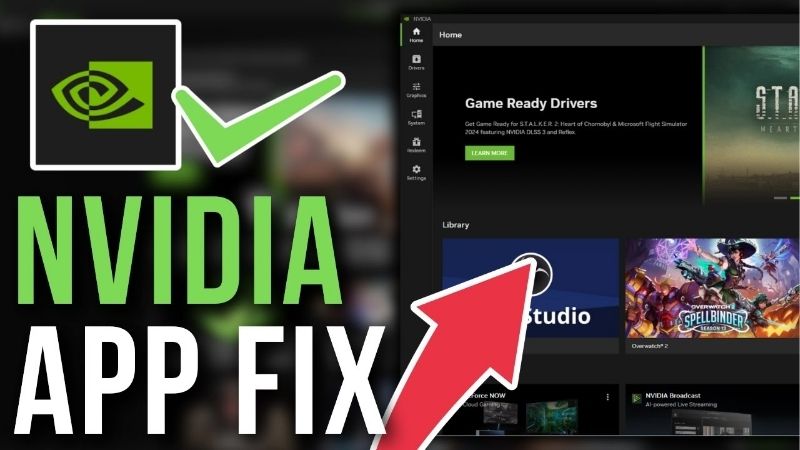
Nvidia app not working is becoming a more common complaint as the unified NVIDIA app takes over from the older GeForce Experience and Control Panel. The app can refuse to launch, sit frozen on a loading screen, show a black window, or leave half its features greyed out and unresponsive. Because the app now handles drivers, optimisation, overlays, and recording in one place, having it stop working can feel like losing control of your whole GPU. This review-style guide draws on what users consistently report, ranks the fixes from quickest to most thorough, and points out the rare moments when hardware is the underlying cause.
Why the Nvidia App Stops Working
When the app misbehaves, the cause almost always falls into one of three buckets: an incomplete or conflicting install, a corrupted cache that stalls loading, or a permissions and overlay clash in the background. Recognising which one you are facing turns a vague, frustrating fault into a targeted fix, and it spares you from wiping a perfectly good driver when a far lighter step would have done the job.
As an Amazon Associate we earn from qualifying purchases at no extra cost to you.


Incomplete Installs and Version Conflicts
The most frequent cause is an installation that did not complete cleanly. If the app updated over a busy connection, or a previous version of GeForce Experience was left behind during the transition, leftover files can clash with the new app and stop it launching properly even though the display driver loads fine.
This explains why so many users report the trouble starting right after a major update or a driver refresh. The core driver installed and games still run, but the app component ended up in a broken, half-installed state that quietly fails on launch.
A clean reinstall that removes every trace of the old and new versions almost always resolves this, which is why it sits near the top of nearly every successful fix thread despite taking a little longer than the lighter options.
Stuck Loading Screens and Cache Problems
A second common pattern is the app that opens but never finishes loading, leaving you staring at a spinner or a blank panel. This usually traces back to a corrupted local cache, where the app saved data that it can no longer read correctly and gets stuck trying.
Users describe a frustrating loop where the window appears, the loading animation runs forever, and nothing ever becomes clickable. That exact behaviour is the fingerprint of a cache problem rather than a missing install, since the program clearly launched but cannot get past its own saved state.
Clearing the app cache forces it to rebuild from scratch on the next launch, which breaks the loop and restores a responsive interface. It is one of the most effective low-effort fixes in the entire list.
Permission and Overlay Conflicts
The third frequent offender is a permissions gap or a conflict with another overlay. The app needs certain rights and clear access to your display hooks, and when antivirus software, a competing overlay, or restricted permissions get in the way, the app can fail to open or render as a black window.
This cause is easy to miss because nothing looks broken on the surface. The app is installed, the driver is current, yet a single conflicting program or a missing permission keeps blocking it on every attempt you make.
Running the app as administrator and temporarily disabling other overlays is a quick way to confirm whether a conflict is to blame before you commit to anything more drastic. Many users find the app working normally the moment the clash is removed.
Step-by-Step Fixes That Work
With the likely cause in mind, the matching fix is usually fast and free. Here are the methods that earn the strongest ratings in user reports, ordered from the least disruptive to the most thorough, so you can stop as soon as the app comes back to life and starts behaving itself again.
Clearing the App Cache and Restarting Services
The highest-value first move is clearing the app cache and restarting the NVIDIA services. Deleting the cached data from the app’s local folder, then restarting the NVIDIA Display Container and related services, revives a stuck or frozen app in the majority of cases without touching the driver.
This combination tackles the two most common software causes at once, since it both forces a clean rebuild of the cache and revives any stalled background service. Users repeatedly describe it as the step that finally got a frozen app responding again after lighter attempts went nowhere.
Because it changes nothing permanent and risks none of your settings, it is the natural first thing to try and the one experienced users reach for instinctively.
Reinstalling the Nvidia App Cleanly
When clearing the cache is not enough, a clean reinstall is the reliable next step. Removing the app fully, including any leftover GeForce Experience files, then installing the latest version freshly from NVIDIA, clears out broken components and version conflicts in one pass.
Users facing a stubborn app that simply will not launch frequently report this as the fix that finally worked, and it has the bonus of bringing every feature up to the current release. The newer the version, the fewer of the early teething bugs you are likely to hit.
Keep the download on hand so you can repeat it easily, since the app is still maturing and occasional clean reinstalls remain a useful tool to have ready.
Pros and Cons of Reinstalling vs Rolling Back
If a recent update broke the app, you have two realistic paths: reinstall the latest version, or roll back to a known-good earlier one. Each carries trade-offs that are worth weighing tied directly to keeping the nvidia app working reliably.
Reinstalling the latest version keeps you current with new features, security fixes, and the newest game optimisations, and it usually resolves the issue while leaving you fully up to date. The downside is that if the newest release is itself buggy, you may simply reinstall the same problem you were trying to escape.
Rolling back to an older, stable version often restores reliability immediately, which is ideal when a fresh update clearly caused the breakage. The cost is that you lose the latest improvements and must remember to update again once NVIDIA ships a fix, so it is best treated as a temporary measure rather than a permanent home.
Hardware Checks and Accessories Worth Owning
An app that will not work is almost always software, yet a small share of cases trace back to an unstable card or a system that is genuinely overdue for replacement. A couple of inexpensive accessories also make every future driver problem far less stressful, so they are worth considering even while you sort out the current fault.
When the GPU Itself Is the Problem
If the app fails only intermittently, or alongside crashes and visual glitches in games, an unstable GPU may be the real cause. When Windows loses contact with an overheating or failing card, the app can freeze or close because the hardware it manages keeps dropping out beneath it.
Users who monitored temperatures often found the app failures lined up with thermal spikes past 85 degrees Celsius under load. Improving airflow, clearing dust, or repasting the card resolved the app trouble and the in-game instability together in those accounts.
Where the card is genuinely unstable, reinstalling the app changes nothing, and the focus has to move to cooling or a replacement instead.
Tools That Keep Your Setup Stable
Keeping a clean driver and app installer offline turns a future breakage into a fast recovery. A reliable USB flash drive, such as a well-rated high-speed model, lets you store the latest NVIDIA software so you can rebuild even when the app and your internet both refuse to cooperate at the worst moment.
Builders who keep a dedicated driver drive describe it as a tiny purchase that has repeatedly saved them time, especially after Windows updates that disturb the NVIDIA software stack without warning.
It is cheap insurance, and the consistently strong reviews on fast, durable drives reflect exactly how handy they prove in these moments.
When an Upgrade Makes the Headache Disappear
If your card is several generations old and you keep fighting the same software faults, that recurring pattern is itself a signal worth heeding. A current-generation NVIDIA GPU pairs naturally with the latest app, handles drivers more cleanly, and avoids many of the compatibility quirks that plague older hardware on newer software.
Reviewers upgrading from older cards frequently mention that nagging app and driver issues simply stopped after the switch, on top of a major leap in performance, ray tracing, and DLSS support that reshaped their gaming experience.
If an upgrade was already on your radar, this can be the practical push to compare current graphics cards and leave recurring app failures behind for good, so it is worth checking today’s deals before they move.
See More:
Final Take on the Nvidia App Not Working
Running into the nvidia app not working is far less serious than the frozen screen suggests. In the overwhelming majority of cases the cause is an incomplete install, a corrupted cache, or a permissions and overlay conflict, and each of those has a free, fast fix that countless users have already proven effective.
Clear the cache and restart the services first, reinstall cleanly if needed, and consider rolling back only when a fresh update clearly caused the break. Keep a clean installer on a USB drive, and turn to hardware only if the card is old or unstable. Work through it in that order and the nvidia app not working becomes a quick, forgettable fix rather than a recurring drain on your time.
Top-Rated Picks


| Product | Brand | Rating | Reviews | Price |
|---|---|---|---|---|
| ARCTIC MX-4 (4 g) – Premium Performance Thermal Paste… | ARCTIC | ★ 4.8 | 104k | $4.99 |
| ARCTIC MX-4 (incl. Spatula, 4 g) – Premium Performanc… | ARCTIC | ★ 4.8 | 71.9k | $5.49 |
| Crucial 8GB DDR4 RAM 3200MHz (PC4-25600), Downclockab… | Crucial | ★ 4.8 | 62.8k | $74.99 |
| AMD Ryzen 5 5600X 6-core, 12-thread unlocked desktop … | — | ★ 4.8 | 30.2k | $177.60 |
| NVIDIA Shield Remote; Voice Search, Motion-Activated,… | — | ★ 4.7 | 10.6k | $25.99 |
Frequently Asked Questions
Why does the Nvidia app open to a blank or grey window?
A blank window normally means the underlying web view failed to render, often due to a corrupt cache or a missing WebView2 runtime. Close the app, delete the contents of ProgramData Nvidia Corporation NvApp cache folder, install the latest Microsoft Edge WebView2 runtime, then relaunch. Running it as administrator once also repairs permissions.
The overlay and shortcut do not respond, what now?
Check that the Nvidia Display Container LS and Nvidia LocalSystem Container services are running and set to Automatic in services.msc. Overlay hotkeys also conflict with Discord, Steam, and MSI Afterburner overlays; disable the others temporarily. Fullscreen exclusive mode in some older titles blocks overlays entirely, so test in borderless windowed.
Do driver updates fail through the app but work manually?
That is common when Windows Update has locked the driver store or an antivirus blocks the download. Download the driver directly from Nvidia’s site and run a custom clean installation. If manual installation works reliably, the app’s downloader is being blocked, not the driver itself, so review firewall and security software rules.
Does the app hurt gaming performance?
The app itself is negligible, but the overlay, instant replay buffer, and ShadowPlay recording do cost frames, typically one to five percent depending on bitrate and resolution. Disabling instant replay when you are not capturing recovers that. Statistics overlays polling every 100 ms also add measurable overhead on lower-end cards.
Can I roll back to GeForce Experience?
You can reinstall GeForce Experience from Nvidia’s archive, but it is no longer receiving feature updates and newer drivers assume the Nvidia app. A better fallback is installing the display driver alone and using MSI Afterburner for tuning, OBS for capture, and the driver package’s own control panel entries for image settings.











Write Your Review
No reviews yet. Be the first to share your experience!