
- Top Pick: ASRock Intel Arc B580 Challenger 12GB OC Graphics Card, 2740 MHz GPU Clock, 12GB GDDR6, DisplayPort 2.1, HDMI 2.1a, Dual Fan Cooling, 0dB Silent Operation
- Best Value: ASRock Intel Arc Pro B60 Creator 24GB Graphics Card, Workstation GPU, Xe2-HPG, 2400MHz, 24GB GDDR6 192-bit, PCIe 5.0, 4X DP 2.1, Blower
- Premium Choice: WEELIAO MAXSUN Intel Arc Pro B60 48G Turbo Workstation Graphics Card


Prime
Editor's Pick
ASRock Intel Arc B580 Challenger 12GB OC Graphics Card, Xe2-HPG, 2740MHz GPU, 12GB GDDR6 192 Bits, PCIe 4.0, Dual Fans, 0dB Silent, DP 2.1, HDMI 2.1a

Keeping your intel graphics driver up to date is one of the easiest ways to fix display glitches, improve performance, and keep your PC running smoothly, whether you use Intel integrated graphics or a dedicated Arc card. Yet many users grab the wrong driver, run into conflicts with laptop manufacturer versions, or blame software when the hardware is the real limit. This guide walks through the safe ways to update your Intel graphics driver, the errors people hit most often, and how to tell when only a hardware change will help.
As an Amazon Associate we earn from qualifying purchases at no extra cost to you.






Getting the Right Intel Graphics Driver
Before you download anything, it pays to understand which driver suits your setup, because Intel graphics come in different forms and choosing correctly prevents most problems. From integrated chips to Arc cards, and from generic drivers to manufacturer versions, a little knowledge up front saves a lot of frustration later.
Intel Integrated vs Arc Drivers
Intel graphics come in two broad types, and knowing which you have matters. Integrated graphics, such as the UHD and Iris Xe series, are built into your processor and power most laptops and many desktops, while Arc is Intel’s line of dedicated graphics cards.
Both use Intel drivers, but the right package and update approach can differ, and Arc in particular receives frequent driver updates aimed at gaming performance. Identifying your graphics type is the first step to installing the correct driver.
You can check which you have through Windows Device Manager or Intel’s own tools, which name your exact graphics hardware. Getting this right avoids the common mistake of installing a driver that does not match your chip or card.
The distinction matters for expectations as much as installation. Integrated graphics are tuned for everyday use and light gaming, while Arc cards are built to play modern games, so the kind of performance you should expect, and how often meaningful driver improvements arrive, differs between them. Knowing which you own helps you set realistic goals for what an update can achieve.
The Safe Ways to Download and Install
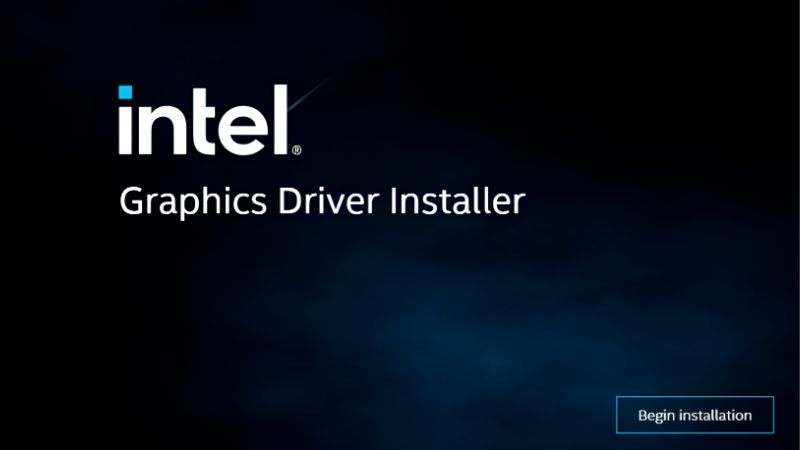
The simplest reliable method is the Intel Driver and Support Assistant, a free tool that detects your exact graphics hardware and installs the latest matching driver automatically. For most users, this removes all the guesswork of choosing the right package.
You can also download drivers manually from Intel’s official website by identifying your graphics model and selecting the correct package. Whichever route you choose, always use Intel’s official source and never third-party sites that bundle unwanted software.
There is one important caveat for laptop owners, covered in more detail below: manufacturer-customized drivers can complicate generic installs. For most desktops and Arc cards, though, the official Intel tools are the safe, straightforward path.
WHQL vs Beta and Keeping Current
Intel sometimes offers both certified and beta drivers. The certified, or WHQL, versions prioritize stability and are the safe default, while beta drivers arrive sooner with the newest optimizations but carry a small extra risk, which matters most for Arc gamers chasing performance.
Staying reasonably current is worthwhile because new drivers fix bugs, patch security issues, and, especially for Arc, deliver meaningful performance improvements in games. Intel has been particularly active in refining Arc drivers over time.
For Arc owners especially, this makes staying current genuinely worthwhile. Intel has repeatedly delivered performance uplifts in specific games through driver updates, so a card that felt underwhelming at launch can improve noticeably months later. Checking for new drivers before playing a demanding new title is a habit that pays off on Arc hardware.
As with any GPU, a small dose of patience helps. Keeping the ability to roll back and waiting a day or two after a major release lets you sidestep the rare problematic driver while still benefiting from regular updates.
Fixing Common Intel Graphics Driver Problems
Even the right driver can occasionally cause trouble, and most issues trace back to a handful of familiar causes, with one that is unique to Intel-powered laptops. Recognizing the symptom and applying the right fix saves hours of frustration, so here are the problems owners report most and how to solve them.
Install Failures and OEM Driver Conflicts
The most Intel-specific issue is a conflict with manufacturer drivers. On many laptops, the maker provides a customized Intel driver, and installing a generic version from Intel can fail or cause problems because the two are not perfectly matched.
If a generic install fails on a laptop, the safest fix is often to use the driver from your laptop manufacturer’s support page, which is tailored to your exact machine. For desktops and Arc cards, this conflict is far less common.
Beyond that, standard install failures usually come from leftover files or interfering software. Rebooting, pausing antivirus during installation, and closing background apps that use the GPU clear the way for the installer to finish cleanly.
Black Screens, Flicker, and Crashes
Screen flicker, black screens, or crashes that begin right after an update point straight at that driver. The quickest remedy is to roll back to the previous version through Device Manager, restoring the stable behavior you had before.
These symptoms can also stem from a specific game or app clashing with a new driver. If problems appear only in one program, updating that software or trying a different driver version often resolves the conflict.
Persistent flicker or crashing that survives rollbacks and reinstalls is the pattern that shifts suspicion from software to hardware, which leads to the important question near the end of this guide.
Clean Installs for Stubborn Issues
A clean install is the most effective fix for problems that quicker methods leave behind. Choosing the clean-install option removes previous settings and files, wiping out the conflicts that cause repeat glitches after many updates.
For truly stubborn cases, advanced users run a dedicated display driver removal tool in safe mode before installing fresh. This clears every trace of old Intel drivers and is the surest way to rule out software as the cause.
It takes a little more effort than a normal update, but a clean install is often the single most useful troubleshooting step. When a system has accumulated years of driver layers, wiping the slate first solves problems nothing else will.
Pros, Cons, and When Hardware Is the Limit
Updating drivers is powerful, but it cannot rewrite the limits of the hardware, and part of using Intel graphics well is knowing those limits. Weighing the trade-offs and learning from what other users report will set realistic expectations and help you decide whether tuning is enough or a hardware change is due.
Pros and Cons of Updating Intel Graphics Drivers
The pros are clear. Updating brings bug fixes, security patches, and, especially on Arc, real performance gains in games, all for free. The Intel Driver and Support Assistant makes the process easy for anyone willing to spend a few minutes.
The cons are worth knowing. On laptops, manufacturer driver conflicts can complicate updates, and a brand-new driver occasionally introduces a fresh bug, which is why the rollback option and a little patience matter.
Weighed together, staying reasonably current is almost always worthwhile, provided laptop owners respect the manufacturer-driver caveat and no one rushes to install a release on its first day for a critical task.
Common Issues Owners Report
Owner feedback highlights a few recurring themes. The most common issues are laptop manufacturer conflicts, the occasional problematic release, and specific games needing a driver update to run well, especially on Arc cards.
Praise, meanwhile, focuses on Intel’s progress. Arc owners in particular credit Intel with steadily improving drivers over time, turning early rough edges into a much smoother experience through frequent updates.
Read together, the sentiment is that Intel graphics drivers have matured considerably, with most problems traceable to conflicts or leftover files rather than the hardware, and the majority fixable with standard steps.
The clearest theme in owner feedback is that a little care prevents most trouble. Users who identify their exact hardware, use Intel’s official tools or their laptop maker’s drivers appropriately, and perform a clean install when problems arise report far smoother experiences than those who install generic packages blindly. Method matters more than luck with Intel graphics.
When a Driver Can’t Help: Adding a GPU
Sometimes the driver is working perfectly and the graphics hardware is simply the limit. Integrated Intel graphics, in particular, are designed for everyday tasks rather than demanding gaming, so no driver update will turn them into a gaming powerhouse.
If you want to play modern games smoothly and are relying on integrated graphics, the real solution is adding a dedicated graphics card. A modern GPU delivers a transformative improvement that no driver tweak on integrated graphics can match.
If you have reached that point, comparing well-reviewed dedicated cards is the practical next step. Use the links on this page to find a graphics card that fits your system and budget, and give your PC the gaming power that integrated graphics alone cannot provide.
See More:
- nvidia meaning
- rx 9070 vs rx 9070 xt
- 9060 xt 16gb vs 5070 ti
- radeon rx 9070 xt vs 5080
- windows graphics driver update
Conclusion
Keeping your intel graphics driver current through the Intel Driver and Support Assistant is one of the simplest ways to keep your PC stable and, on Arc cards, faster in games, with most problems solved by choosing the right driver, respecting laptop manufacturer versions, and performing a clean install when needed. Just as important is recognizing the limit: when integrated graphics can no longer keep up with the games you want to play, a dedicated card is the real answer. If you have reached that point, browse the latest recommended graphics cards through the links here and give your system a lasting boost.
Frequently Asked Questions
Where should Intel graphics drivers come from?
Use the Intel Driver and Support Assistant or the Intel download center for desktop and Arc products. On laptops, the manufacturer version is often required because vendors customize power management, panel timings and hybrid graphics behavior, and the generic package can break brightness controls or external display switching.
What is the difference between Arc and integrated graphics drivers?
Intel ships a unified driver covering recent integrated graphics and Arc discrete cards, updated frequently with game optimizations. Older integrated generations sit in a legacy branch receiving only critical fixes. Check which branch applies to your hardware before assuming the newest release supports your chip.
How do I fix flickering, black screens or stuttering?
Start by rolling back to the previous version in Device Manager. Disable panel self-refresh and any display power saving options in the Intel Graphics Command Center, update your system BIOS since integrated graphics depend on firmware, and verify memory is running in dual channel with the correct profile enabled.
Does updating the driver improve gaming performance?
On Arc hardware, yes, sometimes dramatically, because Intel has released substantial optimizations for DirectX 11 and specific titles over time. On older integrated graphics in legacy support, updates fix bugs and security issues but rarely change performance in any meaningful way.
Should I remove the old driver before updating?
The Intel installer handles standard upgrades in place. Use a full removal with Display Driver Uninstaller only when troubleshooting persistent corruption or crashes, or when moving between OEM and generic packages, and always have the replacement installer downloaded before you begin.











Write Your Review
No reviews yet. Be the first to share your experience!