
- Top Pick: Gpu Backplate Radiator, Alloy Fast Heat Sink 4 Pin Backplane Gpu Backplate Aluminum Cooler Memory Cooler for Rtx3090 3080 3070
- Best Value: Cooler Master Hyper 212 Black CPU Air Cooler, 4 Heat Pipes, PWM Fan
- Premium Choice: Cooler Master Hyper 212 PRO ARGB CPU Air Cooler, 4 Heat Pipes, PWM Fan
GPU air cooler upgrade is the route most owners should try first: it is the cheapest way to cut temperatures, it carries far less risk than liquid cooling, and on many cards it solves the problem entirely. From smarter case airflow to aftermarket coolers and a fresh repaste, an air upgrade can drop core temperatures by 10–15°C for a modest spend. The catch is that results vary with how you approach it, and some options are far better value than others. This review weighs the main air upgrade paths against the pattern of owner feedback, explains what actually moves temperatures, and helps you spend in the right order for the best return.
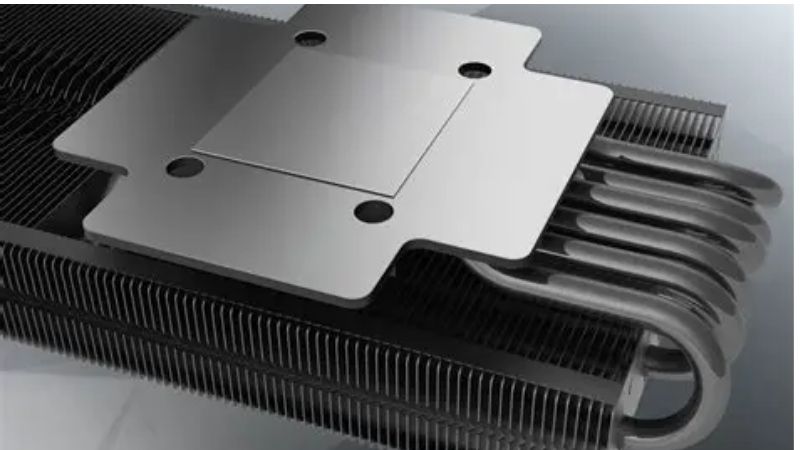
What a GPU Air Cooler Upgrade Involves
An air upgrade is not one product but a set of choices: improving the airflow feeding the card, replacing or supplementing fans, fitting an aftermarket cooler, or refreshing the thermal interface. Each targets a different bottleneck, and the trick is identifying which one is limiting your card. This section breaks down the options and what each one delivers.
As an Amazon Associate we earn from qualifying purchases at no extra cost to you.

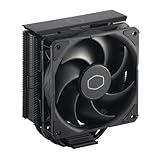


Case Airflow and Better Case Fans
Airflow is the highest-value, lowest-cost lever and the one owners most often overlook. A case starved of intake, choked with dust, or tangled with cables can add 5–15°C to a GPU with no other fault. Adding quality intake and exhaust fans and clearing the airflow path frequently produces the biggest single improvement per dollar.
Reviews of good case fans repeatedly credit them with lowering GPU temperatures indirectly by feeding the card cooler air. Lower-star feedback tends to come from buyers expecting a fan to fix a problem that was really a clogged or poorly arranged case, a reminder that placement matters as much as the fan itself.
The practical advice is to fix airflow before spending on anything mounted to the card, because a better cooler in a hot case still chokes.
A simple test isolates the problem. Run a stress test with the case side panel removed, or with a desk fan blowing into the case, and watch the GPU temperature. If it drops several degrees, airflow is your bottleneck and case fans are the cheapest fix; if it barely moves, the limit is on the card itself and a cooler or repaste is the better target. That five-minute check saves owners from buying the wrong upgrade.
Aftermarket GPU Coolers
For cards with weak stock coolers, an aftermarket air cooler that replaces the original heatsink and fans can transform temperatures, with owners reporting large drops on both core and memory. These coolers use bigger heatsinks and better fans than many reference designs.
The trade-offs are size and compatibility. Reviews stress checking that the cooler fits your card and that the resulting assembly clears nearby slots and the case. Installation also requires removing the stock cooler, which affects warranty and demands the same care as a repad.
Expect these coolers to occupy more space than the original. Many large aftermarket GPU heatsinks span two and a half or three slots and add height and length, so verifying clearance against your motherboard slots, RAM, and case width is essential before buying. Reviewers who measure first report clean installs, while the returns almost always trace back to a cooler that performs well on paper but fouls a nearby component.
Repasting and Fan Curve Tuning
On an older card, refreshing the die paste restores heat transfer that dried compound has lost, often dropping core temperatures by several degrees for the price of a paste tube. Paired with a more aggressive fan curve set in software, it is the cheapest meaningful improvement available.
Owner feedback consistently rates repasting as high value on aging cards, though reviewers note it requires opening the cooler. A fan curve tweak, by contrast, costs nothing and carries no risk, making it the first thing every owner should try.
The compounding effect is what makes this pairing so effective. Fresh paste lowers the die temperature, a more aggressive curve ramps the fans earlier to hold it there, and the two together often recover most of the headroom an aging card has lost. Because Nvidia’s boost clocks scale with thermal margin, that recovered headroom can also nudge sustained clocks back up, returning a little lost performance alongside the cooler temperatures.
GPU Air Cooling Upgrades Reviewed
Here we summarize how the main air upgrade paths perform based on owner experience, ordered by value so you can spend where it counts. The aim is a clear sequence from free fixes to paid hardware, matching effort and cost to the temperature drop you need.
The most useful mindset here is to treat the upgrade as a ladder rather than a single purchase. Each rung, from a fan-curve tweak to airflow to a repaste to an aftermarket cooler, costs more and delivers more, and most owners find the temperature they need before reaching the top. Reading the reviews in that order helps you stop spending at the rung that solves your problem instead of buying the most expensive option by default.
| Upgrade Step | Cost | Typical Temp Drop | Effort |
|---|---|---|---|
| Fan curve + clean dust | Free | 3–8°C | 5 minutes |
| Add/rebalance case fans | $ | 5–10°C | 30 minutes |
| Repaste GPU die | $ | 3–7°C | 45 minutes |
| Aftermarket GPU cooler | $$ | 10–15°C | 1–2 hours |
Best Value: Airflow and Repaste
The combination of improved case airflow and a fresh repaste earns the strongest value reviews, because together they address the two most common causes of a hot card at low cost. Owners frequently report that this pairing alone brought temperatures back into a comfortable range.
The criticism is effort rather than performance: repasting means opening the card, and rearranging airflow can require new fans and cable management. For the temperature drop achieved per dollar, reviewers consider it the smartest first spend.
Best Performance: Aftermarket Cooler
For cards limited by a weak stock cooler, a full aftermarket air cooler delivers the largest air-only temperature drops, with reviews citing quieter operation and strong results on both core and memory. It is the air option that comes closest to liquid cooling on the right card.
Critical reviews focus on fit and install complexity, warning that an oversized cooler may not clear the case or adjacent slots. Confirming compatibility before buying is the step that prevents the most common disappointment.
Pros and Cons of an Air Cooler Upgrade
The advantages are compelling: low cost, low risk, no leak concerns, and on many cards a temperature drop large enough to end throttling. Several of the options, such as fan tuning and airflow, are cheap or free and reversible.
The disadvantages are a lower performance ceiling than liquid cooling and, for aftermarket coolers and repasting, the need to open the card with the warranty and care implications that brings. Air also cannot match a custom loop on the very hottest high-power cards.
For the majority of owners, reviewers find an air upgrade the right first move, reserving liquid cooling for cards that remain too hot after air options are exhausted.
Buying Guide, 2026 Pricing, and FAQs
An air upgrade is about spending in the right order and matching any hardware to your card and case. This section turns the review into a clear sequence, sets the current pricing context, and answers the questions owners ask most before upgrading.
How to Spend in the Right Order
Start free: set an aggressive fan curve and clean the card and case. Next, improve airflow with quality intake and exhaust fans and tidy cables. Then, on an older card, repaste the die. Only after these should you consider an aftermarket cooler, and only if the card still runs hot.
Working in this sequence means many owners solve the problem before buying expensive hardware, and those who do upgrade know exactly which bottleneck remains. Confirm fit and clearance for any cooler or fan before ordering.
Keep a baseline so you can measure each change. Note the GPU’s load temperature before you start, then re-test after each step, whether that is a new fan curve, added case fans, or a repaste. This habit tells you precisely which fix delivered the drop and stops you spending on a later step you may not need, which is the most economical way to approach an air upgrade.
Cooling Hardware Prices and Supply in 2026
Pricing context helps you time any paid step. Across late 2025 into 2026, PC component and cooling prices trended upward, so fans, coolers, and paste are more likely to edge up than down in the near term. For an upgrade you have decided on, waiting generally costs rather than saves.
The positive counterpoint is modest. The steep increases at the end of 2025 have eased, and manufacturers such as Framework noted a stretch of relative stability while cautioning that the market stays volatile. Prices have flattened without falling, so a needed purchase now is reasonable rather than premature.
Looking further ahead does not change the near-term call. New component capacity is being built, including DDR5 from suppliers such as CXMT and two Micron plants under construction in Idaho, but those facilities are not expected to run until 2027–2028. Since the cheapest items like fans and paste are also the most exposed to small price creep, buying the few parts an air upgrade needs today is the practical choice rather than waiting on relief that remains years away.
Frequently Asked Questions
How much can air cooling improve temperatures? A combined airflow, repaste, and fan-tuning approach commonly drops core temperatures by 10–15°C, and an aftermarket cooler can add more. Is repasting worth the risk? On an out-of-warranty older card, yes; the value is high and the procedure is manageable with care.
Do better case fans really help the GPU? Yes, by feeding the card cooler air, good case airflow lowers GPU temperatures even though the fans are not mounted on the card.
How many case fans do I need? A balanced setup of two intakes and one exhaust suits most builds, with airflow moving front-to-back and bottom-to-top. Does undervolting count as an air upgrade? It is a free companion to one, since lowering voltage cuts the heat the air cooler has to remove, often dropping temperatures with no performance loss on most Nvidia cards.
If your card runs hot, start with the cheap, low-risk air fixes before anything drastic. Tune the fan curve, improve airflow, repaste an older card, and add an aftermarket cooler only if needed.
See More:
- How to lower GPU temperature
- How to lower GPU hotspot temp
- How to increase GPU performance
- How to enable G-Sync
Conclusion
A GPU air cooler upgrade is the smart first move for most owners, capable of cutting core temperatures by 10–15°C at low cost and low risk by fixing airflow, refreshing paste, tuning fans, or fitting an aftermarket cooler. Spending in the right order means many owners solve the problem before buying expensive hardware. With prices flat rather than falling and real supply relief years away, a needed upgrade is sensible to buy today. Work through the air options in sequence using the links above and enjoy a cooler, quieter card.
Top-Rated Picks

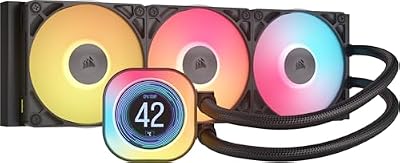


| Product | Brand | Rating | Reviews | Price |
|---|---|---|---|---|
| CORSAIR Nautilus 360 RS ARGB Liquid CPU Cooler – 360m… | — | ★ 4.6 | 2k | $118.43 |
| CORSAIR Titan 360 RX LCD Liquid CPU Cooler, 360mm AIO… | — | ★ 4.6 | 1.2k | $219.99 |
| PF 360 CPU Water AIO Cooler Liquid Cooling|5.5-inch L… | JungleLeopard | ★ 4.2 | 299 | $113.09 |
| CORSAIR XH505i RX 360 RGB Custom Cooling Kit – XC7 CP… | — | ★ 4.0 | 14 | $609.99 |
| CORSAIR XH505i RX 360 RGB Custom Cooling Kit – XC7 CP… | — | ★ 4.0 | 14 | $609.99 |











Write Your Review
No reviews yet. Be the first to share your experience!