
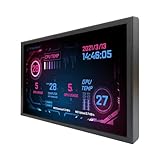
- Top Pick: WOWNOVA 5" Computer Temp Monitor, Dynamic Theme Supported, ARGB PC Case Sensor Panel, IPS Type-C USB Mini Secondary Screen, CPU RAM HDD Data Monitor (Black)
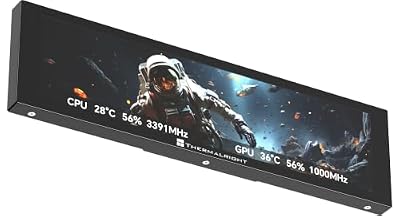
- Best Value: Thermalright Trofeo Vision 11.3 LCD Black, 11.3-inch Full-Color LCD Magnetic Display Screen, 1920×400 Resolution, Easy to Install,Master CPU/GPU Temperature(Black)
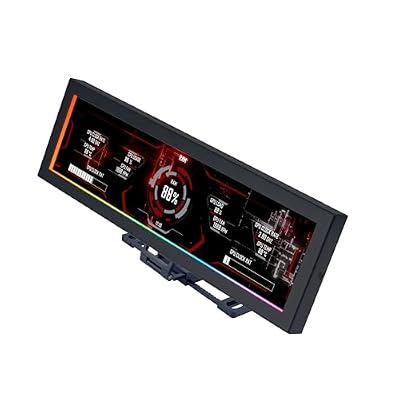
- Premium Choice: 7.84 Inch 2U Rack Mount Touchscreen Monitor,1280×400 IPS Secondary Display with Speaker, Compatible with DeskPi RackMate T0/T1/T2/T0 Plus/T1 Plus/TL1, Tecmojo 4U/6U/9U/12U 10inch Server Rack Cabinet
GPU black screen problems are among the most frustrating to diagnose because the symptom hides the cause: the display simply goes dark, sometimes mid-game, sometimes at boot, with the system often still running underneath. The trigger can be anything from a driver crash to a loose cable, an overtaxed power supply, or a failing card. This guide separates those possibilities, walks through the fixes in a logical order, and flags the signs that point to hardware failure, based on patterns reported across many systems and cards.
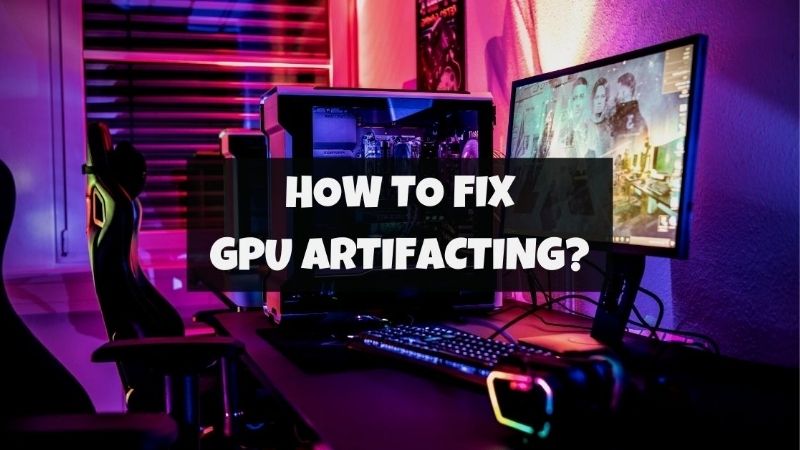
Approach it methodically and most GPU black screen issues resolve without a new card, though a few do signal failing hardware.
As an Amazon Associate we earn from qualifying purchases at no extra cost to you.



What Causes a GPU Black Screen
A black screen is a symptom with several distinct causes, and the timing offers the biggest clue. Whether it happens at boot, on the desktop, or only under gaming load narrows the field considerably. Understanding the main triggers is the first step before changing anything.
Driver Crashes and Timeouts
The most common cause of a black screen on a working system is a driver crash. The display goes dark for a few seconds and recovers, or it stays black while audio continues, indicating the graphics driver has stopped responding.
This often follows a driver update gone wrong or a conflict between old and new files. Users frequently report black screens that began immediately after a driver change, which points squarely at software rather than hardware.
Because this is so common, a clean driver reinstall is usually the first and most effective fix.
The Windows reliability and event logs are useful here. A repeating display-driver error logged at the moment the screen blanks confirms a software timeout rather than a hardware fault, and it often names the exact driver version involved. That detail alone can point you straight to a clean reinstall or a rollback.
Power Delivery and PSU Issues
A black screen under load, especially when a game suddenly stresses the card, often points to power delivery. If the power supply cannot meet the card’s transient demands, it can cause a momentary shutdown that blanks the screen.
Loose or partially seated power connectors are a frequent and easily missed cause. So is an undersized supply: a card with a high transient draw on a marginal unit will black out under spikes even if the average wattage looks adequate.
Checking connectors and confirming the supply has headroom for your card is essential before suspecting the GPU itself.
Transient spikes are the subtle part of this. Some cards draw brief power surges well above their rated figure for fractions of a second, and a supply that handles steady load fine can still trip on those spikes. This is why a quality unit with genuine headroom matters more than simply matching the rated wattage on paper.
Overheating and Cable Faults
Heat and connection problems round out the common causes. A card that overheats under load can shut its output down to protect itself, producing a black screen after a period of gaming rather than instantly.
A faulty or loose display cable, or a failing port, can also blank the screen intermittently. Swapping the cable and trying a different port on the card is a quick way to rule this out, and it costs nothing.
Each of these leaves a recognizable pattern, which is why noting exactly when the black screen happens is so useful.
Display interface quirks can also cause intermittent blackouts. A marginal cable or an aggressive monitor refresh setting can drop the signal briefly under certain conditions, so trying a different high-quality cable and a slightly lower refresh rate is a cheap way to rule out the link between card and monitor.
How to Fix a GPU Black Screen
With a sense of the likely cause, the fixes follow a clear order from simplest to most involved. Most black screen issues respond to one of these steps, so work through them in sequence rather than jumping to conclusions.
Reinstall Drivers and Check Connections
Start with a clean driver reinstall: boot into safe mode, remove the existing driver completely with a dedicated uninstaller, then install the latest version fresh. This resolves the large share of black screens caused by software.
At the same time, reseat the card in its slot and firmly reconnect every power cable, since a loose connection is a common and easily fixed cause. Swap the display cable and try another output port to rule out a cable or port fault.
These zero-cost checks resolve a surprising number of cases before any deeper work is needed.
If the black screens started right after a driver update, a rollback to the prior version is worth trying before anything more involved. New drivers occasionally introduce regressions on specific cards, and reverting is a quick, reversible test that can settle the question in minutes.
Verify Power and Cooling
If black screens occur under load, focus on power and heat. Confirm your supply comfortably exceeds the card’s recommended wattage, and make sure it is a quality unit, since transient spikes can trip a marginal supply even when the average draw looks fine.
Check temperatures with a monitoring tool during gaming; if the card hits its thermal limit just before the screen blanks, cooling is the issue. Cleaning dust and improving airflow often resolves heat-related shutdowns.
Addressing power and cooling together clears most load-triggered black screens.
Pros and Cons of DIY Fixes vs Replacement
Deciding how far to troubleshoot before replacing the card saves time and money. Here is the honest balance sheet tied to black screen problems.
Pros of fixing
- Driver, cable, and connection fixes are free and resolve most cases.
- A PSU or airflow fix is far cheaper than a new card.
- Pinpointing the cause prevents a needless GPU purchase.
Cons of fixing
- If the GPU itself is failing, fixes only postpone replacement.
- Power-supply troubleshooting can require swapping parts to confirm.
- Intermittent black screens can be slow to diagnose.
When a Black Screen Means a Failing GPU
If clean drivers, solid connections, adequate power, and good temperatures still produce black screens, the card itself may be failing. Recognizing that early lets you plan a replacement before a total failure. Here is how to confirm it and proceed.
Signs the Card Is the Problem
A black screen at boot, before the operating system loads, with no output on any port and no display in another system, points strongly to a dead or dying card. The same is true if the screen blanks even at idle with stock drivers.
If the card produces no signal in a second, known-good computer, that is close to conclusive. At that stage, further software troubleshooting will not help.
These signs separate a recoverable issue from genuine hardware failure.
Testing in a second system remains the gold standard. If the card outputs nothing on a different, known-good computer with a confirmed-good cable and monitor, the fault travels with the card rather than your setup, which is about as conclusive as home diagnosis gets.
Choosing a Replacement GPU
When the card is confirmed faulty, replacement is the fix. Match the new GPU to your resolution, your power supply, and your case clearance rather than simply buying the most powerful option available.
Keep in mind that GPU prices remain elevated because AI demand keeps consumer supply tight, and meaningful relief is still years away, so waiting for a steep drop rarely pays. Buying a sensible card at a fair price usually beats holding out for a discount that may not come.
Choose the tier that suits your games, then check the current price and replace the failing card.
Before buying, verify that your power supply genuinely suits the new card, since power was a leading suspect in the first place. Upgrading the GPU while leaving a marginal supply in place can simply move the black-screen problem to the new card, so treat the supply as part of the same decision rather than an afterthought.
Preventing Black Screens Going Forward
Prevention centers on stable power, good cooling, and clean drivers. Use a quality power supply with headroom, keep the case airflow healthy, and avoid mixing old and new driver files by reinstalling cleanly when you update.
A background monitoring tool helps you spot rising temperatures or instability before they cause a blackout. Many users also keep a spare display cable on hand, since cables are a cheap and common point of failure.
These small habits make a recurrence far less likely.
It is also worth setting a sensible power profile in Windows and the driver software. Disabling overly aggressive power-saving states for the GPU can prevent the brief output drops that some systems experience when the card tries to idle, which is a subtle but real source of momentary black screens.
See More:
- GPU for Valorant 240fps
- GPU for Fortnite 240fps
- GPU for CS2 high fps
- GPU for Apex Legends
- RTX 4070 Cyberpunk FPS
Conclusion
A GPU black screen can stem from a driver crash, a loose cable, an overtaxed power supply, overheating, or a failing card, and the timing of the blackout is your best diagnostic clue. Reinstall drivers cleanly, reseat connections, swap cables, and verify power and cooling before suspecting the hardware. If black screens persist at boot, at idle, or in a second system, the card is likely failing and needs replacing. Keep your power and cooling solid to prevent a repeat, and if a new GPU is the answer, check the current price and choose one that fits your system and your games. More often than not, though, a black screen turns out to be a cable, a driver, or a power detail rather than a dead card, so work the cheap fixes thoroughly before spending anything.
Top-Rated Picks



| Product | Brand | Rating | Reviews | Price |
|---|---|---|---|---|
| ARCTIC MX-4 (4 g) – Premium Performance Thermal Paste… | ARCTIC | ★ 4.8 | 104k | $4.99 |
| ARCTIC MX-4 (incl. Spatula, 4 g) – Premium Performanc… | ARCTIC | ★ 4.8 | 71.9k | $5.49 |
| Crucial 8GB DDR4 RAM 3200MHz (PC4-25600), Downclockab… | Crucial | ★ 4.8 | 62.8k | $74.99 |
| AMD Ryzen 5 5600X 6-core, 12-thread unlocked desktop … | — | ★ 4.8 | 30.2k | $177.60 |
| NVIDIA Shield Remote; Voice Search, Motion-Activated,… | — | ★ 4.7 | 10.6k | $25.99 |
Frequently Asked Questions
Why does the screen go black during gaming but the PC keeps running?
That pattern is a GPU hang or a display link drop. Common causes are an unstable overclock, insufficient transient power headroom, an overheating card, or a marginal DisplayPort cable losing link training. If audio continues while the screen is black, suspect the display link before the card itself.
Can the power supply cause black screens under load?
It is one of the leading causes. Transient spikes on modern cards briefly exceed the rated draw, and an ageing or undersized PSU trips protection. Use two separate native PCIe cables, and size generously: 750W for an RTX 4070 Ti class card and 850W or more for 4080 and 4090 tiers.
Does a black screen at boot mean different things?
Yes. A black screen from power-on points to BIOS configuration, card seating, or a UEFI compatibility issue, while a black screen after the Windows logo points to the driver. Splitting the problem this way narrows the search considerably before you start swapping hardware.
Is a clean driver reinstall worth trying?
Absolutely. Run Display Driver Uninstaller in Safe Mode, reboot, and install the current stable driver with the clean install option. Also remove any startup overclock profile from Afterburner, since a saved profile applying at login causes black screens that look like driver faults.
When should I suspect the card is failing?
When black screens persist at stock clocks, with a known-good PSU and cable, at healthy temperatures, and follow the card into another system. Artifacts appearing briefly before the screen goes black is a strong indicator of degraded VRAM and justifies a warranty claim or replacement.











Write Your Review
No reviews yet. Be the first to share your experience!