
GPU no signal is the message no PC owner wants to see: the system powers on, fans spin, but the monitor stays blank and reports no input. It is a broad symptom that can come from something as trivial as a cable in the wrong port to something as serious as a dead card. The key is to test the cheap, common causes first and only suspect the hardware last. This guide walks through the causes and fixes in the right order, drawing on patterns reported across many builds and cards.
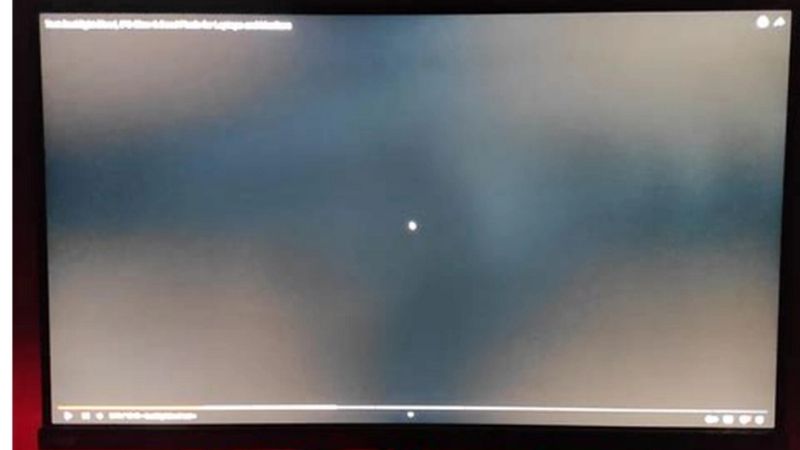
Methodical testing resolves most GPU no signal cases without a new card, but a stubborn few do point to failed hardware.
As an Amazon Associate we earn from qualifying purchases at no extra cost to you.




What Causes a GPU No Signal Error
A no signal error means the monitor is not receiving a usable display output, and the cause sits somewhere along the chain from card to cable to monitor. Several common culprits account for the vast majority of cases. Knowing them helps you test in a sensible order rather than at random.
Cable, Port, and Monitor Issues
The most common and most overlooked cause is the simplest: the display cable is plugged into the motherboard’s video output instead of the graphics card. With a dedicated GPU installed, the cable must connect to the card, not the board.
A faulty cable, a dead port, or the wrong monitor input selected can all produce no signal as well. Swapping the cable, trying a different port on the card, and confirming the monitor’s input source are quick, free checks.
Because these account for so many cases, always rule them out before opening the case.
Connector type can trip people up as well. A monitor that only lists one working input, or a cable standard the card does not fully support at the desired resolution, can present as no signal. Matching the cable to a port both the card and monitor support, and trying the most basic supported mode first, removes that variable.
Loose Seating and Power Connectors
A card that is not fully seated in its slot, or that is missing a power connector, will commonly give no signal. During transport or after work inside the case, a card can shift just enough to lose contact.
Equally, modern cards require their PCIe power cables to be firmly attached; a partially connected or missing cable leaves the card unable to initialize. Reseating the card and reconnecting every power lead resolves a large share of no signal cases.
These checks take only a few minutes and cost nothing, so they come early in the process.
After moving or shipping a PC, this is the first thing to check. Vibration can ease a heavy card partly out of its slot, and a card that looks seated can still have lost contact. Removing it fully and reseating with firm, even pressure until the retention clip clicks is more reliable than simply pressing on the installed card.
BIOS, Boot, and Configuration Faults
Occasionally the cause is configuration rather than connection. A BIOS set to prioritize integrated graphics, a corrupted BIOS, or an incompatibility after a hardware change can leave the card without output.
Clearing the BIOS to defaults, or updating it on platforms that need newer firmware to support a card, can restore signal. On some systems a missing or outdated BIOS is the only thing standing between the card and a working display.
This is worth checking once the physical connections are confirmed good.
On newer platforms, firmware support is a real consideration for a recently released card. If the system posts with integrated graphics but not the GPU, updating the motherboard BIOS to a version that lists support for the card can be the missing piece. Clearing the CMOS to defaults is a quick first step before going that far.
How to Fix a GPU No Signal Problem
With the causes in mind, the fixes follow a clear order from the simplest external checks to internal reseating and configuration. Work through them in sequence and most no signal issues resolve well before you reach the hardware-failure stage.
Check Cables, Ports, and Inputs First
Begin outside the case. Confirm the cable runs from the graphics card, not the motherboard, and that it is fully seated at both ends. Swap to a known-good cable and try each port on the card in turn.
Check that the monitor is set to the correct input source, since the wrong input mimics a no signal fault exactly. Testing the monitor with another device confirms whether the display itself is at fault.
These free checks resolve a remarkable number of cases in a couple of minutes.
Reseat the Card and Power Cables
If the external checks pass, open the case and reseat the graphics card firmly in its slot until the retention clip clicks. Disconnect and firmly reconnect each PCIe power cable to the card.
While inside, confirm the card’s fans spin on power-up and that the slot is free of dust. A card that does not initialize despite solid connections and a confirmed-good cable is the point at which deeper faults become likely.
Reseating alone fixes a meaningful share of no signal problems, especially after recent work inside the system.
While the case is open, confirm the card is drawing power by watching its fans on startup. A card whose fans never spin despite firmly attached power cables is either not receiving power or has failed, and that observation alone narrows the diagnosis considerably before you move to testing in another system.
Pros and Cons of Troubleshooting vs Replacing
Deciding when to stop troubleshooting and replace the card saves time and money. Here is the honest balance sheet for a no signal fault.
Pros of troubleshooting
- Cable, port, and seating fixes are free and resolve most cases.
- A BIOS or input fix costs nothing and is easily reversed.
- Confirming the cause prevents an unnecessary GPU purchase.
Cons of troubleshooting
- If the card is truly dead, troubleshooting only confirms it.
- Testing may require a second system or spare parts.
- An intermittent fault can be slow to pin down.
When No Signal Means a Dead GPU
If correct cabling, a firmly seated card, solid power connections, and a sensible BIOS still produce no signal, the card itself may have failed. Recognizing that lets you replace it rather than chasing fixes that cannot help. Here is how to confirm it and proceed.
Confirming the Card Has Failed
The most reliable test is to install the card in a second, known-good computer. If it produces no signal there too, with a confirmed-good cable and monitor, the card is almost certainly dead.
Equally telling is a card whose fans spin but which never outputs to any port on any system, or which fails to post even after a full reseat and BIOS reset. At that point the diagnosis is hardware failure.
This test removes the guesswork and confirms whether replacement is truly necessary.
Keep your research controlled. Change only one variable at a time, a different cable, a different port, a different system, so that when the signal returns you know exactly what fixed it. Jumping between several changes at once is the most common reason people cannot tell whether the card or the setup was at fault.
Choosing a Replacement GPU
When the card is confirmed dead, replacement is the only fix. Match the new GPU to your resolution, power supply, and case clearance rather than simply buying the most powerful card you can find.
It is worth noting that GPU prices remain elevated because AI demand keeps consumer supply tight, and meaningful relief is still years away, so waiting for a steep drop rarely pays. Buying a sensible card at a fair price generally beats holding out for a discount that may never arrive.
Choose the tier that fits your needs, then check the current price and replace the dead card.
Since a dead card often leaves you without any display, plan the purchase around getting back up and running quickly. If your processor has integrated graphics you can run the system on that temporarily while you shop, which removes the pressure to grab whatever card is nearest rather than the one that best fits your build and budget.
Avoiding No Signal in the Future
Most no signal faults are preventable with care during installation. Seat the card firmly, attach every power cable fully, and route the display cable to the card rather than the motherboard from the start.
Keeping a spare display cable on hand is cheap insurance, since cables are a common failure point. After any work inside the case, a quick check that the card is seated and powered saves a lot of confusion at the next boot.
These simple habits make a recurrence unlikely.
When building or upgrading, plug the monitor into the graphics card before the first boot and note which port you used. A large share of no signal scares come from nothing more than the cable ending up in the motherboard output after a reseat, and a moment of attention up front avoids the whole panic.
See More:
- GPU for Valorant 240fps
- GPU for Fortnite 240fps
- GPU for CS2 high fps
- GPU for Apex Legends
- RTX 4070 Cyberpunk FPS
Conclusion
A GPU no signal error usually traces to something simple, a cable in the wrong port, a loose card, a missing power connector, or a BIOS setting, long before it means a dead card. Check your cables, ports, and inputs first, then reseat the card and its power leads, and confirm the BIOS before suspecting the hardware. If the card produces no signal in a second known-good system, it has failed and needs replacing. Install carefully to prevent a repeat, and if a new GPU is the answer, check the current price and choose one that fits your system and your games.
Top-Rated Picks

Save $1.20


| Product | Brand | Rating | Reviews | Price |
|---|---|---|---|---|
| ARCTIC MX-4 (4 g) – Premium Performance Thermal Paste… | ARCTIC | ★ 4.8 | 104k | $4.99 |
| ARCTIC MX-4 (incl. Spatula, 4 g) – Premium Performanc… | ARCTIC | ★ 4.8 | 71.9k | $5.49 |
| Crucial 8GB DDR4 RAM 3200MHz (PC4-25600), Downclockab… | Crucial | ★ 4.8 | 62.8k | $74.99 |
| AMD Ryzen 5 5600X 6-core, 12-thread unlocked desktop … | — | ★ 4.8 | 30.2k | $177.60 |
| NVIDIA Shield Remote; Voice Search, Motion-Activated,… | — | ★ 4.7 | 10.6k | $25.99 |
Frequently Asked Questions
What should I check first with a no-signal error?
Confirm the monitor cable is plugged into the graphics card, not the motherboard, and that the monitor input source matches the port. Then reseat the card and its power connectors. These three checks account for the large majority of no-signal reports and cost nothing to perform.
Can the cable itself cause no signal?
Frequently. Uncertified DisplayPort cables fail at 4K high refresh rates, and damaged HDMI cables lose the link entirely. Swap in a known-good certified cable and test at 60 Hz first. If a signal appears at 60 Hz but not at 144 Hz, the cable is the bandwidth bottleneck.
Does the 12VHPWR connector matter here?
Very much on RTX 40 and 50 series cards. If the plug is not fully seated, the sense pins do not engage and the card may not initialise, producing no output at all. Unplug, reseat until the latch clicks, and keep bends at least 35 mm away from the connector body.
How do I distinguish a dead GPU from a dead monitor?
Cross-test. Connect the monitor to a laptop or console, and connect your PC to a television. If the monitor works elsewhere and the PC outputs nothing to any display, the fault is in the graphics card or system. This two-minute test prevents most unnecessary purchases.
Could BIOS settings block video output?
They can. Setting primary display to integrated graphics, leaving CSM enabled with a UEFI-only card, or disabling Above 4G Decoding all cause blank screens. Clear CMOS to reset to optimised defaults, boot with integrated graphics if available, and configure PEG as the primary display adapter.











Write Your Review
No reviews yet. Be the first to share your experience!