



RTX 2060 drivers are worth getting right, because the RTX 2060 is still a very common card and the right driver keeps its features — including DLSS and ray tracing — working smoothly at 1080p and 1440p. If your 2060 is stuttering, crashing after an update, or not delivering the features you expect, the fix usually comes down to the correct driver, a clean install, and knowing which 2060 variant you have. This review covers choosing the right driver branch, resolving the most common 2060 driver problems, getting the most from its features, and recognizing when the card, not the software, is the limiting factor. The aim is a stable, capable 2060 that performs at its best.
As an Amazon Associate we earn from qualifying purchases at no extra cost to you.





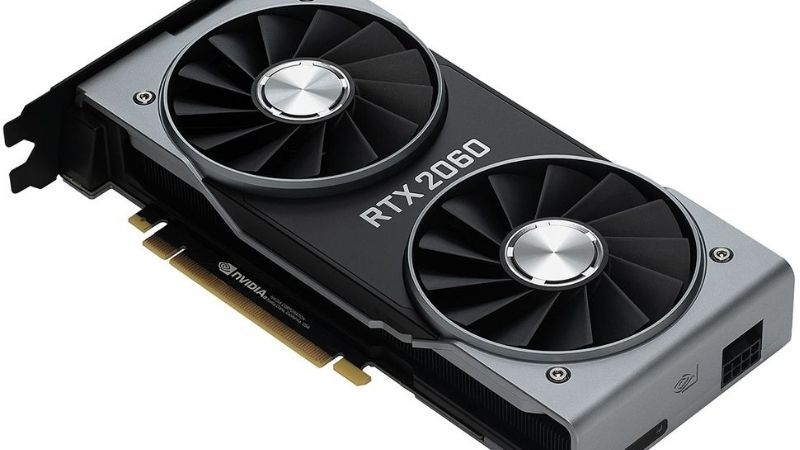
Getting the right driver for the RTX 2060
The RTX 2060 is a Turing-generation card that still receives current driver support, so choosing the right driver is straightforward once you know a few things. Picking the correct branch and installing it cleanly is what sets up smooth performance and working features, and it prevents most of the issues owners run into.
Game Ready versus Studio drivers
Nvidia offers Game Ready drivers optimized for the latest games and Studio drivers tuned for stability in creative applications. For most 2060 owners who primarily game, the Game Ready branch is the right default, delivering day-one support and optimizations for new titles.
If you mainly use creative software, the Studio branch trades some game-day readiness for extra stability in those applications. Both run on the 2060; the choice simply follows how you use the card, and you can switch between them as your needs change.
A clean install approach
A clean install is the most reliable way to avoid mysterious 2060 problems. Removing any existing driver thoroughly before installing the new one prevents old files from conflicting with the fresh package, which is the hidden cause of many issues blamed on the hardware.
The practical routine is to download your chosen driver first, remove the old one completely, restart, then install from a clean state. On a card as widely used as the 2060, this simple discipline resolves the majority of stutters, crashes, and feature glitches that owners encounter. If you have owned the card for years and never done a full clean sweep, the accumulated layers of past driver updates are a likely culprit for nagging issues, and a single clean install often clears several small annoyances at once.
Knowing your 2060 variant
The RTX 2060 family includes the standard card, the faster 2060 Super, a later higher-memory version, and laptop variants, and knowing which you have shapes both driver choice and performance expectations. While they share the same Turing driver line, confirming your exact card prevents confusion when following advice meant for a different variant.
The analytical point is that identification comes before troubleshooting. Knowing precisely which 2060 you own tells you what performance to expect and ensures you apply the right guidance, especially on laptops where hybrid graphics add their own considerations.
The variants differ enough to matter in practice. The 2060 Super is meaningfully faster than the standard card and carries more memory, the later higher-memory desktop version eases pressure in memory-hungry games, and laptop 2060 chips run at lower power levels than their desktop namesakes. When you read a benchmark or a troubleshooting tip online, it may have been written for a variant that is not yours, which can make your card look like it is underperforming when it is simply a different model. Confirming your exact variant first lets you filter that advice correctly and set realistic expectations, which is one of the quietest but most common sources of confusion among 2060 owners.
Fixing common RTX 2060 driver issues
The 2060’s popularity means many owners hit the same handful of driver problems, and the good news is that these are well understood and usually quick to fix. This section covers the most frequent issues and their reliable solutions.
Stutter or crashing after an update
When stutters or crashes appear right after a driver update, the update itself is the prime suspect. Reverting to the previous version you were running quickly confirms whether the new driver is the cause, and it is a fast, low-risk test.
If reverting fixes the problem, the driver was responsible and you can wait for a corrected version. If the issue persists across versions, the cause lies elsewhere — often in system health rather than the driver — which points you toward checking temperatures and power rather than reinstalling repeatedly. This simple test, revert and observe, is one of the most efficient diagnostic steps you have, because it cleanly separates a driver regression from a deeper problem in just a few minutes.
Black screens and failed installs
A black screen during or after installation, or an installer that fails partway, most often traces to leftover files from a previous driver conflicting with the new one. The reliable fix is a complete removal followed by a fresh install, so nothing old interferes.
This is the single most effective troubleshooting step for the 2060, because layered driver history is common on a card this widely used. A clean removal and fresh install resolves the majority of black-screen and failed-install complaints before you ever need to suspect the hardware.
Getting DLSS and ray tracing working
The RTX 2060 was among the first cards to bring DLSS and ray tracing to the mainstream, and the driver is what enables these features. Keeping a current driver ensures DLSS and ray-tracing support works correctly in the games that offer it, extending the card’s usefulness.
The experimental angle is that DLSS in particular can meaningfully lift the 2060’s frame rates in supported titles, helping it punch above its raw class. Making sure your driver is current and the feature is enabled in-game is how you unlock that benefit, which is one of the 2060’s most valuable strengths.
This is worth emphasizing because it changes how you should think about the card’s longevity. A raw-performance view of the 2060 undersells it, since DLSS lets the card render at a lower internal resolution and reconstruct a sharp image, recovering frame rate that the hardware alone could not deliver. In games that support it, that can be the difference between a title feeling sluggish and feeling smooth. Keeping the driver current is what ensures newer implementations of these features work properly, so the habit of staying reasonably up to date pays off directly in the games where DLSS is available. For a 2060 owner, treating driver upkeep as feature maintenance, not just bug fixing, is the right mindset.
Keeping a 2060 strong, and when to move on
Drivers keep the RTX 2060 healthy and its features working, but honesty requires acknowledging the card’s limits. This section weighs the value of driver maintenance against the point where the hardware itself is what holds you back.
Pros and cons of driver care on the 2060
Because this is a review, here is the straight assessment of relying on driver maintenance to keep an RTX 2060 performing.
| Pros | Cons |
|---|---|
| Still receives current, supported drivers | Drivers cannot raise the card’s raw ceiling |
| Clean installs fix most stability issues | Variant confusion causes avoidable problems |
| DLSS support extends the card’s useful life | Demanding modern games at high settings strain it |
| Good 1080p and capable 1440p when maintained | Ray tracing at high settings pushes it hard |
The verdict is that careful driver maintenance keeps the 2060 performing at its best — a strong 1080p and capable 1440p experience with DLSS extending its reach. What it cannot do is add performance the hardware lacks, so maintenance preserves the card’s value rather than extending it beyond its class.
Where the RTX 2060 still delivers
The RTX 2060 remains capable for 1080p gaming, many titles at 1440p with sensible settings, and DLSS-supported games where its upscaling shines. For a large share of players, that covers most of what they play, and a well-maintained driver keeps that experience smooth.
If your gaming lives in that space, there is no pressure to upgrade — keep the driver clean and current and the 2060 will keep serving you well. Its lasting popularity reflects how much capable performance it still offers, especially with DLSS in the mix. Many players run exactly this kind of setup happily, and a well-maintained 2060 remains a perfectly respectable way to enjoy modern games at sensible settings without spending anything more.
When hardware is the real limit
If you are trying to play demanding new titles at high settings or with heavy ray tracing and the 2060 struggles regardless of driver, the card is the bottleneck. Reinstalling drivers to chase performance the hardware cannot deliver is effort spent in the wrong place.
At that point, a modern mid-range GPU offers a substantial leap that no driver can match, along with more memory and stronger ray-tracing capability. If the 2060 is holding your games back, it is worth comparing current, well-reviewed cards on Amazon — a sensible upgrade transforms the experience far more than any driver work ever will.
See More:
- Nvidia CEO LinkedIn
- Nvidia driver rollback
- Nvidia roll back driver
- RX 9070 XT vs 5060 Ti
- Nvidia driver uninstaller
Conclusion
Getting RTX 2060 drivers right means choosing the correct branch, installing cleanly, knowing your variant, and using a rollback or clean install to fix the common stutter, black-screen, and feature problems as the symptom dictates. Keeping the driver current also ensures DLSS and ray tracing work, which is a big part of the 2060’s staying power. Done well, this keeps a still-popular card performing at its 1080p and 1440p best. Just remember that drivers optimize a card rather than upgrade it, so if your games are outgrowing the 2060 no matter what you install, compare modern mid-range GPUs on Amazon and give yourself the leap only new hardware provides.
Frequently Asked Questions
Is the RTX 2060 still getting driver updates?
Yes. Turing remains on the mainstream Game Ready and Studio branches, unlike Maxwell and Pascal which moved to security-only legacy status after the 580 branch. That means the RTX 2060 still receives new game profiles, bug fixes, and feature updates, which is a genuine advantage over similarly aged GTX 10 series cards.
Does the RTX 2060 support DLSS 4?
It supports the DLSS 4 transformer model for upscaling and ray reconstruction, which Nvidia extended to all RTX generations and which noticeably improves image quality over the older CNN model. It does not support Frame Generation, which requires Ada, or Multi Frame Generation, which requires Blackwell. The transformer model costs slightly more performance on Turing.
Is 6GB of VRAM a problem now?
Increasingly, yes. Six gigabytes on a 192-bit bus is the card’s main limitation in 2026. Many modern titles need textures dropped from ultra to high or medium at 1080p to avoid stutter and texture pop-in. The 12GB RTX 2060 variant, sold in limited numbers, ages considerably better if you can find one.
What PSU and connector does it need?
The Founders Edition is rated at 160W and uses a single 8-pin PCIe connector, with Nvidia recommending a 500W supply. Partner cards with factory overclocks may use 8-pin plus 6-pin and pull slightly more. Given the age of typical pairings, a modern 550W unit removes any doubt about transient spikes causing shutdowns.
Why does my RTX 2060 stutter after a driver update?
The usual culprits are leftover files from an older branch, an overlay conflict from Discord or a recording tool, or shader cache invalidation which causes heavy stutter for the first ten to twenty minutes in a game. Try a clean install, clear the DirectX shader cache in Disk Cleanup, and disable overlays before assuming the driver is broken.











Write Your Review
No reviews yet. Be the first to share your experience!