
- Top Pick: ASRock Radeon RX 9070 Challenger 16GB OC Graphics Card, RDNA 4, 2520MHz Boost, 16GB GDDR6 256-bit, PCIe 5.0, Triple Fans, 0dB Silent, LED Indicator
- Best Value: MOUGOL AMD Radeon RX 580 8GB GDDR5 Gaming Graphics Card HDMI/DP/DVI – White
- Premium Choice: MOUGOL AMD Radeon RX 580 8GB GDDR5 Gaming Graphics Card HDMI/DP/DVI – Black
How to update AMD graphics driver is one of those tasks people avoid until a game starts stuttering or crashing — but it is far simpler than it looks, and doing it right can instantly boost performance and fix bugs. If your Radeon card feels sluggish, a new game runs poorly, or you just want the latest optimizations, this guide walks you through the entire process step by step. By the end you will know how to update, do a clean install, and dodge the mistakes that cause most problems.

What You Need Before You Update Your AMD Driver
A driver update goes smoothly when you prepare first, so before starting, gather a few essentials and understand your options. This section covers the tools worth having, how to identify your exact Radeon GPU, and the two main update methods so you can pick the right one.
As an Amazon Associate we earn from qualifying purchases at no extra cost to you.





Tools and Preparation You Will Need
You do not need much to update an AMD driver, but a little preparation helps. First, a stable internet connection, since the driver package is a sizable download. Second, a few minutes of uninterrupted time, as your screen may flicker or go dark briefly during installation.
For anyone who troubleshoots often or wants a safety net, a reliable external drive to back up your system before major changes is genuinely useful — a good portable SSD makes backups quick and gives you a way to restore if anything goes wrong.
Finally, if you are chasing persistent problems, a dedicated driver-cleanup utility is worth keeping ready. It fully removes old driver files, which we will use in the clean-install steps.
None of this is strictly required for a simple update, but having these basics ready turns a potentially stressful task into a quick, confident routine. Good preparation is what separates a smooth update from a frantic troubleshooting session.
How to Identify Your Radeon GPU
Before updating, confirm which Radeon card you have so you download the correct driver. The quickest way is to open Windows Task Manager, go to the Performance tab, and check the GPU entry, which shows your AMD model.
Alternatively, open Device Manager and expand Display adapters to see the exact GPU name. Knowing whether you have, say, an RX 9060 XT or an older Radeon card ensures you get the right software.
This step matters because the wrong driver can cause problems. A minute of checking now prevents a frustrating troubleshooting session later, and it makes future manual downloads faster too.
Note your exact model somewhere handy, since you will need it for the manual download route. Having that detail ready removes any doubt about getting the correct file and speeds up every future update.
Two Ways to Update: Adrenalin vs Manual
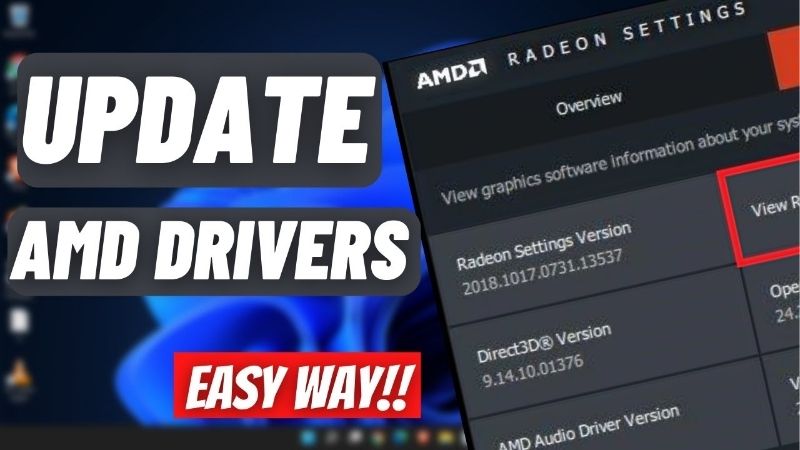
There are two main ways to update an AMD graphics driver. The first is using AMD’s official Adrenalin software, which detects your card and notifies you of new drivers automatically — the easiest route for most people.
The second is downloading the driver manually from AMD’s official website by selecting your GPU model. This gives full control and helps when the software misbehaves or you want a specific driver version.
Both methods work well. Adrenalin suits everyday users who want convenience, while the manual method suits those who prefer control or are troubleshooting a specific issue. If you are new to this, start with Adrenalin.
You can always switch approaches later. Many users begin with the automatic Adrenalin method and only turn to manual downloads when they need a specific older driver version to resolve a compatibility issue with a particular game.
Step-by-Step: How to Update AMD Graphics Driver
With preparation done, here is the actual process laid out as clear numbered steps for both the easy Adrenalin method and the thorough clean install. Follow these in order and the update will go smoothly, whether it is a routine refresh or a fix for a stubborn problem.
The Easy Method Using AMD Adrenalin
Follow these numbered steps for the simplest update:
1. Download and install AMD Software: Adrenalin Edition from AMD’s official website. 2. Open Adrenalin and go to the Home or Drivers section. 3. Look for a New Update notification or click Check for Updates. 4. Select the recommended driver when it appears. 5. Choose Express Upgrade to download and install automatically. 6. Restart your PC when prompted to finish.
Express Upgrade handles everything for you, replacing the old driver with the new one automatically. It is the recommended path for the vast majority of Radeon users.
Why use Adrenalin? It removes guesswork, always matches the driver to your card, and doubles as a hub for game settings and tuning features. Once installed, it makes every future update a quick, one-click task.
Adrenalin also includes performance tools like FSR settings and per-game profiles, so it is worth exploring beyond just updates. Many Radeon owners find these built-in features improve their experience once they take a few minutes to learn them.
The Clean Install Method for Troubleshooting
If you are fixing crashes, visual artifacts, or performance issues, a clean install removes every trace of the old driver first. Follow these steps:
1. Download the latest Adrenalin installer so you have it ready. 2. Optionally download a driver-cleanup utility. 3. Run the Adrenalin installer and choose the Factory Reset or clean installation option when offered. 4. Let it remove the old driver and install the new one fresh. 5. Restart your PC when finished.
The Factory Reset option wipes leftover settings and files that can cause conflicts, which is why it so often resolves problems a normal update cannot. It is the go-to fix for driver-related instability on Radeon cards.
Be aware that a Factory Reset also clears your saved Adrenalin settings and profiles, so you may need to reconfigure preferences afterward. That small inconvenience is well worth it when it resolves crashes or artifacts a normal update could not.
Use this whenever you switch between very different driver versions or troubleshoot a stubborn issue. Starting from a clean slate eliminates the corrupted-file problems behind many mysterious GPU glitches.
Verifying the Update Worked
After restarting, confirm the update succeeded. Open Adrenalin and check the driver version listed, comparing it to the latest version number to ensure it installed correctly.
You can also reopen Device Manager, find your GPU under Display adapters, and check the driver date and version in its properties. A current date confirms the new driver is active.
This verification takes seconds and gives peace of mind. If the version looks wrong, repeat the process, and use the clean-install method if a normal update refuses to stick. A quick game launch afterward confirms everything runs smoothly.
Pro Tips and Mistakes to Avoid
Now that you can update confidently, a few expert pointers will keep the process smooth and help you avoid the errors that commonly cause trouble. This section shares practical tips, the mistakes to sidestep, and how staying current benefits your gaming and stability.
Pro Tips for Smooth AMD Driver Updates
First, update when a major new game launches, since AMD releases optimized drivers for big titles — installing these can noticeably improve performance and fix game-specific bugs.
Second, you do not need to install every update the moment it appears. If your system is stable and running well, updating every few weeks or when a game you play gets an optimized driver is perfectly fine.
Third, keep the installer file or a system backup before a major update. If a new driver ever causes issues, you can roll back to the previous stable version quickly and without stress.
Common Mistakes to Avoid
The most common mistake is downloading drivers from unofficial third-party sites, which risks installing outdated or unsafe software. Always use AMD’s official Adrenalin software or website — nowhere else.
Another frequent error is skipping the restart. Drivers are not fully active until you reboot, so bypassing that step can leave you with a half-updated, unstable system. Always restart when prompted.
Finally, people often skip a clean install when troubleshooting, then wonder why a simple update did not fix their problem. When issues persist, the Factory Reset clean install is the answer a standard update cannot provide.
How Updates Boost Gaming and Stability
Keeping your AMD driver current delivers real benefits beyond bug fixes. Optimized drivers improve performance for new releases, often boosting frame rates and smoothness in the latest titles at no cost to you.
Updates also unlock new features and improvements to technologies like FSR upscaling, and they patch security vulnerabilities and stability issues. A current driver is simply a faster, safer, more capable driver.
The practical payoff is that a two-minute update can transform how a game runs. Think of it as the cheapest performance upgrade available — no new hardware, no cost, just a quick download that keeps your system at its best.
For any Radeon owner, building this into a light routine pays off over the life of the card. A card that is kept current with drivers simply performs better and stays stable longer than one that is left neglected for months.
See More:
- 3060 Ti vs 9060 XT
- Nvidia Shield TV Pro
- RTX 5070 vs RX 9060 XT
- RTX 3090 24GB
- Nvidia price prediction
Conclusion
Knowing how to update AMD graphics driver software is one of the simplest, highest-value skills for any Radeon owner: better gaming performance, new features, fixed bugs, and improved stability in just a few minutes. AMD’s Adrenalin software makes routine updates a one-click task, while the Factory Reset clean install solves the stubborn problems a normal update cannot. Avoid third-party download sites, always restart to finish, and update when big games launch. With the steps in this guide, you can keep your graphics card performing at its best all year. Grab a reliable backup drive to protect your system before your next major update and update with total confidence.
Frequently Asked Questions
Should I use the auto-detect tool or download manually?
The AMD auto-detect installer identifies your Radeon card and Windows version, then fetches the correct Adrenalin package, which suits most users. Manual downloads matter when you deliberately want an older release for stability, when installing on an offline machine, or when running a workstation Radeon Pro card that needs the enterprise branch instead.
What does the factory reset install option do?
Selecting factory reset during installation removes all existing AMD driver components, profiles and settings before installing fresh, which is AMD equivalent of a clean install. Use it when troubleshooting crashes, black screens or after upgrading from a very old driver. Expect to reconfigure per-game profiles, tuning presets and display colour settings afterwards.
Do Ryzen laptops and APUs use the same package?
Adrenalin covers both discrete Radeon cards and integrated Ryzen graphics, and AMD supports direct installation on most notebooks. Some laptop makers still ship customised builds handling panel, switchable graphics or power behaviour. If battery life, display brightness or hybrid switching regresses after a generic install, revert to the manufacturer package.
What is the difference between recommended and optional releases?
Recommended drivers are WHQL certified by Microsoft and have been through longer validation, making them the safer default. Optional releases arrive faster with new game support and bug fixes but carry slightly more risk. If your system is stable and you are not waiting on a specific fix, stay on the recommended branch.
How do I roll back a problematic Adrenalin version?
Uninstall through the AMD Cleanup Utility or Windows Apps, reboot, then install the previous version from the AMD driver archive, which retains older releases. Alternatively use Device Manager Roll Back Driver if the option is available. Disable automatic driver updates in Windows so it does not silently reinstall the version you removed.











Write Your Review
No reviews yet. Be the first to share your experience!