
- Top Pick: PNY NVIDIA GeForce RTX™ 5080 Epic-X RGB™ OC Triple-Fan Graphics Card
- Best Value: NVIDIA Shield Android TV Pro | 4K HDR Streaming Media Player High Performance, Dolby Vision, 3GB RAM, 2X USB, Works with Alexa, Model:945-12897-2500-101
- Premium Choice: ASUS Dual NVIDIA GeForce RTX 5060 Ti 16GB GDDR7 OC Edition Graphics Card, (PCIe 5.0, DLSS 4, HDMI 2.1b, DisplayPort 2.1b, 2.5-Slot, Axial-tech Fan, 0dB Technology), 3 Year Warranty
Nvidia App latest version is 11.0.8.299, released 7 July 2026, roughly 169 MB, Windows 10 and 11 only. That is the number you came for, and you can stop reading now if it is all you needed. If you want the rest — whether this update is worth installing, the DLSS 4.5 change that quietly makes things worse on RTX 20 and 30 series cards, and how to fix an install that keeps rolling back — it is all below, organised so you can scan rather than read.
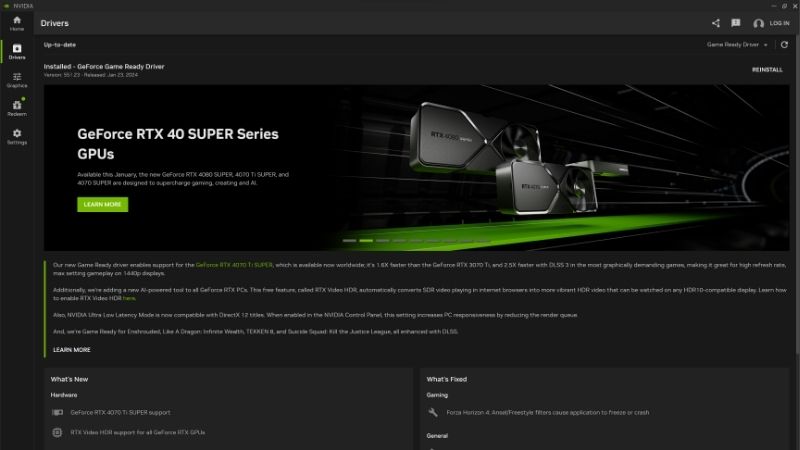
Nvidia App Latest Version at a Glance
The Nvidia App replaced GeForce Experience and the old Control Panel, consolidating driver updates, game optimisation, ShadowPlay recording and DLSS overrides into one interface. It updates on a roughly monthly cadence, and the version numbering runs major.minor.patch.build — so 11.0.8.299 is the eighth patch of the 11.0 branch.
The Current Version Number and What It Requires
| Item | Detail |
|---|---|
| Latest stable version | 11.0.8.299 |
| Released | 7 July 2026 |
| Download size | ~169 MB |
| OS | Windows 10 / 11 only |
| Driver required for DLSS 4.5 | Game Ready 595.97 WHQL or newer |
| Previous notable build | 11.0.7.228 (Dynamic MFG beta) |
| Cost | Free |
The driver requirement line is the one people miss. Installing the latest app does not give you DLSS 4.5 features on an old driver — the app will install happily, the overrides will appear greyed out or simply fail to apply, and you will spend an hour assuming the app is broken. It is not. Update the driver first.
There is no macOS or Linux version and there will not be one. If you are on Linux, driver management happens through your distribution’s package manager and none of this applies.
Where to Download It Safely
Only two sources are worth using. The first is nvidia.com directly, under the software section — always current, always signed. The second is the app itself: if you already have it installed, it will prompt you, and in-app updating is less error-prone than a manual reinstall because it preserves your per-game profiles.
Avoid third-party download aggregators. They are frequently weeks behind, several wrap the installer in their own downloader, and the file size is a useful tell — if what you downloaded is not roughly 169 MB, you did not get the real installer.
One quirk worth knowing: Nvidia’s own download page has intermittently been hard to navigate to the newest build, and even technical users have reported struggling to find it. If the site is being unhelpful, the in-app update prompt is the reliable route.
How to Check Which Version You Are Running
Open the Nvidia App, click the gear icon in the top right, and the version sits at the bottom of the Settings page. Thirty seconds, no ambiguity.
If the app will not open at all, check the installed programs list in Windows Settings — the Nvidia App entry shows its version there. And if you want to know your driver version separately, the app’s Drivers tab shows it, or run nvidia-smi from a command prompt for the raw number.
What Changed and Whether You Should Update
The 11.0 branch has been the most substantial revision since the app replaced GeForce Experience, and most of it centres on DLSS 4.5 — announced at CES 2026 and rolled out in stages through the first half of the year. Whether any of it matters to you depends heavily on which GPU you own.
DLSS 4.5 Super Resolution and the New Model Presets
DLSS 4.5 introduced a second-generation transformer model for Super Resolution, trained with roughly five times the compute of the original transformer model and on a substantially larger dataset. It covers over 400 games and apps, and crucially it works through the app’s DLSS Override — meaning you get it in titles that shipped with older DLSS versions, without waiting for the developer to patch anything.
The models are lettered. Model M is tuned for DLSS Performance mode, Model L for 4K Ultra Performance, and Model K is the previous DLSS 4.0 model. In the Graphics tab, DLSS Override > Model Presets now offers “Recommended”, which replaced the older “Latest” option and assigns M, L or K depending on the mode you are running.
For RTX 40 and 50 series owners, selecting Recommended is the correct move and there is nothing further to think about. For RTX 20 and 30 owners, read the next section before you touch it.
Dynamic Multi Frame Generation, 5X and 6X
Rolled out in spring, Dynamic Multi Frame Generation works like an automatic transmission for frame generation. Instead of locking to a fixed 2X, 3X or 4X multiplier, it shifts in real time to hit a target — either your display’s maximum refresh rate or a custom number you type in. Alongside it came fixed 5X and 6X modes, meaning up to five generated frames per rendered frame, aimed at 240+ FPS path-traced gaming at 4K.
This is RTX 50 series only, and it comes with a restriction the marketing skips: Dynamic mode is not compatible with frame rate limiters or V-Sync. If you cap frames in-game or run V-Sync, Dynamic will not work and the app does not always explain why. Turn both off first.
RTX 40 series owners get something smaller but real — an updated Frame Generation model available as Preset B in supported titles including Hogwarts Legacy, Monster Hunter Wilds, God of War Ragnarok and Star Wars Outlaws, among others.
Auto Shader Compilation and the Quieter Additions
Auto Shader Compilation arrived as a beta and is the most practically useful thing in the branch for anyone who plays DirectX 12 titles. It rebuilds DX12 shaders after a driver update while your system is idle, or on demand, cutting the shader compilation stutter that plagues the first ten minutes after every driver install. Note the limit: first-time shader generation after a fresh game install still happens in-game.
Several smaller changes are worth knowing. ShadowPlay now records at 240 FPS on RTX 50 and 40 series. Offline mode works for the System Control Panel and Driver Settings, so the app is usable without an internet connection. Custom Resolution controls have begun migrating into the app from the legacy Control Panel. And G-Assist can now control notebook settings including BatteryBoost and WhisperMode.
Pros and Cons of Updating Right Now
The update is free and mostly good, but “mostly” is doing real work in that sentence. One group of users should think carefully before installing, and it is a large group.
The RTX 20 and 30 Series Catch Nobody Mentions
This is the single most important paragraph on this page for anyone on an older card, and it is buried in Nvidia’s own release notes rather than in any headline.
RTX 20 and 30 series GPUs lack native FP8 support. The new DLSS 4.5 Models M and L rely on it. The consequence is that on Turing and Ampere cards, Models M and L carry a heavier performance impact — you can enable them, they will run, and your frame rate will drop more than the image quality gain justifies. Nvidia’s own guidance is that these users may prefer to stay on Model K, the DLSS 4.0 model.
Translated into practical terms: if you own an RTX 2060, 2070, 3050, 3060, 3070 or 3080, install the app update for the bug fixes and Auto Shader Compilation, but leave your DLSS model on K. Selecting “Recommended” may actively cost you frames. This is the opposite of what every “just update everything” video will tell you.
Known Bugs and Limitations in Current Builds
Recent release notes fix a run of issues that tells you what to watch for. Game statistics displaying “N/A” for titles with separate campaign and multiplayer executables. Game setting optimisations not surviving a PC restart. DLSS Override model presets flipping themselves to “Custom” unprompted. FPS reporting wrong values when Smooth Motion is enabled. Photo Mode Super Resolution captures coming out blank on 50 series cards.
Most are now patched, but the pattern is consistent: the overlay and statistics layer is where problems concentrate, not the driver layer underneath. That is reassuring — a broken FPS counter is an annoyance, not a stability risk.
The one genuine limitation to plan around remains the Dynamic MFG incompatibility with frame limiters and V-Sync. It is a design constraint, not a bug, and it is not going away in a patch.
Pros and Cons Summary
| Pros | Cons |
|---|---|
| DLSS 4.5 Super Resolution in 400+ titles via Override, no developer patch needed | Models M and L hurt performance on RTX 20/30 due to missing FP8 |
| Auto Shader Compilation cuts post-driver stutter | Dynamic MFG breaks with V-Sync and frame limiters |
| 240 FPS ShadowPlay on RTX 50/40 | Requires driver 595.97+ or features silently fail |
| Offline mode for Control Panel and Driver Settings | Windows only; no macOS or Linux build |
| Free, ~169 MB, replaces two legacy apps | Overlay and statistics bugs recur build to build |
The short version: RTX 40 and 50 owners should update without hesitation. RTX 20 and 30 owners should update the app but not change their DLSS model.
Fixing a Failed Update
Three failure modes account for nearly every complaint about updating the Nvidia App, and all three have reliable fixes that do not involve reinstalling Windows.
Install Fails or Silently Rolls Back
The usual cause is the previous install still running. Open Task Manager, end every process beginning with “NVIDIA” — including NVIDIA Container, which restarts itself and blocks the installer — then run the installer again as administrator.
If it still fails, antivirus is the second suspect. Several third-party suites flag the Nvidia installer’s driver components. Disable real-time protection for the duration of the install, then re-enable it.
The App Will Not Detect Your GPU
Almost always a driver-app version gap rather than a hardware problem. Check the driver version separately with nvidia-smi. If the driver is significantly older than the app expects, update the driver first, reboot, then open the app.
On laptops with hybrid graphics, verify that Windows is not routing the app to the integrated GPU. In Windows Settings > System > Display > Graphics, set the Nvidia App to High Performance explicitly.
Clean Install When Nothing Else Works
The reliable last resort. Uninstall the Nvidia App and the graphics driver from Windows Settings. Reboot into Safe Mode and run Display Driver Uninstaller to strip every leftover registry entry — this is the step that actually resolves the stubborn cases, because a partial removal leaves conflicting entries that a normal uninstall does not touch. Reboot again, then install the current driver followed by the app.
Budget twenty minutes. It works when nothing else does, and it is the correct move if you have been fighting the same error for more than half an hour.
See More:
- GTX 1650 vs RTX 3050
- Nvidia DIGITS
- Nvidia cuDNN
- Radeon RX 9070 XT vs RTX 5090
- PNY GeForce RTX 5080 review
Conclusion: Keeping the Nvidia App Latest Version Current
The Nvidia App latest version is 11.0.8.299 as of 7 July 2026, it is free, it is roughly 169 MB, and for most people the answer to “should I install it” is simply yes. Auto Shader Compilation alone justifies it if you play DirectX 12 titles, and the DLSS 4.5 Super Resolution override delivers a genuinely improved image in over 400 games without waiting on developers.
The one thing to carry away: if you are on an RTX 20 or 30 series card, install the app but leave your DLSS model on K. The FP8 gap is real, Nvidia acknowledges it in its own release notes, and “Recommended” is not recommended for you. And if a lack of frames rather than a lack of features is what actually sent you looking for a driver update, that is a hardware conversation rather than a software one — worth comparing what current cards deliver before you spend another evening on driver troubleshooting.
Frequently Asked Questions
Where do I download the Nvidia app safely?
Only from nvidia.com. Search results and software aggregator sites frequently host bundled installers or outdated builds. The legitimate installer is a small downloader that pulls the current package, and the app will then offer in-place updates itself so you should not need to download it again manually.
Does it replace GeForce Experience?
Yes. The Nvidia app supersedes both GeForce Experience and the legacy Control Panel, merging driver updates, game optimisation, the overlay, ShadowPlay recording and display and 3D settings into one interface. Installing it removes GeForce Experience automatically, and notably it no longer requires a login to use core features.
What are the known bugs to watch for?
Recurring complaints across releases include a measurable performance hit from the statistics overlay in some titles, the app failing to launch after a driver rollback, duplicate entries in the games list, and the optimise button reverting settings after a game update. Disabling the overlay resolves the largest share of reported issues.
Do I have to install it to get drivers?
No. Standalone driver packages remain downloadable from the Nvidia driver search page and install without the app. Many users on stable systems deliberately install driver only, avoiding the background services entirely, and check for updates manually every month or two.
How do I roll back to an older app version?
Uninstall the current app from Windows Apps and Features, then run an older installer if you kept one, since Nvidia does not maintain a public archive of app builds the way it does for drivers. Clearing ProgramData and LocalAppData Nvidia app folders first prevents the old configuration from carrying over.
As an Amazon Associate we earn from qualifying purchases at no extra cost to you.


Ready to decide? Our #1 pick for 2026 is the Latest stable version.
Live price & availability on Amazon.











Write Your Review
No reviews yet. Be the first to share your experience!