
The Radeon drivers installed on your PC do far more than make your AMD graphics card work; they unlock performance, features, and fixes that can transform your gaming and creative experience. Yet many users install them once and forget, missing updates that boost framerates or resolve annoying bugs. Whether you have just built a new PC, are troubleshooting a display issue, or simply want the latest AMD Software: Adrenalin Edition features, this guide walks you through what Radeon drivers do, how to download and install them cleanly, how to fix the most common problems, and how to get the most from your card. No jargon, just clear steps to keep your Radeon GPU running at its best.
What Radeon Drivers Do and Why They Matter
Radeon drivers are the software bridge between Windows and your AMD graphics card, and they are packaged inside AMD’s Adrenalin Edition software. Understanding what they include and why updates matter is the first step to a smoother experience.
What AMD Adrenalin Software Includes
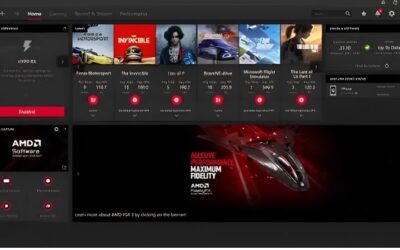
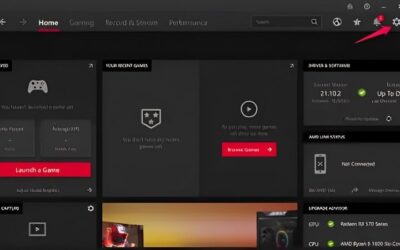
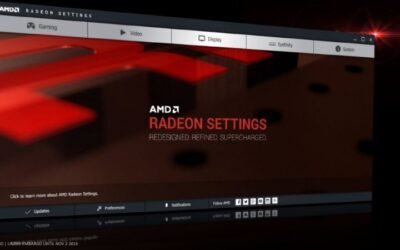
Modern Radeon drivers come bundled with AMD Software: Adrenalin Edition, a control center that goes well beyond basic display support. It includes performance tuning, recording and streaming tools, and per-game settings.
This all-in-one approach means one install gives you drivers plus a full suite of features. For most users, Adrenalin is where you will manage everything about your Radeon card, from resolution to frame-boosting technologies.
Because everything lives in one place, you rarely need extra utilities to manage your card. That integration is a big reason Adrenalin has a strong reputation, giving you drivers, tuning, and capture tools without hunting for separate downloads.
Why Keeping Radeon Drivers Updated Matters
AMD regularly releases driver updates that add optimizations for new games, fix bugs, and sometimes deliver measurable performance gains. Skipping them means leaving free improvements on the table.
Updates also patch stability and security issues, so an outdated driver can cause crashes or glitches that a simple update would resolve. Staying current is one of the easiest ways to keep your system reliable.
Game-specific optimizations are especially worth chasing, since AMD frequently ships day-one drivers for major releases that noticeably improve performance and stability. Playing a big new title on an old driver can mean lower framerates and avoidable glitches.
Gaming vs Professional Radeon Drivers
AMD offers different driver branches, and choosing the right one matters. The standard Adrenalin driver suits gamers and most users, delivering game optimizations and the full feature set.
For professional workstation cards, AMD provides certified PRO drivers tuned for stability in design and content applications. If you use your card mainly for gaming, the standard driver is the right choice; only certified pro workflows need the PRO branch.
Installing the wrong branch is a common mistake that leaves gamers missing optimizations or professionals lacking certification. When in doubt, the standard Adrenalin driver is the right default for the vast majority of desktop users.
How to Download and Install Radeon Drivers
Installing Radeon drivers correctly prevents most of the problems people blame on their hardware. A clean, up-to-date install is the foundation of good performance. Here is how to do it right.
Finding the Right Driver for Your Card
Start by identifying your exact Radeon model, then download the matching driver from AMD’s official support site. AMD also offers an auto-detect tool that finds the correct driver for you automatically.
Always download from AMD directly rather than third-party sites, which can bundle outdated or unsafe files. Matching the driver to your specific card avoids the compatibility issues that cause many install headaches.
If you are unsure of your exact model, the auto-detect tool is the safest route, as it reads your hardware and serves the correct package automatically. This small step prevents the mismatched-driver problems that send many users searching for fixes.
Performing a Clean Install
For the smoothest result, use the installer’s factory reset option, which removes old driver files before installing fresh ones. This clears out leftover settings that can cause conflicts, especially when upgrading.
Follow the on-screen steps, allow the installer to complete, and reboot when prompted. A clean install is the single best way to avoid the black screens and glitches that plague messy upgrades.
The factory reset option is particularly valuable when switching between major driver versions or coming from a different GPU. Taking the extra minute for a clean install now saves the far longer troubleshooting sessions that a leftover-file conflict can cause later.
Keeping Drivers Updated Automatically
Once installed, Adrenalin can check for updates automatically and notify you when a new driver is available. Enabling this keeps you current without manual effort.
You can also check for updates manually within the software at any time. Either way, staying on a recent driver ensures you get the latest game optimizations and fixes as soon as AMD releases them.
That said, some users prefer to wait a few days after a major driver launch to let any early issues surface, then update once it is proven stable. Either approach works, as long as you do not let your drivers fall many versions behind.
Features, Common Issues, and Pros and Cons
Beyond keeping your card running, Radeon drivers pack features worth knowing, and the occasional problem worth solving. Here is what stands out, how to fix common issues, and an honest look at the Radeon driver experience.
Standout Adrenalin Features Worth Using
Adrenalin includes genuinely useful tools like Radeon Super Resolution for upscaling, Anti-Lag to reduce input latency, and Radeon Chill to save power and cut heat. These can improve both performance and comfort.
There are also one-click tuning options for a safe overclock or undervolt, plus recording and streaming built in. Exploring these features is how you get real extra value from drivers you have already installed.
Many owners are surprised by how much these built-in tools can do, from boosting framerates to recording gameplay without extra software. Spending a few minutes exploring Adrenalin often reveals features that would otherwise cost money as standalone apps.
Fixing Common Radeon Driver Problems
The most common issues are black screens, driver timeouts, or Adrenalin failing to open. A clean reinstall using the factory reset option resolves the majority of these cases.
If problems persist, a full removal with a dedicated uninstall tool followed by a fresh install usually clears stubborn conflicts. Keeping Windows updated and avoiding mixing driver versions also prevents many recurring headaches.
Pros and Cons of the Radeon Driver Experience
Here is the honest balance from user sentiment:
| Pros | Cons |
|---|---|
| Feature-rich Adrenalin software | Occasional bugs after major updates |
| Frequent game optimizations | Clean installs sometimes needed to fix issues |
| Useful tuning and streaming tools | Feature depth can overwhelm new users |
Most users find Adrenalin excellent once set up, and the occasional post-update hiccup is usually solved by a clean install rather than a sign of poor drivers.
It also helps to remember that no driver is perfect on day one, and AMD, like every vendor, occasionally ships an update that suits some setups better than others. Keeping a stable version handy and updating thoughtfully gives you the benefits while sidestepping the rare rocky release.
Getting the Most from Your Radeon GPU
Great drivers are only part of the picture, and a few habits keep your Radeon card performing at its best over time. Here is how to maintain a healthy setup and when hardware, not software, is the real fix.
Simple Performance and Tuning Tips
Enable game optimizations in Adrenalin, try Radeon Super Resolution in demanding titles, and consider a light undervolt to cut heat and noise. These small tweaks can noticeably improve your experience.
Monitor temperatures with the built-in overlay, and keep your case airflow clean, since even perfect drivers cannot fix a card that is overheating. Good thermals let your GPU sustain its performance.
These tweaks cost nothing and are built into software you already have, yet many owners never touch them. Spending ten minutes in Adrenalin to enable the right features and set a sensible fan curve can deliver a smoother, quieter experience than a hardware change would.
Keeping Your Driver Setup Healthy
Update drivers regularly but not blindly, and if a brand-new driver causes trouble, you can roll back to a stable version. Keeping one known-good installer on hand is a smart safety net.
Avoid installing multiple driver versions on top of each other, which is a frequent cause of conflicts. A tidy, current driver setup is the foundation of a reliable Radeon system.
Making these habits routine takes only minutes each month, yet it prevents the majority of frustrating driver problems before they start. A little regular maintenance keeps your card fast and stable far longer than reacting to issues after they appear.
When a GPU Upgrade Beats a Driver Fix
Sometimes no driver update can deliver the performance you want, because the card itself is the limit. If you are constantly running out of VRAM or falling short at your resolution, an upgrade is the real answer.
In that case, keeping your current Radeon drivers healthy still matters right up to the switch. If you are ready to move up, compare current Radeon GPU prices on Amazon to find a card that fits your needs and budget.
Conclusion
Keeping your Radeon drivers current and cleanly installed is one of the simplest, most effective ways to get the best from your AMD graphics card, unlocking performance, features, and fixes that many users never touch. Identify your model, install from AMD directly with a factory reset, enable automatic updates, and explore the Adrenalin features you have already paid for. When problems appear, a clean reinstall solves most of them. Manage your Radeon drivers well, and your GPU will reward you with smoother, more reliable performance for years to come.



Write Your Review
No reviews yet. Be the first to share your experience!