
- Top Pick: How to Safely Overclock Your Graphics Card for Better Gaming Performance: Boost Your Gaming PC with GPU Overclock & Boost Your Gaming Performance
- Best Value: MSI Gaming GeForce RTX 3060 12GB 15 Gbps GDRR6 192-Bit HDMI/DP PCIe 4 Torx Triple Fan Ampere OC Graphics Card (RTX 3060 Ventus 3X 12G OC) (Renewed)
- Premium Choice: msi Gaming GeForce GT 1030 4GB DDR4 64-bit HDCP Support DirectX 12 DP/HDMI Single Fan OC Graphics Card (GT 1030 4GD4 LP OC)
How to overclock a GPU with MSI Afterburner is the way to squeeze extra frames out of a card you already own, and on modern Nvidia hardware the process is safer and simpler than it has ever been. A stable overclock typically adds a few percent of real-world performance by pushing the core and memory clocks beyond their stock settings, and because Nvidia’s boost algorithm already manages voltage and power, the card protects itself from dangerous extremes. MSI Afterburner is the tool everyone uses because it is free, works with every Nvidia card, and lets you dial in offsets one step at a time. This guide walks you through safe increments, the stress-testing loop that confirms stability, and the habits that keep an overclock reliable long-term.
What You Will Need to Overclock
Overclocking is a free software tweak, but it benefits from good cooling. The more thermal headroom your card has, the higher a stable overclock it will hold. The items below cover the tools and the pre-work that set you up for the best result.
As an Amazon Associate we earn from qualifying purchases at no extra cost to you.




MSI Afterburner and Monitoring
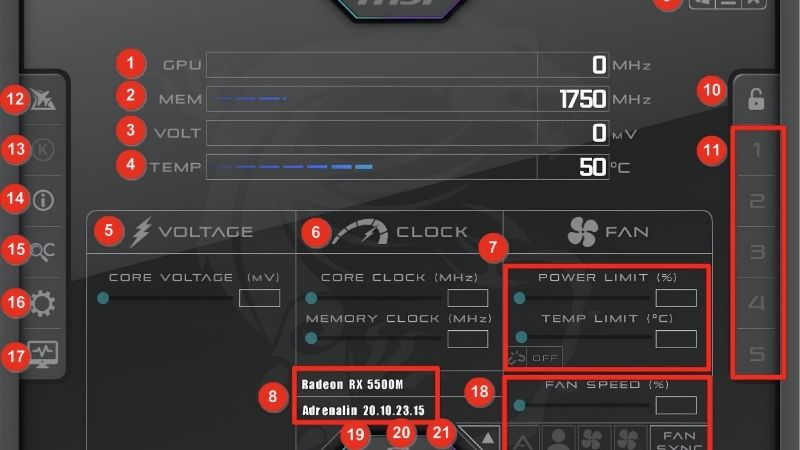
Download and install MSI Afterburner. Enable the on-screen display in the Monitoring tab so you can watch core clock, memory clock, temperature, and GPU usage while you game. This overlay is your real-time feedback loop during stress testing.
Have GPU-Z or HWiNFO open alongside to confirm exact clocks and voltages. Afterburner applies the offset, and the monitoring tool shows the actual resulting frequency under load, which is what you want to track.
Baseline Performance and Temperatures
Before changing anything, run a game or benchmark and note your stock FPS, core clock under load, memory clock, and peak temperature. This baseline is the reference every comparison measures against, and without it you cannot tell how much the overclock actually gained.
Check that your temperatures are healthy at stock. If the card is already running near its throttle point, fix cooling first with a fan curve, cleaning, or a repaste before overclocking. Pushing clocks on a thermally limited card produces instability rather than performance.
Thermal Headroom and Cooling
A card that idles cool and stabilizes well below its throttle point under load has the most overclocking headroom. Good case airflow, a clean cooler, and a custom fan curve all contribute. If your card sits in the mid-70s under load at stock, you likely have room to push; if it is already in the low 80s, the thermal margin is tight and gains will be modest.
Pairing the overclock with an undervolt is an advanced technique that some experienced users employ to lower heat while raising clocks, but start with a simple offset overclock first and explore combined tuning later.
One more pre-check: confirm your power supply has enough headroom for the card at higher power draw. A PSU running at its limit can become unstable when the GPU demands more watts from an overclock, producing crashes that look like an unstable offset but are really a power delivery issue. A PSU with at least 100 watts of spare capacity above your system’s stock draw handles the extra load comfortably.
Step-by-Step Guide to Overclocking
The process is a loop: raise the offset by a small increment, test, and repeat. Each cycle either confirms stability or reveals the limit. Work through the steps in order, and never skip the stress test between changes.
Step 1 to 3: Core Clock Overclock
Step 1: Raise the core clock offset. In Afterburner’s main panel, drag the Core Clock slider up by +25 MHz and click Apply. This tells the card to boost 25 MHz higher than stock across the entire voltage-frequency curve.
Step 2: Stress test. Run a benchmark or demanding game for 10–15 minutes. Watch for crashes, driver resets, artifacts, or a black screen. If the test passes cleanly, the offset is stable.
Step 3: Repeat in +25 MHz steps. Raise the core offset another 25 MHz, apply, and re-test. Continue this loop until you hit instability, either a crash or visible artifacts. When it fails, drop back by 25 MHz to the last stable offset. This is your core overclock ceiling.
Most modern Nvidia cards land somewhere between +50 MHz and +150 MHz on the core, but every chip is different. Do not be disappointed by a modest offset; even +50 MHz adds measurable frames.
A practical note: after finding your stable core offset, run your baseline benchmark again and note the FPS improvement. Seeing the concrete number, even if it is only a few percent, confirms the overclock is doing its job and helps you decide whether the memory step is worth the extra tuning time.
Step 4 to 6: Memory Clock Overclock
Step 4: Raise the memory clock offset. With the core at its stable offset, drag the Memory Clock slider up by +50 MHz and click Apply. Memory overclocking uses larger steps because the effect per increment is smaller.
Step 5: Stress test. Run the same benchmark. Memory instability often shows as subtle texture corruption or odd pixels rather than a hard crash, so watch the image carefully during the test.
Step 6: Repeat in +50 MHz steps. Continue raising memory and testing until you see corruption or errors. Drop back to the last clean offset. Memory on modern cards can often take +200 MHz to +500 MHz, though the performance gain per step is smaller than core.
Once both core and memory are at their stable offsets, you have found your card’s overclock ceiling.
Step 7 to 9: Validate, Save, and Automate
Step 7: Run a full gaming session. Play your most demanding game for at least 30 minutes with both offsets applied. A benchmark passes faster than a game session, so this real-world test catches instability that a short synthetic run might miss.
Step 8: Save the profile. In Afterburner, click a profile slot and save. This preserves both offsets and your fan curve so you can restore them after a driver update with one click.
Step 9: Set Afterburner to start with Windows. Enable Start with Windows in Settings so the overclock loads automatically every boot. Your card now runs at its tuned clocks without manual action.
Pro Tips, Mistakes, and Realistic Expectations
Overclocking is forgiving on modern Nvidia cards, but a few habits help you reach the best stable point faster and avoid the mistakes that waste time. This section covers what experienced overclockers do differently and the honest numbers you should expect.
Pro Tips for a Stable Overclock
Fix cooling before overclocking. A fan curve set to ramp earlier gives the card more thermal headroom, which the boost algorithm converts into higher sustained clocks on top of your offset. Overclock last in the optimization sequence, not first.
Test with the heaviest workload you expect to run. A stress test that passes on a light game may fail on a demanding title, so use your hardest scenario for the most reliable result.
Common Mistakes to Avoid
Do not raise the power limit slider to maximum without understanding the trade-off. A higher power limit generates more heat, and on a card near its thermal ceiling the extra heat can cause throttling that cancels the overclock. Raise it only if temperatures remain comfortable.
Do not chase headline numbers from other users. Silicon lottery means your card’s limit is unique, and comparing against someone else’s offset leads to frustration. Focus on your own stability testing.
Also avoid testing only with a lightweight game. A benchmark that barely loads the card will accept any offset, but a demanding title will crash at the same setting. Always validate against your heaviest workload, since that is the scenario where the overclock must hold to be genuinely useful rather than just impressive on paper.
Pros and Cons of Overclocking
On the plus side, overclocking is free, reversible, and extracts real extra performance from hardware you already own. On Nvidia cards the boost algorithm and power limits provide a safety net that prevents hardware damage.
On the downside, gains are typically modest at a few percent, the card runs hotter and louder at higher clocks, and instability requires tuning. For an owner who has already optimized drivers, settings, and cooling, it is the final step that squeezes out the last available frames.
Overclocking with MSI Afterburner is the final free optimization for any Nvidia card. Set your offsets, stress test, save the profile, and enjoy extra performance from hardware you already own. Make sure your cooling is ready for the extra heat with quality fans and paste through the links below.
One more pre-check worth noting: confirm your power supply has enough headroom for the card at higher power draw. A PSU running near its limit can become unstable when the GPU demands more watts, producing crashes that look like an unstable offset but are really a power delivery issue. A PSU with at least 100 watts of spare capacity above your stock system draw handles the extra load comfortably and removes one variable from the tuning process.
See More:
- How to lower GPU temperature
- How to lower GPU hotspot temp
- How to increase GPU performance
- How to enable G-Sync
Conclusion
Knowing how to overclock a GPU with MSI Afterburner lets you extract the last free frames from your Nvidia card with safe, reversible offset adjustments. Raise the core in +25 MHz steps, the memory in +50 MHz steps, stress test between each, and save the stable result to a profile. Fix cooling before overclocking, test with your hardest workload, and set Afterburner to start with Windows for an automatic boost every session. It is the final step in a full optimization checklist, and it turns existing hardware into a faster card at no cost.
Combine the overclock with an undervolt and a custom fan curve for the best overall result. The undervolt keeps heat in check, the fan curve manages noise, and the overclock on top delivers the highest stable clocks the card can achieve. Stacking all three is what experienced tuners do to extract every frame from hardware they already own, and MSI Afterburner handles all of it in a single tool.
Top-Rated Picks


| Product | Brand | Rating | Reviews | Price |
|---|---|---|---|---|
| ARCTIC MX-4 (4 g) – Premium Performance Thermal Paste… | ARCTIC | ★ 4.8 | 104k | $4.99 |
| ARCTIC MX-4 (incl. Spatula, 4 g) – Premium Performanc… | ARCTIC | ★ 4.8 | 71.9k | $5.49 |
| Crucial 8GB DDR4 RAM 3200MHz (PC4-25600), Downclockab… | Crucial | ★ 4.8 | 62.8k | $74.99 |
| AMD Ryzen 5 5600X 6-core, 12-thread unlocked desktop … | — | ★ 4.8 | 30.2k | $177.60 |
| NVIDIA Shield Remote; Voice Search, Motion-Activated,… | — | ★ 4.7 | 10.6k | $25.99 |
Frequently Asked Questions
Is overclocking with Afterburner safe for my card?
Yes, within the sliders the software exposes. Voltage adjustment is tightly limited by the card firmware, and the power and temperature limits remain enforced, so the realistic worst case is a driver crash or an unstable session rather than hardware damage. Settings reset on reboot unless you explicitly save them to a profile and enable apply at startup.
How much extra performance should I expect?
Typically five to ten percent on the core and a similar figure on memory, which translates to perhaps three to seven percent in real frame rate. Modern boost algorithms already push the silicon close to its limit, so the gains are modest. Undervolting for lower temperatures often produces a more satisfying result than chasing peak clocks.
What order should I adjust the sliders in?
Raise the power limit and temperature limit to maximum first, since they gate everything else. Then increase core clock in 15MHz steps, testing each one. Once the core is stable, move to memory in 50MHz steps. Adjusting both at once makes it impossible to identify which change caused an instability.
How do I know if my overclock is stable?
Run a demanding game for at least thirty minutes rather than relying only on a short benchmark loop. Watch for driver timeouts, visual artifacts such as flickering polygons or coloured speckles, and any application crash. Memory instability is particularly deceptive because error correction can mask it as a quiet performance loss instead of a crash.
Will overclocking increase power draw and heat?
Yes on both counts. Raising the power limit lets the card sustain higher clocks by drawing more current, which directly increases heat and fan noise, and pushes the connector harder. If your card already runs near its temperature limit, address cooling before overclocking or the extra clock will simply be thrown away by throttling.











Write Your Review
No reviews yet. Be the first to share your experience!