
- Top Pick: ASUS Dual NVIDIA GeForce RTX 5060 8GB GDDR7 OC Edition (PCIe 5.0, 8GB GDDR7, DLSS 4, HDMI 2.1b, DisplayPort 2.1b, 2.5-Slot Design, Axial-tech Fan Design, 0dB Technology), 3 Year Warranty
- Best Value: ASUS Dual NVIDIA GeForce RTX 3050 6GB GDDR6 OC Edition Gaming Graphics Card – PCIe 4.0, HDMI 2.1, DisplayPort 1.4a, 2-Slot Design, Axial-tech Fan Design, Steel Bracket, 3 Year Warranty
- Premium Choice: NVIDIA GeForce RTX 5080 Founders Edition
Getting the NVIDIA Game Ready Driver download right is the difference between a smooth, high-performance PC and hours lost to crashes and black screens. It sounds simple, but choosing the wrong file, downloading from an unsafe site, or installing over an old driver causes many of the problems people blame on their hardware. This guide shows you exactly where to download the Game Ready Driver safely, how to install it step by step, and how to fix the download and installation errors that trip people up. Whether you are updating for a new game or setting up a fresh build, follow along and you will have the right driver installed cleanly and correctly the first time.
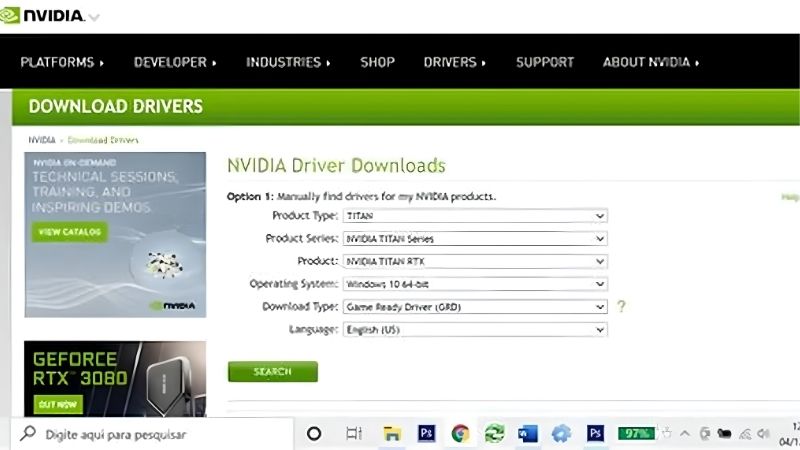
Where to Download the NVIDIA Game Ready Driver
The most important decision happens before you install anything: choosing a safe, correct source. Downloading from the right place protects your PC and guarantees the proper driver. Here are your safe options and the sources to avoid.
The Official NVIDIA Website Is Safest
The safest place to download a Game Ready Driver is NVIDIA’s official website. There you select your exact GPU model and download the verified, latest driver directly from the source with no risk of tampered files.
This method gives you full control over the version and is ideal for clean installs or when you want a specific release. Bookmarking the official driver page makes future downloads quick and keeps you away from questionable sources.
Downloading straight from NVIDIA also guarantees you get the exact, unmodified file the company published. That certainty is worth the extra click compared with a random search result, since a genuine driver is the foundation of a stable, secure system.
Downloading Through the NVIDIA App
The most convenient option is the NVIDIA App, which has replaced GeForce Experience. It detects your card automatically, shows available Game Ready Drivers, and downloads and installs them with a single click.
For most users, this is the easiest and most reliable route, since it removes any chance of picking the wrong file. It also keeps you notified of new releases so you never miss an important update before a big game launch.
The app also handles the download and installation in one flow, reducing the chance of a half-finished or misplaced file. For anyone who finds manual downloads fiddly, this single-click approach removes almost every opportunity for a mistake.
Why to Avoid Third-Party Download Sites
Never download drivers from random third-party sites, which may bundle outdated, altered, or unsafe files. These are a common cause of instability and security risk, and they offer no benefit over the official sources.
If a search result points to a site that is not NVIDIA’s own or the NVIDIA App, close it. Sticking to official channels is the simplest way to ensure your Game Ready Driver download is genuine and safe.
Be especially wary of sites that promise a driver package plus extra tools, which can bundle unwanted software. NVIDIA’s own sources never do this, so if a download offers more than the driver itself, treat it as a warning sign and leave.
How to Download and Install It Step by Step
Once you are on a safe source, the process is quick if you follow the right order. Choosing the correct driver and installing it cleanly avoids nearly all common problems. Here is the step-by-step approach.
Choosing the Correct Driver
Start by identifying your exact GeForce model, then either let the NVIDIA App auto-detect it or select it manually on NVIDIA’s site. Matching the driver to your specific card is essential.
If you are unsure of your model, the auto-detect tool is the safest choice, reading your hardware and offering the correct file. This single step prevents the mismatched-driver errors that send many users searching for fixes.
If you own more than one machine, be careful to download for the correct one, since it is easy to grab the wrong model when juggling several PCs. A quick double-check of the model name before downloading saves a frustrating reinstall later.
The Download and Install Steps
Follow these steps for a clean result:
- Select your GPU on the official site or open the NVIDIA App.
- Download the Game Ready Driver for your exact model.
- Run the installer and accept the license.
- Choose Custom, then Clean install to remove old files.
- Let it finish and reboot if prompted.
These steps take only a few minutes and set up the driver correctly, avoiding the leftover-file conflicts that cause most post-install trouble.
Following the steps in order is what makes the process reliable, rather than clicking through quickly and hoping for the best. Each step exists to prevent a specific common failure, so a little patience here pays off in a trouble-free result.
Using the Clean Install Option
The clean install option, found under the custom installation path, wipes previous driver files before installing the new one. It is the best defense against conflicts, especially when upgrading or switching from another card.
Taking the extra minute for a clean install now saves far longer troubleshooting sessions later. It is the single most valuable step for anyone who has struggled with driver problems in the past.
If you have had repeated issues, making the clean install your default habit will likely end them. Many users who thought their hardware was failing simply had accumulated driver conflicts that a clean install resolved instantly.
Fixing Failed Downloads and Installs
Even with the right source, downloads and installs occasionally fail. The good news is that most issues have quick, reliable fixes. Here is how to solve the problems people hit most often.
When the Download Will Not Complete
If a download stalls or fails, check your internet connection and try again, since interruptions are the usual cause. Using the NVIDIA App can also help, as it manages the download for you and resumes more gracefully.
Clearing your browser cache or trying a different browser can resolve stubborn cases when downloading manually. Confirming you have enough free disk space is another quick check that solves surprisingly many failed downloads.
Temporarily pausing other large downloads or a busy VPN can also help a stalled transfer complete. These are simple things to overlook in the moment, yet they resolve a large share of the download problems people report.
When the Installation Fails or Crashes
If the installer fails, close background applications, especially other graphics or overlay software, which can interfere. Temporarily pausing security software during installation sometimes helps too.
If it still fails, use the clean install option, or fully remove the old driver with a dedicated uninstall tool before trying again. This clears the corrupted files that cause most installation crashes.
Restarting your PC before trying again is another simple fix that clears temporary conflicts holding up the installer. It sounds basic, but a fresh reboot resolves a surprising number of stubborn installation failures on the first retry.
When the Driver Will Not Apply or Causes a Black Screen
A black screen after installing usually resolves after a reboot, so wait and restart before assuming the worst. If it persists, boot into Safe Mode, remove the driver cleanly, and reinstall a fresh copy.
Rolling back to a previous stable version is another reliable fix if a new driver misbehaves. These steps recover the vast majority of black-screen and non-applying cases without any hardware changes.
Tips, Pros and Cons, and Staying Updated
A few habits make every future Game Ready Driver download smoother, and it helps to weigh your download options honestly. Here are practical tips, the trade-offs of manual versus automatic, and how to stay current safely.
Pro Tips for a Smooth Download
Bookmark NVIDIA’s official driver page, keep the NVIDIA App installed for easy updates, and always choose the clean install option when troubleshooting. These small habits prevent most download and install headaches.
It also helps to update before major game launches rather than mid-session, so you are not rushing a download while eager to play. A little planning turns driver updates into a non-event.
Keeping a known-good installer saved locally is another smart habit, giving you a reliable version to fall back on if a new release misbehaves. That small backup can save a stressful evening when you just want your system working again.
Manual vs Automatic Download: Pros and Cons
Here is the balanced view:
| Method | Pros | Cons |
|---|---|---|
| NVIDIA App (automatic) | Easy, correct file, notifications | Runs background software |
| Manual download | Full version control, no extra app | Must pick the right file yourself |
Most users are best served by the NVIDIA App, while experienced users who want specific versions may prefer manual downloads. Either works well when you stick to official sources.
Staying Current Safely
Keep drivers reasonably up to date, updating before big releases and checking periodically otherwise. You do not need every single version, but falling many releases behind can cost performance and stability.
Whichever method you choose, always download from official sources and use clean installs when troubleshooting. This keeps every future Game Ready Driver download safe, smooth, and trouble-free.
See More:
- Radeon drivers
- What is NVIDIA CUDA Toolkit
- 4080 Super vs 5060 Ti
- NVIDIA PhysX
- NVIDIA Game Ready Driver
Conclusion
A successful NVIDIA Game Ready Driver download comes down to three things: using a safe official source, choosing the correct driver for your card, and installing it cleanly. Stick to NVIDIA’s website or the NVIDIA App, follow the step-by-step process, and reach for the clean install option whenever something goes wrong. If a download or install fails, the fixes above resolve nearly every case without touching your hardware. Master the NVIDIA Game Ready Driver download and you will keep your GeForce card updated, stable, and ready for whatever game comes next.
Frequently Asked Questions
Where is the safest place to download a Game Ready driver?
Either the official drivers page on nvidia.com after selecting your exact GPU model and Windows version, or through the NVIDIA App, which detects hardware automatically and downloads the matching package. Avoid any third-party driver updater, because those bundle adware and frequently install mismatched or outdated versions.
What is the difference between the DCH and Standard packages?
DCH is the modern Windows driver model where the control panel arrives from the Microsoft Store and the core driver stays lightweight. Standard packages are legacy and no longer offered for current hardware. Mixing types causes install failures, so run a clean install if you are moving between them.
Should I download every Game Ready release?
No. Install one when a game you actually play is named in the release notes, when a bug affecting you is fixed, or when a security advisory applies. Otherwise a stable driver that works well is worth keeping, because new branches occasionally introduce regressions in older titles.
How large is the download and how long does installation take?
Recent packages run roughly 600 to 900 megabytes because they bundle the display driver, PhysX, audio driver and optional components. Installation typically takes two to five minutes, with the screen flickering or going black briefly as the display driver unloads and reloads. Do not interrupt during that stage.
What should I do if the download completes but the installer fails?
Run Display Driver Uninstaller in safe mode to strip leftovers, temporarily disable third-party antivirus, and disconnect from the network so Windows Update cannot push a competing driver mid-install. If the installer still stops, extract the package manually and install through Device Manager using the Have Disk method.
As an Amazon Associate we earn from qualifying purchases at no extra cost to you.













Write Your Review
No reviews yet. Be the first to share your experience!