
- Top Pick: Coolerage 85mm DC 12V 0.55A 4Pin PLA09215S12H RTX2080Ti GPU Fans for EVGA RTX 2060 2070 2080 2080Ti RTX2080Ti Graphics Card Cooling Fans (Fan – AB)
- Best Value: KIKIFAN 2pcs 87mm PLD09210S12HH 1660 Super GPU Fan for MSI GeForce GTX 1660 Super 1660Ti RTX 2060 Ventus XS OC Cooling Graphics Card Fan
- Premium Choice: SCCCF Dual 92mm Graphic Card Fans, Graphics Card Cooler, Video Card VGA Cooler, PCI Slot Fan GPU Cooler
GPU fan curve settings are one of the most useful and underused tools for controlling how a graphics card behaves, deciding the trade-off between temperature and noise on your terms rather than the manufacturer’s. A well-built curve keeps the card cool when it matters and quiet when it does not, while a poor one leaves it either too hot or too loud. This guide explains what a fan curve is, how to set one step by step, and how to strike the right balance, drawing on patterns reported across many cards and builds.
With a little tuning, a custom GPU fan curve gives you a cooler, quieter card that behaves exactly the way you want it to.
As an Amazon Associate we earn from qualifying purchases at no extra cost to you.



What a GPU Fan Curve Is
A fan curve is simply the rule that links the card’s temperature to its fan speed. Understanding how that relationship works, how default curves differ from custom ones, and how to think about the balance between noise and cooling sets you up to build a good curve. Here are the fundamentals.
How Fan Curves Work
A fan curve is a graph that maps temperature on one axis to fan speed on the other. As the card heats up, the curve dictates how fast the fans spin at each temperature, controlling cooling and noise automatically.
At low temperatures the fans can run slowly or stop entirely, while at high temperatures they ramp up to keep the card within safe limits. The shape of that line is what you are adjusting when you set a custom curve.
Understanding this mapping is the foundation for tuning the card to your preferences.
It helps to picture the curve as a series of points you can drag. Each point pairs a temperature with a fan speed, and the software draws a line between them, so adding or moving points reshapes how the card responds across its whole temperature range. The more points you set, the more precisely you can control the behavior.
Default vs Custom Curves
Manufacturers ship cards with a default curve that errs toward keeping temperatures low, which often means more noise than necessary. It is a safe, conservative choice designed to suit every buyer rather than your specific priorities.
A custom curve lets you decide the trade-off yourself, perhaps accepting a few extra degrees in exchange for a much quieter card during everyday gaming. This is where real control over the card’s behavior comes from.
For most users, a thoughtful custom curve is a clear improvement over the factory default.
The default is built for the worst case rather than the typical one. Manufacturers tune it to keep every card cool under heavy, sustained load in a poorly ventilated case, which means it often runs the fans harder than your particular setup needs. A custom curve simply adapts that conservative baseline to your actual cooling and noise priorities.
Balancing Noise and Temperature
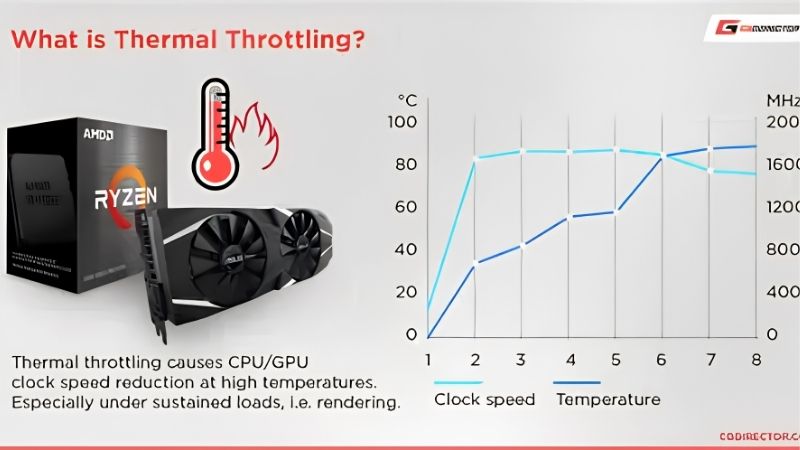
The heart of fan curve tuning is the balance between keeping the card cool and keeping it quiet. Push the fans harder and temperatures fall but noise rises; ease them off and the card runs quieter but warmer.
The goal is a curve that keeps temperatures comfortably within safe limits while spinning the fans no faster than necessary to get there. There is no single correct answer, only the balance that suits you.
Knowing your priorities, silence or the lowest possible temperatures, guides the shape of the curve you build.
A practical middle ground suits most people. Keeping the card comfortably below its throttle point, with a little margin, while letting the fans stay as slow as that allows, delivers near-silent everyday use without risking performance under load. You rarely have to choose an extreme; the best curve usually sits sensibly between the two.
How to Set a GPU Fan Curve
Setting a curve is straightforward once you have the right software and a sensible approach. The steps below take you from choosing a tool to building and saving a balanced curve. Follow them in order for a reliable result.
Choosing Fan Control Software
You will need a fan-control utility, and several free options exist that let you draw a custom curve and apply it. Choose one that is widely used and stable, since it will run in the background to keep your curve active.
Make sure only one fan-control tool is managing the card at a time, since two utilities fighting for control cause erratic behavior. Set the chosen tool to start with Windows so your curve applies automatically.
A reliable, single fan-control tool is the foundation for a curve that works consistently.
Some cards also offer fan control through the manufacturer’s own software, which can be the simplest route since it is designed for that exact model. Whichever you choose, the important thing is consistency: pick one tool, let it manage the fans, and make sure no second utility or a leftover profile is quietly overriding your settings.
Building a Sensible Curve Step by Step
Start with the fans off or very slow at low temperatures, since a cool, idle card needs little or no airflow. Then add points that raise fan speed gradually as temperature climbs through the middle range.
Toward the higher temperatures, set the fans to ramp up firmly so the card never approaches its thermal limit. Aim for a smooth line rather than sharp jumps, which prevents the fans from surging up and down distractingly.
A gradual curve that rises steadily and firms up near the top gives the best blend of cooling and quiet.
A reasonable starting template is to keep the fans silent or very low until the card reaches the low fifties, rise gently through the sixties and seventies, and ramp firmly into the eighties so the card never nears its limit. Treat that as a draft to refine against your own temperatures rather than a fixed rule, since every card and case differs.
Pros and Cons of Aggressive vs Quiet Curves
The curve you build leans either toward cooling or toward quiet, and each has trade-offs. Here is the honest balance sheet.
Aggressive (cooling-focused) curve
- Keeps temperatures low and protects boost clocks under load.
- Best for overclocking or very demanding games.
- Noisier during normal use.
Quiet (noise-focused) curve
- Much quieter for everyday gaming and light tasks.
- Runs the card a little warmer.
- May allow throttling under extreme, sustained load.
Fine-Tuning and Troubleshooting
A curve is rarely perfect on the first try, so testing and small adjustments are part of the process. These steps help you validate the curve and avoid common pitfalls. Here is how to finish the job.
Testing the Curve Under Load
Once your curve is set, test it with a demanding game or a stress tool while watching temperatures and fan speed. The aim is to confirm the card stays within safe limits without the fans being louder than you want.
If temperatures climb too high, steepen the curve in that range; if the fans are louder than necessary while the card stays cool, ease them back. A few iterations usually land on the right balance.
Testing under real load is the only way to know your curve actually holds up.
Give the test enough time to matter. Temperatures can take ten minutes or more of sustained load to stabilize, so a brief check can make a curve look fine when it would actually let the card climb higher in a long session. Run a demanding game or a stress tool until the temperature plateaus before judging the result.
Zero RPM and Fan Stop Settings
Many cards support a zero RPM mode that keeps the fans completely still below a set temperature, which is excellent for silent desktop use. You can build this into your curve by setting fan speed to zero at low temperatures.
The one caution is to make sure the fans reliably start again once the card warms, so a silent desktop never becomes a silent, overheating gaming session. Test that the fans engage as the temperature rises.
Used carefully, zero RPM gives you silence at idle without compromising cooling under load.
Common Fan Curve Mistakes
The most common mistake is making the curve too steep, so the fans surge loudly with every small temperature change, which is more distracting than a steady higher speed. A smooth, gradual line avoids this.
Another is setting the fans too low across the board in pursuit of silence, which lets the card overheat and throttle. Running two control tools at once, or forgetting to start the tool with Windows, also causes problems.
Avoiding these pitfalls keeps your curve effective and consistent over time.
One more mistake is setting and forgetting. As dust builds up or the weather warms, a curve that was perfect can let the card run hotter than intended, so it is worth rechecking temperatures every few months. A quick glance under load confirms the curve is still holding the balance you set.
See More:
- GPU for Valorant 240fps
- GPU for Fortnite 240fps
- GPU for CS2 high fps
- GPU for Apex Legends
- RTX 4070 Cyberpunk FPS
Conclusion
A well-built GPU fan curve gives you control over the balance between temperature and noise that the factory default rarely gets right for your needs. Choose a single reliable fan-control tool, build a smooth curve that stays quiet at low temperatures and ramps up firmly under load, and test it with a demanding game before settling on it. Use zero RPM for silence at idle, but confirm the fans restart as the card warms. With a little fine-tuning, your card will run cool when it counts and quiet the rest of the time, and you will rarely need to think about its fans again.
Top-Rated Picks


| Product | Brand | Rating | Reviews | Price |
|---|---|---|---|---|
| EZDIY-FAB RTX 3000 Series 12 Pin to Dual 8 Pin PCIe S… | EZDIY-FAB | ★ 4.6 | 428 | $15.59 |
| 87MM PLD09220S12H RTX3080 RTX3070 Graphics Card Fan R… | LTANDBR | ★ 4.6 | 61 | $29.98 |
| Compatible with GIGABYTE GeForce RTX 5060/5050 OC Low… | NIVXE | ★ 3.9 | 12 | $29.92 |
| Hilitand GPU Backplate Radiator, Aluminum Alloy Graph… | Hilitand | ★ 3.9 | 8 | $26.81 |
| NVIDIA GX Spark – Founders Edition, W129251900 | — | ★ 1.0 | 1 | $10,309.00 |
Frequently Asked Questions
What is a good starting fan curve for a modern GPU?
A practical curve holds fans off or near 30 percent below 50C, rises linearly to about 55 percent at 70C, and reaches 80 percent by 82C. That keeps a card near 72 to 76C under sustained load while staying audibly reasonable, and it leaves clear headroom before any thermal limit engages.
Should I use zero-RPM mode?
Zero RPM is pleasant for desktop and video work but causes fan surging when the card hovers near the start threshold. If you hear repeated spin-up and spin-down, either widen the fan-stop hysteresis to about 10C or set a minimum of 30 percent so the fans stay quietly running instead of cycling.
Does a steeper curve improve performance?
Modestly. Nvidia GPU Boost adds bins as temperature falls, so running at 60C instead of 78C can recover 60 to 150 MHz. Whether that is worth the extra noise is personal, but combining a moderate curve with an undervolt usually gets the same clocks at far lower fan speeds.
What software should I use to set it?
MSI Afterburner remains the most flexible and works with almost any vendor’s card, and the Nvidia app now includes a curve editor as well. AMD users can use the built-in Adrenalin tuning tab. Whichever tool you choose, enable apply at startup so the profile survives reboots.
Do fan curves apply to memory and VRM temperatures too?
Curves normally follow core temperature only, which is a problem on GDDR6X cards where memory heats faster than the core. If memory junction exceeds 100C while the core sits at 65C, raise the whole curve or add a temperature-based offset so the fans respond to the hotter component.











Write Your Review
No reviews yet. Be the first to share your experience!