
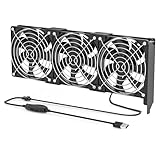
- Top Pick: SCCCF 3x90mm 92mm Graphic Card Fans, Graphics Card Video Card VGA PCI Slot Fan GPU Cooler
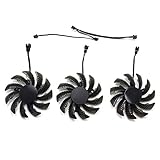
- Best Value: SCCCF Dual 92mm Graphic Card Fans, Graphics Card Cooler, Video Card VGA Cooler, PCI Slot Fan GPU Cooler
- Premium Choice: Wathai 4 x 120mm GPU Mining Rigs Server Racks Fan with 110V – 240V AC Plug
GPU fans too loud is a complaint that turns an otherwise great gaming session into a distracting one, with the card roaring every time a game ramps up. Loud fans are almost always a symptom of something fixable, whether an overly aggressive fan curve, rising temperatures, dust, or poor case airflow. This guide explains why graphics card fans get loud and walks through the fixes that quiet them, from simple software tweaks to deeper cooling work, drawing on patterns reported across many cards and builds.
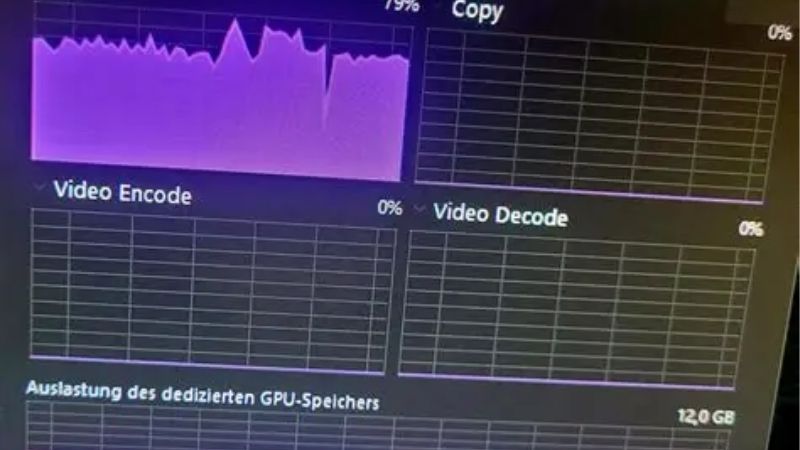
Worked through methodically, GPU fans too loud is a problem you can almost always solve without buying a new card.
As an Amazon Associate we earn from qualifying purchases at no extra cost to you.



Why Your GPU Fans Are Too Loud
Fans get loud because they are spinning fast, and they spin fast either because the card is hot or because a curve tells them to. Heat, dust, worn bearings, and case airflow are the common reasons behind the noise. Identifying which applies points you to the right fix.
Aggressive Fan Curves and High Temperatures
The most direct cause of loud fans is high temperatures forcing them to spin fast. As the card heats under load, its fan curve ramps the fans up to keep it cool, and a hot card simply demands more airflow and more noise.
An overly aggressive default curve can make this worse, spinning the fans harder than necessary even at moderate temperatures. Some cards ship with curves tuned for cooling over quietness, which prioritizes low temperatures at the cost of noise.
So loud fans are usually the card responding to heat, which means lowering temperatures or softening the curve is the path to quiet.
It is worth distinguishing constant noise from noise that surges. A card that holds a steady moderate hum is usually following a reasonable curve, while one that repeatedly spikes to a roar and back is reacting to clocks bouncing off the temperature limit. The surging kind is both more distracting and a stronger sign that cooling or the curve needs attention.
Dust and Worn Fan Bearings
Dust is a frequent and underestimated cause. As it builds up on the heatsink and blades, the card runs hotter and the fans spin faster to compensate, while dust on the blades themselves can unbalance them and add noise.
Over years of use, fan bearings also wear, producing rattles, grinding, or a louder hum than when the card was new. A bearing on its way out makes noise out of proportion to the actual fan speed.
Both of these are mechanical causes that cleaning, or eventually a fan replacement, can address.
A quick way to separate the two is to listen to the character of the noise. A clean rush of air that rises with load is normal airflow noise, whereas a grinding, ticking, or rattling sound that does not match the fan speed points to a bearing problem. Identifying which you have decides whether cleaning or a replacement fan is the answer.
Case Airflow and Placement
The case the card lives in has a large effect on fan noise. A poorly ventilated case traps heat around the GPU, forcing its fans to work harder, while a case with good airflow lets the card stay cool at lower fan speeds.
Placement matters too. A system on a desk near your ears sounds louder than one on the floor, and a card crammed against a solid panel struggles to breathe.
Improving the environment around the card often lets the fans slow down on their own.
The direction of airflow inside the case matters as much as the number of fans. Cool air should enter near the front and bottom and leave at the rear and top, sweeping past the card on the way. A setup that forces the GPU to recirculate its own warm exhaust will keep the fans loud no matter how fast they spin.
How to Make GPU Fans Quieter
With the cause in mind, the fixes run from a quick software adjustment to undervolting for lower heat. Most noise problems respond to one of these, so try them in order, starting with the easiest. Each reduces fan speed or the heat that drives it.
Set a Custom Fan Curve
The fastest fix is a custom fan curve. Using fan-control software, you can shape how the fans respond to temperature, letting them stay slower and quieter at moderate loads and only ramping up when the card genuinely needs it.
A gentler curve trades a few degrees of extra temperature for a meaningful drop in noise, which is usually a worthwhile exchange for everyday gaming. The key is a smooth curve that rises gradually rather than jumping to high speeds abruptly.
This costs nothing and often resolves the noise complaint on its own.
The key is the shape of the curve rather than simply lowering every point. A smooth line that rises gently through the middle temperatures and only firms up near the limit keeps the card safe while avoiding the constant up-and-down surging that people actually find irritating. Steady is quieter than fast-changing, even at a similar average speed.
Undervolt to Lower Heat and Noise
A more powerful approach is undervolting, which lowers the voltage the card uses while holding its clocks. Less voltage means less heat, and less heat means the fans do not have to spin as fast, so the card runs quieter without losing performance.
Undervolting takes a little testing to find a stable point, but the payoff is a cooler, quieter card that also draws less power. Many users consider it the single best fix for a noisy card.
Because it attacks heat at the source, undervolting addresses the root cause rather than just the symptom.
Pros and Cons of Each Approach
Each quieting method has trade-offs worth weighing before you rely on it. Here is the honest balance sheet.
Pros
- A custom fan curve is free, quick, and easily reversed.
- Undervolting lowers heat and noise together, often with no performance loss.
- Improving airflow benefits the whole system, not just the GPU.
Cons
- A gentler fan curve allows slightly higher temperatures.
- Undervolting requires testing to stay stable.
- Mechanical noise from worn bearings cannot be tuned away.
Deeper Fixes and When to Replace
If software tuning is not enough, the next steps address the physical causes of heat and noise. These take more effort but resolve the cases that curves and undervolts cannot. Here is how to go further.
Clean and Repaste the Card
Start by cleaning dust from the heatsink and fans with compressed air, which lowers temperatures and lets the fans slow down. On a card a few years old, replacing the dried thermal paste with a quality compound can drop temperatures substantially.
Cooler operation directly translates to quieter fans, since the curve no longer needs to ramp them as high. Fresh thermal pads on the memory help on cards where memory heat is driving the fans.
This maintenance is among the most effective ways to quiet an aging card.
The improvement is often larger than people expect. A card that has run hot and loud for a year can drop several degrees from a clean and repaste alone, and because the fan curve is tied to temperature, those few degrees translate directly into lower fan speeds and a noticeably quieter system under the same load.
Improve the Case and Dampen Noise
Better case airflow lets the card stay cool at lower fan speeds. Adding intake and exhaust fans, tidying cables, and choosing a well-ventilated case all help the GPU breathe and stay quiet.
If noise still reaches you, sound-dampening panels and moving the system further from your ears reduce the perceived volume. These steps treat the symptom but are effective and low-cost.
Together, better airflow and some dampening make a noticeable difference.
When a Fan Has Failed
If a fan is making grinding or rattling noises rather than simply spinning fast, the bearing has likely worn out, and no amount of tuning will quiet it. A failing bearing is a mechanical problem that needs a physical fix.
For a single noisy fan, a matched replacement fan is often a cheap repair that restores quiet operation. If multiple fans are worn and the card is old, a new card may be the more practical option.
When replacement is the better path, check the current price and choose a card known for quiet, capable cooling.
Matching a replacement fan correctly is the trick to a clean repair. Fan size, the connector type, and the number of blades vary between models, so sourcing the exact part for your card, or a verified compatible one, ensures it fits and spins at the right speed. A close-but-not-exact fan can run too fast or too slow and reintroduce noise.
See More:
- GPU for Valorant 240fps
- GPU for Fortnite 240fps
- GPU for CS2 high fps
- GPU for Apex Legends
- RTX 4070 Cyberpunk FPS
Conclusion
GPU fans too loud almost always comes down to heat, an aggressive fan curve, dust, or poor airflow rather than a defect, and each has a clear fix. Start with a custom fan curve and an undervolt to lower heat and noise together, then clean and repaste the card and improve case airflow if more is needed. A fan making mechanical noise points to a worn bearing that a matched replacement can fix. Keep the card clean and cool to keep it quiet, and if a noisy fan finally forces a replacement, check the current price and choose a card with a strong, quiet cooler. In the vast majority of cases, though, a gentler fan curve and a good clean are all it takes to bring the noise down to a level you barely notice.
Top-Rated Picks

Best Seller
SCCCF 3x90mm 92mm Graphic Card Fans, Graphics Card Video Card VGA PCI Slot Fan GPU Cooler


| Product | Brand | Rating | Reviews | Price |
|---|---|---|---|---|
| EZDIY-FAB RTX 3000 Series 12 Pin to Dual 8 Pin PCIe S… | EZDIY-FAB | ★ 4.6 | 428 | $15.59 |
| 87MM PLD09220S12H RTX3080 RTX3070 Graphics Card Fan R… | LTANDBR | ★ 4.6 | 61 | $29.98 |
| Compatible with GIGABYTE GeForce RTX 5060/5050 OC Low… | NIVXE | ★ 3.9 | 12 | $29.92 |
| Hilitand GPU Backplate Radiator, Aluminum Alloy Graph… | Hilitand | ★ 3.9 | 8 | $26.81 |
| NVIDIA GX Spark – Founders Edition, W129251900 | — | ★ 1.0 | 1 | $10,309.00 |
Frequently Asked Questions
Why did my card suddenly get louder than it used to be?
Dust accumulation in the fin stack is the usual answer, followed by thermal paste pump-out on cards older than about three years. Both raise temperature for the same workload, so the fan curve responds with higher speeds. Cleaning the heatsink with compressed air often restores the original noise level in minutes.
Is a lower fan speed safe for the card?
Yes, within reason. Modern GPUs are designed to run at 75 to 80C indefinitely and will throttle before anything is damaged. Targeting 78C instead of 65C typically allows several hundred RPM less. Only keep an eye on memory junction temperature, which should stay under about 100C on GDDR6X cards.
Does undervolting reduce noise meaningfully?
It is the most effective free change available. Setting a curve point near 0.925V often drops board power by 40 to 70 watts with one to three percent performance loss, and less heat directly means lower fan speed. Many users report a card dropping from clearly audible to almost silent under load.
Would a liquid-cooled or larger aftermarket card be quieter?
Generally yes. Triple-fan flagship coolers and AIO-cooled models have far more surface area for the same wattage, so they hit target temperatures at much lower RPM. If you are buying new, compare reviews measuring noise in dBA at a fixed distance rather than relying on fan count alone.
Can case fans be the real noise source?
Often they are. Small 80 mm fans, hard drive vibration, and a PSU fan running at high speed all get blamed on the GPU. Stop the GPU fans briefly with a manual 0 percent setting for a few seconds while the system idles to identify exactly which component you are hearing.











Write Your Review
No reviews yet. Be the first to share your experience!