
GPU artifacting is one of the more alarming faults a PC can show: stray dots, colored squares, flickering textures, or geometry stretching across the screen. It can be a harmless symptom of an unstable overclock or an early warning that the graphics card is dying. The difference matters, because one is a five-minute fix and the other means a replacement. This guide explains what actually causes artifacting, the fixes that work, and the warning signs that separate a recoverable issue from failing hardware, drawing on patterns reported by users across a wide range of cards.
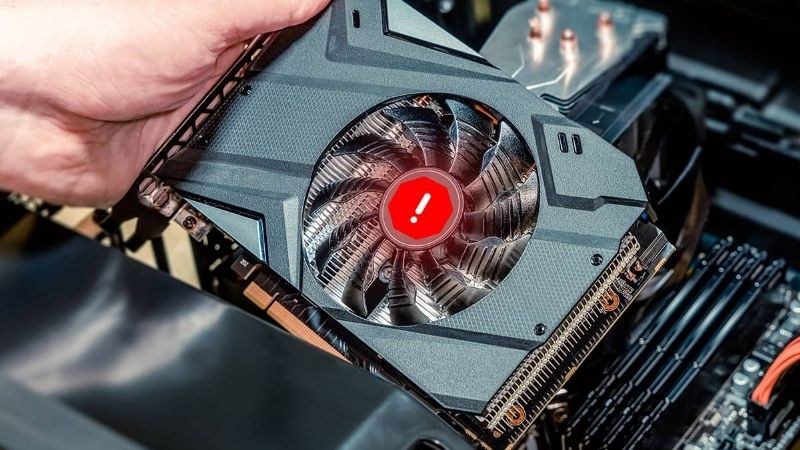
Work through the causes methodically and you will usually isolate whether your GPU artifacting is software, heat, or genuine hardware failure.
What Causes GPU Artifacting
Artifacting happens when the graphics card produces incorrect pixel data, and that can stem from several distinct sources. Heat, unstable clocks, failing memory, and driver conflicts are the usual suspects, and each leaves a slightly different fingerprint. Identifying which one you are dealing with is the first and most important step before changing anything.
Overheating and Thermal Stress
Heat is the most common trigger. When core or memory temperatures climb too high, the silicon can no longer hold stable values, and artifacts appear, often only under load in demanding games rather than on the desktop.
A free monitoring tool will confirm it quickly: core temperatures pushing past the high 80s in Celsius, or memory junction temperatures climbing well beyond that, point straight to thermals. Users frequently report that artifacting that only appears after twenty minutes of gaming is a textbook heat symptom.
If the numbers are high, the fix is cooling rather than replacement, which is good news for your wallet.
It also helps to distinguish core heat from memory heat. Many modern cards expose a separate memory junction temperature, and on cards with GDDR6X that figure can run far hotter than the core. Artifacts that scale with long sessions often track that memory number, so watch it specifically rather than the core temperature alone.
Unstable Overclocks and Voltage
An overclock that looked stable in a short test can produce artifacts hours later. Pushing core or memory clocks too far, or trimming voltage too aggressively, leaves the card unable to compute cleanly under sustained load.
This is the easiest cause to rule out: reset every clock and voltage offset to stock. If the artifacting vanishes, the overclock was the culprit, and you simply dial back your settings to a stable margin.
Factory overclocked models can occasionally ship slightly too aggressive, so even a card you never tuned yourself can benefit from a small underclock to confirm stability.
Failing VRAM and Driver Conflicts
When heat and clocks are ruled out, the remaining causes are failing video memory or a corrupted driver. Bad VRAM tends to produce consistent, repeatable artifacts in the same patterns, while driver issues are often more random and may clear on a restart.
Driver corruption is common after a messy update, especially when old and new files mix. Failing memory, by contrast, is a hardware problem that worsens over time and is the most serious diagnosis on this list.
Separating these two is the crux of the whole exercise, because one is fixed with software and the other usually is not.
A useful test here is to run the memory at a reduced clock. If lowering the memory speed by a few hundred megahertz makes the artifacts disappear or appear far less often, the VRAM is struggling, which points to heat or early degradation rather than a driver fault.
How to Fix GPU Artifacting
Once you have a sense of the cause, the fixes follow a clear order from cheapest and safest to most involved. Most artifacting that is not hardware failure responds to one of the steps below, so work through them in sequence before assuming the worst.
Reset Clocks and Update Drivers Cleanly
Start by returning all clocks and voltages to stock, then perform a clean driver reinstall. The reliable method is to remove the existing driver completely with a dedicated uninstaller in safe mode, then install the latest version fresh, which eliminates the file conflicts that cause many artifacts.
This combination resolves a large share of cases, and it costs nothing. Users repeatedly note that a clean install fixed artifacting they assumed was a dead card, so never skip this step.
Only after a clean driver and stock clocks still show artifacts should you move on to hardware-side fixes.
It is also worth checking whether a third-party tuning utility is loading a saved profile at startup. Many users forget an old overclock profile applies automatically on boot, reintroducing artifacts they thought they had fixed. Removing or resetting that profile ensures the card truly runs at stock while you test.
Improve Cooling and Repaste
If temperatures were the problem, address airflow first: clean dust from the heatsink and fans, and make sure the case has a sensible intake and exhaust path. A quality replacement thermal paste can drop core temperatures noticeably on an older card whose factory paste has dried out.
For cards several years old, a repaste and fresh thermal pads on the memory are among the most effective fixes, and the materials are inexpensive. A good thermal paste and a basic toolkit are worth keeping on hand for exactly this kind of maintenance.
Lowering temperatures often eliminates heat-induced artifacting entirely and extends the life of the card.
Pros and Cons of Repair vs Replacement
At some point the question becomes whether to keep fixing the card or replace it. Weighing the trade-offs honestly saves both money and frustration, so here is the balance sheet tied directly to artifacting.
Pros of repairing
- Cleaning, repasting, and driver fixes are cheap and often effective.
- Resetting an overclock costs nothing and resolves many cases.
- Keeps a still-capable card in service.
Cons of repairing
- If VRAM is failing, repairs only delay the inevitable.
- Time spent troubleshooting a dying card has diminishing returns.
- Intermittent artifacts can mask a fault that worsens later.
When Artifacting Means a Dying GPU
If stock clocks, clean drivers, and good temperatures still leave artifacts on screen, the diagnosis shifts toward hardware failure. Recognizing the signs early helps you plan a replacement before the card fails completely. Here is how to read the situation and what to do next.
Hardware Failure Warning Signs
Failing hardware tends to escalate. Artifacts that appear at stock settings, persist with a clean driver, and show even at idle or during boot point strongly to a dying GPU or failing memory. Crashes, black screens, and driver timeouts alongside the artifacts reinforce that conclusion.
If the artifacts appear before Windows even loads, in the boot logo or BIOS, that is a clear hardware signal, since no driver is involved at that stage. At that point, further software troubleshooting is unlikely to help.
Recognizing these signs saves you from chasing fixes that cannot work on a physically failing card.
Pay attention to whether the pattern is consistent. Failing memory tends to corrupt the same regions repeatedly, producing recognizable blocks in the same colors, whereas driver glitches are more random and transient. A consistent, repeatable artifact pattern at stock settings is one of the strongest signals that the silicon itself is at fault.
Choosing a Replacement GPU
When the diagnosis is a dying card, replacement is the realistic fix. Match the new card to your resolution and the rest of your system, and confirm your power supply and case can accommodate it before buying.
It is worth knowing that GPU prices remain elevated because AI demand keeps consumer supply tight, and meaningful relief is still years away. Waiting for a large price drop rarely pays, so it is usually better to buy a sensible card when you spot a fair price rather than hold out indefinitely.
Pick the tier that fits your gaming needs, then check the current price and replace the failing card before it dies entirely.
If you can still get a working image at low settings, consider whether a temporary underclock buys you time to shop carefully rather than buying in a rush. A dying card that is merely unstable, not yet dead, often limps along at reduced clocks long enough for you to find a sensible replacement at a fair price.
Preventing Future Artifacting
Prevention is mostly about heat and stability. Keep the case clean, maintain good airflow, and run a conservative overclock or none at all if you value reliability over a few extra frames.
A simple monitoring tool running in the background lets you catch rising temperatures before they cause artifacts. Many users set a custom fan curve to keep the card cooler under load, trading a little noise for longer hardware life.
These habits cost almost nothing and dramatically reduce the chance of artifacting returning.
If you do overclock, validate stability with a long, sustained test rather than a short benchmark. Artifacts from a marginal overclock often take a while to surface under heat, so a brief pass can give false confidence, while twenty to thirty minutes of consistent load is a far more honest check.
See More:
- GPU for Valorant 240fps
- GPU for Fortnite 240fps
- GPU for CS2 high fps
- GPU for Apex Legends
- RTX 4070 Cyberpunk FPS
Conclusion
GPU artifacting ranges from a trivial overclock issue to a sign of a dying graphics card, and the only way to know which you have is to work through the causes in order. Reset your clocks, reinstall drivers cleanly, check temperatures, and improve cooling before drawing any conclusions. If artifacts survive all of that, especially at idle or during boot, you are likely looking at hardware failure and a replacement. Keep your card cool and stable to prevent a recurrence, and if you do need a new GPU, check the current price and choose a card that fits your system and your games.
Top-Rated Picks


| Product | Brand | Rating | Reviews | Price |
|---|---|---|---|---|
| ARCTIC MX-4 (4 g) – Premium Performance Thermal Paste… | ARCTIC | ★ 4.8 | 104k | $4.99 |
| ARCTIC MX-4 (incl. Spatula, 4 g) – Premium Performanc… | ARCTIC | ★ 4.8 | 71.9k | $5.49 |
| Crucial 8GB DDR4 RAM 3200MHz (PC4-25600), Downclockab… | Crucial | ★ 4.8 | 62.8k | $74.99 |
| AMD Ryzen 5 5600X 6-core, 12-thread unlocked desktop … | — | ★ 4.8 | 30.2k | $177.60 |
| NVIDIA Shield Remote; Voice Search, Motion-Activated,… | — | ★ 4.7 | 10.6k | $25.99 |
Frequently Asked Questions
How do I confirm artifacting is a hardware fault?
Reset all overclocks, run a clean driver install, and then run a sustained load such as a 30 minute 3DMark Steel Nomad loop or FurMark while watching for corruption. If artifacts appear at stock settings, at healthy temperatures, and in a second computer, the card’s memory or die is degrading.
Does artifacting always mean the card is dying?
No. Unstable memory overclocks, overheated VRAM, corrupt drivers, and even a failing display cable can produce very similar symptoms. Eliminate each systematically. Only corruption that persists at stock clocks with good temperatures across multiple systems reliably indicates permanent hardware degradation.
Are used mining cards more likely to artifact?
They carry higher risk, mainly because memory ran hot for thousands of hours and thermal pads are usually degraded. Many still work fine after repasting and pad replacement. If you buy used, test immediately with a long memory-heavy benchmark while the return window is still open.
What temperatures should I check?
Core, hot spot, and memory junction. Core under about 80C is fine, hot spot should stay within roughly 15 to 20C of core, and GDDR6X memory should stay under 100C. Memory routinely running above 105C is the strongest predictor of artifacting on high-end Ampere and Ada cards.
Is it worth upgrading rather than repairing?
Usually, once a card is out of warranty and artifacting at stock clocks. Repair costs approach the price of a current mid-range card such as an RTX 5060 Ti 16 GB or 5070, which will also bring DLSS 4, better efficiency, and a fresh warranty rather than an uncertain fix.











Write Your Review
No reviews yet. Be the first to share your experience!