
- Top Pick: CORSAIR Vengeance RGB PRO DDR4 RAM 32GB (2x16GB) 3200MHz CL16-20-20-38 1.35V Intel AMD Desktop Computer Memory – Black (CMW16GX4M2C3200C16)
- Best Value: G.SKILL RipjawsV Series DDR4 RAM (XMP) 16GB (2x8GB) Up to 3200MT/s* CL16-18-18-38 1.35V Intel AMD Desktop Computer Memory U-DIMM – Black (F4-3200C16D-16GVKB)
- Premium Choice: G.SKILL Trident Z RGB Series DDR4 RAM (XMP) 32GB (2x16GB) Up to 3600MT/s* CL18-22-22-42 1.35V Intel AMD Desktop Computer Memory U-DIMM (F4-3600C18D-32GTZR)
What is VRAM and why does everyone keep blaming it the moment a game stutters? VRAM, short for Video Random Access Memory, is the dedicated high-speed memory built directly onto your graphics card, and it quietly decides whether your textures load cleanly or smear into a blurry mess. This step-by-step guide breaks down what VRAM does, how to check the amount you already have, and exactly how much you need for 1080p, 1440p, and 4K gaming in 2026 — all without the jargon.
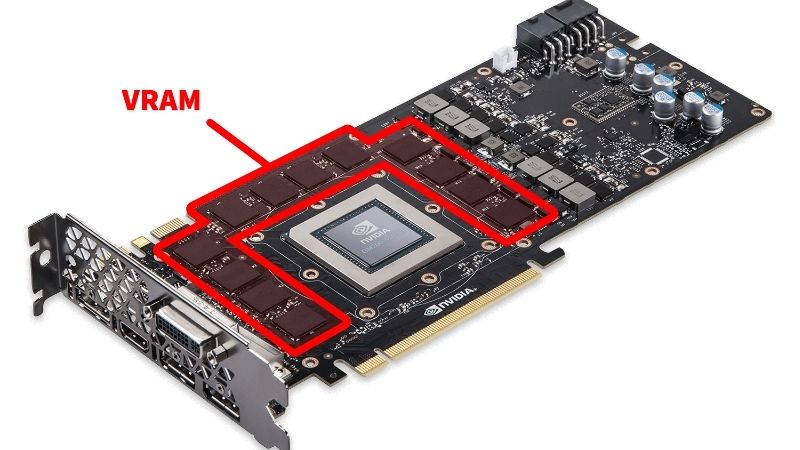
What Is VRAM and Why It Decides Your Frame Rate
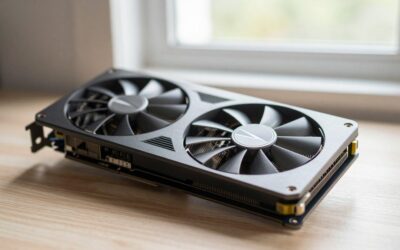
Before you spend a single dollar on a new graphics card, it helps to understand what this memory actually does. VRAM is not the same as the RAM plugged into your motherboard, and that difference matters far more than most buyers realize. Here is how it works and why it can quietly make or break your experience.
As an Amazon Associate we earn from qualifying purchases at no extra cost to you.




VRAM vs System RAM: The Core Difference
System RAM (your DDR4 or DDR5 sticks) feeds the CPU. VRAM feeds the GPU. They are two separate pools of memory running at very different speeds. A modern GDDR6 chip can move data at well over 500 GB/s, while typical DDR5 system memory sits closer to 60 GB/s. That huge gap is exactly why your graphics card keeps its own private memory instead of borrowing from the system.
In real life, this means a PC with 32 GB of system RAM but only 6 GB of VRAM can still choke in modern titles. The CPU has plenty of breathing room; the GPU does not. So when people ask how much VRAM do I need, they are really asking how much fast, GPU-local memory their games will demand.
Picture system RAM as a large warehouse and VRAM as the workbench right next to the artist. The workbench has to hold everything needed at this exact second — and the moment it overflows, the entire pipeline slows down.
How VRAM Actually Gets Used While You Play
For every frame your GPU draws, it pulls textures, shadow maps, geometry, and frame buffers straight out of VRAM. Higher resolutions and higher texture settings inflate all of these at once. A single 4K frame buffer is roughly four times the size of a 1080p one.
Ray tracing and high-resolution texture packs are the biggest memory hogs of all. Switching on ray tracing in a demanding title can add 1.5 GB to 2 GB of VRAM usage on its own. That is why a card which runs a game perfectly at medium settings can suddenly stutter the moment you push graphics to ultra.
When VRAM fills up, the GPU is forced to swap data over the PCIe bus to slower system memory. You feel this as sudden frame drops, texture pop-in, or a hitch every time you swing the camera around.
GDDR6, GDDR6X, and GDDR7 Explained
Not all VRAM is equal. The number on the box (say, 12 GB) tells you capacity, but the memory type tells you speed. GDDR6 is the common baseline, GDDR6X pushes higher bandwidth, and GDDR7 — now shipping on the newest NVIDIA cards — raises the ceiling again.
NVIDIA also pairs this raw memory with its own software tricks. Technologies like texture streaming and neural texture compression aim to fit more visual detail into the same amount of VRAM, and the company keeps refining them through driver updates. In practice, an 8 GB card today can behave better than an 8 GB card from three years ago purely because of optimization.
Even so, no compression trick fully replaces having enough physical memory. Capacity sets the hard ceiling; the memory type and software simply decide how efficiently you reach it.
How to Check the VRAM You Already Have — Step by Step
You do not need to crack open your case to find out what you are working with. Checking your VRAM takes a couple of minutes and tells you instantly whether an upgrade is overdue. Here is everything you need and the exact steps to follow.
What You Will Need Before You Start
The good news is that checking VRAM costs nothing and requires no special hardware. Most of these are free tools already sitting on your PC or one quick download away.
- Windows Task Manager — built in, and it shows your dedicated GPU memory in seconds.
- GPU-Z or the NVIDIA app — free monitoring tools that report live VRAM usage while you game.
- A reliable graphics card upgrade, if your numbers come up short — for heavy 1440p and 4K play, a card with at least 12 GB to 16 GB of VRAM, such as a current-generation NVIDIA RTX model, gives you real headroom for the next few years.
If you decide an upgrade makes sense, match the card to your power supply and case first — a high-VRAM card often draws 250 W or more and can stretch beyond 300 mm in length.
Step-by-Step: Reading Your VRAM Usage
Follow these steps in order to see both your total VRAM and how much your games actually consume.
- Open Task Manager. Press Ctrl + Shift + Esc, then click the Performance tab.
- Select your GPU. Look for “Dedicated GPU memory” — that total figure is your VRAM capacity.
- Launch a demanding game and play for a few minutes at your normal settings.
- Alt-Tab back and watch the graph. If dedicated memory sits pinned near the maximum, VRAM is your bottleneck.
- Lower texture quality by one notch and recheck. If the stutter disappears, you have confirmed a VRAM limit rather than a raw-power limit.
If your usage hovers well below the maximum, your card has room to spare and a VRAM upgrade would simply waste money. The numbers, not the marketing, should drive this decision.
Pros and Cons of Buying for More VRAM
More VRAM sounds like an easy win, but it is a trade-off worth weighing carefully against price and your actual resolution. Knowing the real upsides and downsides keeps you from overspending.
On the plus side, extra VRAM future-proofs you against rising texture budgets, lets you enable ray tracing and high-res texture packs without stutter, and protects multitasking setups where the GPU also handles video editing or AI workloads. For 4K gaming, generous VRAM is close to mandatory.
On the downside, VRAM is only useful up to the point your GPU core can keep pace. Paying for 16 GB on a weak chip will not raise frame rates if the processor is the real limit. High-VRAM cards also cost more, run hotter, and draw more power — genuine concerns for a small case or a modest power supply.
How Much VRAM You Need at Each Resolution in 2026
There is no single right answer here, because VRAM demand scales with resolution, in-game settings, and the kind of titles you play. These are realistic targets for 2026 games, followed by an honest look at how today’s memory market should shape your timing.
1080p, 1440p, and 4K VRAM Targets
For 1080p gaming at high settings, 8 GB still works for most titles, though a handful of the heaviest games now brush against that limit. For comfortable 1440p gaming, aim for 12 GB. For 4K gaming with ray tracing, 16 GB is the sensible floor, and the most demanding titles will happily use even more.
Your monitor matters just as much as the card. Running an 8 GB GPU on a 4K display is a recipe for texture pop-in, while the same card on a 1080p panel may never break a sweat. Match the card to the screen you actually own, not the one you might buy someday.
If you tend to keep hardware for four or five years, buy one tier above your current needs. Texture sizes only grow, and the card that feels generous today will feel ordinary by the time you replace it.
Why Rising Memory Prices Change the Math Right Now
Timing has rarely mattered more, because the memory market is in an unusual spot. Laptop and PC component prices have been trending upward, and current forecasts expect them to keep climbing. Since VRAM is built from the same memory chips facing this pressure, higher memory costs feed directly into graphics card prices.
There is some genuinely good news, but it is mild and a little distant. The steep price climb of late 2025 has paused, and a few hardware makers — Framework among them — have reported a stretch of relative stability. The catch is that those same makers are still warning of further volatility, so this calm is best read as a breather, not an all-clear.
New supply is also slowly opening up. PC makers can now source DDR5 from Chinese suppliers such as CXMT, and Micron is building two new plants in Idaho to expand output. The problem is the calendar: those Idaho plants are not expected to come online until 2027 or 2028. In short, prices have flattened rather than fallen, and real relief is still years away.
So what does this mean for your VRAM decision? If your readings already show your card maxing out, waiting for a dramatic price drop is a gamble that may not pay off before 2027. Buying a higher-VRAM card now — while prices are at least stable instead of spiking — shields you from the next upward swing and from the steady creep of texture budgets. If you can comfortably afford the capacity you need today, locking it in is the lower-risk move.
Pro Tips and Mistakes to Avoid
A few simple habits separate buyers who squeeze real value out of their VRAM from those who quietly overspend.
- Do not chase capacity alone. A balanced card with a strong core and 12 GB beats a weak chip with 16 GB for actual frame rates.
- Match power and clearance first. Confirm your power supply wattage and case length before committing to a high-VRAM card.
- Use DLSS and frame generation. NVIDIA’s AI upscaling lowers the internal render resolution, which can ease VRAM pressure while keeping the image sharp.
- Recheck after driver updates. Memory optimization improves over time, so a card that felt tight last year may have more headroom now.
Once your own numbers point to a clear VRAM shortfall, the fix is refreshingly simple — and the right graphics card with enough memory headroom is well worth comparing against today’s listings before the market shifts again.
See More:
- GPU pink screen
- Nvidia Control Panel missing
- Nvidia Control Panel not opening
- GeForce Experience won’t open
- Nvidia app won’t install
Final Thoughts: Getting Your VRAM Right in 2026
Now that you know what is VRAM and how to measure it, the decision becomes far less intimidating. VRAM is the dedicated, high-speed memory that determines whether your textures load cleanly and your frame rate holds steady — and the right amount depends on your resolution, your settings, and how long you plan to keep the card.
Check your current usage, match the capacity to your screen, and weigh the memory market before you buy. With prices stable for now but real relief still years off, a card with enough VRAM headroom is one of the smartest long-term investments you can make for your gaming PC. When your own readings confirm it is finally time, choosing a higher-capacity graphics card today is the surest way to keep your games running smoothly for years to come.
Top-Rated Picks


| Product | Brand | Rating | Reviews | Price |
|---|---|---|---|---|
| ARCTIC MX-4 (4 g) – Premium Performance Thermal Paste… | ARCTIC | ★ 4.8 | 104k | $4.99 |
| ARCTIC MX-4 (incl. Spatula, 4 g) – Premium Performanc… | ARCTIC | ★ 4.8 | 71.9k | under $10 |
| Crucial 8GB DDR4 RAM 3200MHz (PC4-25600), Downclockab… | Crucial | ★ 4.8 | 62.8k | under $80 |
| AMD Ryzen 5 5600X 6-core, 12-thread unlocked desktop … | — | ★ 4.8 | 30.2k | under $200 |
| NVIDIA Shield Remote; Voice Search, Motion-Activated,… | — | ★ 4.7 | 10.6k | under $30 |
Frequently Asked Questions
What does VRAM store?
Textures, geometry buffers, shadow maps, the frame buffer and depth buffer, shader data, ray tracing acceleration structures and any AI model weights used by upscaling. Textures are usually the largest single component, which is why texture quality is the setting most affected when a card runs short of memory.
What are the symptoms of running out of VRAM?
Sudden stutters and frame time spikes rather than a steady low frame rate, textures visibly loading in late or staying blurry, hitching when the camera turns quickly, and in extreme cases missing geometry or a crash. Average frame rate counters often look fine while the experience feels broken.
Is VRAM the same as system RAM?
No. VRAM sits on the graphics card, uses GDDR or HBM memory on a very wide bus, and delivers hundreds of gigabytes per second. System RAM uses DDR5 on a narrower bus at roughly 90GB/s. When VRAM fills, data spills into system RAM over PCIe, which is dramatically slower.
Can I increase my VRAM in Windows settings?
Not for a dedicated graphics card, since the capacity is fixed in hardware. Shared GPU memory shown in Task Manager is a fallback allocation from system RAM, not real VRAM, and using it hurts performance. Only integrated graphics allow adjusting the memory reservation, usually through a BIOS setting.
How much VRAM should a new card have in 2026?
Treat 12GB as the sensible floor for a new mid-range purchase and 16GB as the target if you game at 1440p or higher with ray tracing. Because memory cannot be upgraded later and games keep growing, capacity is the specification most likely to determine how long your card stays usable.
Ready to decide? Our #1 pick for 2026 is the ARCTIC MX-4 (4 g) – Premium Performance Thermal Paste….
Live price & availability on Amazon.





Write Your Review
No reviews yet. Be the first to share your experience!