
GPU power limit throttling happens when your card runs into its power ceiling and pulls back its clocks to stay within budget, costing you performance even though temperatures look perfectly fine. Monitoring tools flag it with a performance cap reason of power rather than heat, which is the clearest way to tell it apart from ordinary thermal throttling on a hot card. The reassuring news, echoed across countless user reports, is that this is usually a matter of conservative limits or power delivery rather than a faulty card, and it is often fixable for free. This review-style guide ranks the real causes and the fixes users rate highest so you can reclaim the lost performance.
What GPU Power Limit Throttling Means
Power limit throttling is your card obeying a budget, not breaking down. The three usual causes are a power limit that simply caps your clocks, a conservative default power target or BIOS setting, and a power supply or cable that cannot deliver what the card wants. Recognising which one applies is the difference between a free slider adjustment and a hardware change, so it is worth pinning down before you do anything or spend a cent.
As an Amazon Associate we earn from qualifying purchases at no extra cost to you.


How the Power Limit Caps Your Clocks
Every modern GPU has a power limit that defines the maximum it is allowed to draw. When demanding scenes push the card to that ceiling, it cannot draw any more power, so it lowers clocks to stay within budget, and you feel that as reduced or fluctuating frame rates.
This is entirely normal behaviour, but it becomes a problem when the limit is set lower than your cooling and power supply could comfortably support. The card has the thermal headroom to go faster; the power budget is simply holding it back.
Users who watched their monitoring overlay often saw the cap reason flip to power exactly as their clocks dropped, confirming the limit rather than heat was the constraint all along. That single readout saves people from wasting time on cooling fixes that would never have helped.
Default Power Targets and Conservative BIOS Settings
Many cards ship with a conservative default power target, and some models are tuned cautiously in BIOS to prioritise efficiency and quiet running. That caution keeps the card cool and quiet but leaves performance on the table when you would rather have the clocks.
This is especially common on compact or budget-oriented card designs, where a tighter power budget is part of how they stay small and cool. The silicon is capable of more; the factory settings simply do not unlock it.
Raising the power target slider in a tuning tool, where the card allows it, lets the GPU use more of its available headroom and hold higher clocks under load. On many cards this single change recovers a noticeable slice of performance that the factory settings were quietly leaving unused.
Power Supply and Cable Shortfalls
Sometimes the real limit is upstream of the card entirely. An undersized or aging power supply, or a poor power cable, can prevent the card from reliably drawing what it needs, leaving it throttling against an effective ceiling lower than its rated limit.
The tell-tale sign is throttling that appeared after fitting a hungrier card to an older supply, or instability under load alongside the clock drops. Users who upgraded a marginal unit frequently found their power throttling ease once the card could finally draw clean, stable power.
Proper dedicated power cables matter as much as wattage here, since daisy-chained adapters can struggle to deliver the spiky loads a GPU demands at full tilt. Using a separate cable for each power connector is a small detail that resolves a surprising number of these cases.
Step-by-Step Fixes That Lift the Limit
With the cause identified, the matching fix is usually quick and often free. Here are the methods buyers and builders rate most highly, ordered from the least disruptive to the most involved, so you can stop the moment your clocks hold steady without slamming into the power ceiling.
Raising the Power Target Slider Safely
The highest-value first step, where your card supports it, is raising the power target slider in a tuning utility. Increasing the power limit gives the GPU more budget to maintain higher clocks under load, directly addressing the most common cause of power throttling.
This is safe within the slider’s range, since the card still respects its thermal and voltage protections, and it requires no hardware changes at all. Users repeatedly report meaningful, steady performance gains from simply lifting the power target to its maximum allowed value.
It takes seconds, costs nothing, and is reversible, which makes it the natural first thing to try before considering any upgrade, and it is the step most often overlooked by people who assume their card is simply slow.
Fixing Power Delivery and Cables
If the limit is really a power delivery shortfall, the fix is in your cabling and supply. Confirming every PCIe power connector is a proper dedicated cable, firmly seated, removes a common and easily missed cause of effective power throttling.
Replacing daisy-chained adapters with individual dedicated cables, and verifying your power supply comfortably exceeds the card’s needs, lets the GPU draw cleanly without sagging. Users who corrected their cabling often saw throttling ease and stability improve together.
These checks cost little or nothing and protect you from buying a new card to fix what was really a cable or supply problem, which is one of the most common and most avoidable mistakes in the reviews.
Pros and Cons of Raising the Power Limit
Lifting the power limit is the standard cure for power throttling, but it is worth weighing the trade-offs honestly before you push the slider all the way up. It is not entirely free of consequences.
On the plus side, raising the power target restores higher, steadier clocks for free, often recovering noticeable performance with no instability when done within the card’s own range. Users with well-cooled cards consistently report clean gains from this single adjustment.
On the downside, more power means more heat and a louder card, and on a marginal power supply it can expose an already weak unit. If your cooling or supply is borderline, lifting the limit may simply shift the bottleneck rather than remove it, so it pairs best with adequate cooling and a healthy power supply.
Hardware and Tools Worth Considering
Most power throttling is solved with a slider or a cable, but some cases need a hardware change or a few inexpensive tools to fully resolve. Knowing whether the supply, your monitoring, or the card itself is the real limit keeps your spending focused on the fix that actually works.
When the Power Supply Caps Your Headroom
If your power supply cannot keep up, no slider adjustment will help, and a quality unit with ample headroom becomes the fix. A power supply rated comfortably above the card’s draw, from a reputable maker, delivers the stable, generous power a hungry GPU needs to stop throttling against an artificial ceiling.
Buyers who moved from a marginal or aging unit to a well-reviewed, properly sized power supply frequently report their clocks holding higher and steadier, with the throttling easing noticeably.
Matching the wattage to your card with room to spare turns a recurring limit into a permanent fix and steadies the whole system at once, paying off across every component rather than the GPU alone.
Monitoring Tools That Reveal the Throttle
Good monitoring is what tells power throttling apart from heat in the first place. Free overlays and utilities show your clocks, power draw, temperatures, and the all-important cap reason at a glance, so you can confirm exactly what is limiting the card.
Pairing them with a reliable USB flash drive holding clean drivers, such as a well-rated high-speed model, means you can roll back instantly if a driver update ever changes your power behaviour for the worse.
Together these tools turn a confusing performance drop into a diagnosis you can read in seconds, which is exactly why experienced users keep an overlay running rather than guessing at the cause.
When a Higher-Tier Card Removes the Ceiling
If your card is several generations old or simply too modest for your targets even with its limit maxed, a higher-tier upgrade may be the honest answer. A current-generation NVIDIA GPU brings a far higher power budget, more efficient silicon, and the headroom to hold high clocks where an older card constantly bumps the ceiling.
Reviewers upgrading from older or entry-level cards frequently describe the throttling simply disappearing, replaced by steady clocks and a major leap in performance with strong ray tracing and DLSS support.
If an upgrade was already tempting, a card that throttles against its limit in every demanding scene is the practical push to compare current graphics cards and remove the ceiling for good, so it is worth checking today’s deals.
See More:
- GPU pink screen
- Nvidia Control Panel missing
- Nvidia Control Panel not opening
- GeForce Experience won’t open
- Nvidia app won’t install
Final Take on GPU Power Limit Throttling
GPU power limit throttling sounds technical but is usually one of the more straightforward performance issues to address. The consistent lesson from user reports is to confirm the cap reason with monitoring first, then lift the power target, sort out cabling, and verify the power supply before assuming anything is wrong with the card.
Raise the slider where your card allows it, fix any power delivery shortfall, and reserve a new card or power supply for cases where the hardware genuinely cannot keep up. Work through it in that order and gpu power limit throttling becomes a quick, often free adjustment rather than a permanent cap on your performance.
Top-Rated Picks


| Product | Brand | Rating | Reviews | Price |
|---|---|---|---|---|
| Cable Matters 8 Pin GPU Power Cable – 2ft, 8Pin PSU(E… | CableMatters | ★ 4.5 | 592 | $9.99 |
| Fasgear 16pin GPU Cable to 4X 8 Pin Pcie Extension – … | Fasgear | ★ 4.5 | 240 | $29.99 |
| PCIE 5.0 16Pin GPU Power 12VHPWR Extension Cable, 16P… | Bangfun | ★ 4.5 | 86 | $19.99 |
| YEZriler 8 Pin PCIe Cable for EVGA Power Supply, PCIe… | MoreOptionsForYou! | ★ 4.2 | 99 | $9.99 |
| (2-Pack) COMeap 12 Pin GPU Cable, Dual PCIe 8 Pin Fem… | COMeap | ★ 4.6 | 39 | $13.99 |
Frequently Asked Questions
How do I confirm my card is power throttling and not thermal throttling?
Open GPU-Z, run the render test, and read the Perfcap Reason column. Pwr means you are hitting the board power limit, Thrm means temperature, and VRel or VOp mean voltage reliability limits. HWiNFO64 also exposes Performance Limit sensors that log which cap engaged over an entire gaming session for later review.
Is power limit throttling harmful?
No, it is the card working as intended. Boost algorithms deliberately push clocks until they hit power, thermal, or voltage ceilings, then settle. Losing 30 to 60 MHz to a power cap costs one or two percent performance. It only matters if you are chasing benchmark scores or if aggressive capping causes visible clock oscillation.
Can I raise the power limit safely?
Yes, within the range the vendor BIOS allows, typically 105 to 133 percent in MSI Afterburner. The card will not exceed safe voltage, and protections remain active. Ensure your PSU has headroom first: raising an RTX 4080 from 320W to 400W meaningfully increases transient spikes and demands a quality 850W unit.
Why does my card power throttle more in summer?
Higher intake air temperature raises silicon temperature, and warmer silicon leaks more current, so the same clock costs more watts. That pushes the card into its power cap sooner. Improving case airflow or lowering the temperature target usually restores winter-level clocks without any other change.
Does undervolting help against power throttling?
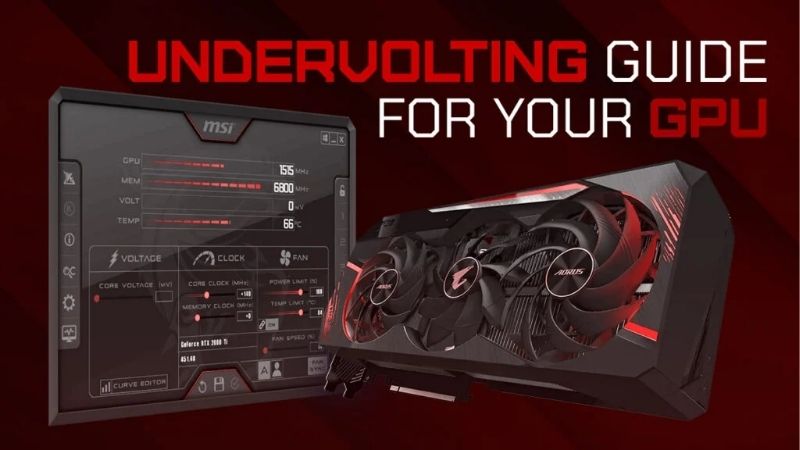
It is the best answer. By setting a fixed voltage such as 0.925V and locking a frequency point on the curve, you cut wattage enough that the card no longer hits its limit and can hold a higher sustained clock than it did at stock. Many users see both lower temperatures and slightly higher average frame rates.











Write Your Review
No reviews yet. Be the first to share your experience!