
GPU thermal throttle temp is the exact temperature at which your graphics card stops running at full speed and deliberately slows itself down to protect the silicon. If your frame rates suddenly dip mid-game or your card feels like it loses power under load, this is almost always the cause. Drawing on a synthesis of user reports, manufacturer specs, and the cooling products owners rate most highly on Amazon, this review explains what the throttle point really is, what number is actually safe, and how to keep your card from ever reaching it.
Understanding the GPU Thermal Throttle Temperature
Here is the quick answer most people come for: on the majority of modern Nvidia cards, the core starts throttling at around 83 degrees Celsius and reaches a hard ceiling near 88 to 90 degrees, while memory can safely run hotter, often up to about 105 degrees. Every GPU has this built-in safety ceiling, and when the core or memory reaches it, the card lowers its clock speed and voltage to shed heat. That is normal, protective behavior, not a defect, but living at the throttle point means leaving performance on the table, which the rest of this guide helps you reclaim.
As an Amazon Associate we earn from qualifying purchases at no extra cost to you.


What the Throttle Point Actually Is
On most current Nvidia cards, the core typically begins throttling around 83 degrees Celsius, with a hard maximum near 88 to 90 degrees before more aggressive cuts kick in. Memory junction temperatures can safely run higher, often rated up to around 105 degrees.
Hitting these numbers occasionally under heavy load does not damage your card; the throttle exists precisely to keep it safe. The concern is sustained throttling, which means you are losing frames you paid for.
It also helps to separate the two kinds of throttling. Thermal throttling is tied to the temperatures above, while power throttling happens when the card hits its power limit rather than a heat limit. Both can lower clocks, but only thermal throttling is fixed by better cooling, so identifying which one you are seeing tells you whether new fans and paste will actually help.
Safe Versus Concerning Temperatures
As a practical guide, a load temperature in the 60s to mid-70s Celsius is excellent, the high 70s to low 80s is normal and fine, and the mid-80s is the zone where throttling starts. Anything pinned at 87 degrees or above under normal gaming points to a cooling problem worth fixing.
User reports back this up: owners who keep load temps under about 80 degrees almost never mention throttling, while those reporting 85-plus frequently describe stutters and clock drops.
It also helps to know that ambient room temperature shifts everything by a few degrees. A card that sits at 78 degrees in winter can climb past 84 in a hot summer room with no change to your setup. If your numbers hover near the limit, plan for the warmest day of the year rather than the coolest, so summer does not turn a borderline card into a throttling one.
How to Read Your Own Temperatures
Free monitoring tools let you watch core and memory temps in real time. Run one in the background during a demanding game and note your peak numbers after 20 to 30 minutes, when the card is fully heat-soaked.
If your peaks sit comfortably below the throttle point, you are in good shape. If they kiss the ceiling, the rest of this review covers the gear that brings them back down.
One detail many people miss is the difference between a quick benchmark and a long session. A card can pass a five-minute test fine, then throttle after 40 minutes once the case has fully heat-soaked. Always judge your temperatures on a sustained, real-world session rather than a short burst, because the long run is where throttling actually shows up and frames quietly disappear.
What Causes Throttling and How to Stop It
Reaching the throttle temp is rarely the card’s fault on its own. It is usually a combination of dust, poor case airflow, aging thermal paste, or an aggressive overclock. The encouraging part is that almost every cause has a cheap, effective fix, and owners who address them report dramatic drops in load temperature.
Dust, Paste, and Airflow Fixes
The most common culprit is a clogged heatsink. Reviewers who cleaned a dusty card report temperature drops of 5 to 15 degrees, often enough to eliminate throttling entirely. A good air blower and brush kit pays for itself here.
Old thermal paste is the second offender. Owners who repasted older cards frequently saw a 5 to 10 degree improvement. A quality thermal paste, like the well-reviewed options linked in this article, is a tiny investment for a meaningful gain.
Pay attention to the memory junction temperature as well, not just the core. On some cards the memory runs much hotter than the core and is the first thing to throttle. Reviewers who replaced the small thermal pads over the memory chips reported the steepest drops of all, sometimes 15 degrees or more on the memory junction, which restored stability in memory-heavy workloads.
Case Cooling and Fan Upgrades
A card can only stay cool if the case feeds it fresh air. Builds with weak airflow trap heat, so adding intake and exhaust fans is one of the most effective upgrades. Reviewers consistently credit better case fans with lowering GPU temps by several degrees.
High-static-pressure fans designed for airflow earn the strongest praise. If your case is starved for air, the recommended fan kits in this review are a straightforward way to feed your GPU and push the throttle point out of reach.
Balance matters as much as fan count. A case with strong intake but weak exhaust traps hot air around the card, so aim for roughly even airflow in and out. Reviewers who simply added one rear or top exhaust fan to a intake-heavy build often reported a few degrees of improvement on the GPU with no other changes, which is an easy win for anyone fighting the throttle ceiling.
Pros and Cons of Pushing Near the Throttle Temp
Some users run hot on purpose to chase maximum clocks. Here is the honest trade-off based on owner feedback:
- Pros: a card running just below its throttle point is delivering peak rated performance, and the safety system guarantees it will never overheat to the point of failure.
- Cons: sustained high temperatures raise fan noise, can shorten the lifespan of fan bearings and paste, and leave zero headroom, so any added heat causes immediate throttling and frame drops.
The community consensus is to aim for a comfortable buffer below the throttle temp rather than living right at the edge. A 10-degree cushion keeps performance steady without the noise and wear.
Building a Cooler Setup That Avoids Throttling
If your card flirts with its throttle temp, the fix is almost always within reach and rarely requires a new GPU. The goal is simple: lower the peak load temperature so the card never has to slow itself down. Owners who combine a few of these upgrades report the most reliable results.
The Highest-Impact Upgrades
Cleaning plus fresh paste plus better case airflow is the trio that fixes the vast majority of throttling complaints. Reviewers who did all three often report going from constant mid-80s throttling to stable low-70s.
If you want one starting point, begin with a thorough clean and a repaste. It is the cheapest fix and frequently the most effective, and the tools you need are linked throughout this review.
When Cooling Upgrades Are Not Enough
Occasionally a card runs hot due to a factory paste issue or a damaged cooler. If a clean, repaste, and airflow boost still leave you throttling, the problem may be the card itself.
In those cases, owners suggest checking warranty coverage before doing anything drastic. But for the overwhelming majority of users, the standard cooling fixes solve the problem completely.
Before assuming a hardware fault, rule out the simple stuff one more time: confirm your case fans are actually spinning, that no cable is blocking airflow, and that your fan curve is not set too conservatively in software. A surprising number of throttling reports trace back to a fan profile that simply never ramps up, which a two-minute settings change can fix for free.
Monitoring to Catch Throttling Before It Costs You
The smartest owners do not wait for stutters to tell them something is wrong. They keep a lightweight monitoring overlay running and glance at core and memory temperatures during demanding sessions. Catching a slow upward creep over weeks lets you clean or repaste before throttling ever steals frames.
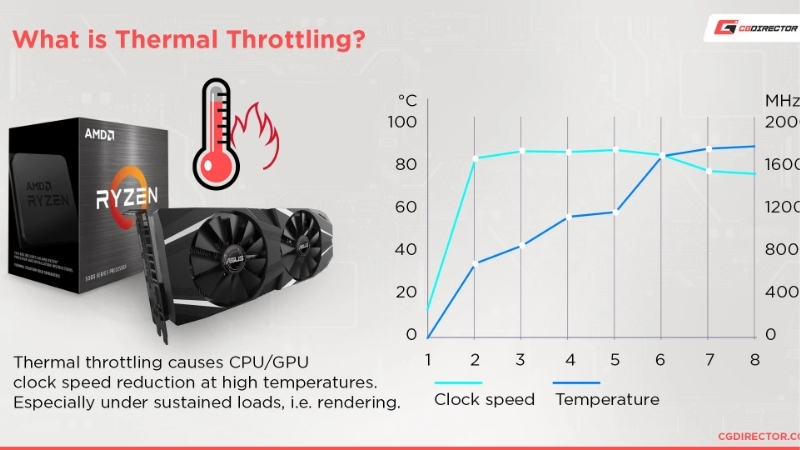
Watch two numbers in particular: the core temperature and the clock speed. If you see the clock drop at the exact moment the temperature hits the mid-80s, that is throttling in action, captured live. It removes all guesswork about whether heat is the culprit.
Setting a personal alarm at, say, 82 degrees gives you a comfortable early warning. Reviewers who monitor proactively rarely report sudden performance loss, because they fix the cause while it is still small and cheap to address.
Keeping your card below its throttle point is mostly about having the right cooling gear ready to go. If your GPU is running hotter than it should, take a look at the recommended air blower, thermal paste, and high-airflow case fans in this review and put together the kit that brings your temperatures back into the safe zone.
See More:
Conclusion
Your gpu thermal throttle temp is a safety feature, not a flaw, but living at that ceiling means giving up performance you already paid for. Aim for load temps in the 60s and 70s, keep a healthy buffer below the mid-80s, and tackle the common causes: dust, old paste, and weak airflow. With a clean heatsink, fresh paste, and a few good fans, your card will hold its clocks and stay quiet. Check the cooling recommendations above and give your GPU the headroom it needs.
Top-Rated Picks


Save $0.99


| Product | Brand | Rating | Reviews | Price |
|---|---|---|---|---|
| ARCTIC MX-4 (4 g) – Premium Performance Thermal Paste… | ARCTIC | ★ 4.8 | 104k | $4.99 |
| ARCTIC MX-4 (incl. Spatula, 4 g) – Premium Performanc… | ARCTIC | ★ 4.8 | 71.9k | $5.49 |
| Crucial 8GB DDR4 RAM 3200MHz (PC4-25600), Downclockab… | Crucial | ★ 4.8 | 62.8k | $74.99 |
| AMD Ryzen 5 5600X 6-core, 12-thread unlocked desktop … | — | ★ 4.8 | 30.2k | $177.60 |
| NVIDIA Shield Remote; Voice Search, Motion-Activated,… | — | ★ 4.7 | 10.6k | $25.99 |
Frequently Asked Questions
At what temperature does a graphics card start throttling?
Modern NVIDIA cards begin reducing boost clocks progressively from around 83 to 88 degrees Celsius on the core sensor, and enforce a hard limit near 90 degrees. AMD cards typically allow higher junction readings before intervening. Throttling is a designed safety behaviour, not a fault, and it protects the silicon long before damage becomes possible.
Is throttling actually harmful?
It does not damage the card, but it costs performance and signals a cooling problem. Boost algorithms shed clock speed in small steps as temperature rises, so a card sitting at its limit may run several hundred megahertz below its advertised boost. Fixing airflow usually recovers that performance without any tuning of the card itself.
What is the difference between core, hotspot and memory temperature?
Core is the averaged die reading, hotspot is the single hottest point measured across the die, and memory junction reports the temperature of the GDDR modules. Hotspot typically runs ten to fifteen degrees above core. A gap much larger than twenty degrees usually points to poor mounting pressure or degraded thermal paste.
How do I stop my card from throttling?
Start with case airflow: add front intake, clear dust filters, and make sure the card is not pressed against a glass panel. Then set a more aggressive fan curve so the fans ramp earlier rather than reacting after temperature has climbed. Finally, consider an undervolt, which reduces heat output at the source.
Does throttling mean I need to repaste the card?
Only if the hotspot delta is unusually large or the card is several years old. On a newer card, throttling almost always traces to case ventilation or a conservative fan curve. Repasting a card still under warranty may void it, so exhaust the airflow and tuning options before opening the cooler.











Write Your Review
No reviews yet. Be the first to share your experience!