
GPU crash on startup is one of the most alarming faults a PC can throw at you, because it strikes before you have even reached the desktop. You might see a black screen at boot, a driver crash the instant Windows loads, a frozen logo, or a full restart loop that never settles. The good news, repeated across countless user reports, is that startup crashes usually come down to a handful of well-understood causes spanning drivers, power, and seating, most of which are fixable without immediately buying a new card. This review-style guide ranks those causes and fixes, and flags when hardware really is the answer.
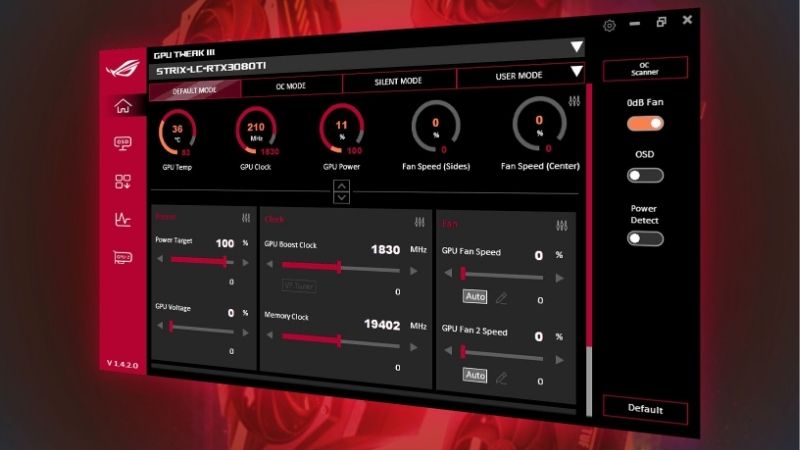
Why Your GPU Crashes on Startup
A crash at startup almost always traces back to one of three areas: a driver conflict or bad update, insufficient or failing power delivery, or an unstable overclock, overheating, or a loose card. Pinning down which one applies is the difference between a free software fix and a hardware purchase, so it pays to recognise the signature of each before you start swapping parts and spending money you may not need to.
As an Amazon Associate we earn from qualifying purchases at no extra cost to you.





Driver Conflicts and Bad Updates
The most common software cause is a driver that crashes the moment it initialises at boot. A flawed update, a conflict with a previous version left half-removed, or a corrupted driver file can all bring the system down right as the GPU comes online during startup.
Users frequently report that crashes began immediately after a driver update, with the system booting perfectly until that exact change. That timing is the clearest possible fingerprint of a driver cause rather than failing hardware, and it points straight to a clean reinstall as the fix.
Booting into safe mode, which loads only a basic display driver, usually lets you in to clean out the bad driver and install a stable one, resolving the crash for a large share of cases. If safe mode itself boots without crashing, that alone is strong evidence the fault is software rather than the card.
Insufficient or Failing Power Delivery
Power is the second major cause and one of the most overlooked. Modern GPUs draw heavy, spiky loads the instant they initialise, and a power supply that is undersized, aging, or connected with a poor cable can fail to deliver during that surge, crashing the system at startup.
The tell-tale sign is a crash that began after adding a more demanding card, or one that worsens as the power supply ages. Users who upgraded their GPU without upgrading an old, marginal power supply repeatedly traced their startup crashes to exactly this mismatch.
Checking that the power supply comfortably exceeds the card’s requirements, and that every power connector is the correct dedicated cable rather than a daisy-chained adapter, rules this cause in or out quickly.
Overclocks, Overheating, and Loose Seating
The third cause covers physical and tuning issues: an unstable overclock, a card running too hot, or a GPU not seated firmly in its slot. An overclock that seemed stable under light use can fail under the sudden initialisation load at boot, crashing the system before the desktop appears.
A card knocked loose during transport or a recent build can produce the same effect, since a poor connection in the PCIe slot causes the GPU to drop out the moment it draws power. Users who reseated a card after moving their PC often found the startup crashes vanished instantly.
Resetting any overclock to stock and confirming the card is firmly seated are free checks that eliminate two more common culprits in a couple of minutes. They are the kind of basic steps that are easy to skip yet account for a surprising share of solved cases.
Step-by-Step Fixes Users Rate Highest
With the cause narrowed down, the right fix is usually fast and inexpensive. Here are the methods buyers and builders rate most highly, ordered from the least disruptive to the most decisive, so you can stop the moment your PC boots cleanly to the desktop again.
Booting Safe Mode and Cleaning the Driver
The highest-value first step for a driver-related crash is a safe-mode cleanup. Booting into safe mode bypasses the crashing driver, letting you remove it completely with a dedicated uninstaller and then install a stable, known-good version cleanly.
This single process resolves the large majority of driver-caused startup crashes, since it eliminates both the bad driver and any corrupted remnants in one pass. Users facing a system that crashed on every normal boot consistently report safe mode as the route that finally let them fix it.
Because it touches no hardware and risks nothing physical, it is the natural first move whenever a recent driver update is the suspect.
Checking Power and Connections
If drivers check out, power and connections are next. Confirming that every PCIe power cable is a proper dedicated lead, firmly seated at both ends, removes one of the most common and easily missed causes of startup instability.
Reseating the GPU in its slot and verifying the power supply meets the card’s needs takes only a few minutes and rules out the physical culprits. Users who discovered a half-seated card or a marginal adapter cable frequently describe the crashes ending the instant the connection was corrected.
These checks cost nothing and protect you from buying parts to fix a problem that was really just a loose plug. The reviews are full of people who bought a new card only to find a reseated connector would have done the job.
Pros and Cons of Replacing the PSU vs the GPU
When the crash is hardware-driven, you often face a choice between a new power supply and a new graphics card. Each path carries trade-offs worth weighing carefully before you commit, since the wrong one wastes money on a problem it will not solve.
Replacing the power supply is the right call when an undersized or aging unit is starving the card during startup surges. It is the cheaper fix, it improves stability across the whole system, and users who upgraded a marginal unit often report not just the crashes ending but the PC feeling more reliable overall. The downside is that it does nothing if the GPU itself is failing.
Replacing the GPU is the definitive answer when the card is genuinely dying, but it is the more expensive route and overkill if a power supply was the real issue. Diagnosing carefully first is what keeps you from spending on the wrong component, which is the mistake the one-star reviews are full of.
Hardware Upgrades and Accessories
Startup crashes are often fixable in software, but some cases genuinely call for new hardware or a few inexpensive accessories. Knowing which upgrade actually addresses your cause keeps the spending targeted and effective rather than hopeful, and it ensures the money you do spend ends the crashes for good.
When a Stronger Power Supply Is the Fix
If your crashes trace to power, a quality power supply with ample headroom is frequently the most cost-effective cure. A unit rated comfortably above your card’s draw, from a reputable maker, delivers clean, stable power through the demanding startup surge that was crashing the system.
Buyers who moved from a cheap or aging unit to a well-reviewed, appropriately sized power supply consistently report rock-solid boots afterward. It is a fix that pays off across every component, not just the GPU.
Matching the wattage to your card with room to spare is the practical detail that separates a lasting fix from a repeat of the same problem.
Cooling and Cable Accessories That Help
For crashes tied to heat or poor connections, cooling and cabling upgrades are small spends with outsized impact. Better case airflow and fresh thermal paste keep temperatures in a safe range, while proper dedicated power cables remove the instability that daisy-chained adapters introduce.
Users who improved airflow or replaced makeshift power cabling with the correct leads frequently report startup stability returning alongside lower temperatures.
These accessories are inexpensive, improve the whole system, and often resolve crashes that looked far more serious than they really were, which is exactly why experienced builders try them before reaching for a replacement card.
When a New GPU Ends the Crashes
If your card is several generations old and crashing on startup despite clean drivers and solid power, the card itself may simply be failing. A current-generation NVIDIA GPU ends the crashes definitively, ships with a fresh warranty, and brings a generational leap in performance and features in the same move.
Reviewers replacing a failing card consistently describe the result as a clean break from the instability, with smooth boots and a major jump in capability for ray tracing and DLSS.
If an upgrade was already on your mind, a failing card is the practical push to compare current graphics cards and put startup crashes behind you for good, so it is worth checking today’s deals.
See More:
- GPU pink screen
- Nvidia Control Panel missing
- Nvidia Control Panel not opening
- GeForce Experience won’t open
- Nvidia app won’t install
Final Verdict on a GPU That Crashes on Startup
A GPU crash on startup looks like a disaster but is usually one of the more diagnosable faults you will face. The consistent message from user reports is to work through the causes in order: clean the driver in safe mode, verify power and connections, reset any overclock, and only then consider new hardware.
Diagnose before you buy, and you will almost always spend the least money for the most reliable result. Whether the answer turns out to be a clean driver, a firmer connection, a stronger power supply, or a new card, matching the fix to the real cause is how you stop a gpu crash on startup from ruining every boot.
Top-Rated Picks


| Product | Brand | Rating | Reviews | Price |
|---|---|---|---|---|
| ARCTIC MX-4 (4 g) – Premium Performance Thermal Paste… | ARCTIC | ★ 4.8 | 104k | $4.99 |
| ARCTIC MX-4 (incl. Spatula, 4 g) – Premium Performanc… | ARCTIC | ★ 4.8 | 71.9k | $5.49 |
| Crucial 8GB DDR4 RAM 3200MHz (PC4-25600), Downclockab… | Crucial | ★ 4.8 | 62.8k | $74.99 |
| AMD Ryzen 5 5600X 6-core, 12-thread unlocked desktop … | — | ★ 4.8 | 30.2k | $177.60 |
| NVIDIA Shield Remote; Voice Search, Motion-Activated,… | — | ★ 4.7 | 10.6k | $25.99 |
Frequently Asked Questions
Why does my PC crash right when Windows loads the GPU driver?
A crash at driver load usually means an unstable overclock applied at startup, a corrupt driver install, or marginal power delivery during the first heavy transient. Boot into Safe Mode, remove any Afterburner or vendor tuning software from startup, run Display Driver Uninstaller, then install a fresh driver before testing again.
Could a failing power supply explain startup crashes?
Very often. Aging capacitors reduce the ability to handle the current spike when the GPU initializes. If the system restarts or shuts off entirely rather than showing a driver error, suspect the PSU first. A modern RTX 4070 Ti or 5070 Ti class card wants a quality 750W unit with native PCIe cables.
Can Resizable BAR or Above 4G Decoding cause boot crashes?
They can on older motherboards with immature firmware. Enter BIOS, disable Resizable BAR temporarily, and confirm CSM is off while Above 4G Decoding is on. If stability returns, update the motherboard BIOS to the latest version and re-enable the features, since ReBAR is worth several percent in many games.
Is a dirty or loose PCIe slot a realistic cause?
Yes, and it is cheap to rule out. Reseat the card firmly, clean the gold fingers with isopropyl alcohol, and try a second x16 slot if the board has one. Heavy triple-slot cards also sag enough to break contact over time, which an anti-sag bracket permanently solves.
How do I tell a dying GPU from a software problem?
Test the card in a second system, or test a known-good card in yours. If crashes follow the card, the silicon, VRAM, or power stages are failing and replacement is the answer. If they stay with the system, focus on the PSU, motherboard slot, memory stability, and Windows install.











Write Your Review
No reviews yet. Be the first to share your experience!