
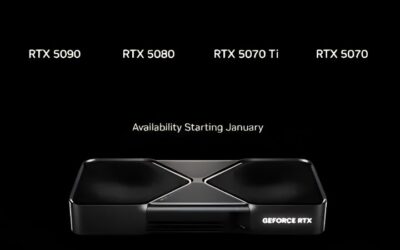
- Top Pick: msi Gaming RTX 5090 32G Lightning Z Graphics Card (32GB GDDR7, 512-bit, Extreme Performance: 2775 MHz, DisplayPort x3 2.1a, HDMI 2.1b, NVIDIA Blackwell Architecture)
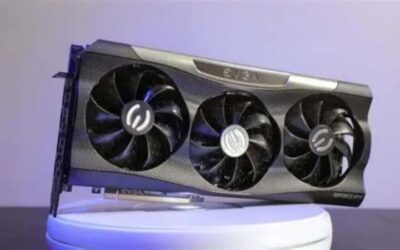
- Best Value: EVGA GeForce GTX TITAN Z 12GB GAMING, Fastest NVIDIA GPU Graphics Card 12G-P4-3990-KR
- Premium Choice: msi GeForce RTX 3070 Gaming Z Trio 8G LHR Graphics Card – 8GB GDDR6, Triple Fan Cooling, HDMI 2.1, DisplayPort (Renewed)

Prime
Best Seller
ASUS SFF-Ready Prime NVIDIA GeForce RTX 5070 Graphics Card (PCIe 5.0, 12GB GDDR7, HDMI/DP 2.1, 2.5-Slot, Axial-tech Fans, Dual BIOS), 3 Year Warranty


TechPowerUp GPU-Z is the free utility almost every PC builder ends up installing, and for good reason: it reveals everything about your graphics card in one tiny window. From the exact GPU chip and memory type to live temperatures, clocks, and power draw, it answers the questions that matter before an upgrade, during a game, or when checking that a cheap card is genuine. This review breaks down what GPU-Z does, how owners actually use it, and whether it deserves a spot in your toolkit in 2026.
What TechPowerUp GPU-Z Does
GPU-Z is a lightweight, free diagnostic tool from TechPowerUp that reads and displays detailed information about your graphics card. It needs no real installation, runs from a small download, and presents its data across a few clear tabs. Owners consistently describe it as the quickest way to confirm exactly what hardware they have and how it is behaving, which is why it has become a default download alongside any new GPU.
As an Amazon Associate we earn from qualifying purchases at no extra cost to you.



The Core GPU Info Readout
The main tab is a dense, accurate spec sheet for your card. GPU-Z lists the exact GPU chip and die, manufacturing process, transistor count, release date, BIOS version, and the number of shaders, ROPs, and texture units, leaving no doubt about what silicon you are running.
It also details the memory clearly, showing type, size, bus width, and bandwidth, alongside the GPU and memory clocks and their boost values. For anyone comparing a listing against official specs, this readout is the fastest way to verify a card matches what it claims.
A supported-features row rounds it out, confirming which technologies your card handles, such as ray tracing, DLSS, CUDA, OpenCL, and Vulkan. This makes GPU-Z a handy first stop when checking whether your hardware supports a specific game or application feature. It is a small touch, but for buyers unsure whether an older card supports a required feature, that single row settles the question instantly without digging through manufacturer documentation.
Sensors and Live Monitoring
The Sensors tab is where GPU-Z earns its daily use. It tracks real-time GPU core clock, memory clock, temperature, hot-spot temperature, fan speed, GPU load, memory usage, board power draw, and voltage, giving a complete picture of how the card behaves under load.
These readings update live and can be logged to a file, which makes GPU-Z useful for spotting thermal throttling, unexpected power limits, or a fan that is not spinning up. Owners often keep the Sensors tab open while gaming to watch temperatures and clocks in a second window.
The PerfCap reason indicator is a quieter highlight, telling you why your GPU is not clocking higher, whether it is a power, thermal, voltage, or usage limit. For anyone diagnosing performance that feels lower than expected, that single field can save hours of guesswork. Rather than assuming a card is simply slow, PerfCap points you to the actual constraint, which is often something as fixable as a conservative power limit or inadequate cooling.
BIOS Tools, Validation and Fake GPU Detection
Beyond monitoring, GPU-Z includes practical extras. It can read and save your graphics card BIOS, which is useful for backups before a firmware update or for sharing with support, and it reports ASIC quality on older cards for the overclocking-curious.
The built-in render test verifies that your card is running at the correct PCIe link speed and width, a quick way to confirm a card is seated and negotiating the right bandwidth. GPU-Z validation lets you generate a verified record of your hardware to share or prove authenticity.
Its most valuable safeguard is fake GPU detection. GPU-Z flags counterfeit or relabeled cards by cross-checking the reported hardware against known genuine specs, an increasingly important protection when buying budget or used cards in today’s market.
Using TechPowerUp GPU-Z in Practice
Specs and sensors are only useful in context, so here is how owners actually put GPU-Z to work. From upgrade decisions to live monitoring to protecting a purchase, the tool fits neatly into the moments that matter most for a PC owner.
Checking Your GPU Before an Upgrade
Before spending money, GPU-Z tells you exactly what you already have. Running it confirms your current card’s model, memory, and driver version, so you can compare it accurately against whatever you are considering buying rather than relying on a half-remembered spec.
It also helps you spot whether your current card is the real bottleneck. If GPU-Z shows the card is old and consistently maxed out, that is a clear signal an upgrade will help, whereas a modern card sitting at low load points to a different limiter.
For buyers weighing a new graphics card, this quick check turns a vague hunch into a concrete decision, and it costs nothing to run. When the numbers confirm your card is holding you back, a modern GPU is the upgrade that delivers the biggest jump. Using GPU-Z first means you spend on the right component rather than guessing, since a card sitting at full load in every game is the clearest possible signal that it, and not the CPU or memory, is the limit.
Monitoring Temperatures and Clocks While Gaming
GPU-Z’s logging makes it a simple way to check whether your card runs hot or throttles during real gameplay. Start a log, play a demanding session, and review the temperature and clock trends afterward to see how the card holds up under sustained load.
This is especially useful after building a new PC or changing case airflow, since it reveals whether cooling is adequate before a problem becomes damage. A card that climbs toward its thermal limit and drops clocks is telling you it needs better airflow.
Owners also use it to validate a new cooler, undervolt, or fan curve, watching the sensor data to confirm a change actually lowered temperatures without hurting performance. It turns tuning from guesswork into measured results.
Verifying a Used or Budget Card Is Genuine
This is where GPU-Z becomes essential in 2026. When buying a used or suspiciously cheap card, running GPU-Z immediately reveals whether the hardware matches its label, exposing relabeled or counterfeit cards before your money is at risk.
The tool checks the real chip, memory, and specs against the genuine article, and it flags mismatches that a glance at the box would never catch. For second-hand marketplace purchases, this five-minute check is cheap insurance against a scam.
Pairing GPU-Z’s verification with a quick render and sensor check gives you confidence that a bargain card is both genuine and healthy. In a market where budget buyers are tempted by low prices, that protection is worth having before you commit. Counterfeit and relabeled cards have become more common as prices climb and buyers chase bargains, so a quick GPU-Z check is one of the simplest ways to avoid an expensive mistake on the second-hand market.
Is TechPowerUp GPU-Z Worth It? Pros, Cons and Advice
With its features and real-world uses on the table, the verdict is easy to reach. This section lays out the honest pros and cons, notes where other tools complement it, and explains how to get GPU-Z safely.
GPU-Z Pros and Cons at a Glance
The pros are compelling for a free tool: an accurate and detailed spec readout, comprehensive live sensors, BIOS backup, PCIe verification, hardware validation, and genuine fake-card detection, all in a tiny, no-fuss package that runs on virtually any Windows PC.
The cons are modest. GPU-Z is a monitoring and information tool, not a tuning one, so it cannot overclock or adjust fan curves itself, and its dense interface can look intimidating to a first-time user unfamiliar with the terminology.
Net assessment: for reading, verifying, and monitoring a graphics card, GPU-Z is close to essential and hard to fault at its price of nothing. It simply does one job extremely well rather than trying to do everything.
Who Should Use It and Handy Alternatives
Almost every PC owner benefits from GPU-Z, from first-time builders confirming their hardware to enthusiasts diagnosing performance and buyers verifying used cards. If you own a graphics card, it is worth having installed.
For adjusting settings rather than just reading them, pair GPU-Z with a tool like MSI Afterburner for overclocking and fan control, and HWiNFO for even broader system-wide sensor coverage. The three together form a complete monitoring and tuning toolkit.
Used this way, GPU-Z handles the graphics-card information and verification, while the companion tools handle adjustment and whole-system data. Most enthusiasts end up running all three, each for the job it does best. There is little overlap and no downside to keeping all three on hand, since each is free and lightweight, and together they cover reading, monitoring, and adjusting a graphics card comprehensively.
How to Get GPU-Z and Final Recommendation
Always download GPU-Z from the official TechPowerUp source to avoid tampered copies, and choose the standard free version, which needs no paid upgrade for any of the features covered here. It runs without a full install, so it stays out of the way.
If your GPU-Z readings reveal an aging card that is consistently maxed out, that is your cue that a hardware upgrade, rather than more tweaking, is what will actually move the needle on performance.
For a free, trustworthy way to know exactly what your graphics card is and how it is running, GPU-Z is an easy recommendation. Use the link to compare current graphics cards if your diagnosis points to an upgrade, and buy the one that fits your needs.
See more:
Conclusion
TechPowerUp GPU-Z remains the definitive free tool for reading, monitoring, and verifying a graphics card, packing an accurate spec sheet, full live sensors, BIOS tools, and fake-card detection into a tiny download. Whether you are planning an upgrade, watching temperatures during a game, or making sure a used bargain is genuine, it delivers exactly what you need at no cost. If GPU-Z shows your current card is the bottleneck, use the link above to compare modern graphics cards and choose the upgrade that fits your build and budget.
Frequently Asked Questions
What does GPU-Z actually tell me?
It reports the exact GPU die, memory type and manufacturer, bus width, BIOS version, driver version, PCIe link speed and width, resizable BAR status, and live sensor data for clocks, temperatures, fan speed, power draw and utilisation. It also identifies whether your card is a real product or a relabelled fake, which matters for marketplace purchases.
Is GPU-Z free and safe to download?
Yes, it is free from TechPowerUp and there is no bundled adware when downloaded from the official site. It runs portable without installation, which is convenient for diagnosing someone else machine. Avoid mirrors and download aggregator sites, since repackaged installers are a common vector for bundled unwanted software.
How do I use GPU-Z to check my PCIe link speed?
Look at the Bus Interface field on the main tab. It shows the maximum supported and the current running speed, which idles low to save power. Click the small question mark button next to it to run a render test that loads the GPU and displays the true active link speed, for example PCIe 4.0 x16.
Can GPU-Z detect a fake or relabelled graphics card?
It is one of the best free tools for it. GPU-Z compares reported device IDs, memory configuration and BIOS data against its database and flags mismatches with a warning on the main tab. A card claiming to be an RTX 3080 but reporting an older die and the wrong memory size is a clear counterfeit.
What is the difference between GPU-Z and HWiNFO or MSI Afterburner?
GPU-Z is focused purely on GPU identification and sensors, and does it with the least clutter. HWiNFO monitors the whole system including CPU, storage and motherboard sensors in far more depth. MSI Afterburner adds overclocking control and an on-screen overlay. Many enthusiasts run GPU-Z for identification and one of the others for ongoing monitoring.

Write Your Review
No reviews yet. Be the first to share your experience!