
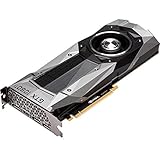
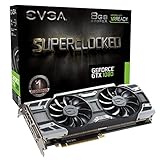
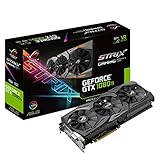
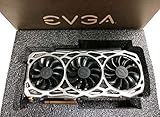
- Top Pick: Nvidia GeForce GTX 1080 8GB FE Founders Edition GDDR5X Video Graphics Card (Renewed)
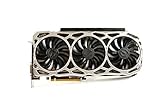
- Best Value: NVIDIA GEFORCE GTX 1080 Ti – FE Founders Edition (Renewed)
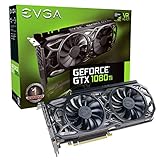
- Premium Choice: EVGA GeForce GTX 1080 Ti SC Black Edition Gaming, 11GB GDDR5X, iCX Cooler & LED, Optimized Airflow Design, Interlaced Pin Fin Graphics Card 11G-P4-6393-KR (Renewed)

Finding the right nvidia 1080 drivers is the single easiest way to keep a GeForce GTX 1080 running smoothly in modern games, yet many owners grab the wrong version, skip a key step, or blame the software when the aging hardware is the real limit. This guide walks through which driver your GTX 1080 needs, the safest way to download and install it, the errors people hit most often, and how to tell when no update can save you and it is time to think about an upgrade.
As an Amazon Associate we earn from qualifying purchases at no extra cost to you.

Getting the Right Nvidia 1080 Drivers
Before you download anything, it pays to understand which driver suits your GTX 1080 and how to install it cleanly. Choosing the correct version and method up front prevents the majority of problems people run into, and it keeps this proven card performing as well as it still can in current titles.
Which Driver Your GTX 1080 Needs
The GTX 1080 is a Pascal-generation card, and Nvidia still provides drivers for it, though it is now an older architecture rather than a current one. For gaming, the standard Game Ready driver is the right choice, as it is tuned for the latest game releases.
Creators have another option. The Studio driver prioritizes stability in creative applications over day-one game optimizations, so if you use your GTX 1080 mainly for video editing or design work, that version can be the better fit.
The safest approach for most people is to let the official Nvidia app detect your card and recommend the correct driver automatically. That removes the guesswork of matching the driver to your exact GPU and operating system.
The Safe Ways to Download and Install
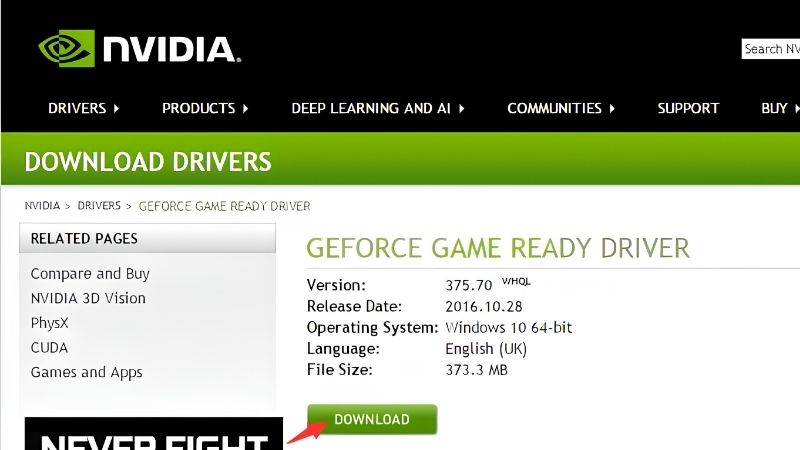
Always download drivers from Nvidia’s official source or through the Nvidia app, never from third-party sites that bundle unwanted software. Fake driver utilities are a common trap and cause far more problems than they solve, so sticking to the genuine source is rule number one.
The Nvidia app is the simplest route: it identifies your GTX 1080, downloads the latest driver, and installs it in a few clicks. For most owners this is all they ever need, and it keeps the process reliable and repeatable.
If you prefer to do it manually, download the driver package that matches your card and Windows version, then run the installer. Choosing the custom install option lets you perform a clean install, which is worth knowing about for the troubleshooting steps later.
Keeping Drivers Current Without Breakage
Staying reasonably current is worthwhile because new drivers fix bugs, patch security issues, and occasionally add optimizations that squeeze a little more from the hardware you already own. On a card as established as the GTX 1080, stability tends to be strong.
That said, a brand-new driver very occasionally introduces a fresh issue. A sensible habit is to keep notifications on so you know when an update arrives, and to keep the option to roll back if a new version misbehaves in a game you play.
For a card of this age, chasing every single day-one release is less important than it is for a new GPU. Updating every few driver versions, or when a specific game you own gets an optimization, is usually enough to keep things smooth.
A quick monthly glance at the Nvidia app is a reasonable rhythm for a card of this age. It keeps you protected on security fixes without the hassle of chasing every release, striking a sensible balance between staying current and staying stable.
Fixing Common GTX 1080 Driver Problems
Even a dependable card can throw the occasional driver problem, and most trace back to a handful of familiar causes. Recognizing the symptom and applying the right fix saves hours of frustration, so here are the issues owners report most and the solutions that actually work.
Install Failures and Black Screens
An installation that stalls partway or a black screen after installing is usually caused by leftover files from a previous driver or by other software interfering. It looks alarming but is almost always fixable without touching the hardware.
The reliable first moves are to reboot, temporarily pause any antivirus during installation, and try again. If the screen goes black during install, waiting a moment often lets it recover as the driver finishes loading and the display re-initializes.
When those steps fail, a clean install clears out the corrupted remnants that cause repeat failures, which is why it is the go-to fix for stubborn installation problems on any Nvidia card.
One extra tip prevents a lot of install headaches: close background apps that hook into the GPU, such as overlays, recording tools, and browser hardware acceleration, before you run the installer. These programs can lock files the driver needs to replace, and shutting them down for a couple of minutes lets the installation finish cleanly the first time.
Stutter, Crashes, and Rollbacks
Stutter or crashes that appear right after a driver update point straight at that update. The quickest remedy is to roll back to the previous version through Device Manager, which restores the stable behavior you had before.
If problems persist across versions, the cause may be a mix of an old driver fragment and a demanding new game. Combining a clean install with sensible in-game settings usually resolves it, especially given the GTX 1080’s 8GB memory in the newest titles.
Persistent crashing that survives clean installs and rollbacks is the pattern that shifts suspicion from software to hardware, which leads to the important question near the end of this guide.
Clean Installs for Stubborn Issues
A clean install is the most effective fix for problems that quicker methods leave behind. It removes previous settings and files during installation, wiping out the conflicts that cause repeat glitches on a card that has seen many driver updates over the years.
Advanced users go a step further, using a dedicated display driver removal tool in safe mode before installing fresh. This clears every trace of old drivers and is the surest way to rule out software as the cause of a lingering issue.
It takes a little more effort than a normal update, but for a long-owned GTX 1080 that has accumulated years of driver layers, a clean install is often the single most useful troubleshooting step you can take.
Pros, Cons, and the Aging-Card Question
Keeping your drivers current is powerful, but it is not magic, and part of owning an older card well is knowing its limits. Weighing the trade-offs and learning from what other owners report will set realistic expectations and help you decide whether to keep tuning or to move on.
Pros and Cons of Sticking with the GTX 1080
The pros are real. The GTX 1080 remains a capable 1080p card in many games, it still receives driver support, and it draws power through a familiar, well-understood setup, making it a dependable known quantity for everyday play.
The cons are equally honest. Its 8GB memory and older architecture struggle in the most demanding modern titles, it lacks the newest features like DLSS 4 frame generation, and driver optimizations for a years-old card deliver smaller gains than they once did.
Weighed together, the GTX 1080 is a fine card to keep drivers current on if your games are not too demanding, and a candidate for replacement if you increasingly fight stutter that no update fixes.
What Owners Report in 2026
Owner feedback is broadly positive on longevity. Many GTX 1080 users praise how well the card has aged and how a fresh driver still keeps older and mid-weight games running nicely, which speaks to Pascal’s durability.
The common complaints are predictable. Some owners report that the newest AAA titles strain the card even after updating, and that certain memory-heavy games expose the 8GB limit. These are hardware realities that drivers can soften but not remove.
Taken together, the sentiment is that of a beloved workhorse nearing the end of its prime: excellent for its era, still useful with current drivers, but no longer a match for the most demanding new releases.
It is worth putting that verdict in context, because expectations shape satisfaction. A card that was flagship-tier in 2016 will naturally trail modern budget cards in the newest engines, and no driver changes that. Judged as a mature 1080p card kept current with fresh drivers, the GTX 1080 still earns its keep for a great many players.
When Drivers Can’t Help: Time to Upgrade
Sometimes no driver can fix the problem, because the limitation is the hardware itself. If a fresh, clean-installed driver still leaves you with stutter in modern games, or if the 8GB memory keeps filling up, you have reached the point where software has done all it can.
In that situation, a newer graphics card delivers a far bigger and more lasting improvement than any update. A modern GPU brings years of fresh driver support, stronger performance, and current features like advanced upscaling that a GTX 1080 simply cannot use.
If you have reached that stage, comparing well-reviewed modern cards is the practical next step. Use the links on this page to find an upgrade that fits your system and budget, and give your PC the boost a driver alone can no longer provide.
See More:
- nvidia meaning
- rx 9070 vs rx 9070 xt
- 9060 xt 16gb vs 5070 ti
- radeon rx 9070 xt vs 5080
- windows graphics driver update
Conclusion
Keeping your nvidia 1080 drivers current through the official Nvidia app is the simplest way to get the most from a GeForce GTX 1080, and most problems come down to choosing the right version and performing a clean install when things go wrong. Just as important is recognizing the card’s limits: when no update can cure the stutter or free up memory in modern games, a hardware upgrade is the real answer. If you have reached that point, browse the latest recommended graphics cards through the links here and give your system a lasting boost.
Frequently Asked Questions
Is the GTX 1080 still receiving new Nvidia drivers?
Pascal cards including the GTX 1080 have moved onto a legacy support footing. Nvidia has confirmed that Maxwell, Pascal and Volta GPUs stop receiving new Game Ready feature drivers after the final supported branch, with security fixes continuing for a limited period. Existing drivers keep working, but new game optimisations stop arriving.
Which driver version should I install on a GTX 1080?
Use the newest driver that still lists Pascal in its supported products list, which you can verify on the Nvidia download page by selecting GeForce 10 Series. If a newer release causes crashes in a specific game, roll back to the last known stable branch rather than chasing the latest number.
Should I use Studio or Game Ready drivers?
Game Ready drivers ship more frequently and add day-one profiles for new titles. Studio drivers update less often and are validated against creative applications such as Premiere Pro, Blender and DaVinci Resolve. If the machine is used mainly for editing or rendering, Studio gives you fewer surprises between updates.
How do I fix driver crashes or black screens on a 1080?
Do a clean install by ticking Perform a clean installation in the Nvidia installer, or use Display Driver Uninstaller in Safe Mode to remove leftovers first. Also check the two 8-pin power connectors are seated, since the 180W card can black-screen under load if one rail is loose or a riser is faulty.
Does the GTX 1080 support DLSS or frame generation?
No. DLSS requires Tensor cores, which Pascal does not have, and frame generation needs Ada or Blackwell hardware. The 1080 can still use FSR and XeSS in their generic modes, and many games offer those as a driver-independent upscaling option to recover frame rate at 1440p.











Write Your Review
No reviews yet. Be the first to share your experience!