
GPU fps drops are maddening because they strike mid-game, turning a smooth session into a sudden slideshow just when it matters most. The causes range from heat and power limits to background software, drivers, and simply asking too much of the card. The good news is that most fps drops are diagnosable and fixable once you know what to look for. This guide breaks down the real causes, walks through the fixes that restore performance, and flags when the card itself is the limit, based on patterns reported across many systems and GPUs.
Work through the likely causes in order and most GPU fps drops resolve without new hardware, though some do signal that the card has reached its ceiling.
As an Amazon Associate we earn from qualifying purchases at no extra cost to you.


What Causes GPU FPS Drops
Sudden frame-rate drops have a handful of common causes, and the timing of the drop is the best clue to which one applies. Heat, power behavior, background processes, and bottlenecks each leave a recognizable pattern. Identifying it is the first step before changing anything.
Thermal Throttling and Power Limits
The most common cause of fps drops that appear after several minutes of play is thermal throttling. As the card heats up, it lowers its clocks to protect itself, and frame rates fall with them.
Power limits behave similarly. A card that hits its power ceiling, or a marginal power supply that cannot sustain demand, will reduce clocks and cause drops under load. Monitoring clocks and temperatures during a game reveals this immediately.
Drops that correlate with rising temperatures or falling clocks point squarely at heat or power, both of which are fixable.
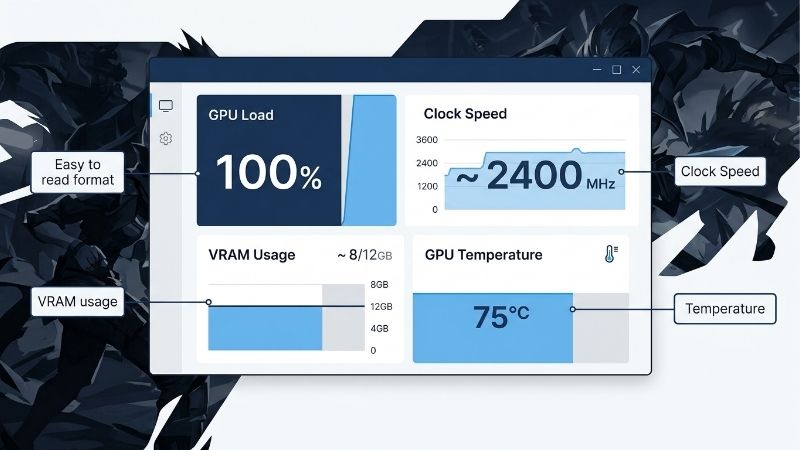
A simple overlay showing temperature and clock speed side by side makes this diagnosis easy. If you watch the clock fall at the exact moment the frame rate dips, and the temperature is high at that point, throttling is confirmed. That single observation saves a great deal of guesswork.
Background Apps and Driver Issues
Software is the next suspect. Background applications, overlays, recording tools, and update services can steal resources mid-game and cause sudden dips that have nothing to do with the card’s capability.
Driver problems contribute too. A corrupted install or a recent driver that does not suit your card can introduce performance drops that a clean reinstall resolves. Users frequently trace new fps drops to a recent driver or Windows update.
Because these causes are free to address, they are always worth checking early.
Windows update and indexing services are easy to overlook. A large background download or a disk-indexing pass kicking off mid-game can cause sudden drops that have nothing to do with the GPU. Checking whether the dips coincide with disk or network activity rules this common nuisance in or out.
VRAM and CPU Bottlenecks
Drops can also come from limits rather than faults. Running out of VRAM causes frame rates to collapse as data is swapped, while a processor that cannot keep up produces dips in CPU-heavy moments.
The Windows power plan matters here as well; a balanced or power-saving profile can let clocks drop at the wrong moment. Default memory speeds and slow storage can each contribute to uneven performance.
Ruling these out ensures you are not blaming the GPU for a limit that lives elsewhere in the system.
The power plan in particular catches many people. A balanced profile can let the GPU and CPU drop their clocks to save energy at exactly the wrong moment, producing dips that vanish the instant a high-performance plan is selected. It is one of the simplest and most overlooked fixes on this list.
How to Fix GPU FPS Drops
With a sense of the cause, the fixes follow a clear order from cooling and power settings to driver and frame-rate adjustments. Most fps drops respond to one of these, so apply them in sequence rather than guessing.
Improve Cooling and Power Settings
If heat is the cause, address airflow first: clean dust from the heatsink and fans, improve case intake and exhaust, and consider a more aggressive fan curve. On an older card, a fresh thermal paste can drop temperatures substantially and stop throttling.
Set the Windows power plan to high performance so the system does not throttle clocks during gaming. Confirm your power supply comfortably exceeds the card’s needs, since a marginal unit causes drops under spikes.
Together these steps eliminate the most common heat and power causes of fps drops.
If a repaste is on the table for an older card, fresh thermal pads on the memory are worth doing at the same time. Memory temperatures often go unmonitored, and a card that throttles on hot VRAM rather than the core will keep dropping frames until those pads are refreshed.
Clean Drivers and Cap Frame Rate
Perform a clean driver reinstall: remove the existing driver fully with a dedicated uninstaller, then install the latest version fresh. This clears the conflicts behind many performance problems.
Capping the frame rate slightly below your monitor’s refresh can also stabilize performance, since it reduces load spikes and keeps the card in a more consistent state. Closing background applications before playing removes another common source of drops.
These free steps restore steady performance in a large share of cases.
It is worth distinguishing a frame cap from a sync setting while you are here. A cap limits the rate the card produces, easing load and heat, while a sync option aligns frames to the display to prevent tearing. Using a sensible cap together with the right sync mode for your monitor gives the steadiest result.
Pros and Cons of Fixing vs Upgrading
Deciding when to stop tuning and spend on hardware keeps the decision rational. Here is the honest balance sheet for fps drops.
Pros of fixing first
- Cooling, power, and driver fixes are cheap or free and resolve most drops.
- A repaste or fan-curve change can fully cure throttling.
- Avoids spending until a real hardware limit is confirmed.
Cons
- If the card is simply too weak, fixes only go so far.
- Power-supply issues may need a spare unit to confirm.
- Some drops are game-side and outside your control.
When FPS Drops Point to an Upgrade
If cooling, power, clean drivers, and a frame cap still leave the card struggling, the GPU may simply be too weak for your target. Recognizing that helps you decide whether an upgrade is justified. Here is how to read it and what to do.
Recognizing a GPU That Is Too Weak
The clearest sign is consistent low frame rates with the card at full usage, good temperatures, stable clocks, and no background interference. In that case the drops reflect the card’s ceiling rather than a fixable fault.
This is common when running demanding games at high settings or resolutions on a card a tier or two below the task. Tuning can raise the floor, but it cannot turn a midrange card into a high-end one.
Confirming this pattern tells you that a stronger card is the genuine solution.
Choosing a New GPU
When the card is the limit, an upgrade resolves the drops. Match the new GPU to your resolution and system, with enough VRAM for your settings, and confirm your power supply and case can accommodate it before buying.
It is worth knowing that GPU prices remain elevated because AI demand keeps consumer supply tight, and meaningful relief is still years away. Waiting for a large price drop rarely pays, so it is usually better to buy a sensible card at a fair price than to hold out indefinitely.
Choose the tier that suits your games, then check the current price and upgrade to a card that holds your target frame rate.
Factor your power supply into the decision as much as the card itself. A more powerful GPU often draws meaningfully more, and pairing it with a marginal supply can reintroduce the very drops you are trying to escape. Confirming the supply has genuine headroom for the new card protects the upgrade you are paying for.
Squeezing More From Your Current Card
Before spending, reclaim what you can. Lowering the heaviest settings and enabling DLSS where supported can lift frame rates enough to delay an upgrade by a generation.
Keeping the card cool and the system free of background clutter also helps it hold its clocks and avoid drops. Many players find that this combination buys meaningful extra life from an aging card.
Only after these wins are exhausted does a new card become the obvious next step.
A modest, stable undervolt can also help on cards that throttle. By lowering voltage while holding clocks, it reduces heat and power draw, which can let the card sustain its boost speed longer and avoid the drops that thermal or power limits cause. Done carefully, it improves consistency at no cost.
See More:
- GPU for Valorant 240fps
- GPU for Fortnite 240fps
- GPU for CS2 high fps
- GPU for Apex Legends
- RTX 4070 Cyberpunk FPS
Conclusion
GPU fps drops usually trace to thermal throttling, power limits, background software, drivers, or a hardware bottleneck, and the timing of the drop is your best diagnostic clue. Improve cooling, set a high-performance power plan, reinstall drivers cleanly, and cap your frame rate before drawing conclusions. If the card stays at full usage with good temperatures yet still cannot hold your target, an upgrade is the real fix. Exhaust the free wins first, and if a new GPU is the answer, check the current price and choose a card matched to your resolution and games. Above all, confirm whether heat, power, or a true hardware limit is behind the drops before spending, since the right diagnosis often saves the cost of a new card entirely.
Top-Rated Picks


| Product | Brand | Rating | Reviews | Price |
|---|---|---|---|---|
| ARCTIC MX-4 (4 g) – Premium Performance Thermal Paste… | ARCTIC | ★ 4.8 | 104k | $4.99 |
| ARCTIC MX-4 (incl. Spatula, 4 g) – Premium Performanc… | ARCTIC | ★ 4.8 | 71.9k | $5.49 |
| Crucial 8GB DDR4 RAM 3200MHz (PC4-25600), Downclockab… | Crucial | ★ 4.8 | 62.8k | $74.99 |
| AMD Ryzen 5 5600X 6-core, 12-thread unlocked desktop … | — | ★ 4.8 | 30.2k | $177.60 |
| NVIDIA Shield Remote; Voice Search, Motion-Activated,… | — | ★ 4.7 | 10.6k | $25.99 |
Frequently Asked Questions
How do I tell whether the GPU or the CPU is causing frame drops?
Watch GPU utilization during the drop. If it stays at 97 to 99 percent, the GPU is the limit and lowering resolution or settings will help. If it falls to 60 or 70 percent while frame rate drops, the processor, storage, or engine is the bottleneck and GPU upgrades will not fix it.
Can thermal or power throttling explain sudden drops?
Yes, and GDDR6X memory temperature is the overlooked one. When memory junction passes about 105C or the core exceeds its limit, clocks fall sharply and frame rate follows. Log core, hot spot, memory junction, and board power in HWiNFO64 during a long session rather than a two-minute benchmark.
Does background software cause frame drops?
Regularly. Browser tabs with hardware acceleration, Discord streaming, OBS, RGB utilities, and antivirus scans all steal GPU and CPU time. Close everything and retest. Windows Game Mode and hardware-accelerated GPU scheduling both help in some titles and hurt in others, so test each individually.
Is VRAM capacity a common cause at 1440p and 4K?
Increasingly so. Eight gigabyte cards run out at 1440p ultra with ray tracing and high-resolution texture packs, causing sudden hitching as assets stream from system memory. Dropping textures one notch or enabling DLSS Quality frees roughly 1 to 2 GB and often eliminates the drops entirely.
Do shader compilation stutters look like frame drops?
They do, especially in Unreal Engine 5 titles and DirectX 12 games on first launch. The drops appear when new effects load and reduce after playing an area once. Letting a game complete its shader precompilation step, and not clearing the shader cache unnecessarily, prevents most of it.











Write Your Review
No reviews yet. Be the first to share your experience!